<?xml version="1.0" encoding="utf-8"?><feed xmlns="http://www.w3.org/2005/Atom" xml:lang="en"><generator uri="https://jekyllrb.com/" version="4.4.1">Jekyll</generator><link href="https://edoardotosin.com/feed.xml" rel="self" type="application/atom+xml" /><link href="https://edoardotosin.com/" rel="alternate" type="text/html" hreflang="en" /><updated>2026-04-03T00:14:33+02:00</updated><id>https://edoardotosin.com/feed.xml</id><title type="html">Edoardo Tosin</title><subtitle>Writing on software development, security research, Linux, open-source projects, bug bounty, and astrophotography.</subtitle><author><name>Edoardo Tosin</name><email>edoardotosindev@proton.me</email></author><entry xml:lang="en"><title type="html">Advent of Code 2025</title><link href="https://edoardotosin.com/blog/advent-of-code-2025" rel="alternate" type="text/html" title="Advent of Code 2025" /><published>2025-12-01T11:00:00+01:00</published><updated>2025-12-12T11:00:00+01:00</updated><id>https://edoardotosin.com/blog/advent-of-code-2025</id><content type="html" xml:base="https://edoardotosin.com/blog/advent-of-code-2025"><![CDATA[<p>Advent of Code is an annual set of programming puzzles created by Eric Wastl, running from December 1-12 with a new challenge each day.<sup id="fnref:1"><a href="#fn:1" class="footnote" rel="footnote" role="doc-noteref">1</a></sup></p>

<p>Here's my progress for <a href="https://adventofcode.com/2025">Advent of Code 2025</a>:</p>

<table>
  <thead>
    <tr>
      <th style="text-align: right">Day</th>
      <th style="text-align: left">Puzzle Name</th>
      <th style="text-align: center">Stars Earned</th>
      <th style="text-align: center">Completed</th>
      <th style="text-align: center">Completion Date</th>
    </tr>
  </thead>
  <tbody>
    <tr>
      <td style="text-align: right">1</td>
      <td style="text-align: left"><a href="https://adventofcode.com/2025/day/1">Secret Entrance</a></td>
      <td style="text-align: center">⭐⭐</td>
      <td style="text-align: center">✅</td>
      <td style="text-align: center">2025-12-01</td>
    </tr>
    <tr>
      <td style="text-align: right">2</td>
      <td style="text-align: left"><a href="https://adventofcode.com/2025/day/2">Gift Shop</a></td>
      <td style="text-align: center">⭐⭐</td>
      <td style="text-align: center">✅</td>
      <td style="text-align: center">2025-12-02</td>
    </tr>
    <tr>
      <td style="text-align: right">3</td>
      <td style="text-align: left"><a href="https://adventofcode.com/2025/day/3">Lobby</a></td>
      <td style="text-align: center">⭐⭐</td>
      <td style="text-align: center">✅</td>
      <td style="text-align: center">2025-12-03</td>
    </tr>
    <tr>
      <td style="text-align: right">4</td>
      <td style="text-align: left"><a href="https://adventofcode.com/2025/day/4">Printing Department</a></td>
      <td style="text-align: center">⭐⭐</td>
      <td style="text-align: center">✅</td>
      <td style="text-align: center">2025-12-04</td>
    </tr>
    <tr>
      <td style="text-align: right">5</td>
      <td style="text-align: left"><a href="https://adventofcode.com/2025/day/5">Cafeteria</a></td>
      <td style="text-align: center">⭐⭐</td>
      <td style="text-align: center">✅</td>
      <td style="text-align: center">2025-12-05</td>
    </tr>
    <tr>
      <td style="text-align: right">6</td>
      <td style="text-align: left"><a href="https://adventofcode.com/2025/day/6">Trash Compactor</a></td>
      <td style="text-align: center">⭐⭐</td>
      <td style="text-align: center">✅</td>
      <td style="text-align: center">2025-12-06</td>
    </tr>
    <tr>
      <td style="text-align: right">7</td>
      <td style="text-align: left"><a href="https://adventofcode.com/2025/day/7">Laboratories</a></td>
      <td style="text-align: center">⭐⭐</td>
      <td style="text-align: center">✅</td>
      <td style="text-align: center">2025-12-07</td>
    </tr>
    <tr>
      <td style="text-align: right">8</td>
      <td style="text-align: left"><a href="https://adventofcode.com/2025/day/8">Playground</a></td>
      <td style="text-align: center">⭐⭐</td>
      <td style="text-align: center">✅</td>
      <td style="text-align: center">2025-12-08</td>
    </tr>
    <tr>
      <td style="text-align: right">9</td>
      <td style="text-align: left"><a href="https://adventofcode.com/2025/day/9">Movie Theater</a></td>
      <td style="text-align: center">⭐⭐</td>
      <td style="text-align: center">✅</td>
      <td style="text-align: center">2025-12-09</td>
    </tr>
    <tr>
      <td style="text-align: right">10</td>
      <td style="text-align: left"><a href="https://adventofcode.com/2025/day/10">Factory</a></td>
      <td style="text-align: center">⭐⭐</td>
      <td style="text-align: center">✅</td>
      <td style="text-align: center">2025-12-10</td>
    </tr>
    <tr>
      <td style="text-align: right">11</td>
      <td style="text-align: left"><a href="https://adventofcode.com/2025/day/11">Reactor</a></td>
      <td style="text-align: center">⭐⭐</td>
      <td style="text-align: center">✅</td>
      <td style="text-align: center">2025-12-11</td>
    </tr>
    <tr>
      <td style="text-align: right">12</td>
      <td style="text-align: left"><a href="https://adventofcode.com/2025/day/12">Christmas Tree Farm</a></td>
      <td style="text-align: center">⭐⭐</td>
      <td style="text-align: center">✅</td>
      <td style="text-align: center">2025-12-12</td>
    </tr>
  </tbody>
</table>

<div class="footnotes" role="doc-endnotes">
  <ol>
    <li id="fn:1">
      <p><a href="https://adventofcode.com/2025/about">About - Advent of Code 2025</a>. Advent of Code <a href="#fnref:1" class="reversefootnote" role="doc-backlink">&#8617;</a></p>
    </li>
  </ol>
</div>]]></content><author><name>Edoardo Tosin</name><email>edoardotosindev@proton.me</email></author><category term="advent-of-code" /><category term="programming" /><category term="challenge" /><category term="puzzle" /><summary type="html"><![CDATA[My solutions and progress for Advent of Code 2025. Track my completion status for the 12 programming puzzles released daily from December 1-12.]]></summary><media:thumbnail xmlns:media="http://search.yahoo.com/mrss/" url="https://raw.githubusercontent.com/EdoardoTosin/web-assets/refs/heads/main/Notes/100%20Public/Feed/Advent%20of%20Code/Advent-of-Code-2025.webp" /><media:content medium="image" url="https://raw.githubusercontent.com/EdoardoTosin/web-assets/refs/heads/main/Notes/100%20Public/Feed/Advent%20of%20Code/Advent-of-Code-2025.webp" xmlns:media="http://search.yahoo.com/mrss/" /></entry><entry xml:lang="en"><title type="html">Advent of Code 2024</title><link href="https://edoardotosin.com/blog/advent-of-code-2024" rel="alternate" type="text/html" title="Advent of Code 2024" /><published>2024-12-01T18:00:00+01:00</published><updated>2025-12-06T13:00:00+01:00</updated><id>https://edoardotosin.com/blog/advent-of-code-2024</id><content type="html" xml:base="https://edoardotosin.com/blog/advent-of-code-2024"><![CDATA[<p>Advent of Code is an annual set of programming puzzles created by Eric Wastl, running from December 1-25 with a new challenge each day.<sup id="fnref:1"><a href="#fn:1" class="footnote" rel="footnote" role="doc-noteref">1</a></sup></p>

<p>Here's my progress for <a href="https://adventofcode.com/2024">Advent of Code 2024</a>:</p>

<table>
  <thead>
    <tr>
      <th style="text-align: right">Day</th>
      <th style="text-align: left">Puzzle Name</th>
      <th style="text-align: center">Stars Earned</th>
      <th style="text-align: center">Completed</th>
      <th style="text-align: center">Completion Date</th>
    </tr>
  </thead>
  <tbody>
    <tr>
      <td style="text-align: right">1</td>
      <td style="text-align: left"><a href="https://adventofcode.com/2024/day/1">Historian Hysteria</a></td>
      <td style="text-align: center">⭐⭐</td>
      <td style="text-align: center">✅</td>
      <td style="text-align: center">2024-12-01</td>
    </tr>
    <tr>
      <td style="text-align: right">2</td>
      <td style="text-align: left"><a href="https://adventofcode.com/2024/day/2">Red-Nosed Reports</a></td>
      <td style="text-align: center">⭐⭐</td>
      <td style="text-align: center">✅</td>
      <td style="text-align: center">2024-12-02</td>
    </tr>
    <tr>
      <td style="text-align: right">3</td>
      <td style="text-align: left"><a href="https://adventofcode.com/2024/day/3">Mull It Over</a></td>
      <td style="text-align: center">⭐⭐</td>
      <td style="text-align: center">✅</td>
      <td style="text-align: center">2024-12-03</td>
    </tr>
    <tr>
      <td style="text-align: right">4</td>
      <td style="text-align: left"><a href="https://adventofcode.com/2024/day/4">Ceres Search</a></td>
      <td style="text-align: center">⭐⭐</td>
      <td style="text-align: center">✅</td>
      <td style="text-align: center">2024-12-04</td>
    </tr>
    <tr>
      <td style="text-align: right">5</td>
      <td style="text-align: left"><a href="https://adventofcode.com/2024/day/5">Print Queue</a></td>
      <td style="text-align: center">⭐⭐</td>
      <td style="text-align: center">✅</td>
      <td style="text-align: center">2024-12-05</td>
    </tr>
    <tr>
      <td style="text-align: right">6</td>
      <td style="text-align: left"><a href="https://adventofcode.com/2024/day/6">Guard Gallivant</a></td>
      <td style="text-align: center">⭐⭐</td>
      <td style="text-align: center">✅</td>
      <td style="text-align: center">2024-12-06</td>
    </tr>
    <tr>
      <td style="text-align: right">7</td>
      <td style="text-align: left"><a href="https://adventofcode.com/2024/day/7">Bridge Repair</a></td>
      <td style="text-align: center">⭐⭐</td>
      <td style="text-align: center">✅</td>
      <td style="text-align: center">2024-12-07</td>
    </tr>
    <tr>
      <td style="text-align: right">8</td>
      <td style="text-align: left"><a href="https://adventofcode.com/2024/day/8">Resonant Collinearity</a></td>
      <td style="text-align: center">⭐⭐</td>
      <td style="text-align: center">✅</td>
      <td style="text-align: center">2024-12-08</td>
    </tr>
    <tr>
      <td style="text-align: right">9</td>
      <td style="text-align: left"><a href="https://adventofcode.com/2024/day/9">Disk Fragmenter</a></td>
      <td style="text-align: center">⭐⭐</td>
      <td style="text-align: center">✅</td>
      <td style="text-align: center">2024-12-09</td>
    </tr>
    <tr>
      <td style="text-align: right">10</td>
      <td style="text-align: left"><a href="https://adventofcode.com/2024/day/10">Hoof It</a></td>
      <td style="text-align: center">⭐⭐</td>
      <td style="text-align: center">✅</td>
      <td style="text-align: center">2024-12-10</td>
    </tr>
    <tr>
      <td style="text-align: right">11</td>
      <td style="text-align: left"><a href="https://adventofcode.com/2024/day/11">Plutonian Pebbles</a></td>
      <td style="text-align: center">⭐⭐</td>
      <td style="text-align: center">✅</td>
      <td style="text-align: center">2024-12-11</td>
    </tr>
    <tr>
      <td style="text-align: right">12</td>
      <td style="text-align: left"><a href="https://adventofcode.com/2024/day/12">Garden Groups</a></td>
      <td style="text-align: center">⭐⭐</td>
      <td style="text-align: center">✅</td>
      <td style="text-align: center">2024-12-12</td>
    </tr>
    <tr>
      <td style="text-align: right">13</td>
      <td style="text-align: left"><a href="https://adventofcode.com/2024/day/13">Claw Contraption</a></td>
      <td style="text-align: center">⭐⭐</td>
      <td style="text-align: center">✅</td>
      <td style="text-align: center">2024-12-13</td>
    </tr>
    <tr>
      <td style="text-align: right">14</td>
      <td style="text-align: left"><a href="https://adventofcode.com/2024/day/14">Restroom Redoubt</a></td>
      <td style="text-align: center">⭐⭐</td>
      <td style="text-align: center">✅</td>
      <td style="text-align: center">2024-12-14</td>
    </tr>
    <tr>
      <td style="text-align: right">15</td>
      <td style="text-align: left"><a href="https://adventofcode.com/2024/day/15">Warehouse Woes</a></td>
      <td style="text-align: center">⭐⭐</td>
      <td style="text-align: center">✅</td>
      <td style="text-align: center">2024-12-15</td>
    </tr>
    <tr>
      <td style="text-align: right">16</td>
      <td style="text-align: left"><a href="https://adventofcode.com/2024/day/16">Reindeer Maze</a></td>
      <td style="text-align: center">⭐⭐</td>
      <td style="text-align: center">✅</td>
      <td style="text-align: center">2024-12-16</td>
    </tr>
    <tr>
      <td style="text-align: right">17</td>
      <td style="text-align: left"><a href="https://adventofcode.com/2024/day/17">Chronospatial Computer</a></td>
      <td style="text-align: center">⭐⭐</td>
      <td style="text-align: center">✅</td>
      <td style="text-align: center">2024-12-17</td>
    </tr>
    <tr>
      <td style="text-align: right">18</td>
      <td style="text-align: left"><a href="https://adventofcode.com/2024/day/18">RAM Run</a></td>
      <td style="text-align: center">⭐⭐</td>
      <td style="text-align: center">✅</td>
      <td style="text-align: center">2024-12-18</td>
    </tr>
    <tr>
      <td style="text-align: right">19</td>
      <td style="text-align: left"><a href="https://adventofcode.com/2024/day/19">Linen Layout</a></td>
      <td style="text-align: center">⭐⭐</td>
      <td style="text-align: center">✅</td>
      <td style="text-align: center">2024-12-19</td>
    </tr>
    <tr>
      <td style="text-align: right">20</td>
      <td style="text-align: left"><a href="https://adventofcode.com/2024/day/20">Race Condition</a></td>
      <td style="text-align: center">⭐⭐</td>
      <td style="text-align: center">✅</td>
      <td style="text-align: center">2024-12-20</td>
    </tr>
    <tr>
      <td style="text-align: right">21</td>
      <td style="text-align: left"><a href="https://adventofcode.com/2024/day/21">Keypad Conundrum</a></td>
      <td style="text-align: center">⭐⭐</td>
      <td style="text-align: center">✅</td>
      <td style="text-align: center">2024-12-21</td>
    </tr>
    <tr>
      <td style="text-align: right">22</td>
      <td style="text-align: left"><a href="https://adventofcode.com/2024/day/22">Monkey Market</a></td>
      <td style="text-align: center">⭐⭐</td>
      <td style="text-align: center">✅</td>
      <td style="text-align: center">2024-12-22</td>
    </tr>
    <tr>
      <td style="text-align: right">23</td>
      <td style="text-align: left"><a href="https://adventofcode.com/2024/day/23">LAN Party</a></td>
      <td style="text-align: center">⭐⭐</td>
      <td style="text-align: center">✅</td>
      <td style="text-align: center">2024-12-23</td>
    </tr>
    <tr>
      <td style="text-align: right">24</td>
      <td style="text-align: left"><a href="https://adventofcode.com/2024/day/24">Crossed Wires</a></td>
      <td style="text-align: center">⭐⭐</td>
      <td style="text-align: center">✅</td>
      <td style="text-align: center">2024-12-24</td>
    </tr>
    <tr>
      <td style="text-align: right">25</td>
      <td style="text-align: left"><a href="https://adventofcode.com/2024/day/25">Code Chronicle</a></td>
      <td style="text-align: center">⭐⭐</td>
      <td style="text-align: center">✅</td>
      <td style="text-align: center">2024-12-25</td>
    </tr>
  </tbody>
</table>

<div class="footnotes" role="doc-endnotes">
  <ol>
    <li id="fn:1">
      <p><a href="https://adventofcode.com/2024/about">About - Advent of Code 2024</a>. Advent of Code <a href="#fnref:1" class="reversefootnote" role="doc-backlink">&#8617;</a></p>
    </li>
  </ol>
</div>]]></content><author><name>Edoardo Tosin</name><email>edoardotosindev@proton.me</email></author><category term="advent-of-code" /><category term="programming" /><category term="challenge" /><category term="puzzle" /><summary type="html"><![CDATA[My solutions and progress for Advent of Code 2024. Track my completion status for the 25 programming puzzles released daily from December 1-25.]]></summary><media:thumbnail xmlns:media="http://search.yahoo.com/mrss/" url="https://raw.githubusercontent.com/EdoardoTosin/web-assets/refs/heads/main/Notes/100%20Public/Feed/Advent%20of%20Code/Advent-of-Code-2024.webp" /><media:content medium="image" url="https://raw.githubusercontent.com/EdoardoTosin/web-assets/refs/heads/main/Notes/100%20Public/Feed/Advent%20of%20Code/Advent-of-Code-2024.webp" xmlns:media="http://search.yahoo.com/mrss/" /></entry><entry xml:lang="en"><title type="html">Fix Missing Bookmarks &amp;amp; Toolbar After Firefox Beta Bug 1919721</title><link href="https://edoardotosin.com/blog/how-to-fix-missing-bookmarks-bar-extensions-and-buttons-after-firefox-beta-update-bug-1919721" rel="alternate" type="text/html" title="Fix Missing Bookmarks &amp;amp; Toolbar After Firefox Beta Bug 1919721" /><published>2024-10-02T21:30:00+02:00</published><updated>2026-01-23T08:00:00+01:00</updated><id>https://edoardotosin.com/blog/how-to-fix-missing-bookmarks-bar-extensions-and-buttons-after-firefox-beta-update-bug-1919721</id><content type="html" xml:base="https://edoardotosin.com/blog/how-to-fix-missing-bookmarks-bar-extensions-and-buttons-after-firefox-beta-update-bug-1919721"><![CDATA[<p>Firefox users with Beta and Developer Edition versions may encounter the disappearance of the bookmarks bar, toolbar buttons, and pinned extensions<sup id="fnref:1"><a href="#fn:1" class="footnote" rel="footnote" role="doc-noteref">1</a></sup><sup id="fnref:2"><a href="#fn:2" class="footnote" rel="footnote" role="doc-noteref">2</a></sup> due to <a href="https://bugzilla.mozilla.org/show_bug.cgi?id=1919721">bug 1919721</a>. This issue arises from a flawed logical condition that affects toolbar management in Firefox.</p>

<figure>
  <img src="https://raw.githubusercontent.com/EdoardoTosin/web-assets/refs/heads/main/Notes/100%20Public/Feed/How%20to%20Fix%20Missing%20Bookmarks%20Bar%2C%20Extensions%2C%20and%20Buttons%20After%20Firefox%20Beta%20Update%20(Bug%201919721)/firefox-beta-bug-1919721.webp" alt="Firefox Browser Screenshot" />
  <figcaption><a href="https://bugzilla.mozilla.org/show_bug.cgi?id=1919721">Bug 1919721</a> on Firefox Beta 132.0b1.</figcaption>
</figure>

<p>Mozilla has addressed this bug in version 132.0b2.<sup id="fnref:3"><a href="#fn:3" class="footnote" rel="footnote" role="doc-noteref">3</a></sup><sup id="fnref:4"><a href="#fn:4" class="footnote" rel="footnote" role="doc-noteref">4</a></sup> However, affected users must manually adjust their preferences to restore these features. The following steps will help you resolve this issue:</p>

<hr />

<div class="callout callout--warning" role="region" aria-label="Warning callout">
  <div class="callout__title" aria-hidden="true">WARNING</div>
  <div class="callout__content"><p><strong><em>Make a copy of your profile folder before making any changes. This precaution ensures that you can revert any modifications if issues arise.</em></strong></p></div>
</div>

<p><a href="https://support.mozilla.org/kb/back-and-restore-information-firefox-profiles">Back up and restore information in Firefox profiles</a></p>

<h2 id="steps-to-fix-the-issue">Steps to Fix the Issue</h2>

<h3 id="method-1-delete-toolbar-customization-line-easiest">Method 1: Delete toolbar customization line (Easiest)</h3>

<ol>
  <li>Open Firefox and type <code class="language-plaintext highlighter-rouge">about:profiles</code> in the address bar, then press <strong>Enter</strong>. You may see a warning; confirm your action to proceed.</li>
  <li>Locate the profile that is set as "Default Profile".</li>
  <li>Click on "Open Folder" next to where it shows "Root Directory".</li>
  <li>In the opened directory, open <code class="language-plaintext highlighter-rouge">prefs.js</code> with a text editor and delete the entire line that starts with:
    <div class="language-js highlighter-rouge"><div class="highlight"><pre class="highlight"><code><span class="nx">user_pref</span><span class="p">(</span><span class="dl">"</span><span class="s2">browser.uiCustomization.state</span><span class="dl">"</span>
</code></pre></div>    </div>
  </li>
</ol>

<h3 id="method-2-restore-basic-toolbar-elements">Method 2: Restore basic toolbar elements</h3>

<ol>
  <li>Type <code class="language-plaintext highlighter-rouge">about:config</code> in the address bar and press <strong>Enter</strong>. You may see a warning; confirm your action to proceed.</li>
  <li>Search for the preference <code class="language-plaintext highlighter-rouge">browser.uiCustomization.state</code>.</li>
  <li>Copy the JSON string into a text editor for easier modification.</li>
  <li>Locate and modify the first occurrence of <code class="language-plaintext highlighter-rouge">"PersonalToolbar":[]</code> in the JSON, replacing it with:
    <div class="language-json highlighter-rouge"><div class="highlight"><pre class="highlight"><code><span class="nl">"PersonalToolbar"</span><span class="p">:[</span><span class="s2">"personal-bookmarks"</span><span class="p">]</span><span class="w">
</span></code></pre></div>    </div>
  </li>
  <li>Identify and replace the contents of <code class="language-plaintext highlighter-rouge">"TabsToolbar":[]</code> with:
    <div class="language-json highlighter-rouge"><div class="highlight"><pre class="highlight"><code><span class="nl">"TabsToolbar"</span><span class="p">:[</span><span class="s2">"firefox-view-button"</span><span class="p">,</span><span class="w"> </span><span class="s2">"tabbrowser-tabs"</span><span class="p">,</span><span class="w"> </span><span class="s2">"new-tab-button"</span><span class="p">,</span><span class="w"> </span><span class="s2">"alltabs-button"</span><span class="p">]</span><span class="w">
</span></code></pre></div>    </div>
  </li>
  <li>Copy the revised JSON string back into the <code class="language-plaintext highlighter-rouge">browser.uiCustomization.state</code> field in <code class="language-plaintext highlighter-rouge">about:config</code>.</li>
  <li>Click the check button to save your changes, then restart Firefox to apply these modifications.</li>
</ol>

<h3 id="rearrange-icons-or-restore-defaults">Rearrange Icons or Restore Defaults</h3>

<ol>
  <li>Right-click on any blank space within your toolbar and select <strong>"Customize Toolbar…"</strong> from the context menu, or navigate to <strong>View &gt; Toolbars &gt; Customize Toolbar…</strong> via the main menu.</li>
  <li>You can either restore default configurations or manually drag and drop icons to rearrange them as per your preference.</li>
</ol>

<p>For more details check out <a href="https://support.mozilla.org/kb/customize-firefox-controls-buttons-and-toolbars">Customize Firefox controls, buttons and toolbars</a>.</p>

<hr />

<p>By following these steps, you should be able to effectively restore and customize your Firefox Beta toolbar settings without encountering the bug-induced issue again. If issues persist after trying these methods, consider reaching out to Mozilla support for further assistance.</p>

<div class="footnotes" role="doc-endnotes">
  <ol>
    <li id="fn:1">
      <p><a href="https://connect.mozilla.org/t5/discussions/update-bug-in-firefox-132-0beta-quot-bookmarks-toolbar-quot-and/td-p/72590">update bug in Firefox 132.0beta "Bookmarks Toolbar… - Mozilla Connect</a>. Mozilla. <a href="#fnref:1" class="reversefootnote" role="doc-backlink">&#8617;</a></p>
    </li>
    <li id="fn:2">
      <p><a href="https://www.reddit.com/r/firefox/comments/1ftrm12/users_of_firefox_beta_developer_edition_132/">Users of Firefox Beta / Developer Edition 132, anybody else got messed up toolbar? : r/firefox</a>. Reddit. <a href="#fnref:2" class="reversefootnote" role="doc-backlink">&#8617;</a></p>
    </li>
    <li id="fn:3">
      <p><a href="https://hg.mozilla.org/releases/mozilla-beta/pushloghtml?fromchange=FIREFOX_132_0b1_RELEASE&amp;tochange=FIREFOX_132_0b2_RELEASE">mozilla-beta: pushlog</a>. Mozilla. <a href="#fnref:3" class="reversefootnote" role="doc-backlink">&#8617;</a></p>
    </li>
    <li id="fn:4">
      <p><a href="https://hg.mozilla.org/releases/mozilla-beta/rev/2f1eeae41cad">mozilla-beta: changeset 832927:2f1eeae41cad2f7e2d4cd4f6f80b2cff17318745</a>. Mozilla. <a href="#fnref:4" class="reversefootnote" role="doc-backlink">&#8617;</a></p>
    </li>
  </ol>
</div>]]></content><author><name>Edoardo Tosin</name><email>edoardotosindev@proton.me</email></author><category term="firefox" /><category term="toolbar" /><category term="bug" /><category term="ui" /><category term="preferences" /><summary type="html"><![CDATA[Learn how to resolve the issue caused by bug 1919721 where the bookmarks bar, toolbar buttons, and pinned extensions disappear after updating Firefox Beta. Mozilla has updated Firefox to fix this in version 132.0b2; however, users must manually adjust their preferences to restore these features.]]></summary><media:thumbnail xmlns:media="http://search.yahoo.com/mrss/" url="https://raw.githubusercontent.com/EdoardoTosin/web-assets/refs/heads/main/Notes/100%20Public/Feed/How%20to%20Fix%20Missing%20Bookmarks%20Bar%2C%20Extensions%2C%20and%20Buttons%20After%20Firefox%20Beta%20Update%20(Bug%201919721)/firefox-beta-bug-1919721.webp" /><media:content medium="image" url="https://raw.githubusercontent.com/EdoardoTosin/web-assets/refs/heads/main/Notes/100%20Public/Feed/How%20to%20Fix%20Missing%20Bookmarks%20Bar%2C%20Extensions%2C%20and%20Buttons%20After%20Firefox%20Beta%20Update%20(Bug%201919721)/firefox-beta-bug-1919721.webp" xmlns:media="http://search.yahoo.com/mrss/" /></entry><entry xml:lang="en"><title type="html">Pi-Hole &amp;amp; Unbound Setup - Part 5: Pi-Hole Configuration</title><link href="https://edoardotosin.com/blog/ubuntu-server-pihole-unbound-part-5" rel="alternate" type="text/html" title="Pi-Hole &amp;amp; Unbound Setup - Part 5: Pi-Hole Configuration" /><published>2024-01-02T14:00:00+01:00</published><updated>2026-02-03T19:00:00+01:00</updated><id>https://edoardotosin.com/blog/ubuntu-server-pihole-unbound-part-5</id><content type="html" xml:base="https://edoardotosin.com/blog/ubuntu-server-pihole-unbound-part-5"><![CDATA[<p><em>In the <a href="/blog/ubuntu-server-pihole-unbound-part-4">previous part</a> it was explained how to install Unbound.</em></p>

<h2 id="pi-hole-web-interface-configuration">Pi-Hole Web Interface Configuration</h2>

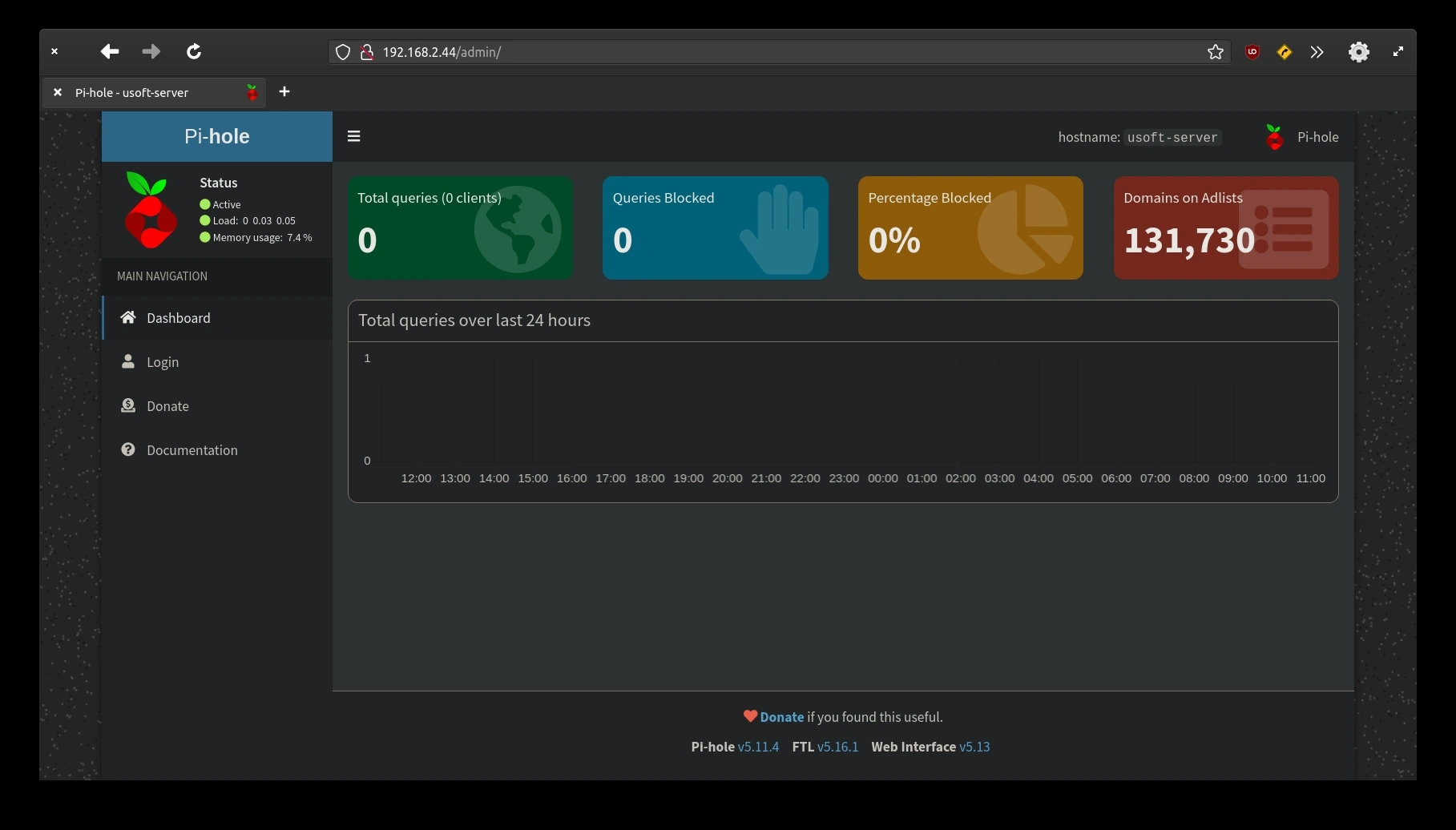
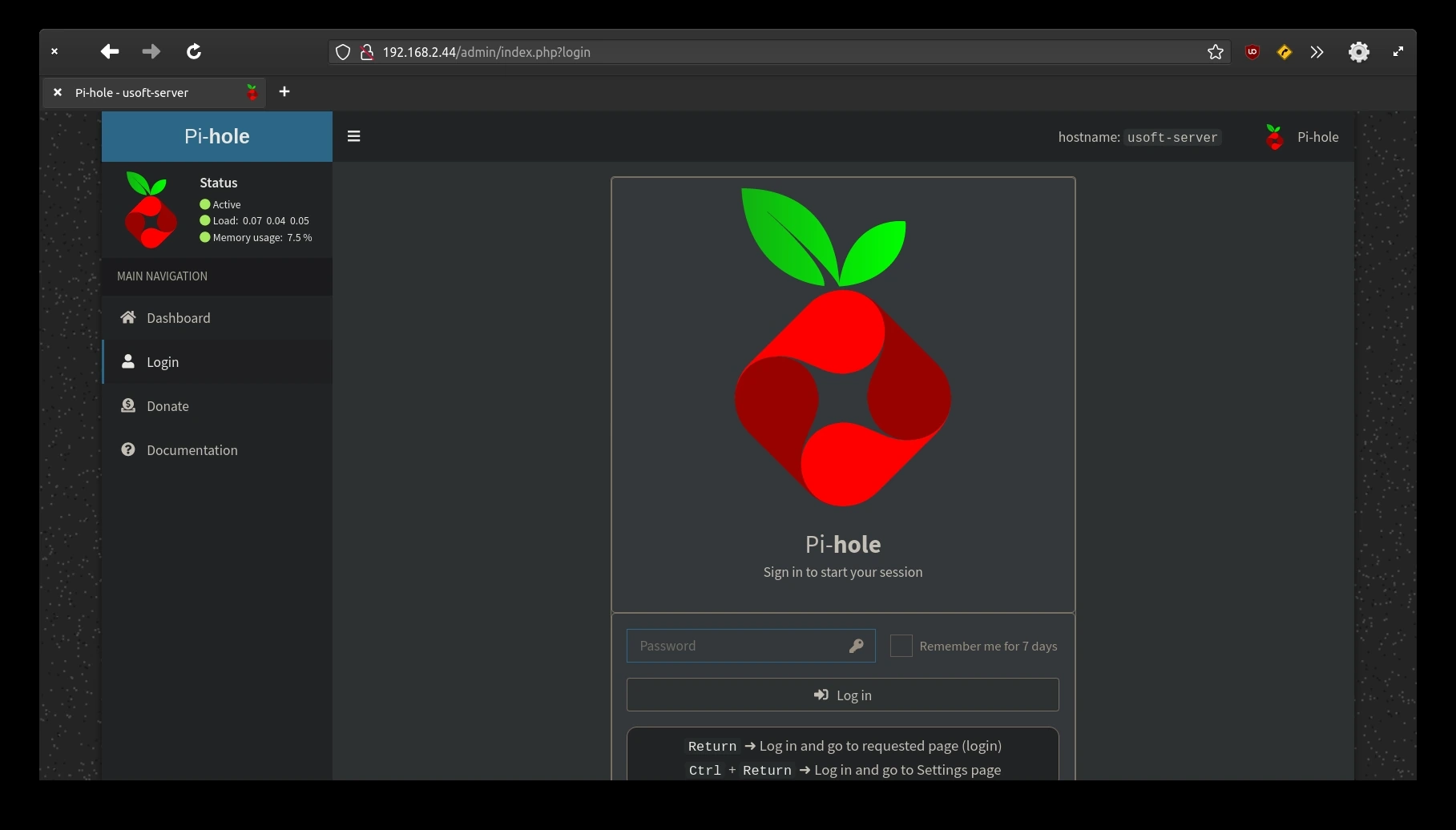
<p>Open the browser and enter the IP of the computer where Ubuntu Server is installed followed by <code class="language-plaintext highlighter-rouge">/admin</code> as shown in the following figure. When the page loads, click the <code class="language-plaintext highlighter-rouge">Login</code> item present in the left vertical menu.</p>

<p><img src="https://raw.githubusercontent.com/EdoardoTosin/Ubuntu-Server-Pi-Hole-Unbound/main/assets/5_Pi-Hole_Web_Interface/Pi-Hole_Web_Interface_2.webp" alt="Pi-Hole web interface - login page accessed via browser at server IP/admin" /></p>

<p>The Pi-Hole web interface password will be asked. Enter it and click <code class="language-plaintext highlighter-rouge">Login</code> to confirm and enter.</p>

<p><img src="https://raw.githubusercontent.com/EdoardoTosin/Ubuntu-Server-Pi-Hole-Unbound/main/assets/5_Pi-Hole_Web_Interface/Pi-Hole_Web_Interface_3.webp" alt="Pi-Hole web interface - password entry screen for admin login" /></p>

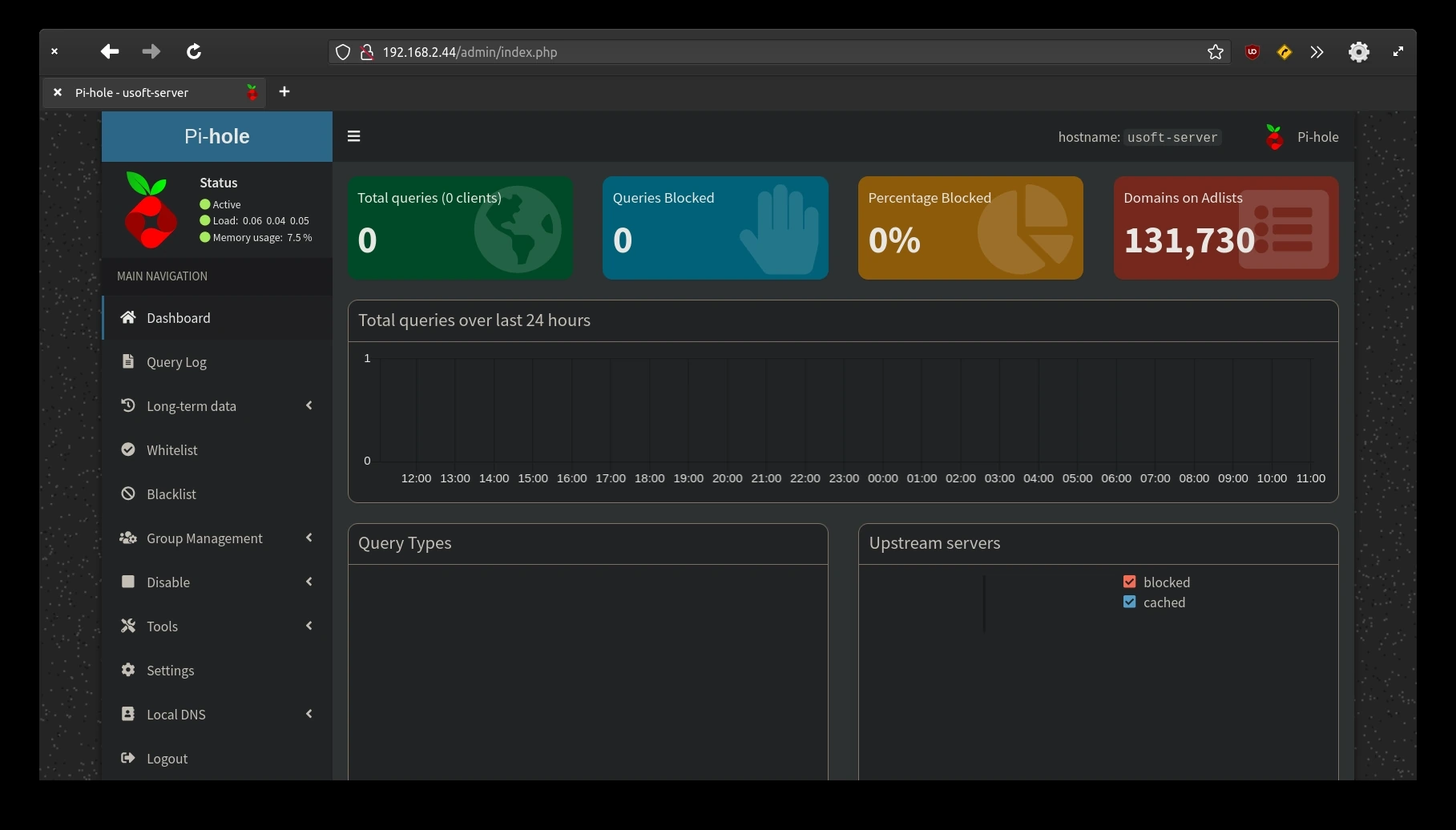
<p>The following screen is the one before logging in. The difference is that now there is the possibility of configuring Pi-Hole.</p>

<p><img src="https://raw.githubusercontent.com/EdoardoTosin/Ubuntu-Server-Pi-Hole-Unbound/main/assets/5_Pi-Hole_Web_Interface/Pi-Hole_Web_Interface_4.webp" alt="Pi-Hole web interface - dashboard after logging in, showing configuration options" /></p>

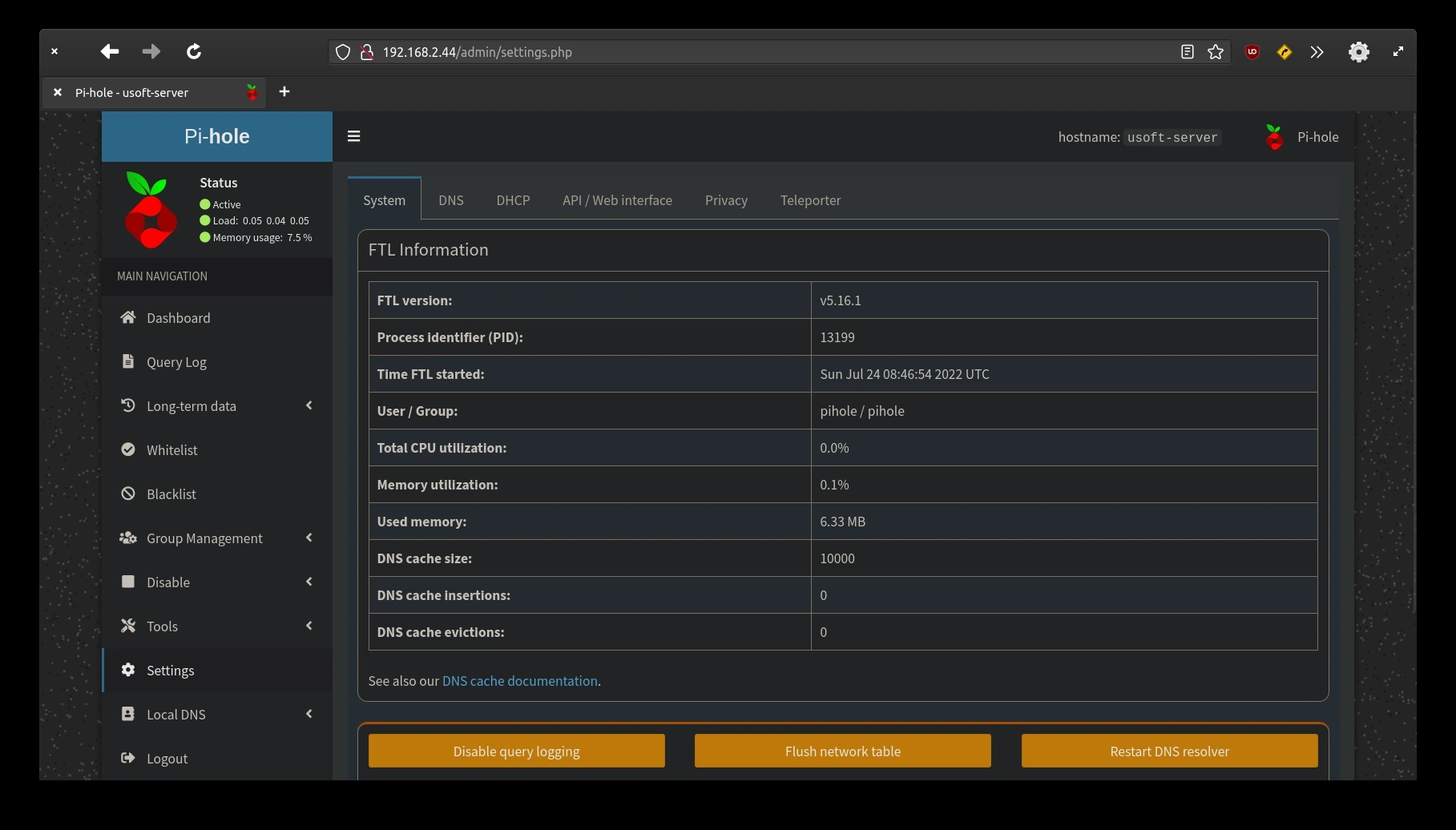
<p>Click the <code class="language-plaintext highlighter-rouge">Settings</code> item in the left menu.</p>

<p><img src="https://raw.githubusercontent.com/EdoardoTosin/Ubuntu-Server-Pi-Hole-Unbound/main/assets/5_Pi-Hole_Web_Interface/Pi-Hole_Web_Interface_5.webp" alt="Pi-Hole web interface - Settings menu item highlighted in the left navigation panel" /></p>

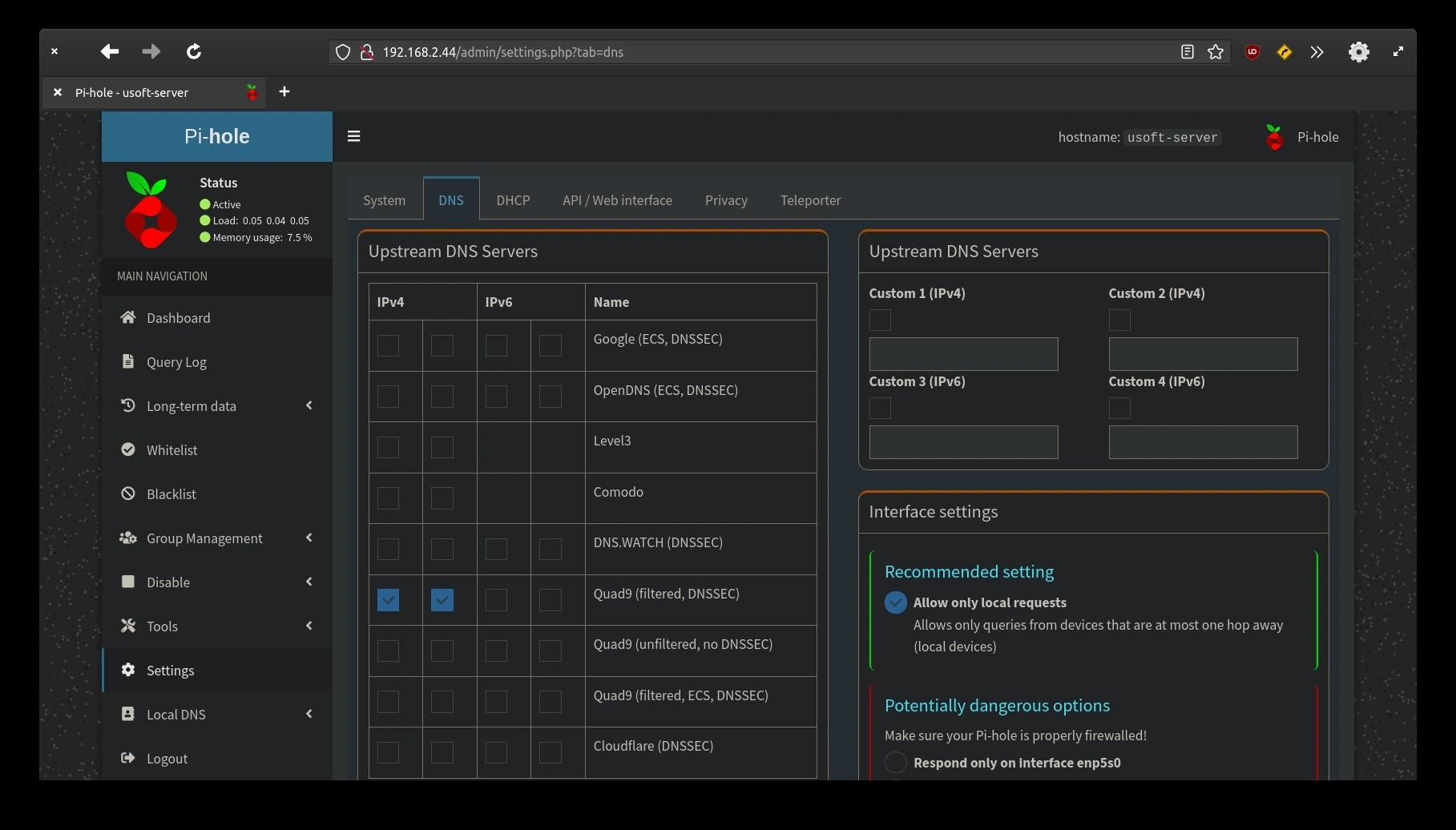
<p>Click <code class="language-plaintext highlighter-rouge">DNS</code> from the items present at the top.</p>

<p><img src="https://raw.githubusercontent.com/EdoardoTosin/Ubuntu-Server-Pi-Hole-Unbound/main/assets/5_Pi-Hole_Web_Interface/Pi-Hole_Web_Interface_6.webp" alt="Pi-Hole web interface - DNS tab selected within the Settings page" /></p>

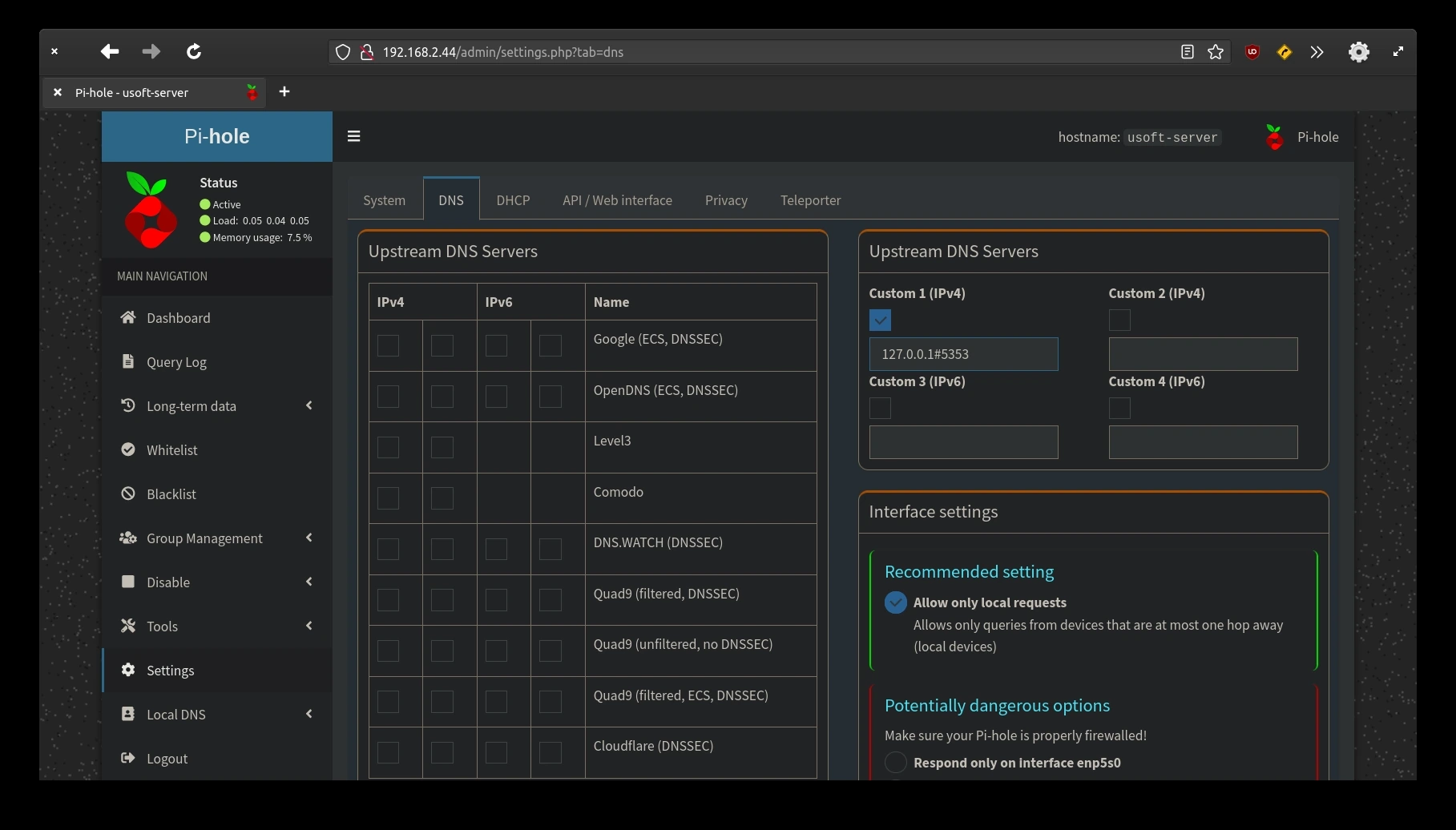
<p>In the block titled <code class="language-plaintext highlighter-rouge">Upstream DNS Servers</code> on the left, deselect any tick present. Instead, in the homonymous block on the right, select <code class="language-plaintext highlighter-rouge">Custom 1 (IPv4)</code> and enter <code class="language-plaintext highlighter-rouge">127.0.0.1#5353</code> which are the interface and the port that were previously entered in the Unbound configuration file. This will make Pi-Hole ask Unbound for DNS resolution instead of using an external server outside the network.</p>

<p><img src="https://raw.githubusercontent.com/EdoardoTosin/Ubuntu-Server-Pi-Hole-Unbound/main/assets/5_Pi-Hole_Web_Interface/Pi-Hole_Web_Interface_7.webp" alt="Pi-Hole web interface - DNS settings with Custom 1 (IPv4) set to 127.0.0.1#5353 (Unbound) as upstream DNS" /></p>
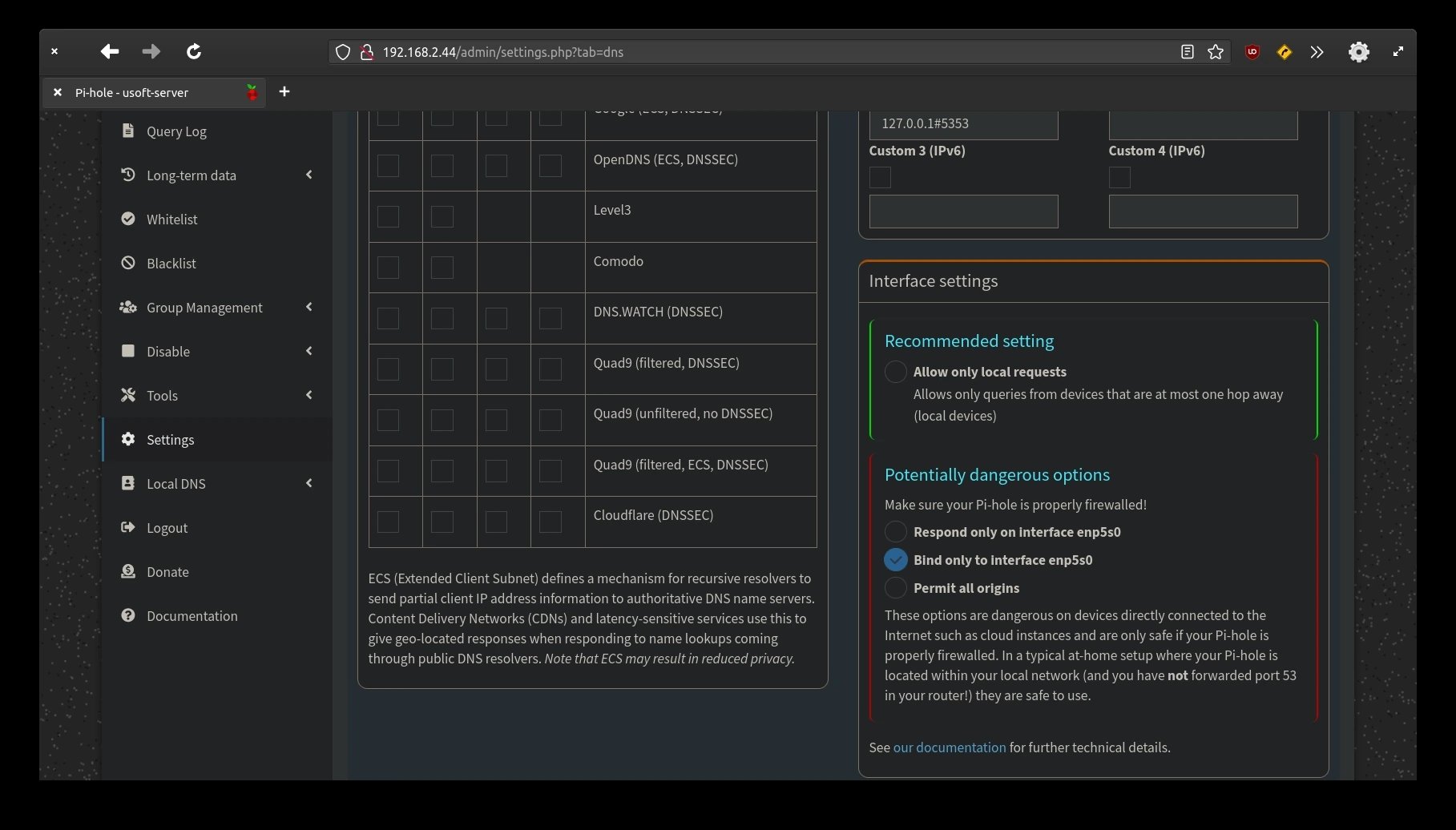
<p>In the block titled <code class="language-plaintext highlighter-rouge">Interface settings</code>, click the <code class="language-plaintext highlighter-rouge">Bind only to interface ...</code> voice.</p>

<p><img src="https://raw.githubusercontent.com/EdoardoTosin/Ubuntu-Server-Pi-Hole-Unbound/main/assets/5_Pi-Hole_Web_Interface/Pi-Hole_Web_Interface_8.webp" alt="Pi-Hole web interface - Interface settings with &quot;Bind only to interface&quot; option selected" /></p>

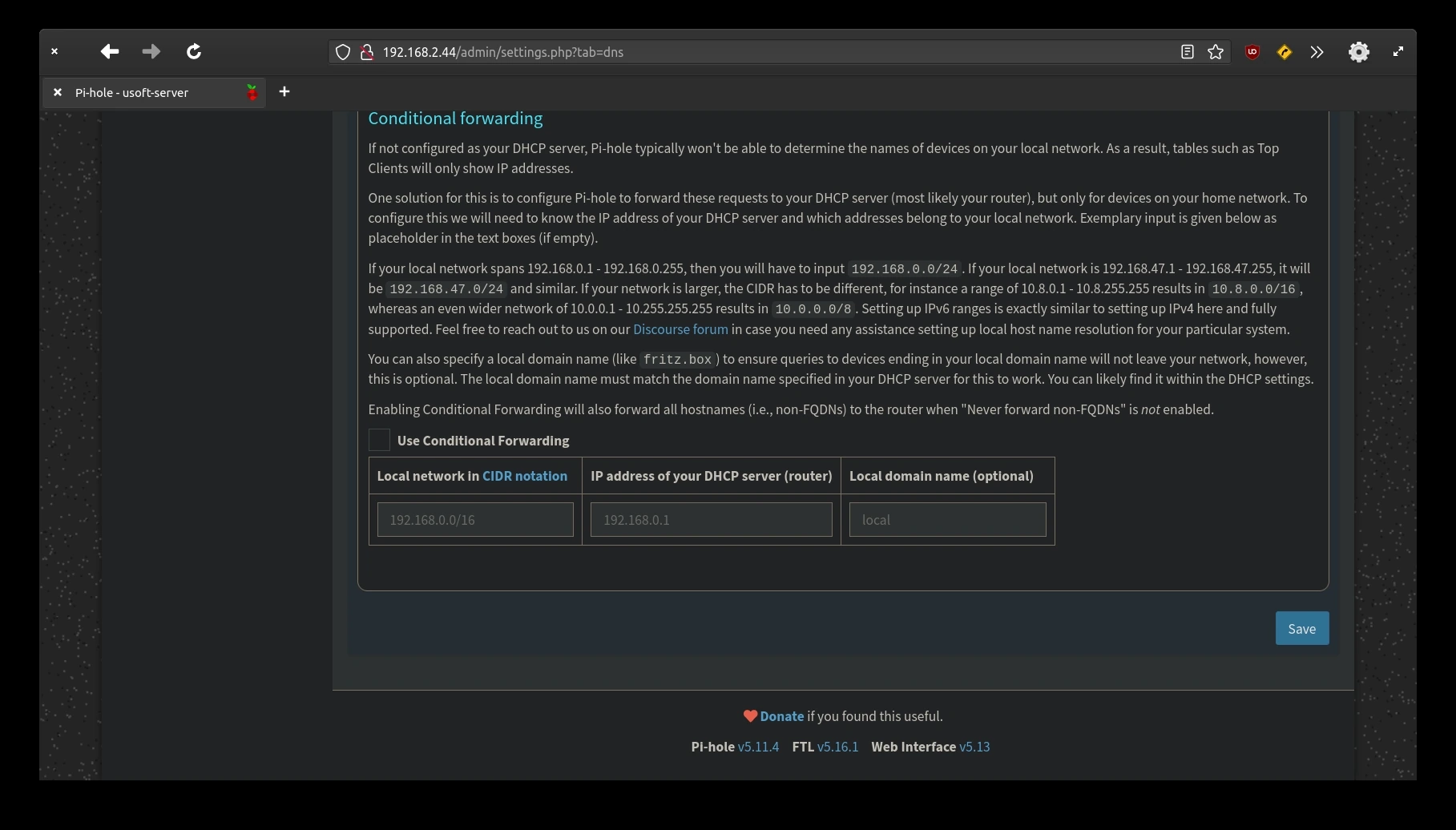
<p>To save all this, scroll down with the mouse and click <code class="language-plaintext highlighter-rouge">Save</code> located at the bottom right of the screen.</p>

<p><img src="https://raw.githubusercontent.com/EdoardoTosin/Ubuntu-Server-Pi-Hole-Unbound/main/assets/5_Pi-Hole_Web_Interface/Pi-Hole_Web_Interface_9.webp" alt="Pi-Hole web interface - Save button at bottom right to confirm DNS settings changes" /></p>

<h3 id="backup-pi-hole-settings">Backup Pi-Hole Settings</h3>

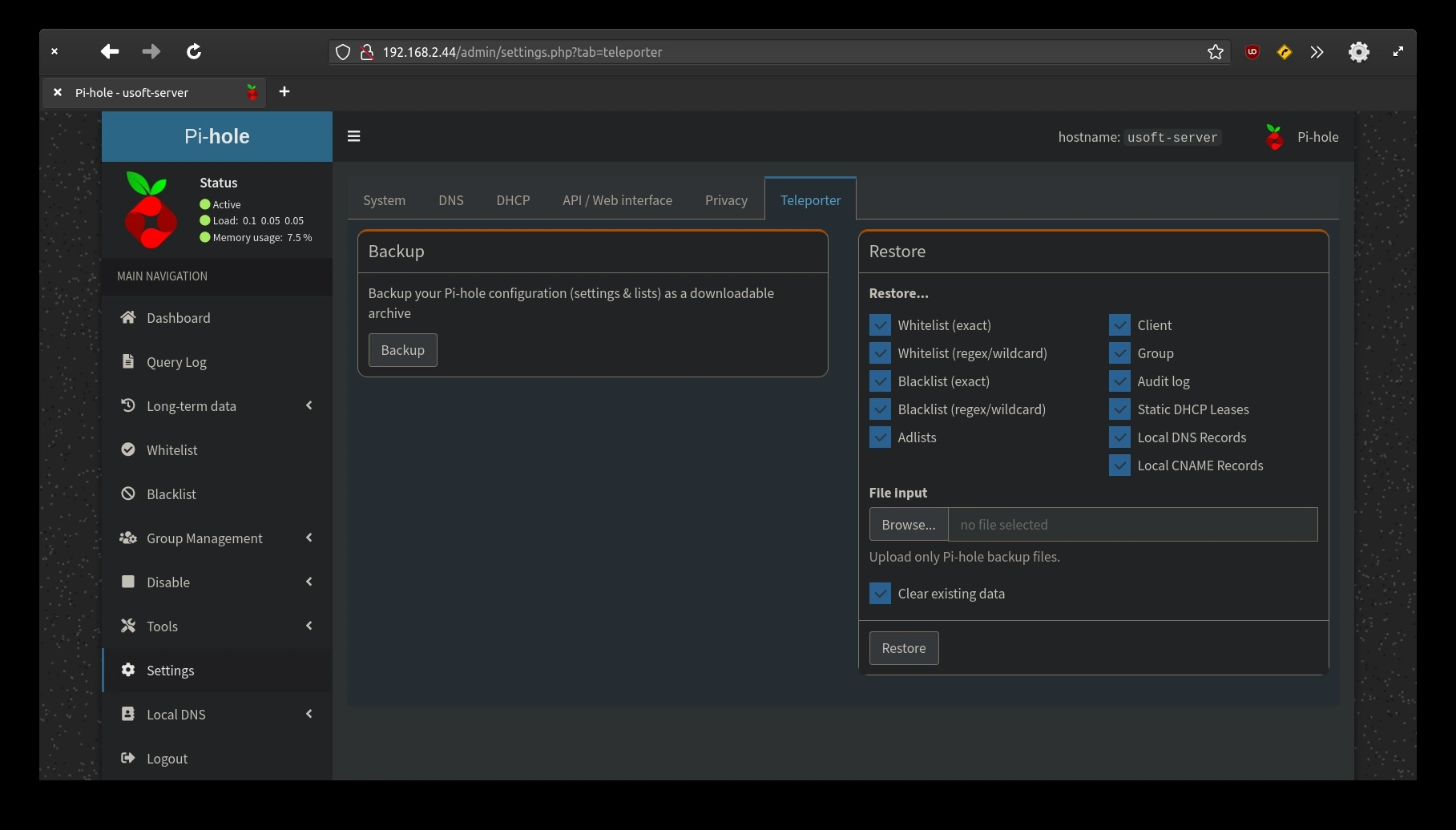
<p>For safety, download the current Pi-Hole configuration so that in case of need to restore the settings it is faster to do it from a file.
To do this, press click from the horizontal menu present at the top the <code class="language-plaintext highlighter-rouge">Teleporter</code> voice. Finally, click <code class="language-plaintext highlighter-rouge">Backup</code> and confirm the file save.</p>

<p><img src="https://raw.githubusercontent.com/EdoardoTosin/Ubuntu-Server-Pi-Hole-Unbound/main/assets/5_Pi-Hole_Web_Interface/Pi-Hole_Web_Interface_10.webp" alt="Pi-Hole web interface - Teleporter page for backing up current Pi-Hole configuration" /></p>

<h2 id="router-configuration">Router Configuration</h2>

<p>Now from the router settings (refer to the router manual to understand where to find the setting), you can change the DNS to the IP of the computer where Ubuntu Server is installed. This will make every device connected to the network with automatic DNS make a resolution request to the router which in turn will forward the packets to the system filtering most of the advertising from websites and also dangerous content.</p>]]></content><author><name>Edoardo Tosin</name><email>edoardotosindev@proton.me</email></author><category term="ubuntu" /><category term="unbound" /><category term="pi-hole" /><category term="dns" /><category term="server" /><category term="adblocker" /><summary type="html"><![CDATA[How to configure Pi-Hole's web interface, manage blocklists, and wire it together with Unbound to complete your self-hosted, privacy-focused DNS server.]]></summary><media:thumbnail xmlns:media="http://search.yahoo.com/mrss/" url="https://raw.githubusercontent.com/EdoardoTosin/Ubuntu-Server-Pi-Hole-Unbound/main/assets/5_Pi-Hole_Web_Interface/Pi-Hole_Web_Interface_2.webp" /><media:content medium="image" url="https://raw.githubusercontent.com/EdoardoTosin/Ubuntu-Server-Pi-Hole-Unbound/main/assets/5_Pi-Hole_Web_Interface/Pi-Hole_Web_Interface_2.webp" xmlns:media="http://search.yahoo.com/mrss/" /></entry><entry xml:lang="en"><title type="html">Pi-Hole &amp;amp; Unbound Setup - Part 4: Unbound Installation</title><link href="https://edoardotosin.com/blog/ubuntu-server-pihole-unbound-part-4" rel="alternate" type="text/html" title="Pi-Hole &amp;amp; Unbound Setup - Part 4: Unbound Installation" /><published>2024-01-02T13:00:00+01:00</published><updated>2024-08-07T16:30:08+02:00</updated><id>https://edoardotosin.com/blog/ubuntu-server-pihole-unbound-part-4</id><content type="html" xml:base="https://edoardotosin.com/blog/ubuntu-server-pihole-unbound-part-4"><![CDATA[<p><em>In the <a href="/blog/ubuntu-server-pihole-unbound-part-3">previous part</a> it was explained how to install Pi-Hole.</em></p>

<h2 id="unbound-installation">Unbound Installation</h2>

<h3 id="package-installation">Package Installation</h3>

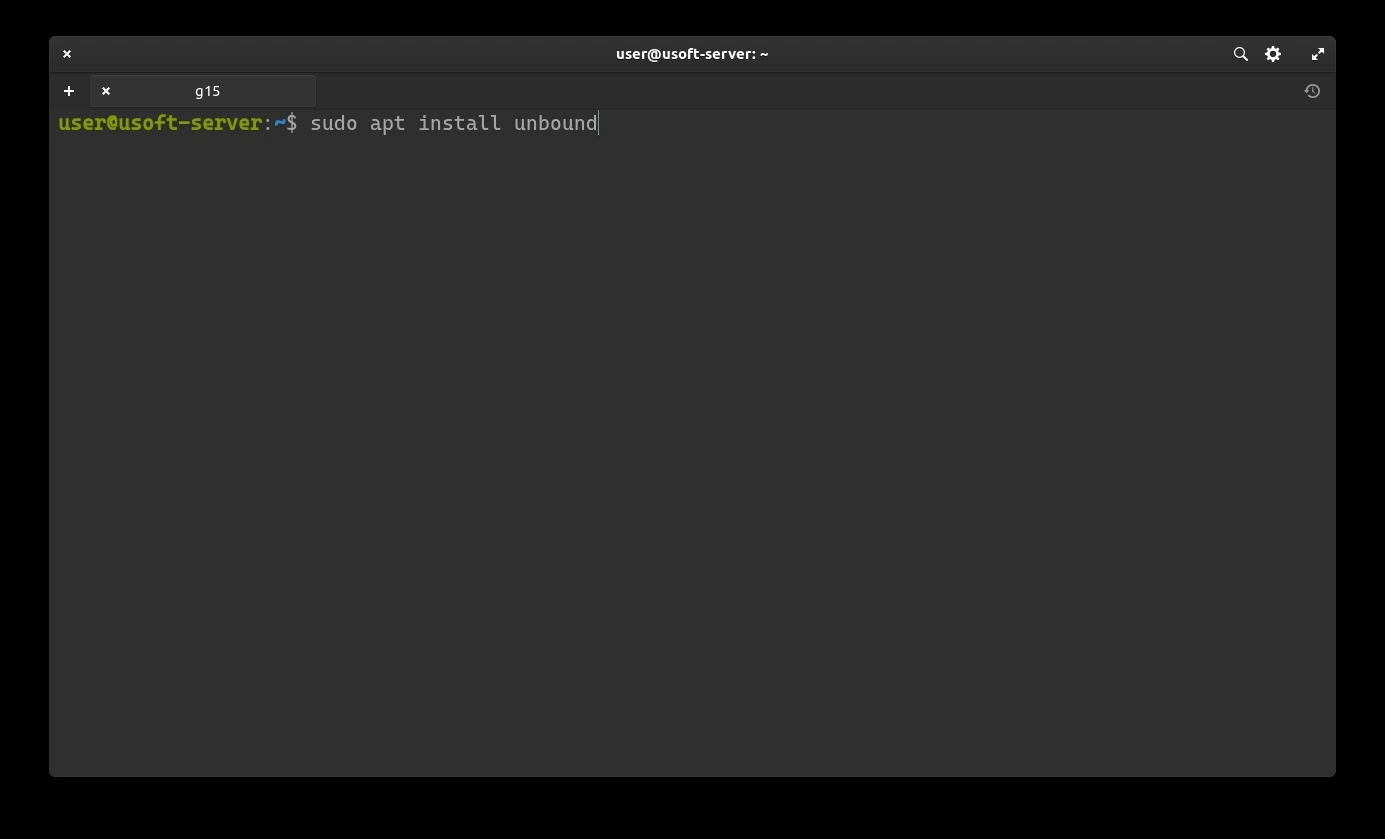
<p>Now you can proceed with the installation of the DNS resolver Unbound with the command <code class="language-plaintext highlighter-rouge">sudo apt install unbound</code>.
It may request the user password as it is launched with administrator privileges.
In case affirmative, enter it and press <code class="language-plaintext highlighter-rouge">Enter</code>.</p>

<p><img src="https://raw.githubusercontent.com/EdoardoTosin/Ubuntu-Server-Pi-Hole-Unbound/main/assets/4_Unbound/Unbound_1.webp" alt="Unbound installation - running &quot;sudo apt install unbound&quot; to install the DNS resolver" /></p>

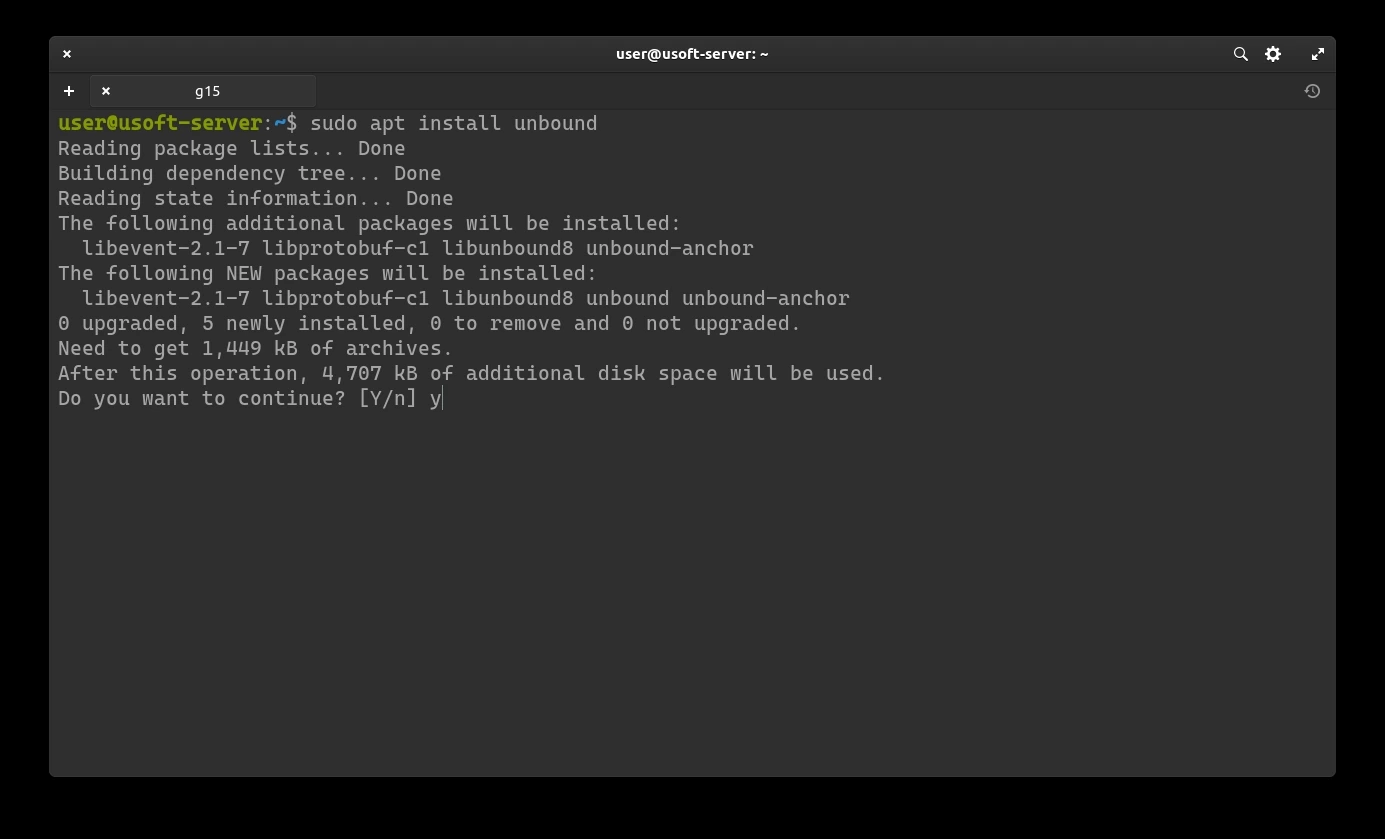
<p>Confirm the application installation by writing <code class="language-plaintext highlighter-rouge">y</code> and pressing <code class="language-plaintext highlighter-rouge">Enter</code>.</p>

<p><img src="https://raw.githubusercontent.com/EdoardoTosin/Ubuntu-Server-Pi-Hole-Unbound/main/assets/4_Unbound/Unbound_2.webp" alt="Unbound installation - confirming package installation by typing &quot;y&quot;" /></p>

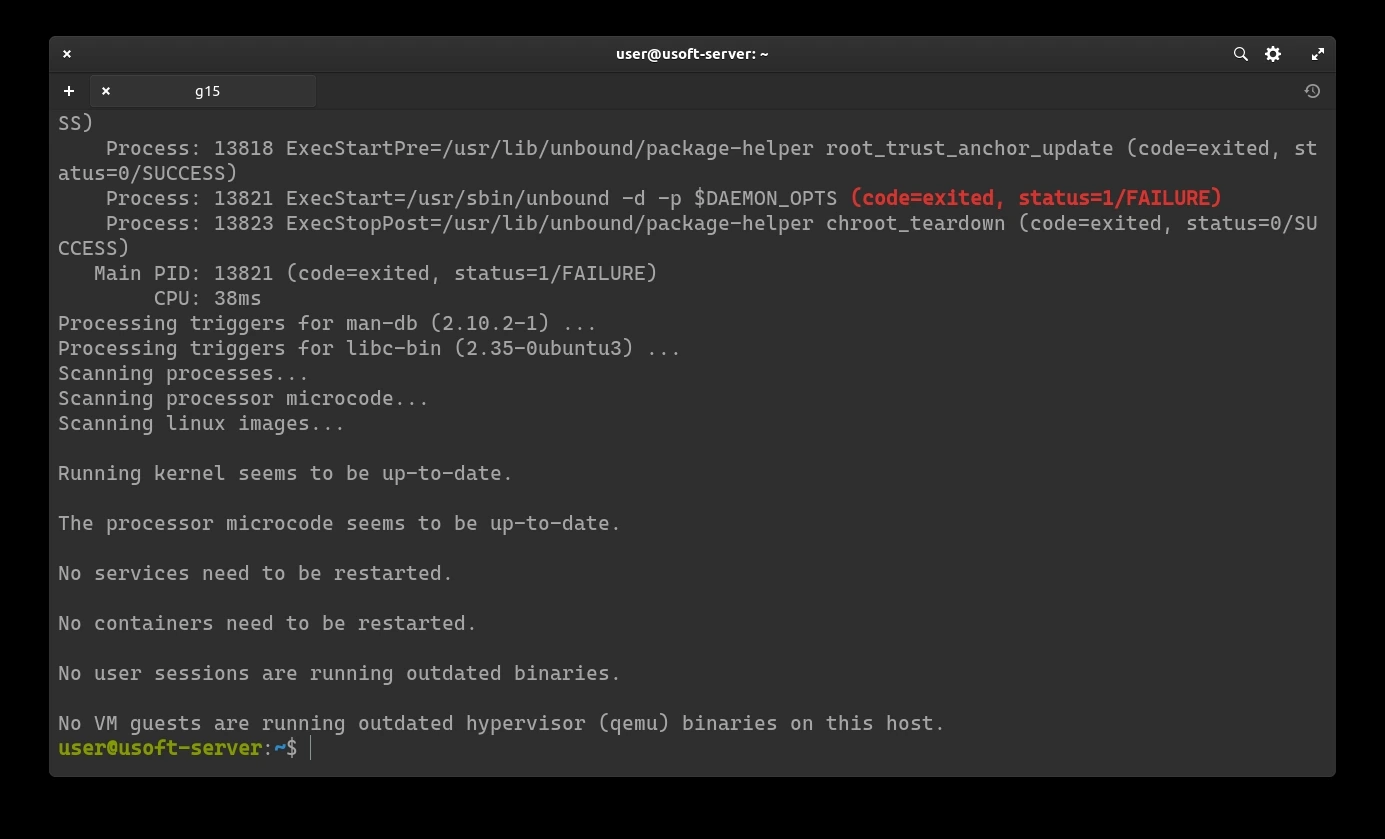
<p>Once the installation is finished, you may see some written messages in red as follows. They can be ignored as they do not affect the functioning of the system and its applications.</p>

<p><img src="https://raw.githubusercontent.com/EdoardoTosin/Ubuntu-Server-Pi-Hole-Unbound/main/assets/4_Unbound/Unbound_3.webp" alt="Unbound installation - non-critical red warning messages displayed after install (can be ignored)" /></p>

<h3 id="downloading-domain-registration-server-resolution-ip">Downloading domain registration server resolution IP</h3>

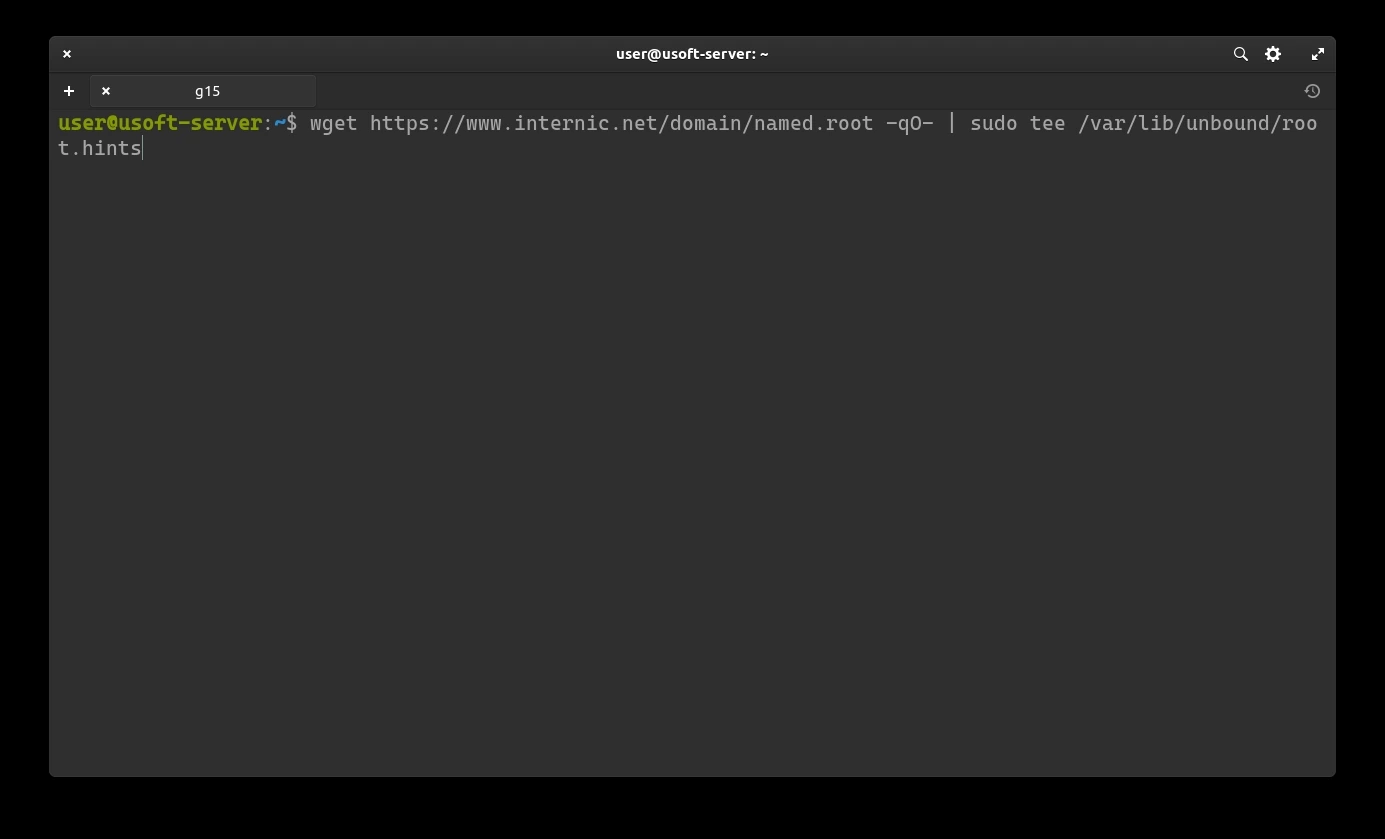
<p>Now it is possible to download the list of IPv4 and IPv6 for resolving the domain registration servers. To do this, use the following string: <code class="language-plaintext highlighter-rouge">wget -O root.hints https://www.internic.net/domain/named.root sudo mv root.hints /var/lib/unbound/</code>.</p>

<p><img src="https://raw.githubusercontent.com/EdoardoTosin/Ubuntu-Server-Pi-Hole-Unbound/main/assets/4_Unbound/Unbound_4.webp" alt="Unbound setup - downloading root hints file (named.root) from internic.net via wget" /></p>

<p>Press <code class="language-plaintext highlighter-rouge">Enter</code> to start everything.</p>

<p><img src="https://raw.githubusercontent.com/EdoardoTosin/Ubuntu-Server-Pi-Hole-Unbound/main/assets/4_Unbound/Unbound_5.webp" alt="Unbound setup - wget download progress for the root hints file" /></p>

<h3 id="file-configuration">File Configuration</h3>

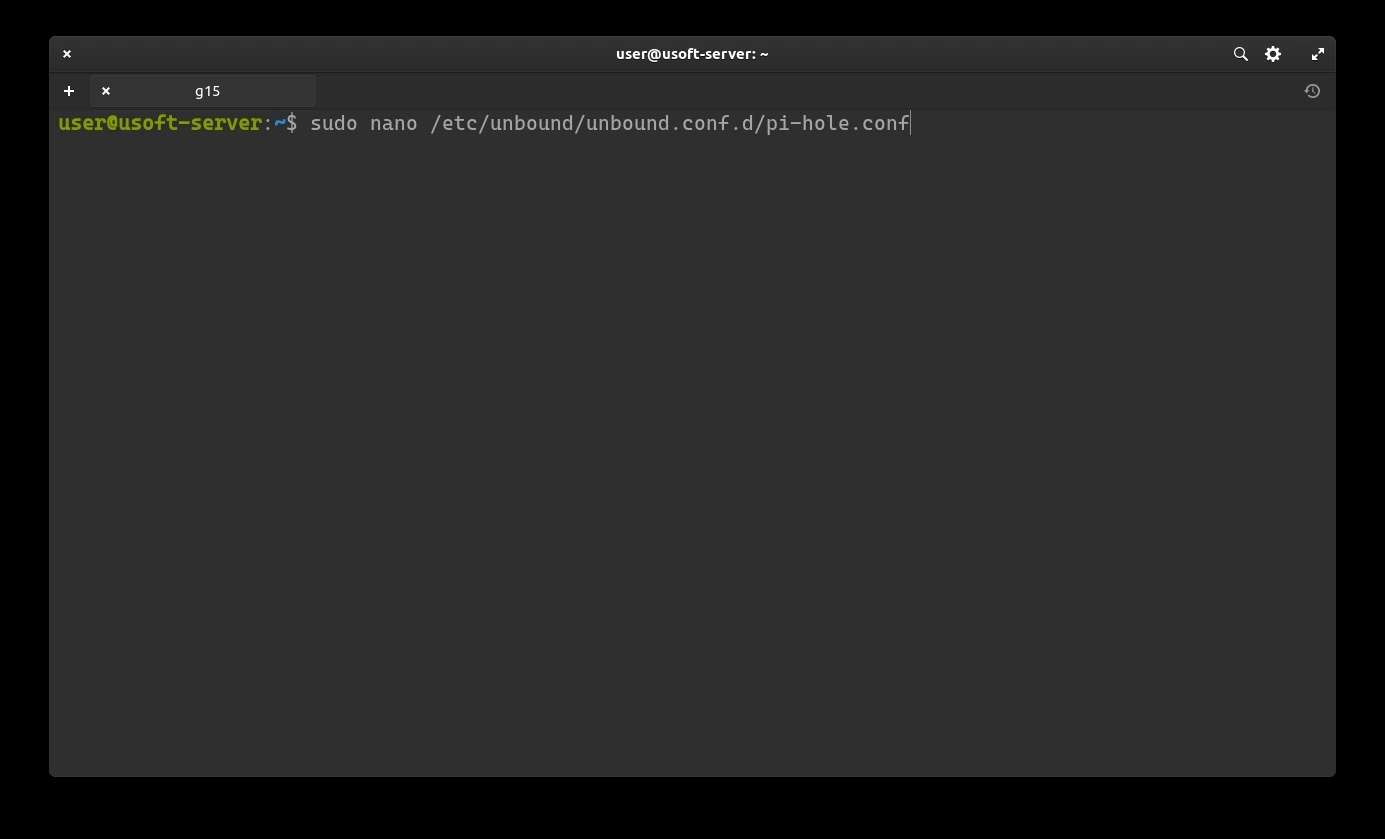
<p>It is necessary to modify the Unbound configuration file. To do this, write the command <code class="language-plaintext highlighter-rouge">sudo nano /etc/unbound/unbound.conf.d/pi-hole.conf</code> and confirm with the user password as it is executed with administrator privileges.</p>

<p><img src="https://raw.githubusercontent.com/EdoardoTosin/Ubuntu-Server-Pi-Hole-Unbound/main/assets/4_Unbound/Unbound_6.webp" alt="Unbound configuration - opening pi-hole.conf in nano editor to create the Unbound configuration file" /></p>

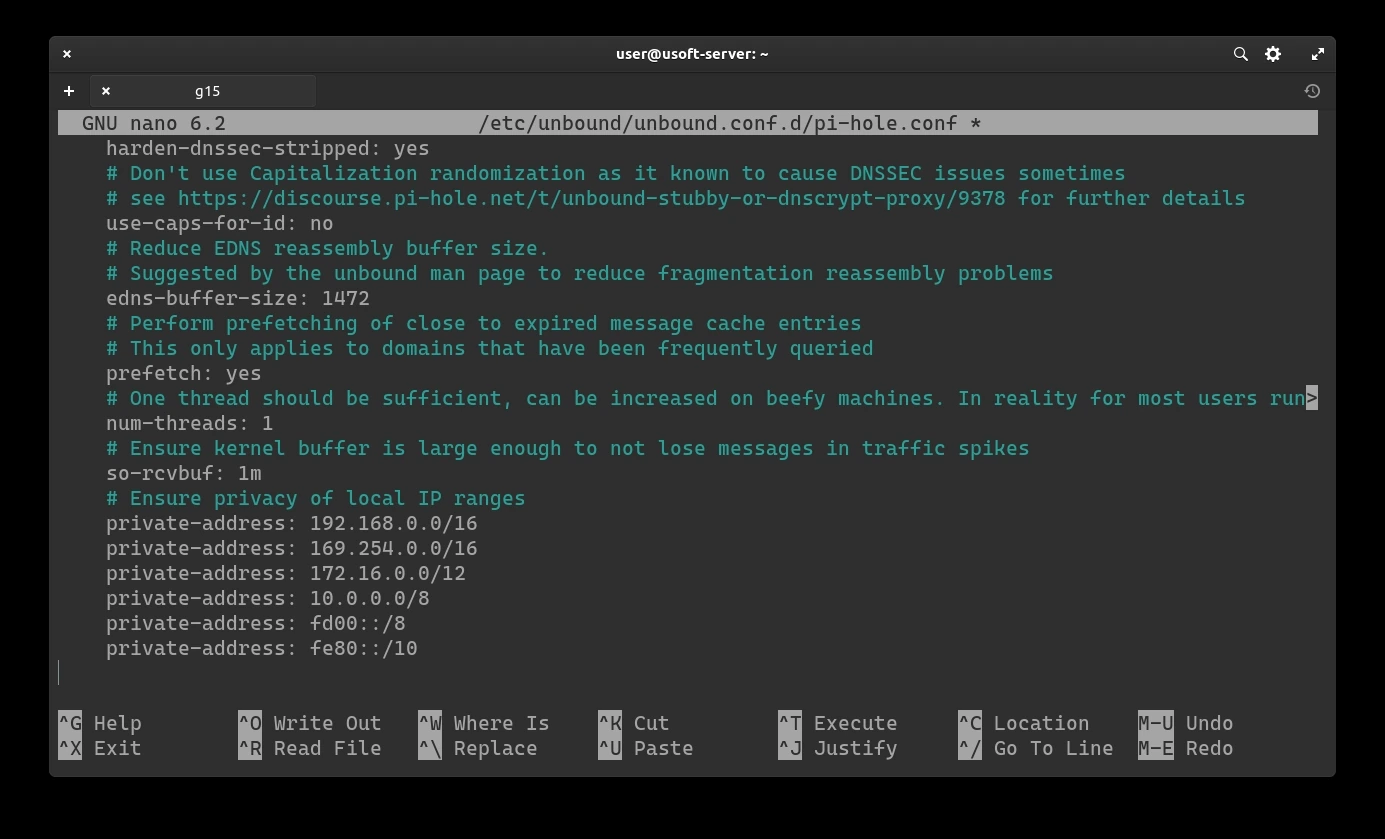
<p>Within the empty file, the following text should be inserted:</p>

<pre><code class="language-apacheconf">server:
    # If no logfile is specified, syslog is used
    # logfile: "/var/log/unbound/unbound.log"
    verbosity: 0
    interface: 127.0.0.1
    port: 5353
    do-ip4: yes
    do-udp: yes
    do-tcp: yes
    # May be set to yes if you have IPv6 connectivity
    do-ip6: no
    # You want to leave this to no unless you have *native* IPv6. With 6to4 and
    # Terredo tunnels your web browser should favor IPv4 for the same reasons
    prefer-ip6: no
    # Use this only when you downloaded the list of primary root servers!
    # If you use the default dns-root-data package, unbound will find it automatically
    #root-hints: "/var/lib/unbound/root.hints"
    # Trust glue only if it is within the server's authority
    harden-glue: yes
    # Require DNSSEC data for trust-anchored zones, if such data is absent, the zone becomes BOGUS
    harden-dnssec-stripped: yes
    # Don't use Capitalization randomization as it known to cause DNSSEC issues sometimes
    # see https://discourse.pi-hole.net/t/unbound-stubby-or-dnscrypt-proxy/9378 for further details
    use-caps-for-id: no
    # Reduce EDNS reassembly buffer size.
    # Suggested by the unbound man page to reduce fragmentation reassembly problems
    edns-buffer-size: 1472
    # Perform prefetching of close to expired message cache entries
    # This only applies to domains that have been frequently queried
    prefetch: yes
    # One thread should be sufficient, can be increased on beefy machines. In reality for most users running on small networks or on a single machine, it should be unnecessary to seek performance enhancement by increasing num-threads above 1.
    num-threads: 1
    # Ensure kernel buffer is large enough to not lose messages in traffic spikes
    so-rcvbuf: 1m
    # Ensure privacy of local IP ranges
    private-address: 192.168.0.0/16
    private-address: 169.254.0.0/16
    private-address: 172.16.0.0/12
    private-address: 10.0.0.0/8
    private-address: fd00::/8
    private-address: fe80::/10
</code></pre>

<p>Link to the reference file: <a href="https://raw.githubusercontent.com/EdoardoTosin/Ubuntu-Server-Pi-Hole-Unbound/main/pi-hole.conf"><code class="language-plaintext highlighter-rouge">pi-hole.conf</code></a></p>

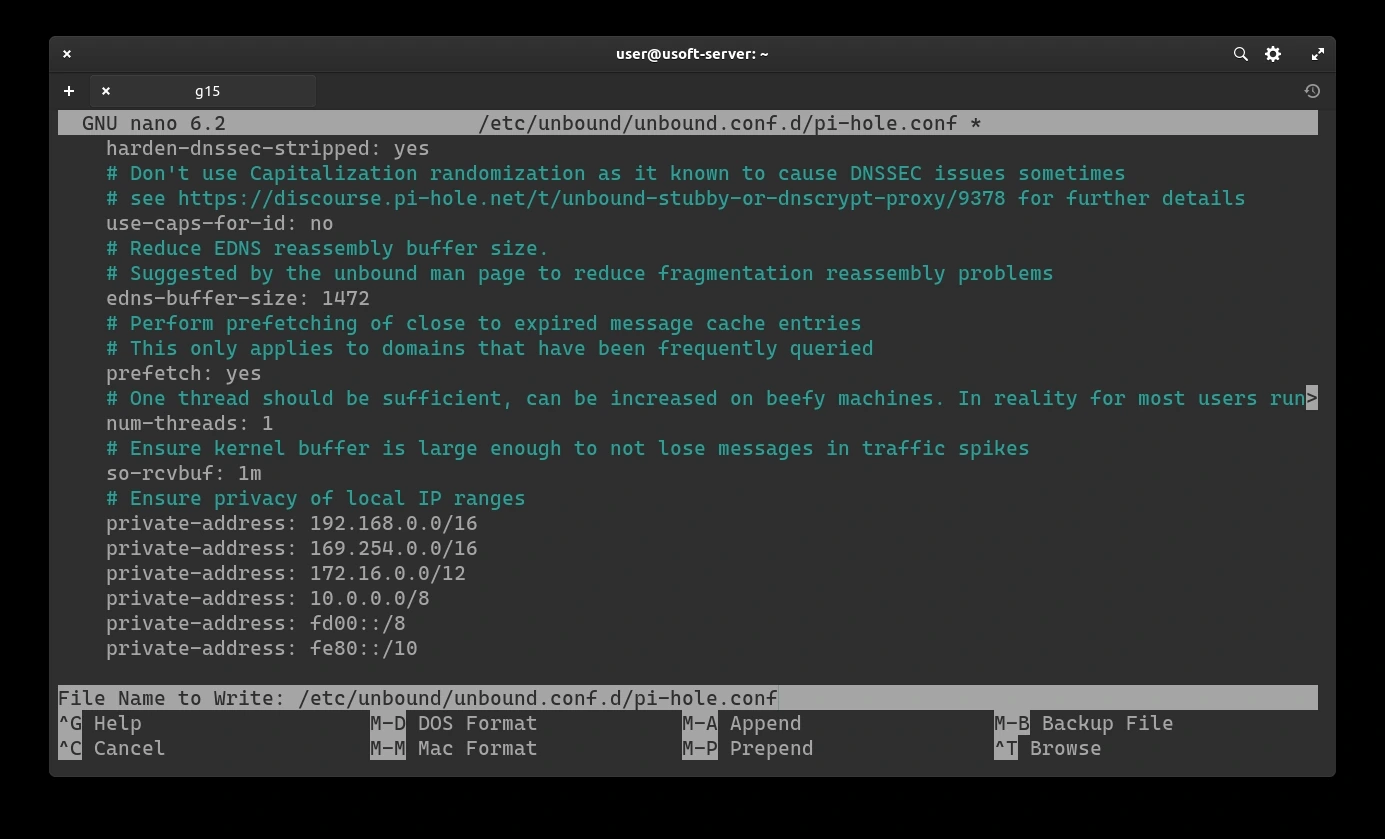
<p>At lines that begin with <code class="language-plaintext highlighter-rouge">interface</code> and <code class="language-plaintext highlighter-rouge">port</code> (in this case containing respectively <code class="language-plaintext highlighter-rouge">127.0.0.1</code> and <code class="language-plaintext highlighter-rouge">5353</code>) will have the strings that will subsequently be inserted into the Pi-Hole web interface settings.</p>

<p><img src="https://raw.githubusercontent.com/EdoardoTosin/Ubuntu-Server-Pi-Hole-Unbound/main/assets/4_Unbound/Unbound_7.webp" alt="Unbound configuration - pi-hole.conf file contents showing interface (127.0.0.1) and port (5353) settings" /></p>

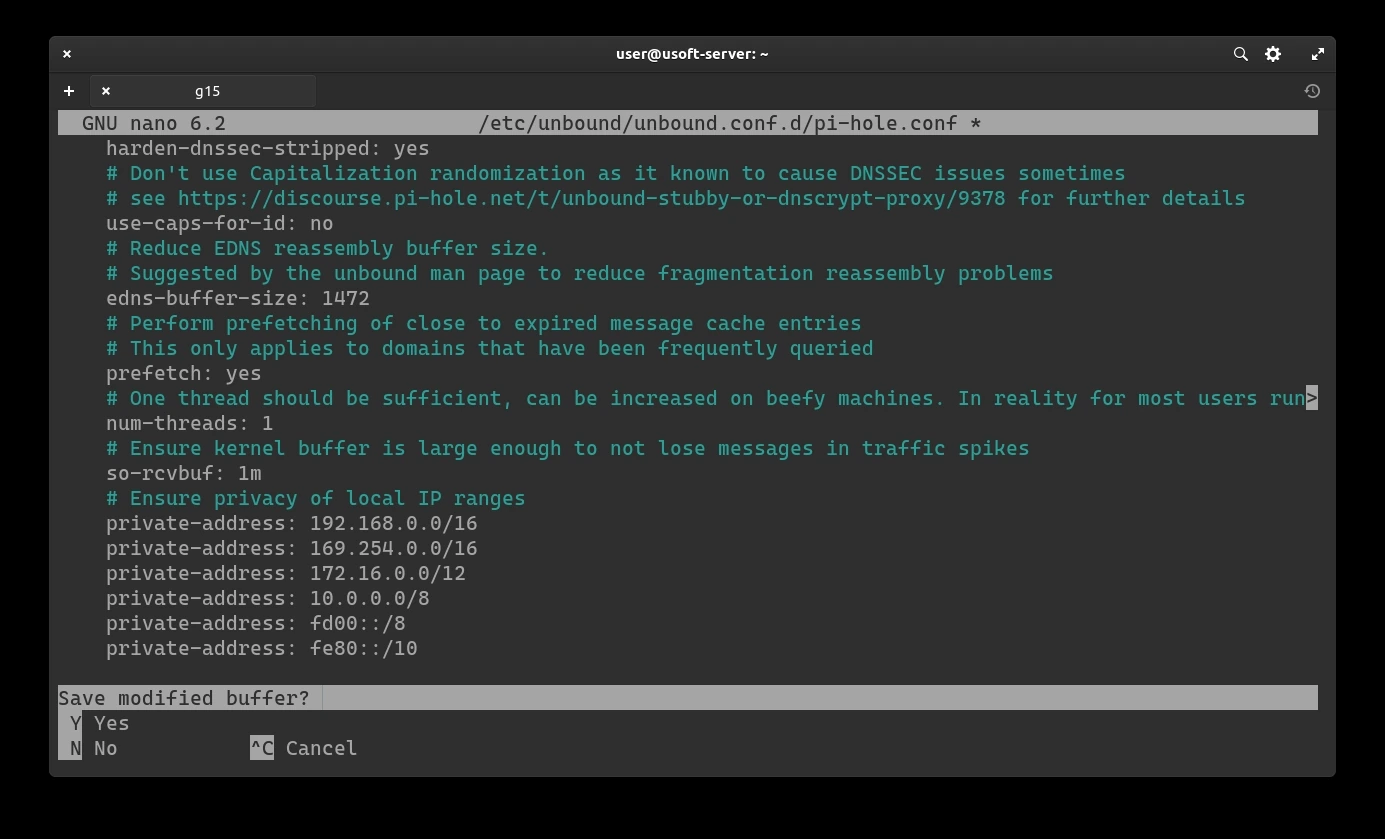
<p>To exit, press <code class="language-plaintext highlighter-rouge">CTRL+X</code>. It will ask if you want to save and confirm by writing <code class="language-plaintext highlighter-rouge">y</code> and pressing <code class="language-plaintext highlighter-rouge">Enter</code>.</p>

<p><img src="https://raw.githubusercontent.com/EdoardoTosin/Ubuntu-Server-Pi-Hole-Unbound/main/assets/4_Unbound/Unbound_8.webp" alt="Unbound configuration - nano editor save prompt after editing pi-hole.conf" /></p>

<p>Confirm the name and save location of the file by pressing <code class="language-plaintext highlighter-rouge">Enter</code>.</p>

<p><img src="https://raw.githubusercontent.com/EdoardoTosin/Ubuntu-Server-Pi-Hole-Unbound/main/assets/4_Unbound/Unbound_9.webp" alt="Unbound configuration - confirming filename and save path for pi-hole.conf in nano" /></p>

<h3 id="check-correctness-of-the-file">Check correctness of the file</h3>

<p>To be sure that the file has been saved correctly, copy the following command <code class="language-plaintext highlighter-rouge">sudo cat /etc/unbound/unbound.conf.d/pi-hole.conf</code> and press <code class="language-plaintext highlighter-rouge">Enter</code> to execute it.</p>

<p><img src="https://raw.githubusercontent.com/EdoardoTosin/Ubuntu-Server-Pi-Hole-Unbound/main/assets/4_Unbound/Unbound_10.webp" alt="Unbound configuration - running &quot;sudo cat&quot; to verify the saved pi-hole.conf file content" /></p>

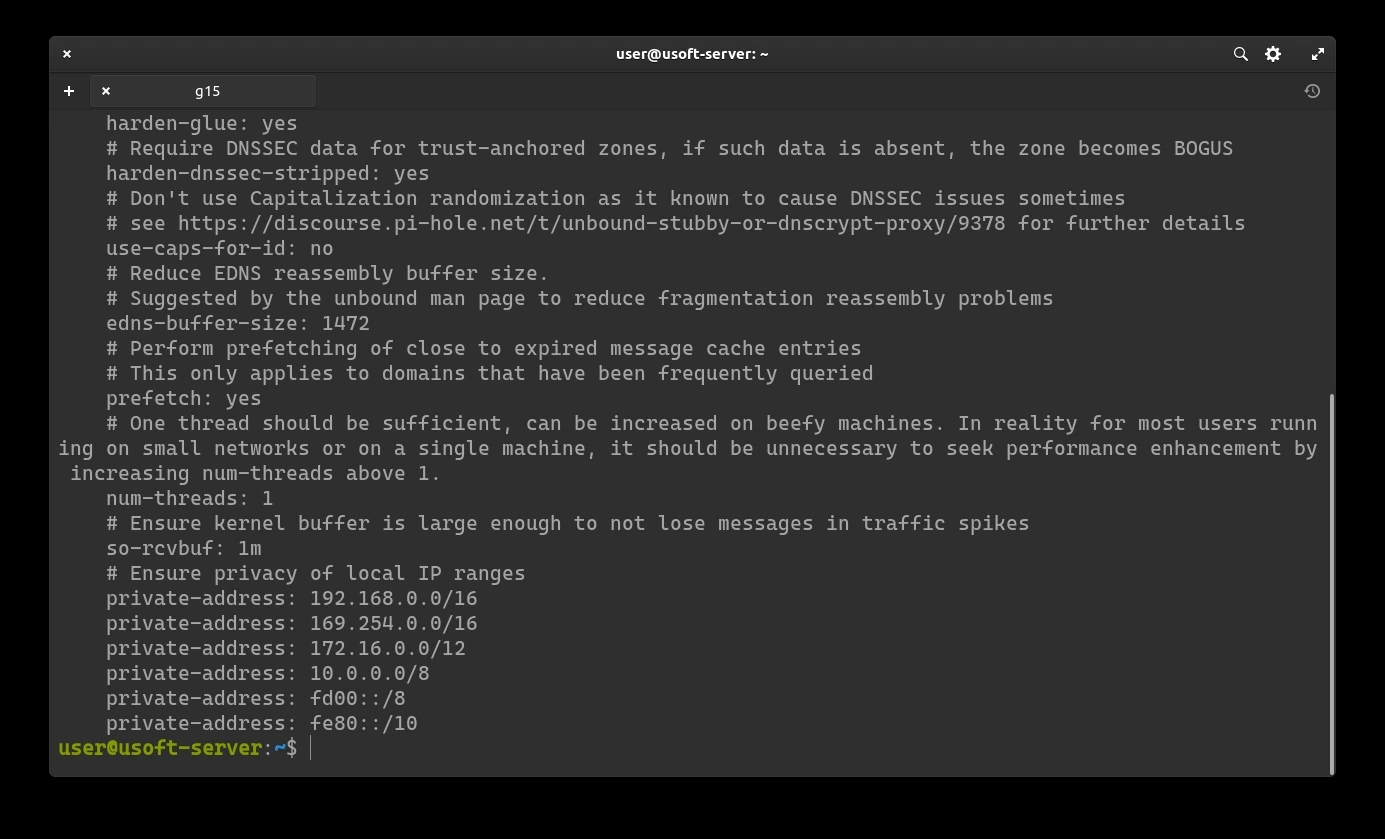
<p>Check that it is equal to what was previously copied.</p>

<p><img src="https://raw.githubusercontent.com/EdoardoTosin/Ubuntu-Server-Pi-Hole-Unbound/main/assets/4_Unbound/Unbound_11.webp" alt="Unbound configuration - pi-hole.conf file content displayed for verification" /></p>

<h3 id="restart-unbound-service">Restart Unbound service</h3>

<p>Restart Unbound to load the new configuration: <code class="language-plaintext highlighter-rouge">sudo service unbound restart</code> and press <code class="language-plaintext highlighter-rouge">Enter</code>. It may request the user password as it is launched with administrator privileges. In case affirmative, enter it and press <code class="language-plaintext highlighter-rouge">Enter</code>.</p>

<p><img src="https://raw.githubusercontent.com/EdoardoTosin/Ubuntu-Server-Pi-Hole-Unbound/main/assets/4_Unbound/Unbound_12.webp" alt="Unbound - restarting the Unbound service to load the new configuration" /></p>

<h3 id="check-dnssec-operation">Check DNSSEC operation</h3>

<p>The following commands serve to check that DNSSEC works correctly.
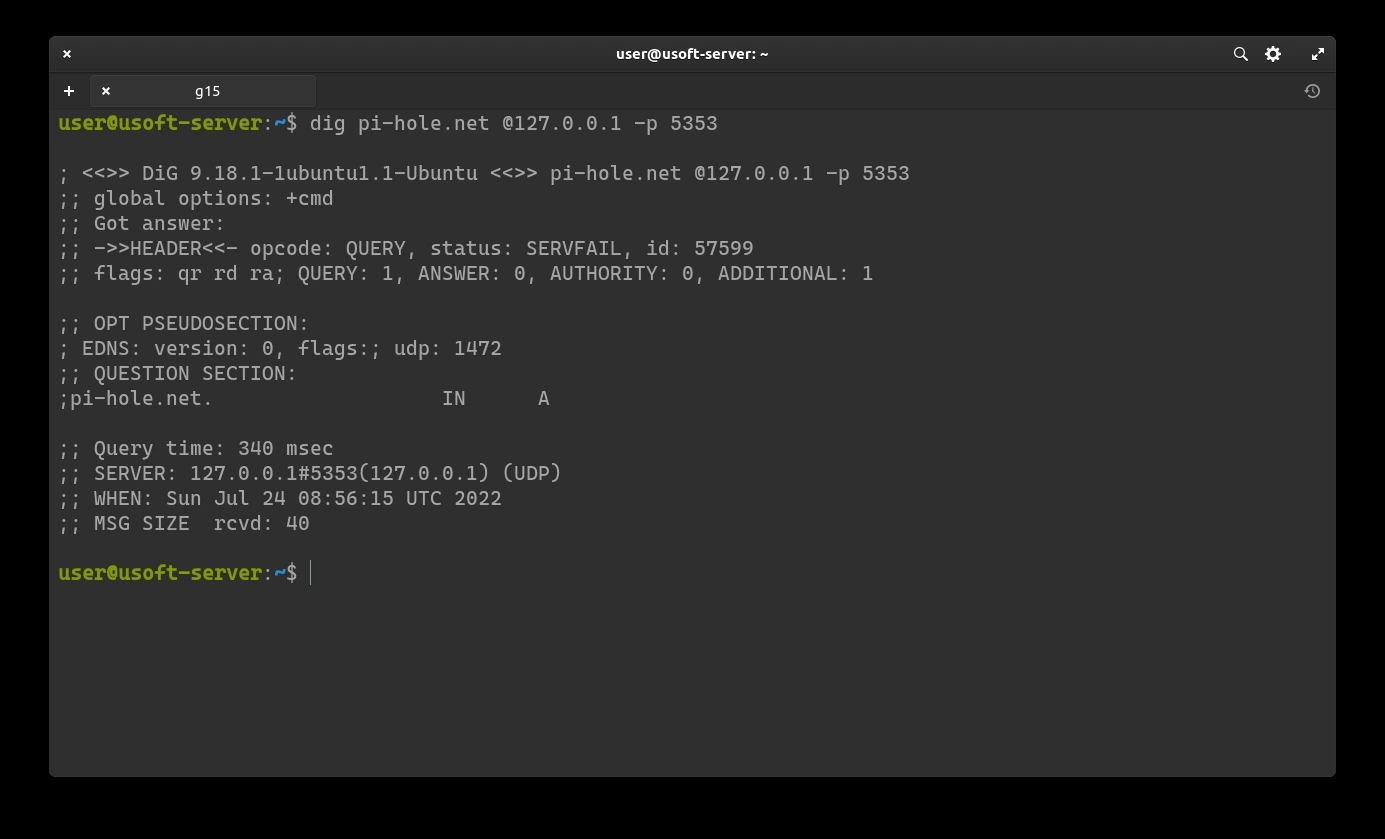
First command: <code class="language-plaintext highlighter-rouge">dig pi-hole.net @127.0.0.1 -p 5353</code></p>

<p><img src="https://raw.githubusercontent.com/EdoardoTosin/Ubuntu-Server-Pi-Hole-Unbound/main/assets/4_Unbound/Unbound_14.webp" alt="DNSSEC check - dig query for pi-hole.net returning NOERROR with valid IP address" /></p>

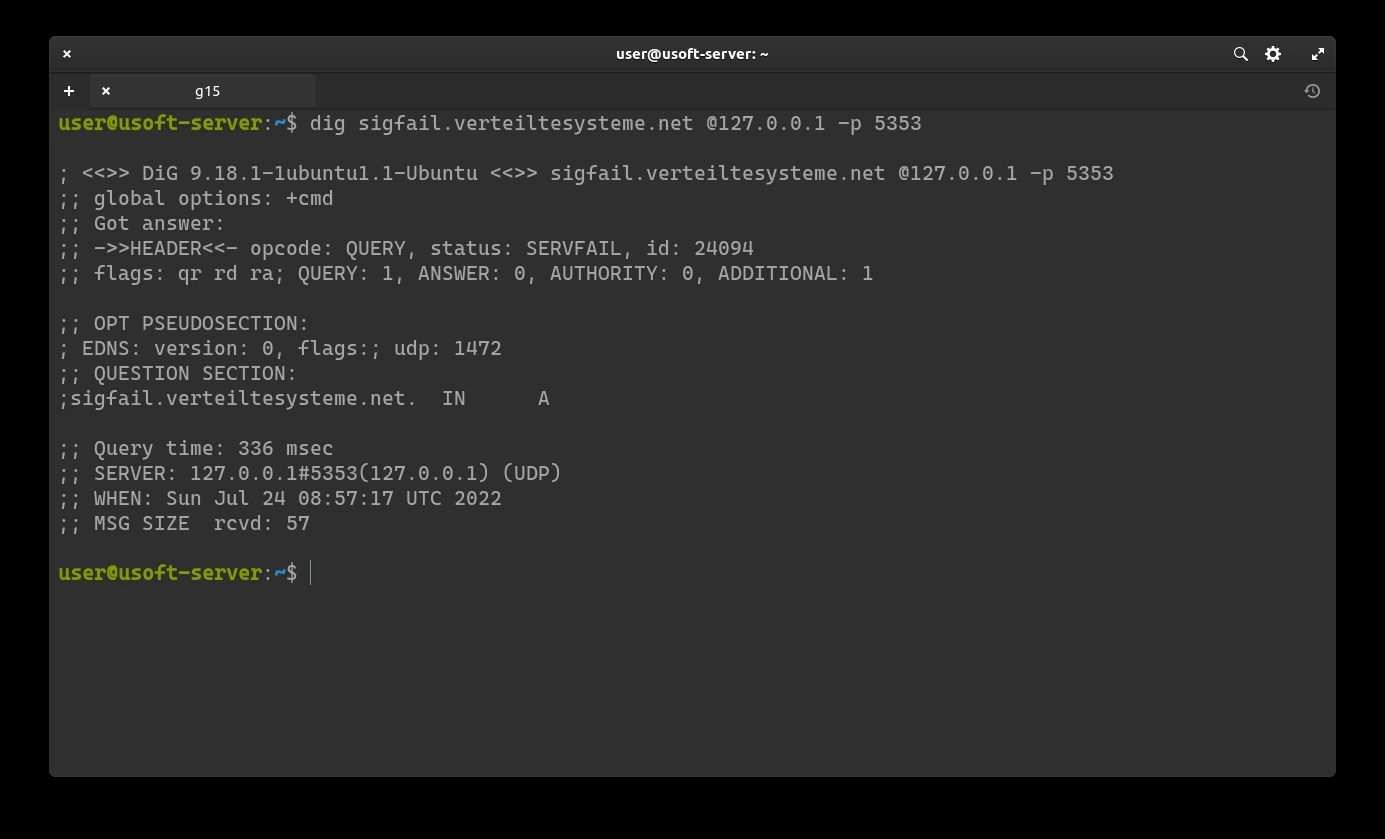
<p>The following command should return SERVFAIL without any IP address: <code class="language-plaintext highlighter-rouge">dig sigfail.verteiltesysteme.net @127.0.0.1 -p 5353</code>.</p>

<p><img src="https://raw.githubusercontent.com/EdoardoTosin/Ubuntu-Server-Pi-Hole-Unbound/main/assets/4_Unbound/Unbound_16.webp" alt="DNSSEC check - dig query for sigfail.verteiltesysteme.net returning SERVFAIL (expected, DNSSEC working)" /></p>

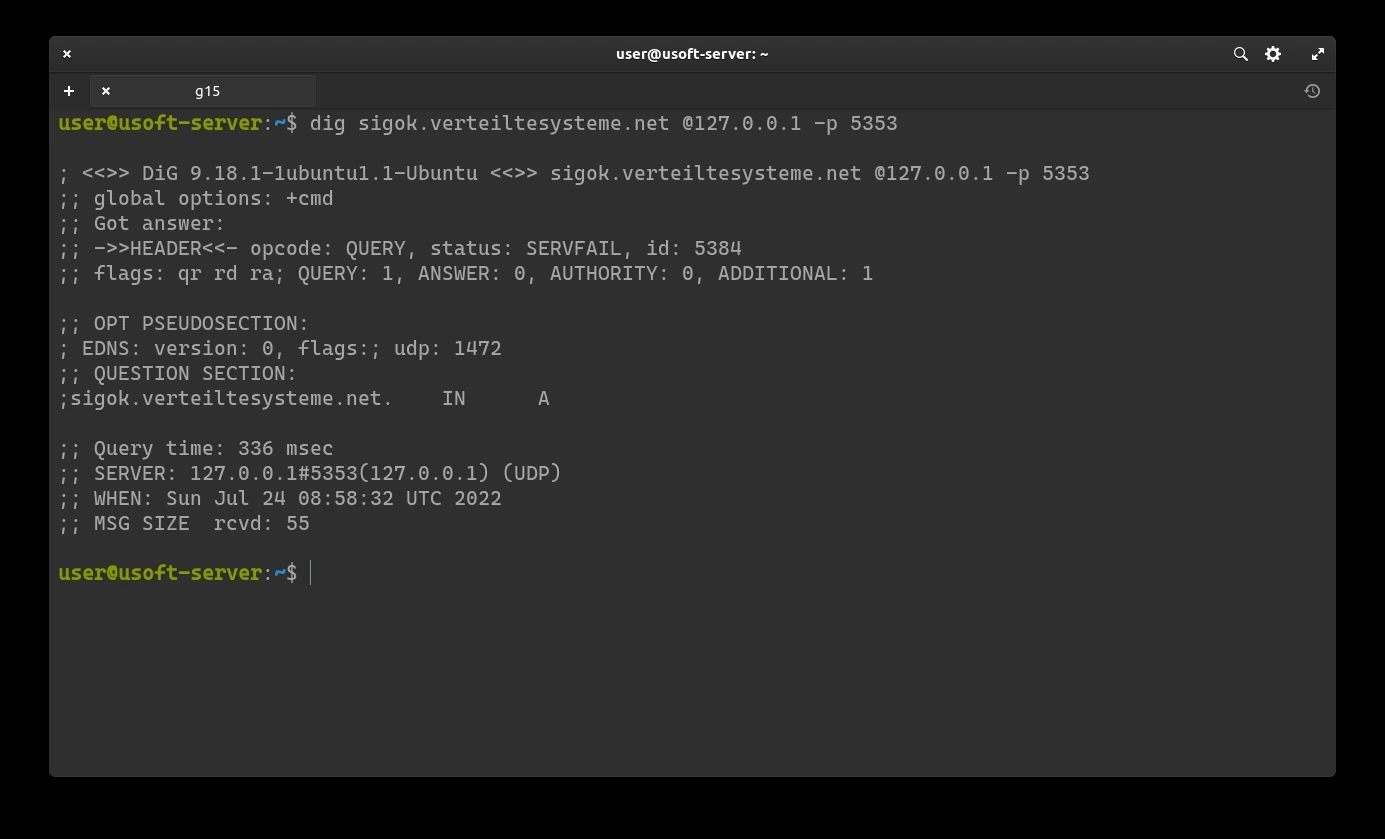
<p>This command should return NOERROR with an IP address: <code class="language-plaintext highlighter-rouge">dig sigok.verteiltesysteme.net @127.0.0.1 -p 5353</code>.
If both return correctly then DNSSEC is working.</p>

<p><img src="https://raw.githubusercontent.com/EdoardoTosin/Ubuntu-Server-Pi-Hole-Unbound/main/assets/4_Unbound/Unbound_18.webp" alt="DNSSEC check - dig query for sigok.verteiltesysteme.net returning NOERROR with IP (DNSSEC working)" /></p>

<p><strong><a href="/blog/ubuntu-server-pihole-unbound-part-5">Next part</a></strong></p>]]></content><author><name>Edoardo Tosin</name><email>edoardotosindev@proton.me</email></author><category term="ubuntu" /><category term="unbound" /><category term="pi-hole" /><category term="dns" /><category term="server" /><category term="adblocker" /><summary type="html"><![CDATA[How to install Unbound on Ubuntu Server as a recursive DNS resolver that queries root nameservers directly, removing reliance on third-party DNS providers.]]></summary><media:thumbnail xmlns:media="http://search.yahoo.com/mrss/" url="https://raw.githubusercontent.com/EdoardoTosin/Ubuntu-Server-Pi-Hole-Unbound/main/assets/4_Unbound/Unbound_7.webp" /><media:content medium="image" url="https://raw.githubusercontent.com/EdoardoTosin/Ubuntu-Server-Pi-Hole-Unbound/main/assets/4_Unbound/Unbound_7.webp" xmlns:media="http://search.yahoo.com/mrss/" /></entry><entry xml:lang="en"><title type="html">Pi-Hole &amp;amp; Unbound Setup - Part 3: Pi-Hole Installation</title><link href="https://edoardotosin.com/blog/ubuntu-server-pihole-unbound-part-3" rel="alternate" type="text/html" title="Pi-Hole &amp;amp; Unbound Setup - Part 3: Pi-Hole Installation" /><published>2024-01-02T12:00:00+01:00</published><updated>2024-08-07T16:30:08+02:00</updated><id>https://edoardotosin.com/blog/ubuntu-server-pihole-unbound-part-3</id><content type="html" xml:base="https://edoardotosin.com/blog/ubuntu-server-pihole-unbound-part-3"><![CDATA[<p><em>In the <a href="/blog/ubuntu-server-pihole-unbound-part-2">previous part</a> it was explained how to add two-factor authentication (2FA) for SSH access.</em></p>

<h2 id="pi-hole-installation">Pi-Hole Installation</h2>

<p>In this phase, Pi-Hole, an open-source software, will be installed. It acts as a <a href="https://it.wikipedia.org/wiki/DNS_sinkhole">DNS sinkhole</a> and optionally as a DHCP server. This application filters DNS requests to drastically reduce advertising present in web pages.</p>

<h3 id="download-official-repository">Download official repository</h3>

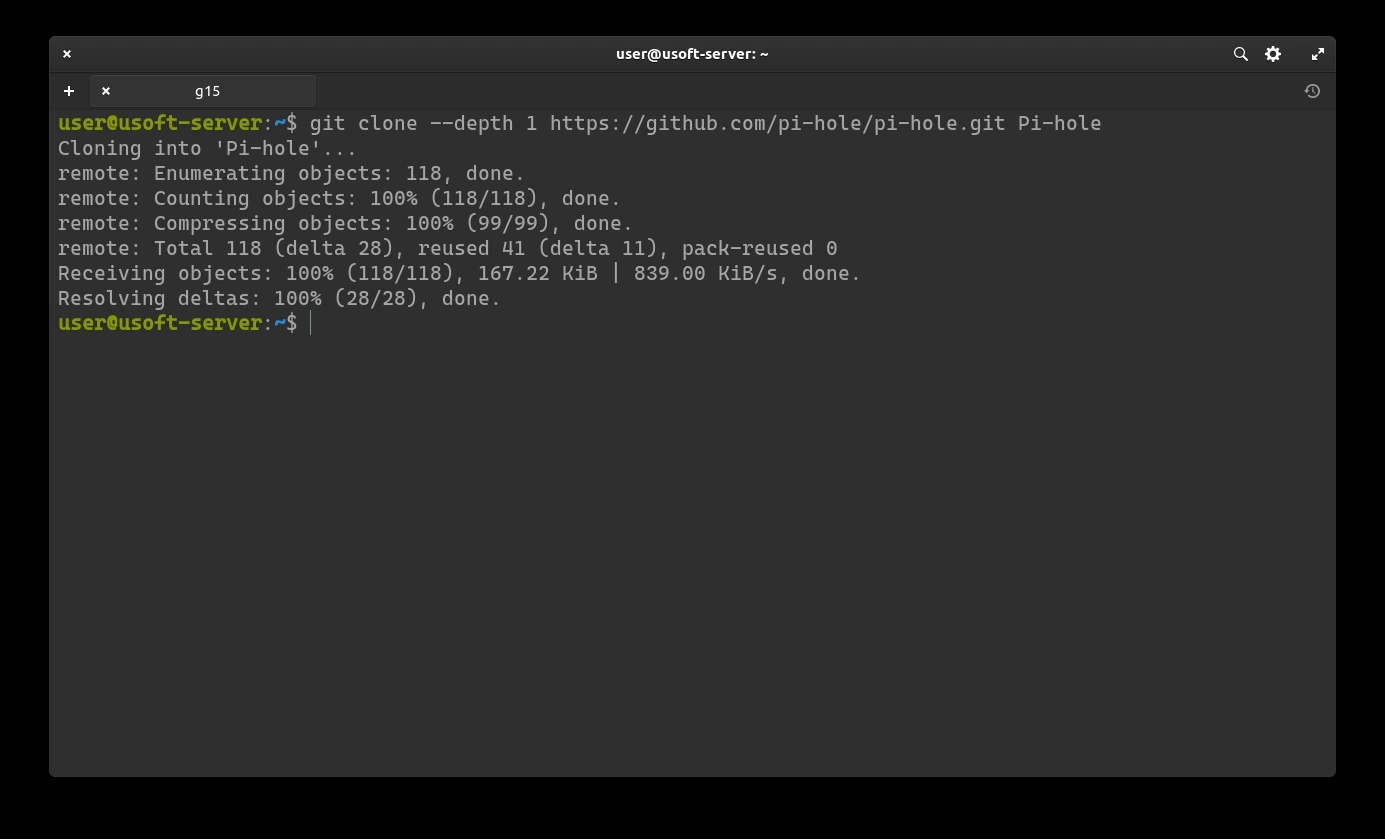
<p>As the first step, download the Pi-Hole repository: <code class="language-plaintext highlighter-rouge">git clone --depth 1 https://github.com/pi-hole/pi-hole.git Pi-hole</code>.</p>

<p><img src="https://raw.githubusercontent.com/EdoardoTosin/Ubuntu-Server-Pi-Hole-Unbound/main/assets/3_Pi-Hole/Pi-Hole_2.webp" alt="Pi-Hole installation - cloning the official Pi-Hole GitHub repository" /></p>

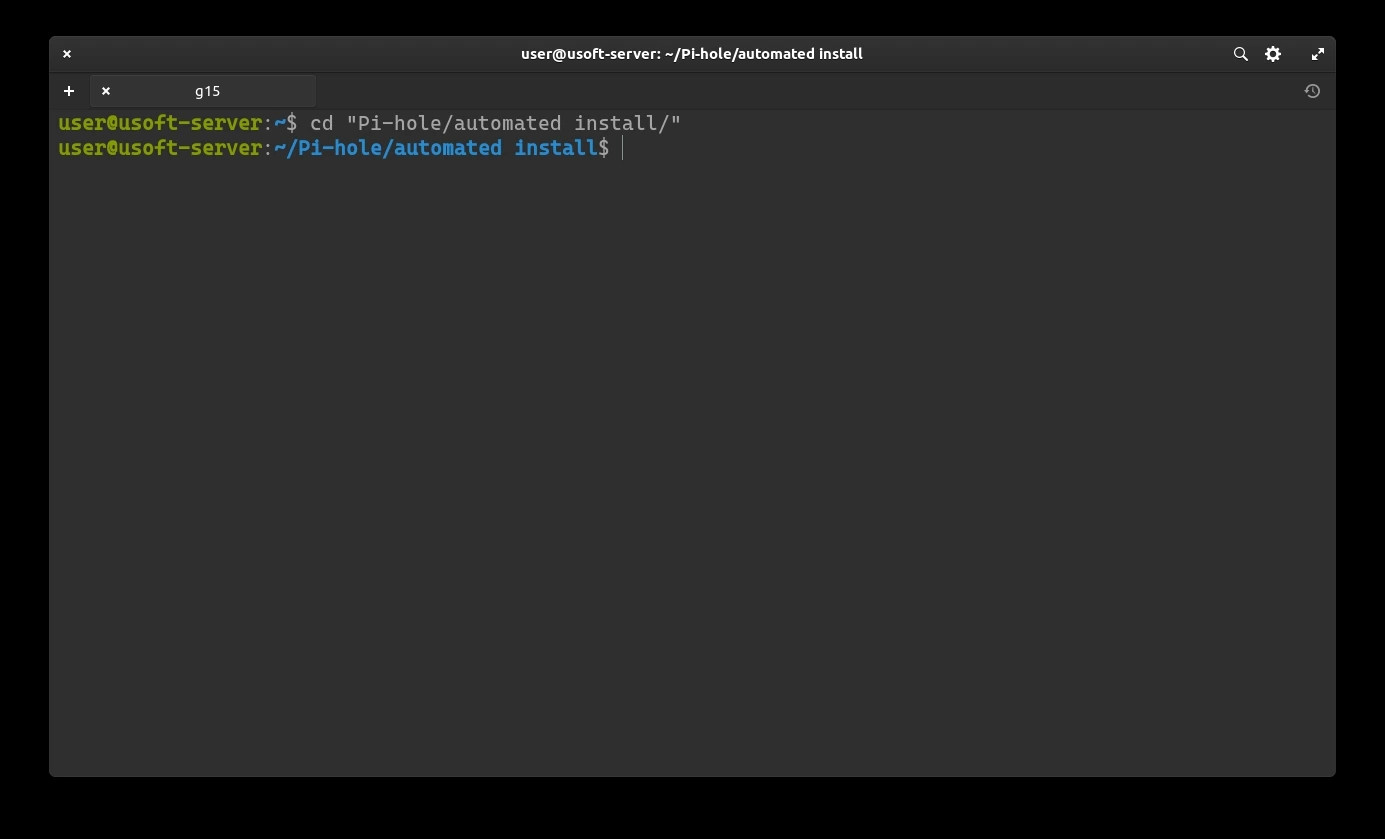
<p>At the end of the download, enter the folder: <code class="language-plaintext highlighter-rouge">cd 'Pi-hole/automated install/'</code>.</p>

<p><img src="https://raw.githubusercontent.com/EdoardoTosin/Ubuntu-Server-Pi-Hole-Unbound/main/assets/3_Pi-Hole/Pi-Hole_4.webp" alt="Pi-Hole installation - navigating into the Pi-hole automated install directory" /></p>

<h3 id="prepare-pi-hole-installation">Prepare Pi-Hole installation</h3>

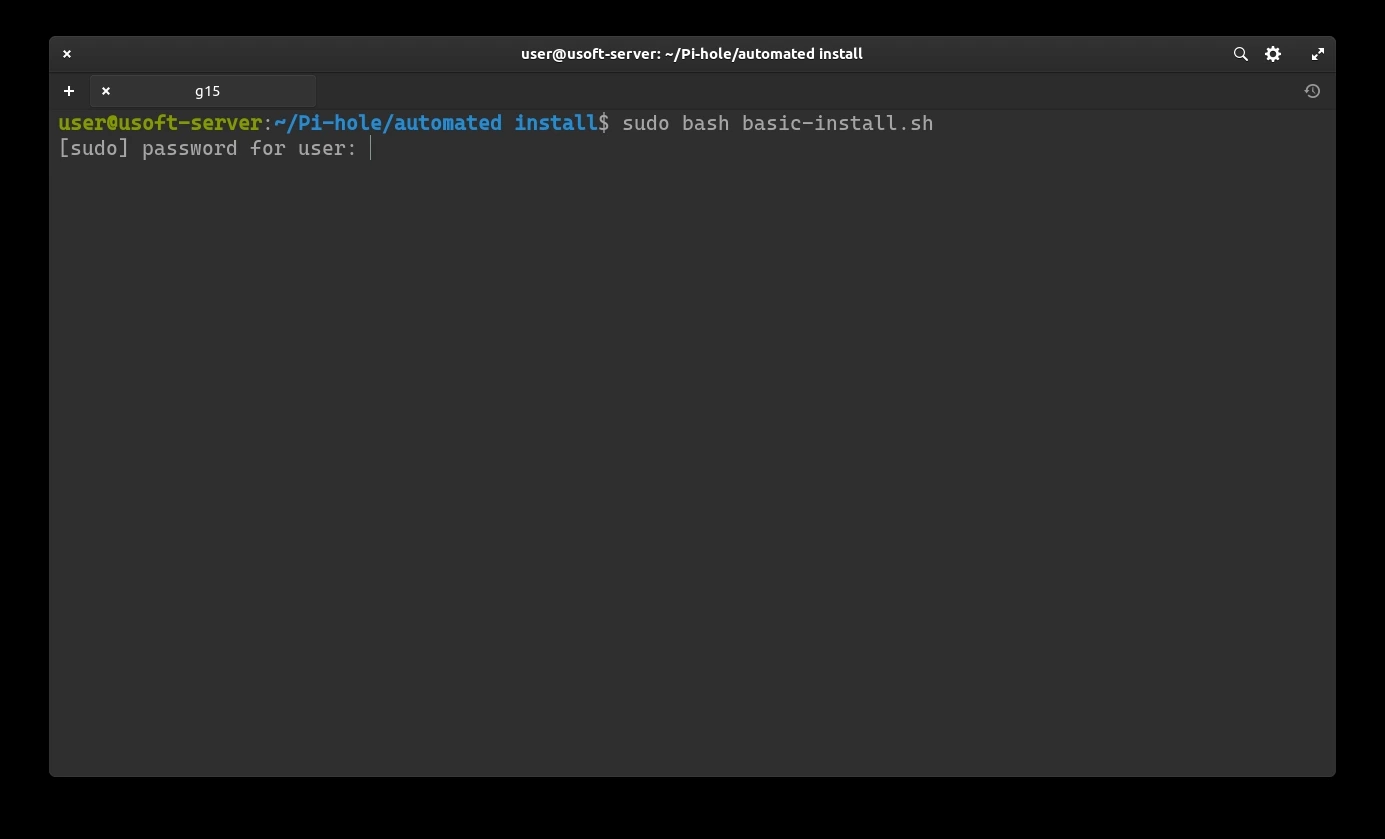
<p>From this directory, launch the bash script: <code class="language-plaintext highlighter-rouge">sudo bash basic-install.sh</code>.
It may ask for the user password as it is launched with administrator privileges.
If so, enter it and press <code class="language-plaintext highlighter-rouge">Enter</code>.</p>

<p><img src="https://raw.githubusercontent.com/EdoardoTosin/Ubuntu-Server-Pi-Hole-Unbound/main/assets/3_Pi-Hole/Pi-Hole_6.webp" alt="Pi-Hole installation - running basic-install.sh bash script with sudo privileges" /></p>

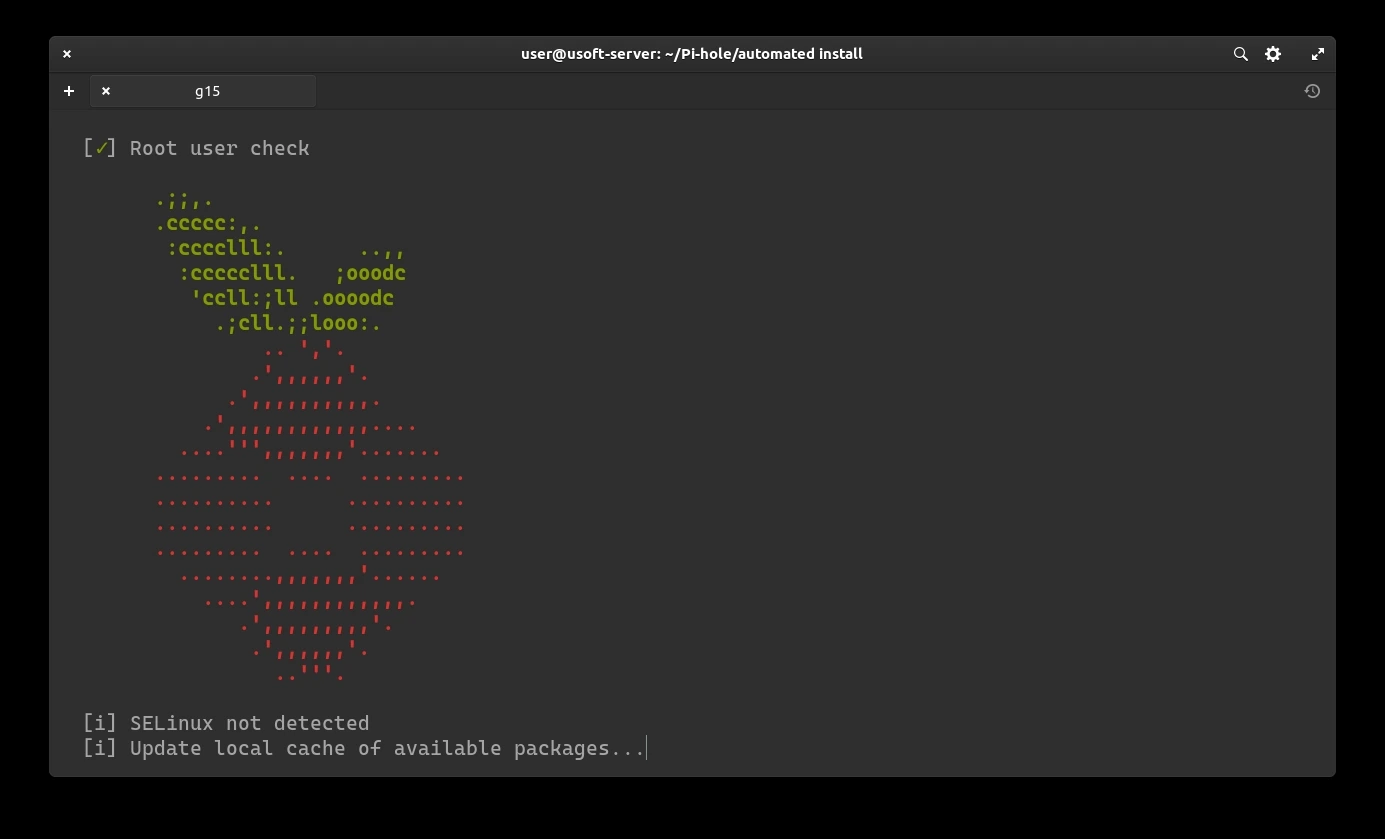
<p>Wait for a moment for compatibility checks and conflicts.</p>

<p><img src="https://raw.githubusercontent.com/EdoardoTosin/Ubuntu-Server-Pi-Hole-Unbound/main/assets/3_Pi-Hole/Pi-Hole_7.webp" alt="Pi-Hole installation - compatibility checks and dependency verification in progress" /></p>

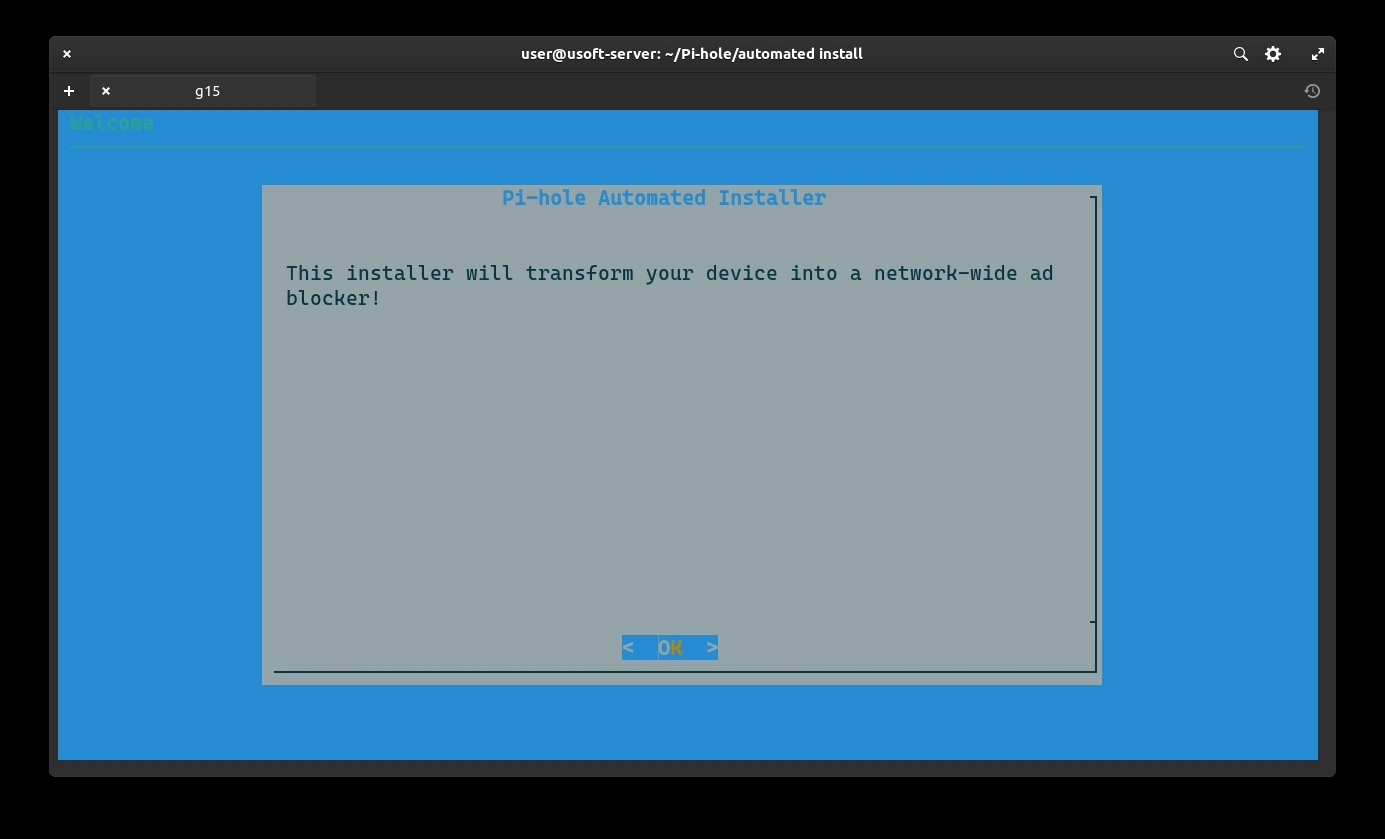
<p>Press <code class="language-plaintext highlighter-rouge">Enter</code> for each of the two screens to start the configuration.</p>

<p><img src="https://raw.githubusercontent.com/EdoardoTosin/Ubuntu-Server-Pi-Hole-Unbound/main/assets/3_Pi-Hole/Pi-Hole_8.webp" alt="Pi-Hole installation - first informational screen, press Enter to continue" /></p>

<p><img src="https://raw.githubusercontent.com/EdoardoTosin/Ubuntu-Server-Pi-Hole-Unbound/main/assets/3_Pi-Hole/Pi-Hole_9.webp" alt="Pi-Hole installation - second informational screen, press Enter to begin configuration" /></p>

<h3 id="configure-pi-hole-installation">Configure Pi-Hole installation</h3>

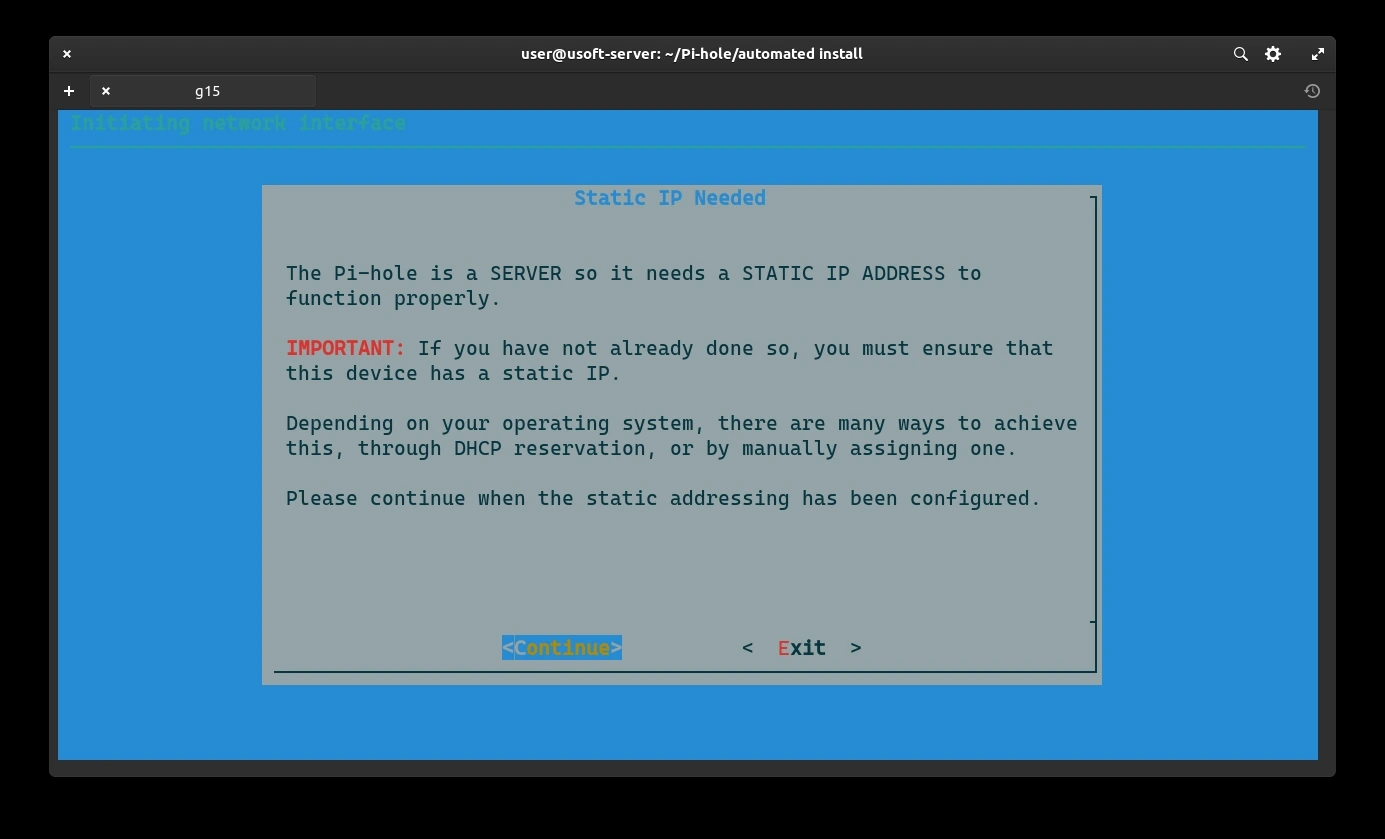
<p>Since the router has been set as a static IP, we can confirm by selecting <code class="language-plaintext highlighter-rouge">Continue</code> and pressing <code class="language-plaintext highlighter-rouge">Enter</code>.</p>

<p><img src="https://raw.githubusercontent.com/EdoardoTosin/Ubuntu-Server-Pi-Hole-Unbound/main/assets/3_Pi-Hole/Pi-Hole_10.webp" alt="Pi-Hole installation - static IP confirmation screen, selecting Continue" /></p>

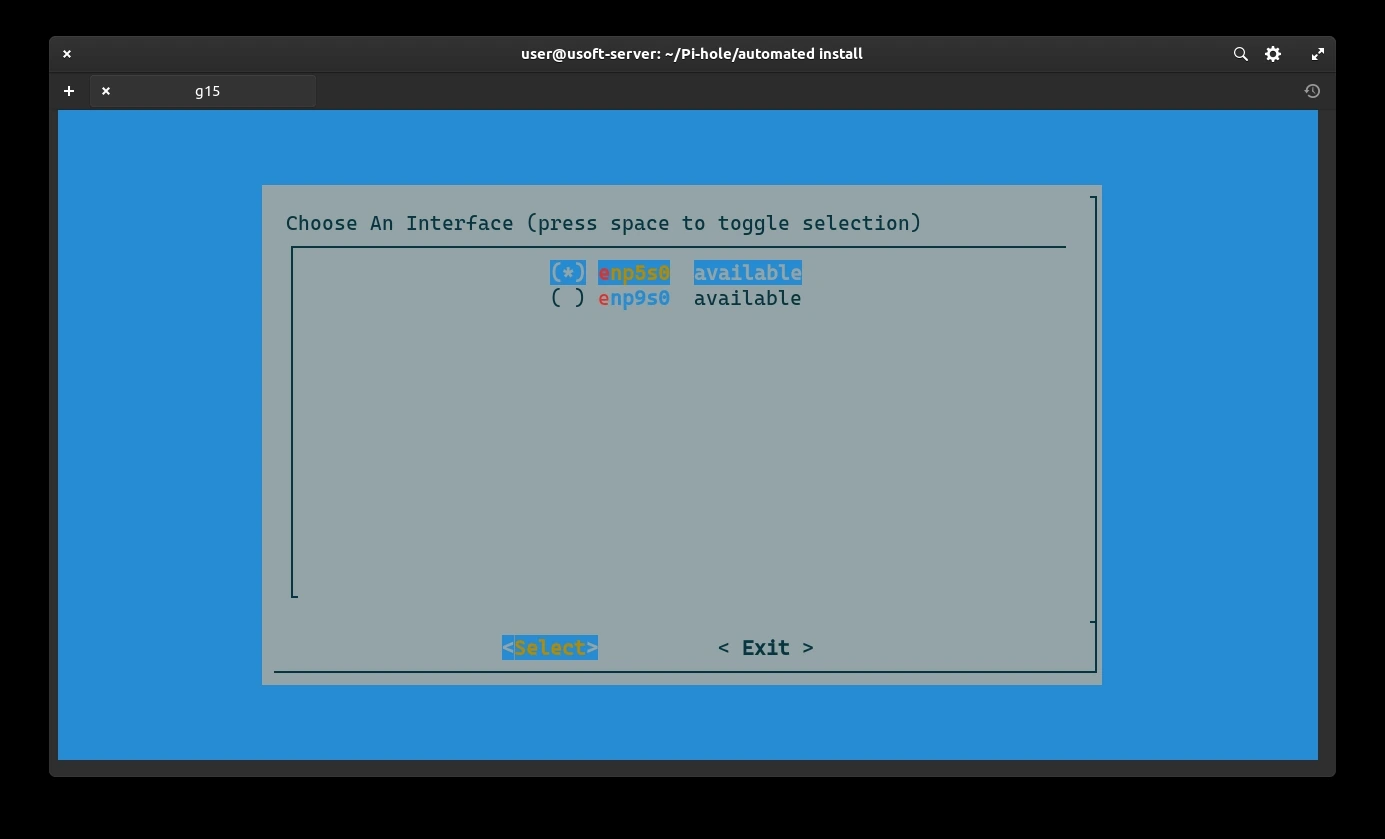
<p>Select the same interface to which the IP used throughout the entire procedure was assigned. In this case, the first one. Press <code class="language-plaintext highlighter-rouge">Enter</code> to confirm.</p>

<p><img src="https://raw.githubusercontent.com/EdoardoTosin/Ubuntu-Server-Pi-Hole-Unbound/main/assets/3_Pi-Hole/Pi-Hole_11.webp" alt="Pi-Hole installation - network interface selection screen" /></p>

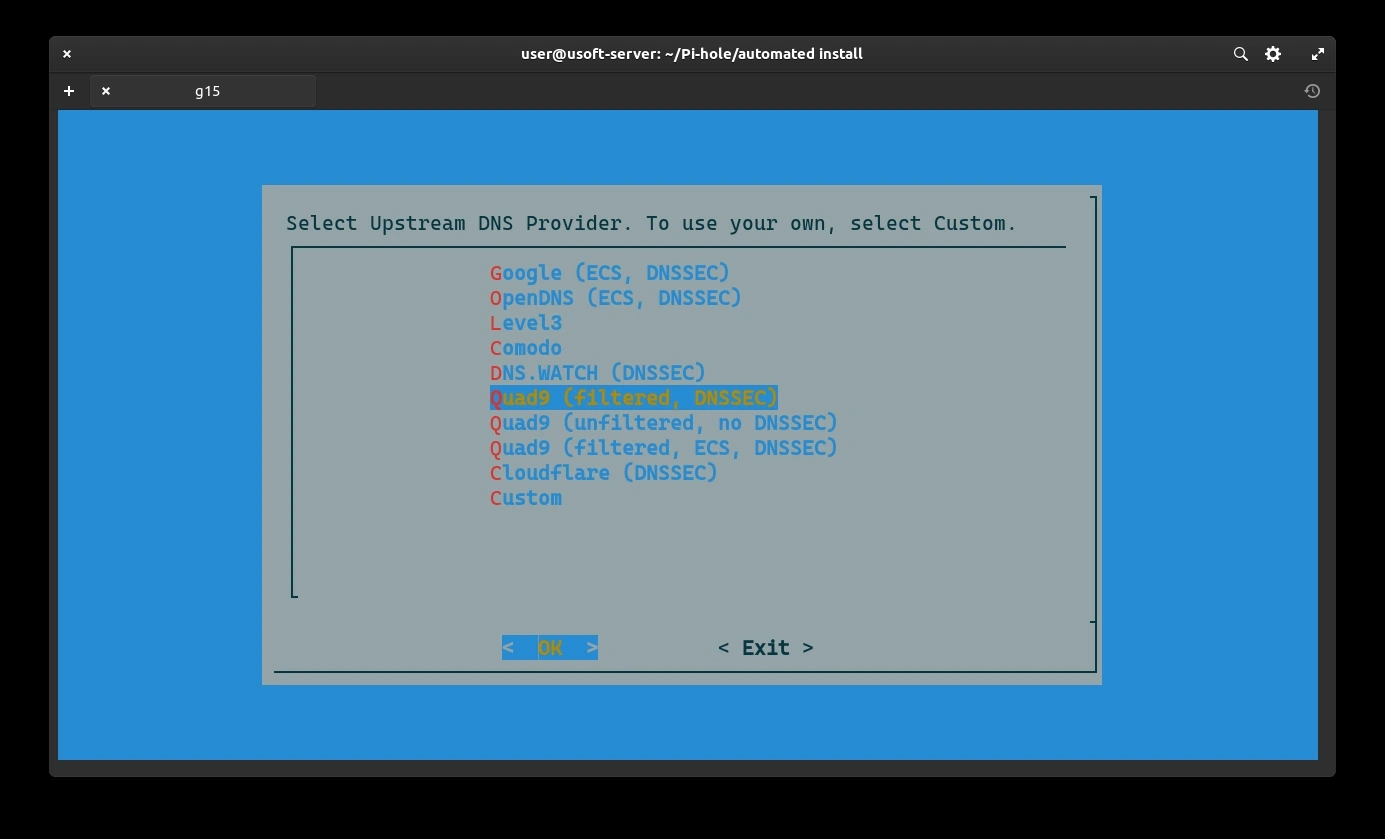
<p>Select a temporary DNS provider. Later it will be removed as the computer with Ubuntu Server will become its own DNS resolver at port <code class="language-plaintext highlighter-rouge">5353</code> and address <code class="language-plaintext highlighter-rouge">127.0.0.1</code>.</p>

<p><img src="https://raw.githubusercontent.com/EdoardoTosin/Ubuntu-Server-Pi-Hole-Unbound/main/assets/3_Pi-Hole/Pi-Hole_12.webp" alt="Pi-Hole installation - selecting a temporary upstream DNS provider" /></p>

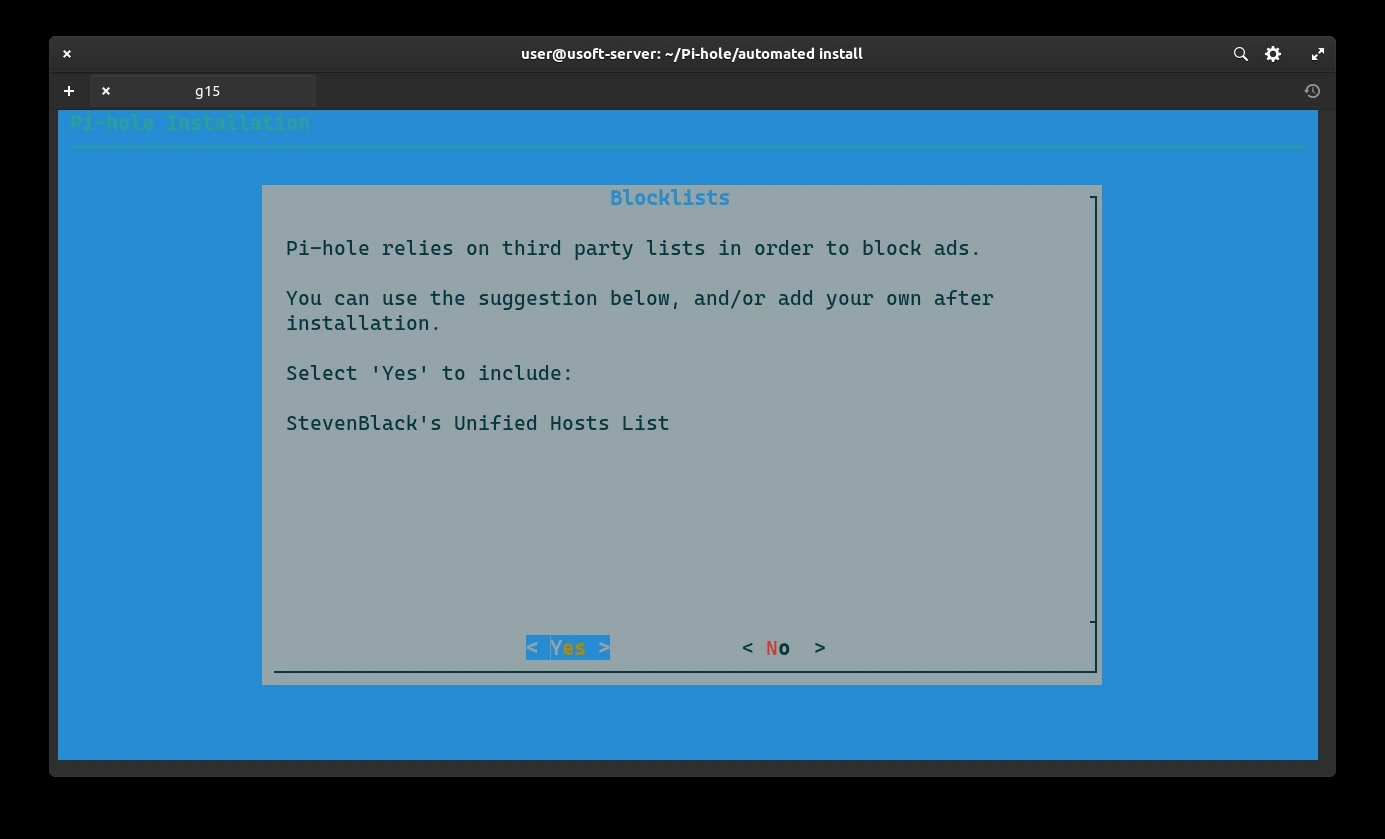
<p>Select <code class="language-plaintext highlighter-rouge">Yes</code> to include third-party lists to filter content and confirm by pressing <code class="language-plaintext highlighter-rouge">Enter</code>.</p>

<p><img src="https://raw.githubusercontent.com/EdoardoTosin/Ubuntu-Server-Pi-Hole-Unbound/main/assets/3_Pi-Hole/Pi-Hole_13.webp" alt="Pi-Hole installation - enabling third-party blocklists for ad and tracker filtering" /></p>

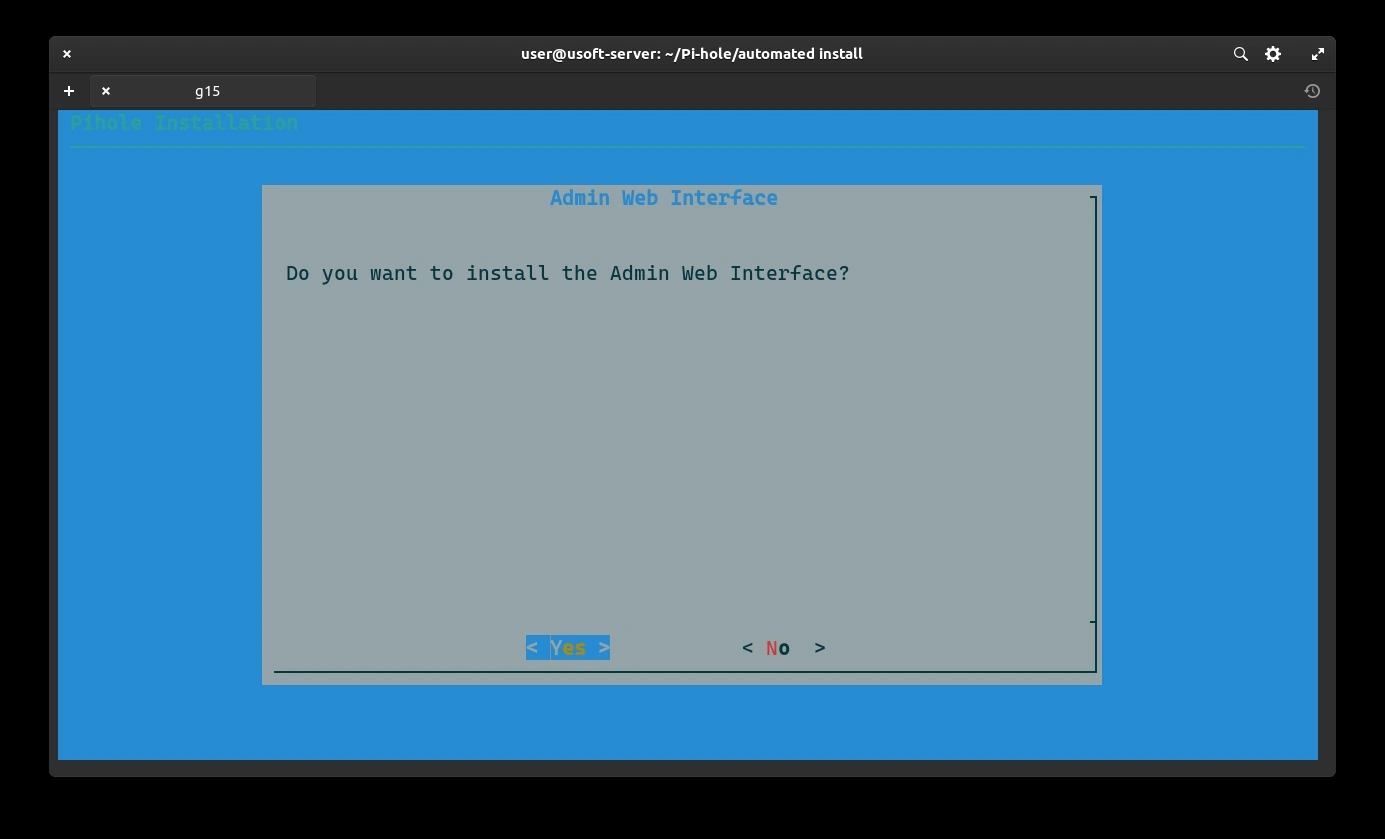
<p>Confirm the installation of the web interface for making further changes to the settings. Select <code class="language-plaintext highlighter-rouge">Yes</code> and press <code class="language-plaintext highlighter-rouge">Enter</code>.</p>

<p><img src="https://raw.githubusercontent.com/EdoardoTosin/Ubuntu-Server-Pi-Hole-Unbound/main/assets/3_Pi-Hole/Pi-Hole_14.webp" alt="Pi-Hole installation - confirming installation of the Pi-Hole web admin interface" /></p>

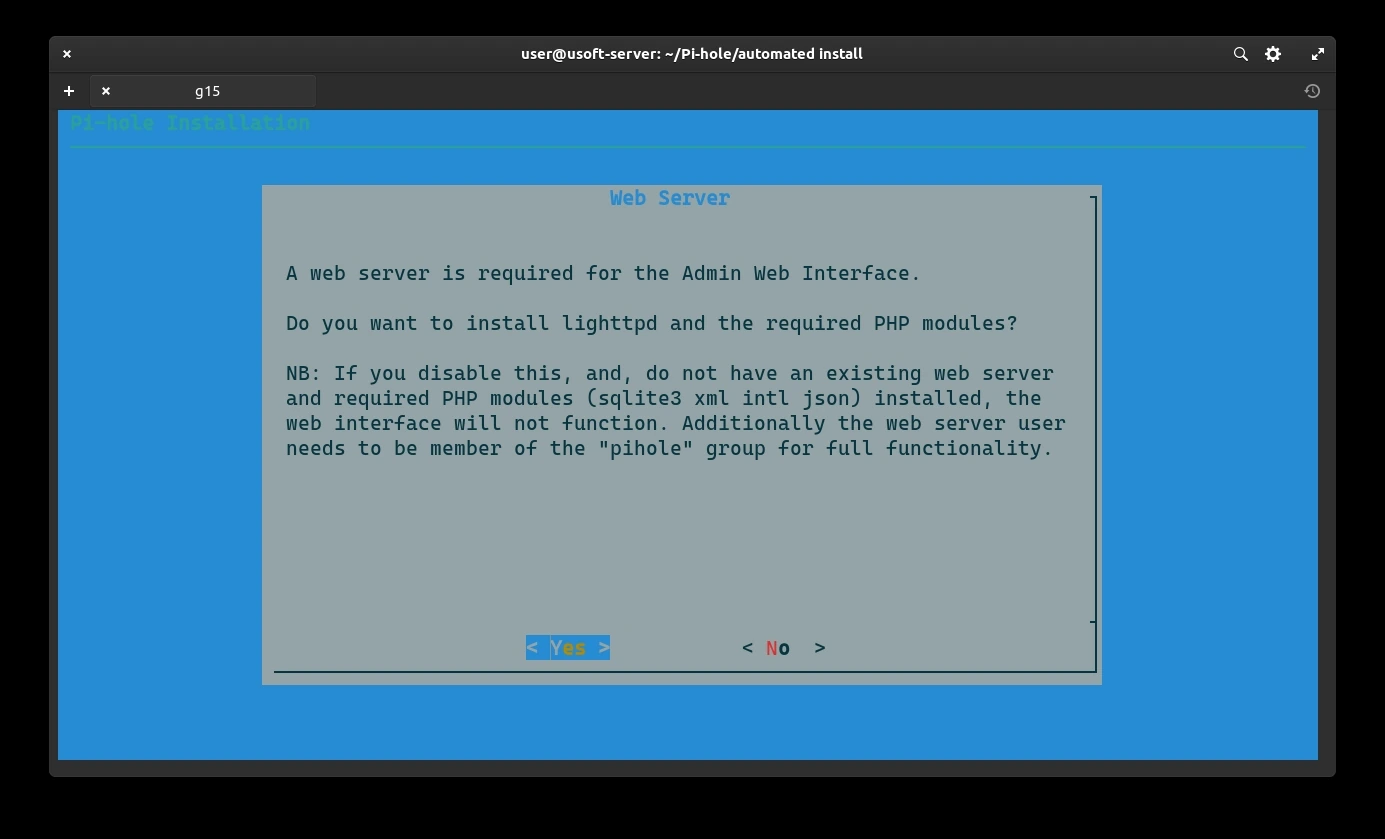
<p>Confirm the installation of the lightweight web server lighttpd to make the web interface functional. Select <code class="language-plaintext highlighter-rouge">Yes</code> and press <code class="language-plaintext highlighter-rouge">Enter</code>.</p>

<p><img src="https://raw.githubusercontent.com/EdoardoTosin/Ubuntu-Server-Pi-Hole-Unbound/main/assets/3_Pi-Hole/Pi-Hole_15.webp" alt="Pi-Hole installation - confirming installation of the lighttpd web server" /></p>

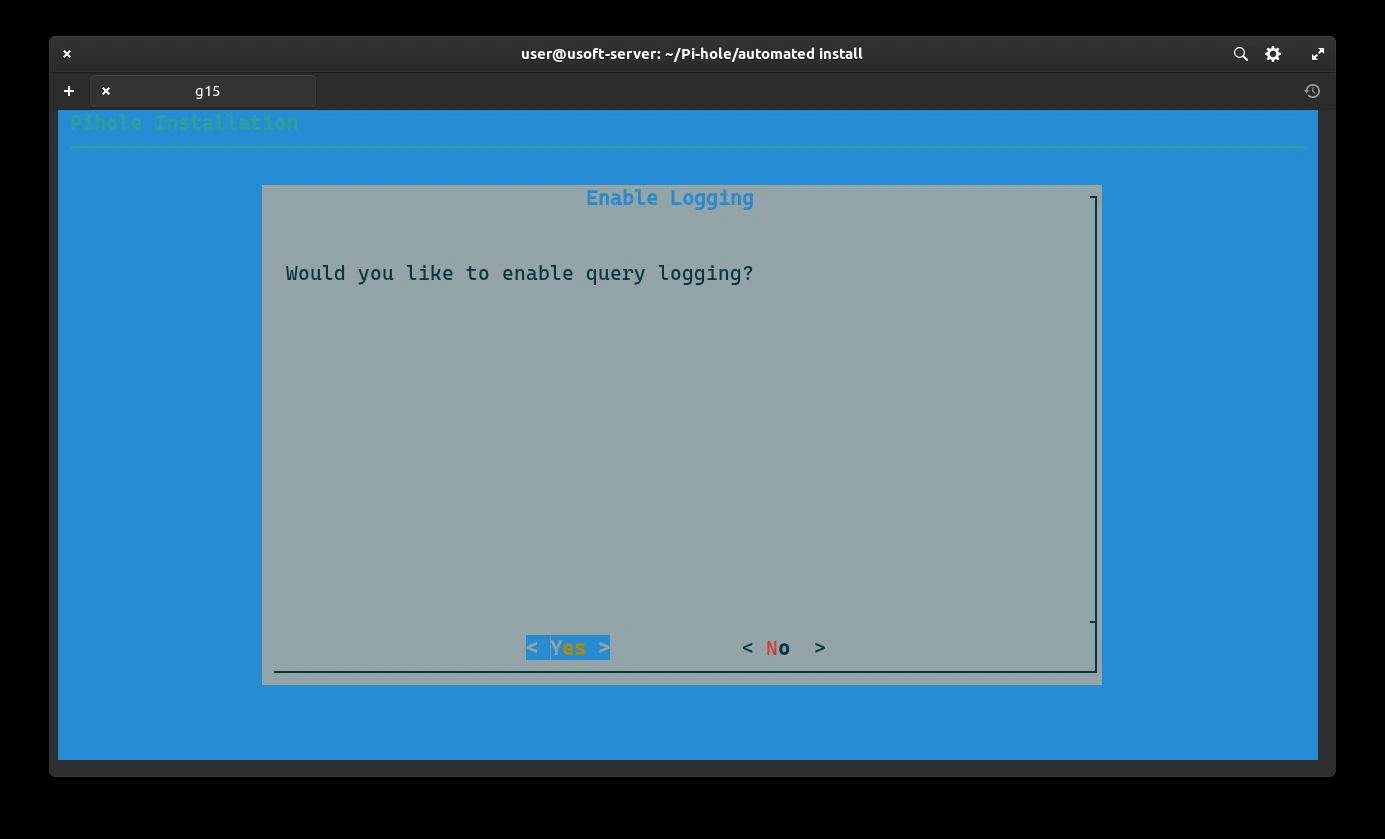
<p>Enable logging of queries for potential debugging of problems. Select <code class="language-plaintext highlighter-rouge">Yes</code> and press <code class="language-plaintext highlighter-rouge">Enter</code>.</p>

<p><img src="https://raw.githubusercontent.com/EdoardoTosin/Ubuntu-Server-Pi-Hole-Unbound/main/assets/3_Pi-Hole/Pi-Hole_16.webp" alt="Pi-Hole installation - enabling DNS query logging for debugging purposes" /></p>

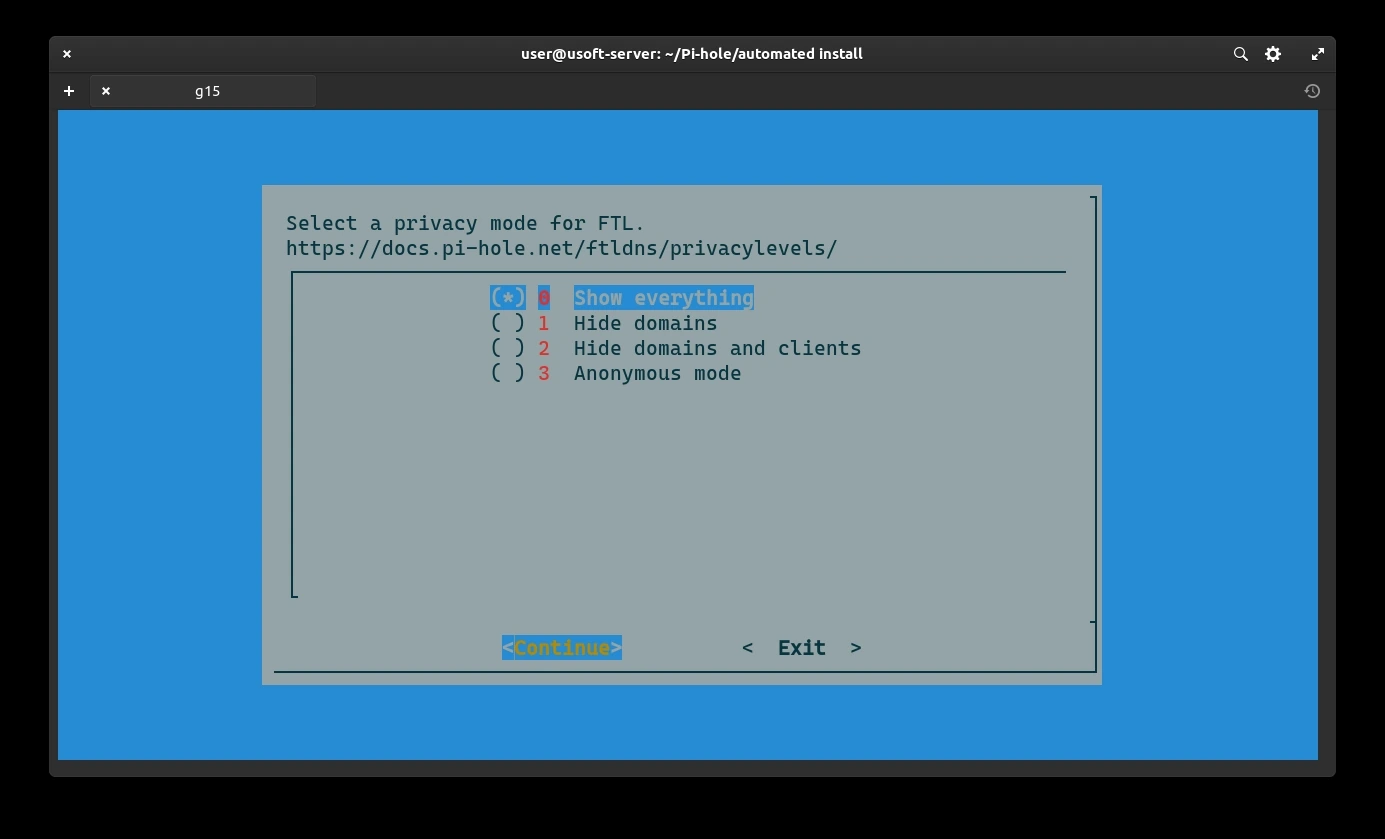
<p>In this screen, you can choose how many contents are visible from the admin web interface. Leave the default <code class="language-plaintext highlighter-rouge">Show everything</code>. Select <code class="language-plaintext highlighter-rouge">Continue</code> and press <code class="language-plaintext highlighter-rouge">Enter</code>.</p>

<p><img src="https://raw.githubusercontent.com/EdoardoTosin/Ubuntu-Server-Pi-Hole-Unbound/main/assets/3_Pi-Hole/Pi-Hole_17.webp" alt="Pi-Hole installation - privacy mode selection for web interface, leaving &quot;Show everything&quot; as default" /></p>

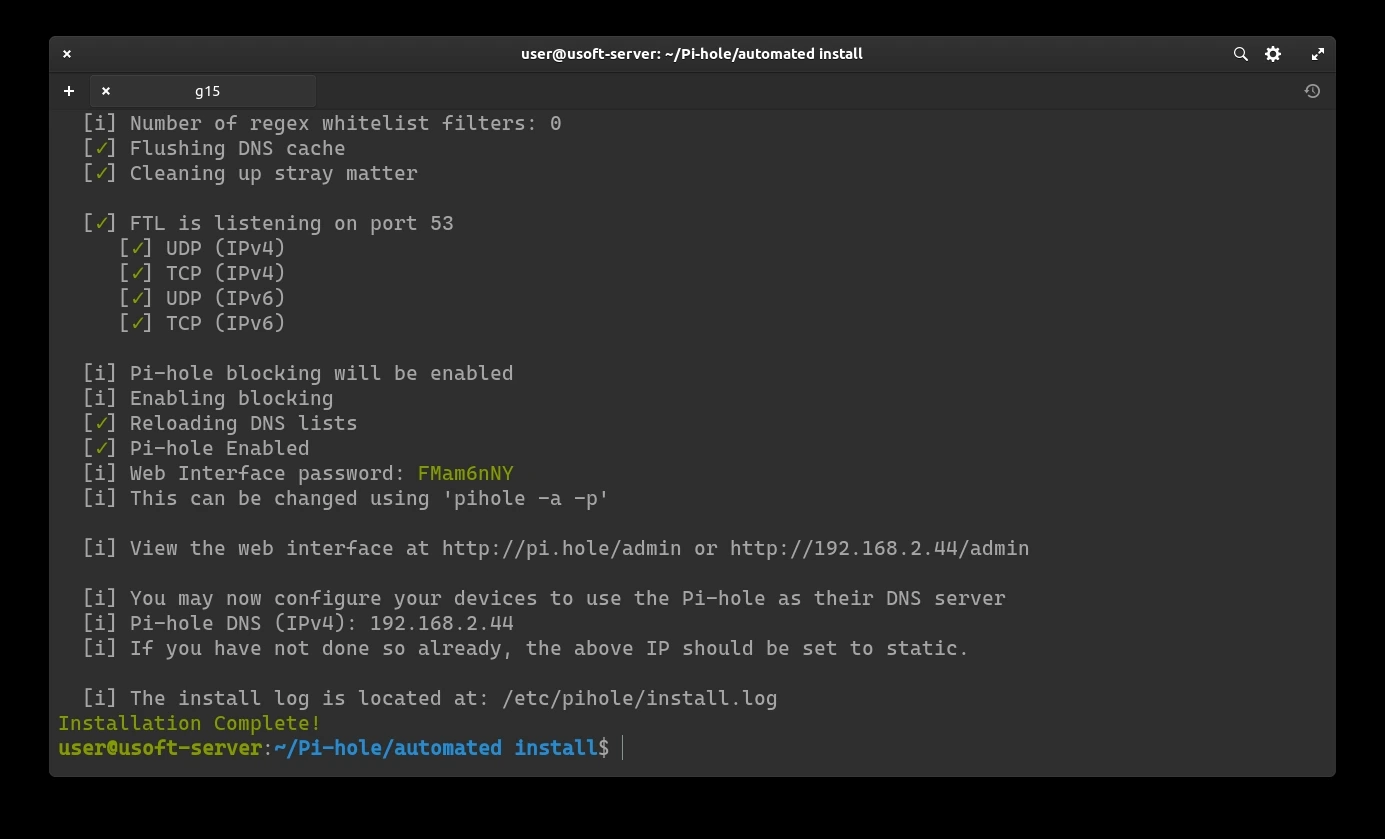
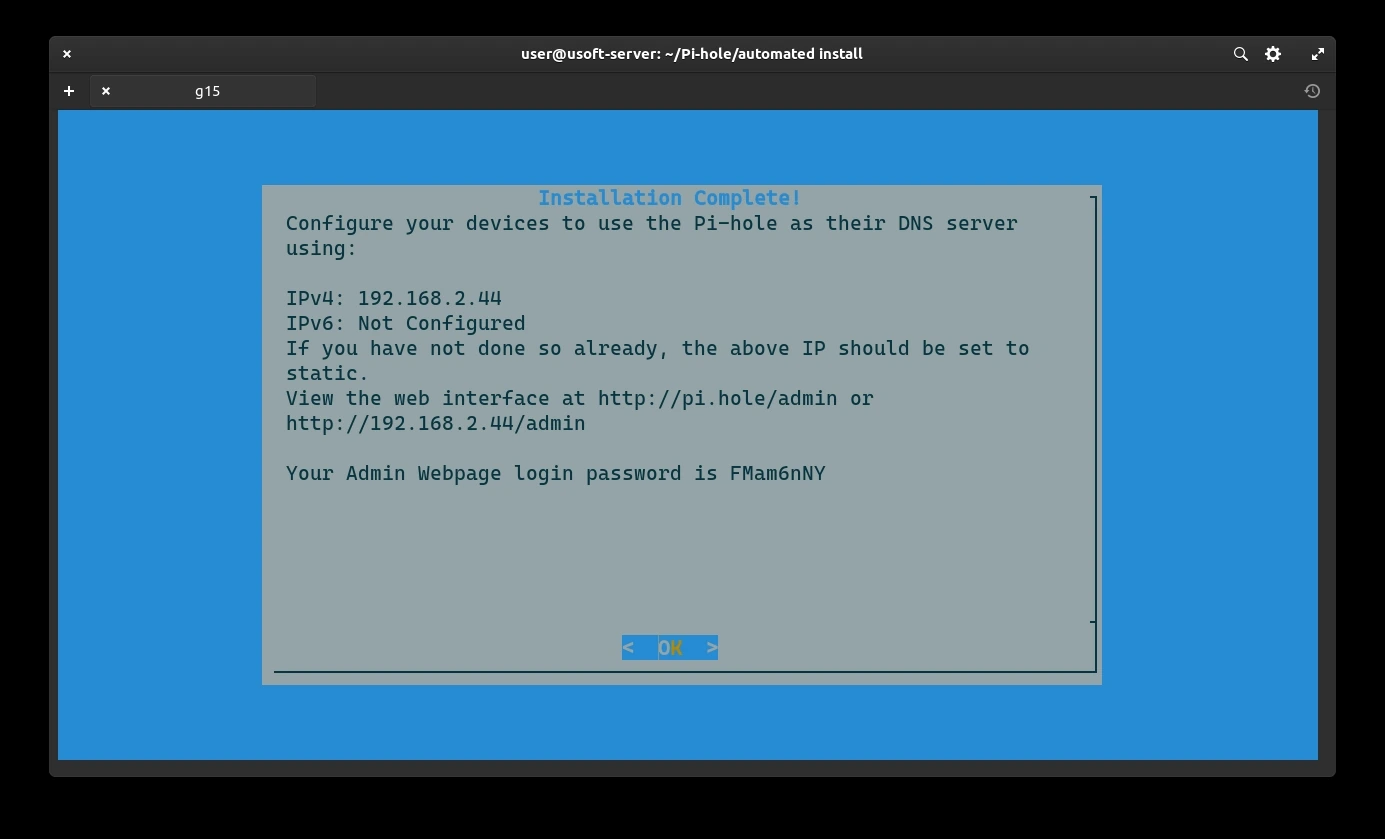
<p>Here, the auto-generated password for logging into the web interface via the computer's IP will be displayed. It's not important to remember it since it will be changed with a longer one for security reasons later. Press <code class="language-plaintext highlighter-rouge">Enter</code> to continue.</p>

<p><img src="https://raw.githubusercontent.com/EdoardoTosin/Ubuntu-Server-Pi-Hole-Unbound/main/assets/3_Pi-Hole/Pi-Hole_18.webp" alt="Pi-Hole installation - auto-generated admin web interface password displayed on completion" /></p>

<p>Once the Pi-Hole configuration procedure is completed, you can proceed to change the admin interface password (not to be confused with the user password).</p>

<p><img src="https://raw.githubusercontent.com/EdoardoTosin/Ubuntu-Server-Pi-Hole-Unbound/main/assets/3_Pi-Hole/Pi-Hole_19.webp" alt="Pi-Hole installation - installation complete summary screen" /></p>

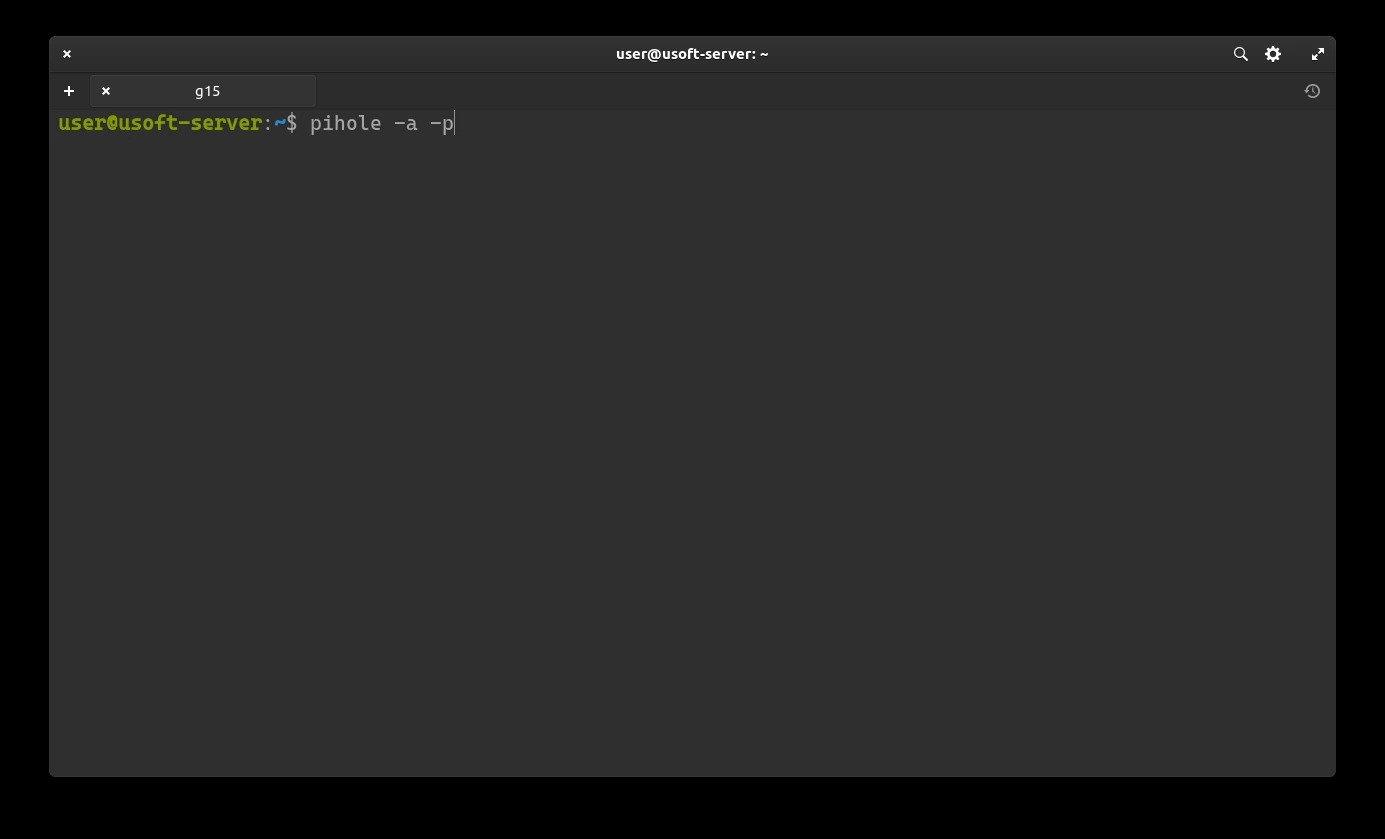
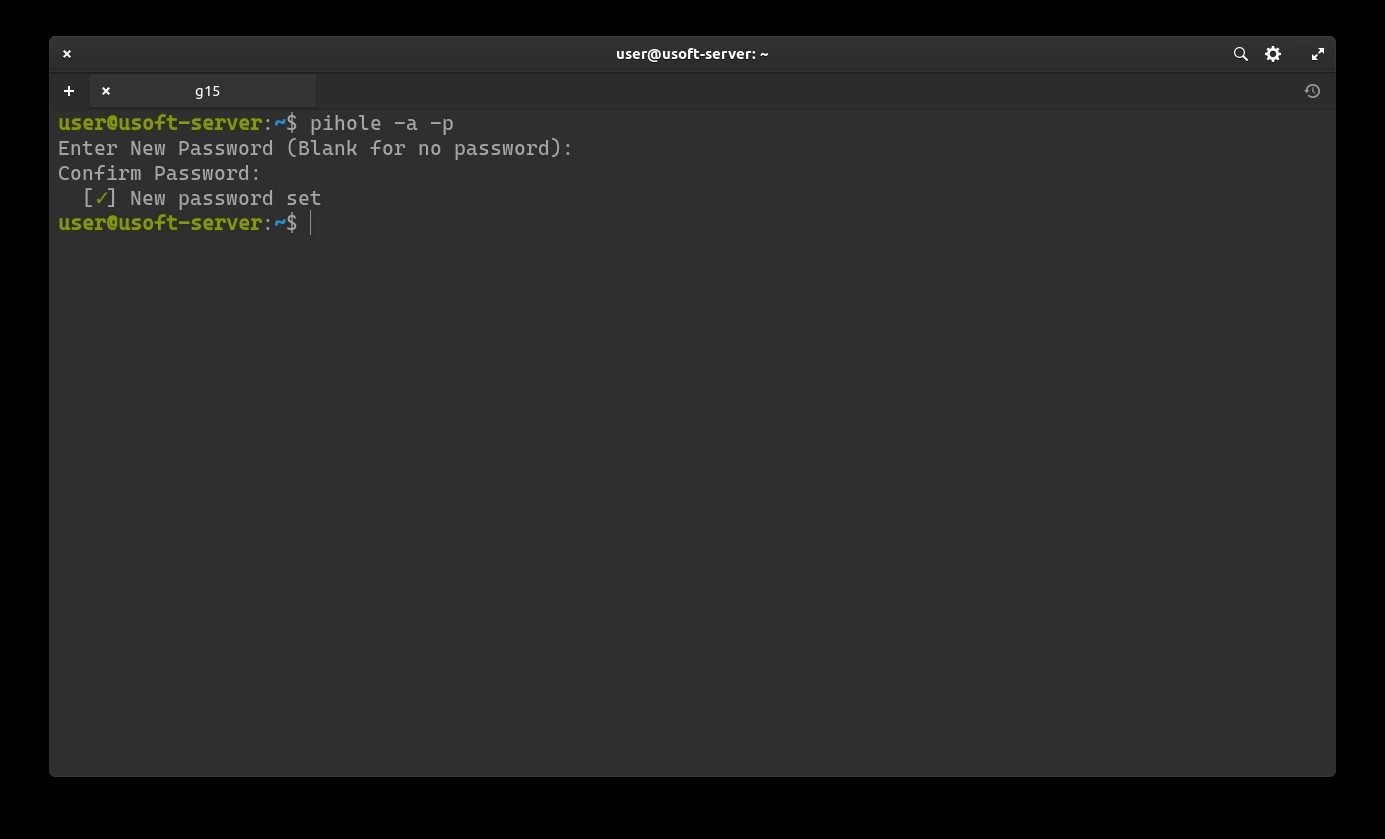
<p>To change the Pi-Hole web interface password, use the command <code class="language-plaintext highlighter-rouge">pihole -a -p</code>.</p>

<p><img src="https://raw.githubusercontent.com/EdoardoTosin/Ubuntu-Server-Pi-Hole-Unbound/main/assets/3_Pi-Hole/Pi-Hole_20.webp" alt="Pi-Hole - running &quot;pihole -a -p&quot; command to change the admin web interface password" /></p>

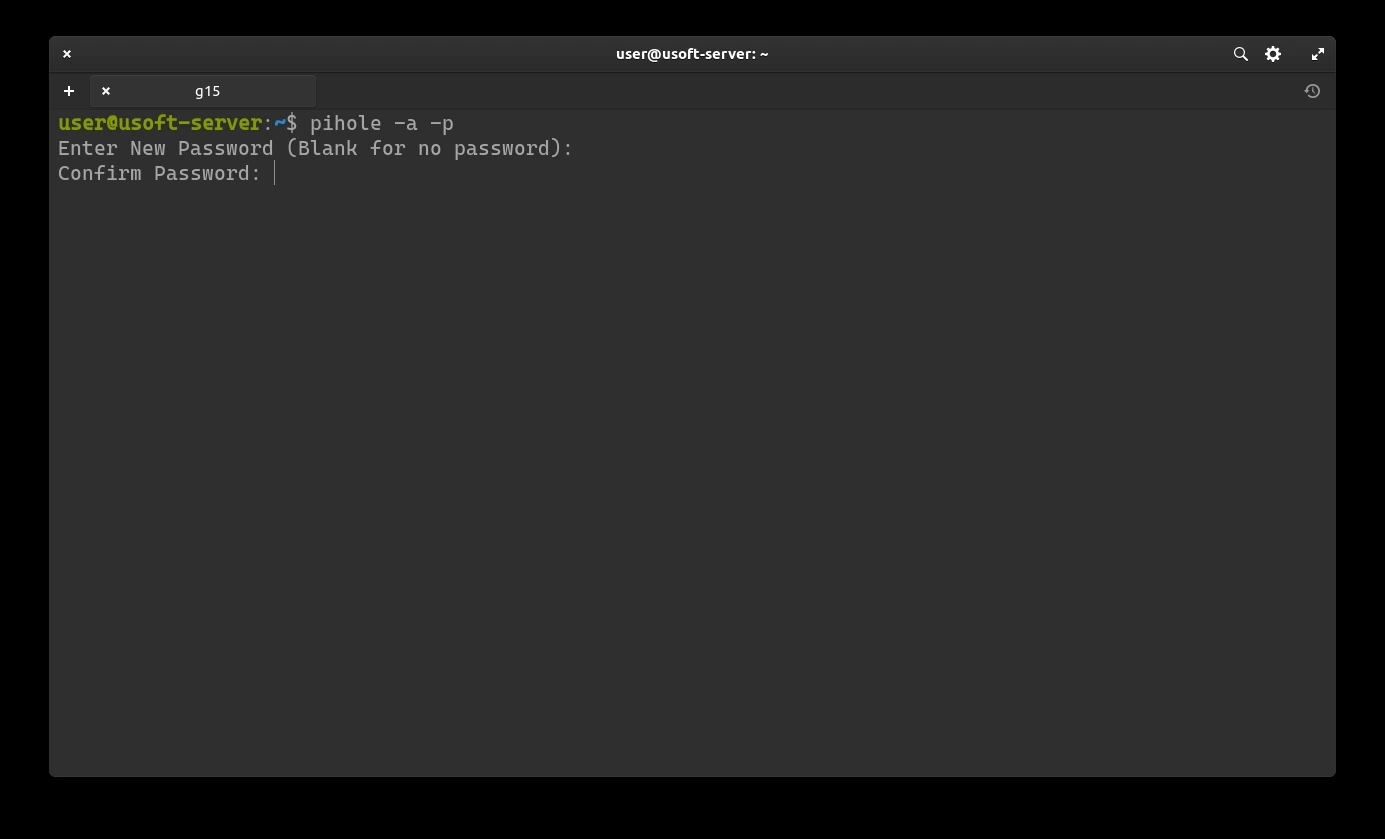
<p>After pressing <code class="language-plaintext highlighter-rouge">Enter</code>, enter the password, press <code class="language-plaintext highlighter-rouge">Enter</code> again, re-enter the password, and finally confirm with the <code class="language-plaintext highlighter-rouge">Enter</code> key.</p>

<p><img src="https://raw.githubusercontent.com/EdoardoTosin/Ubuntu-Server-Pi-Hole-Unbound/main/assets/3_Pi-Hole/Pi-Hole_21.webp" alt="Pi-Hole - entering and confirming the new admin web interface password" /></p>

<p>If the procedure was successful, the text <code class="language-plaintext highlighter-rouge">New password set</code> will appear.</p>

<p><img src="https://raw.githubusercontent.com/EdoardoTosin/Ubuntu-Server-Pi-Hole-Unbound/main/assets/3_Pi-Hole/Pi-Hole_22.webp" alt="Pi-Hole - &quot;New password set&quot; confirmation message after successfully changing the password" /></p>

<p><strong><a href="/blog/ubuntu-server-pihole-unbound-part-4">Next part</a></strong></p>]]></content><author><name>Edoardo Tosin</name><email>edoardotosindev@proton.me</email></author><category term="ubuntu" /><category term="unbound" /><category term="pi-hole" /><category term="dns" /><category term="server" /><category term="adblocker" /><summary type="html"><![CDATA[How to install Pi-Hole on Ubuntu Server to block ads and trackers at the DNS level across your entire network, as part of a self-hosted DNS stack with Unbound.]]></summary><media:thumbnail xmlns:media="http://search.yahoo.com/mrss/" url="https://raw.githubusercontent.com/EdoardoTosin/Ubuntu-Server-Pi-Hole-Unbound/main/assets/3_Pi-Hole/Pi-Hole_7.webp" /><media:content medium="image" url="https://raw.githubusercontent.com/EdoardoTosin/Ubuntu-Server-Pi-Hole-Unbound/main/assets/3_Pi-Hole/Pi-Hole_7.webp" xmlns:media="http://search.yahoo.com/mrss/" /></entry><entry xml:lang="en"><title type="html">Pi-Hole &amp;amp; Unbound Setup - Part 2: Two-Factor Authentication</title><link href="https://edoardotosin.com/blog/ubuntu-server-pihole-unbound-part-2" rel="alternate" type="text/html" title="Pi-Hole &amp;amp; Unbound Setup - Part 2: Two-Factor Authentication" /><published>2024-01-02T11:00:00+01:00</published><updated>2024-08-07T16:30:08+02:00</updated><id>https://edoardotosin.com/blog/ubuntu-server-pihole-unbound-part-2</id><content type="html" xml:base="https://edoardotosin.com/blog/ubuntu-server-pihole-unbound-part-2"><![CDATA[<p><em>In the <a href="/blog/ubuntu-server-pihole-unbound-part-1">previous part</a> it was explained how to install the Ubuntu Server operating system.</em></p>

<h2 id="ssh">SSH</h2>

<p>After installation, the system and installed packages are updated to their latest versions.</p>

<h3 id="login-via-ssh">Login via SSH</h3>

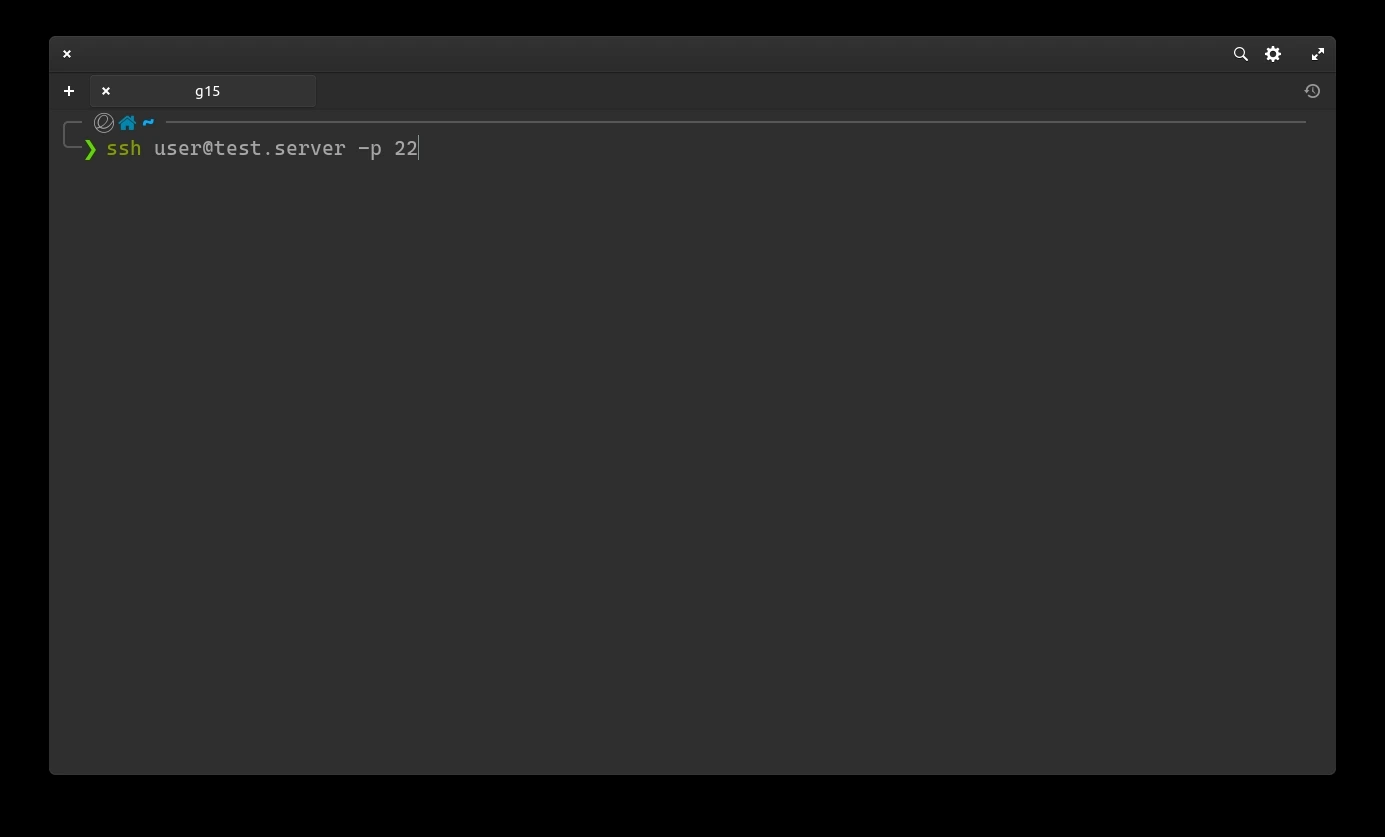
<p>To access, open the terminal on another computer in the same network (Powershell in the case of Windows) and type the following command:</p>

<div class="language-shell highlighter-rouge"><div class="highlight"><pre class="highlight"><code>ssh USERNAME@IP
</code></pre></div></div>

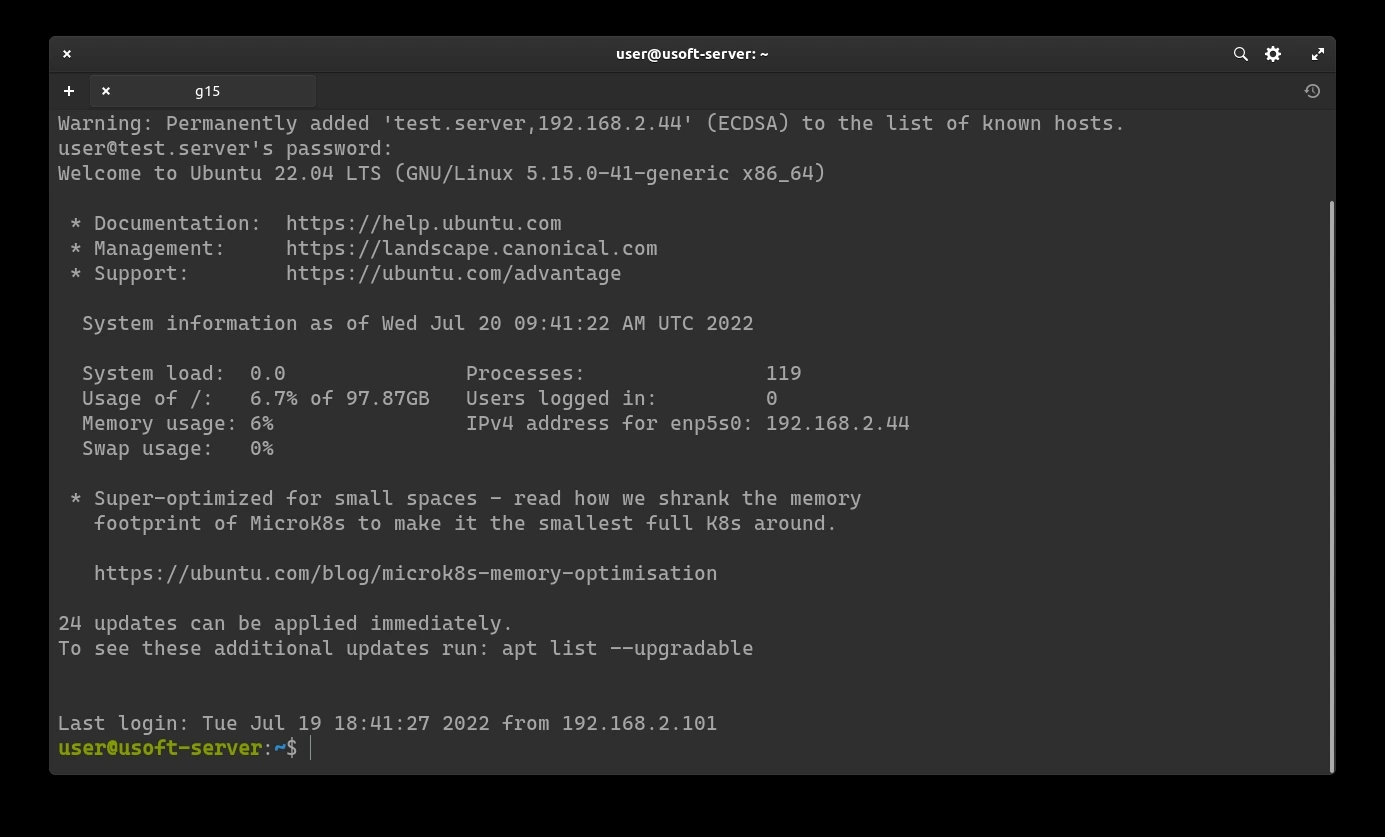
<p><code class="language-plaintext highlighter-rouge">USERNAME</code> is replaced with the username entered during the Ubuntu Server installation phase (Profile settings)
Replace <code class="language-plaintext highlighter-rouge">IP</code> with the IP address of the computer where Ubuntu Server is installed.
<code class="language-plaintext highlighter-rouge">-p 22</code> is optional since by default ssh connects to port 22 of the device.</p>

<p><img src="https://raw.githubusercontent.com/EdoardoTosin/Ubuntu-Server-Pi-Hole-Unbound/main/assets/2_2FA/2FA_1.webp" alt="SSH login - connecting to Ubuntu Server via terminal using ssh command" /></p>

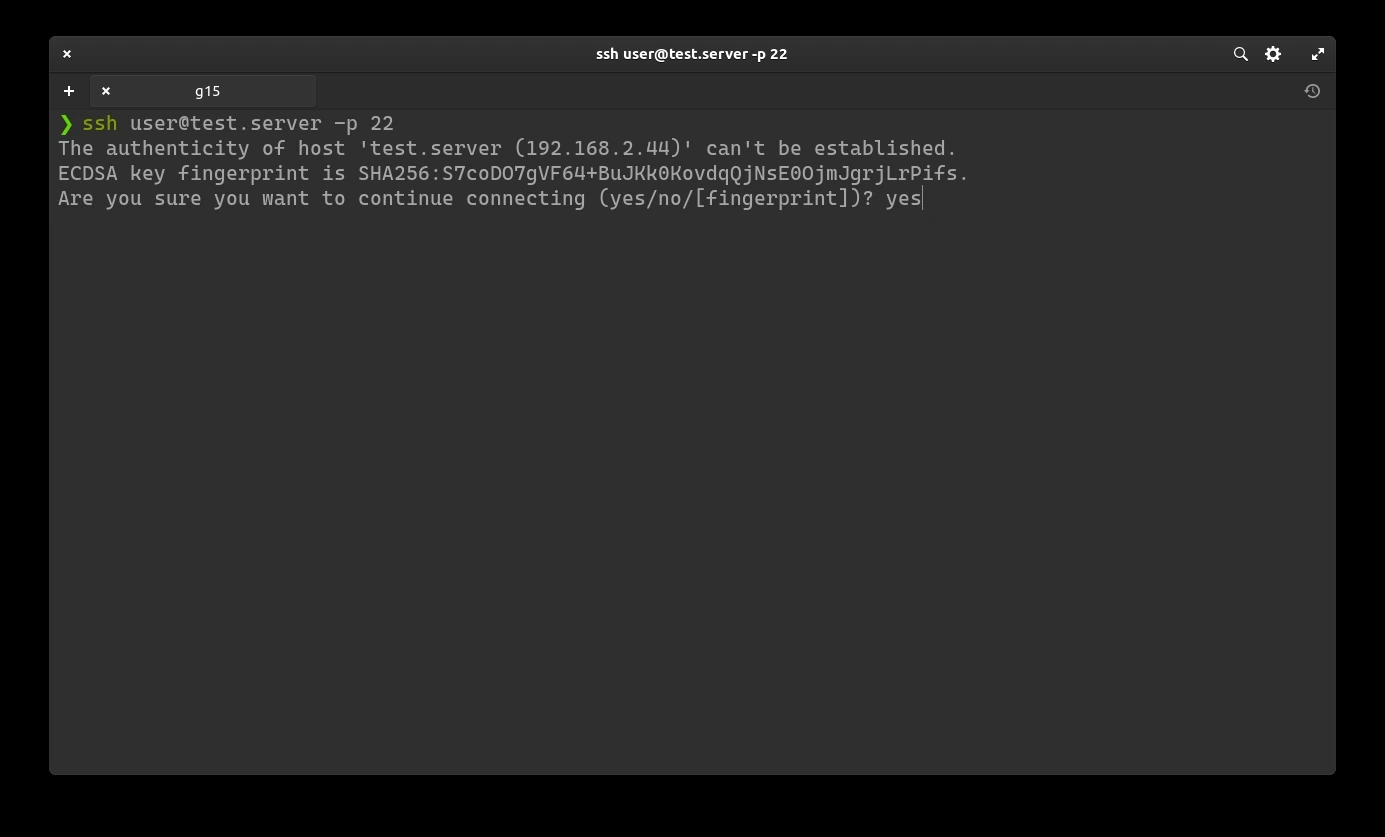
<p>After pressing enter, it will ask to save the SHA256 key. Write <code class="language-plaintext highlighter-rouge">y</code> and confirm by pressing the <code class="language-plaintext highlighter-rouge">Enter</code> key.</p>

<p><img src="https://raw.githubusercontent.com/EdoardoTosin/Ubuntu-Server-Pi-Hole-Unbound/main/assets/2_2FA/2FA_2.webp" alt="SSH login - prompt to confirm saving the server's SHA256 host key" /></p>

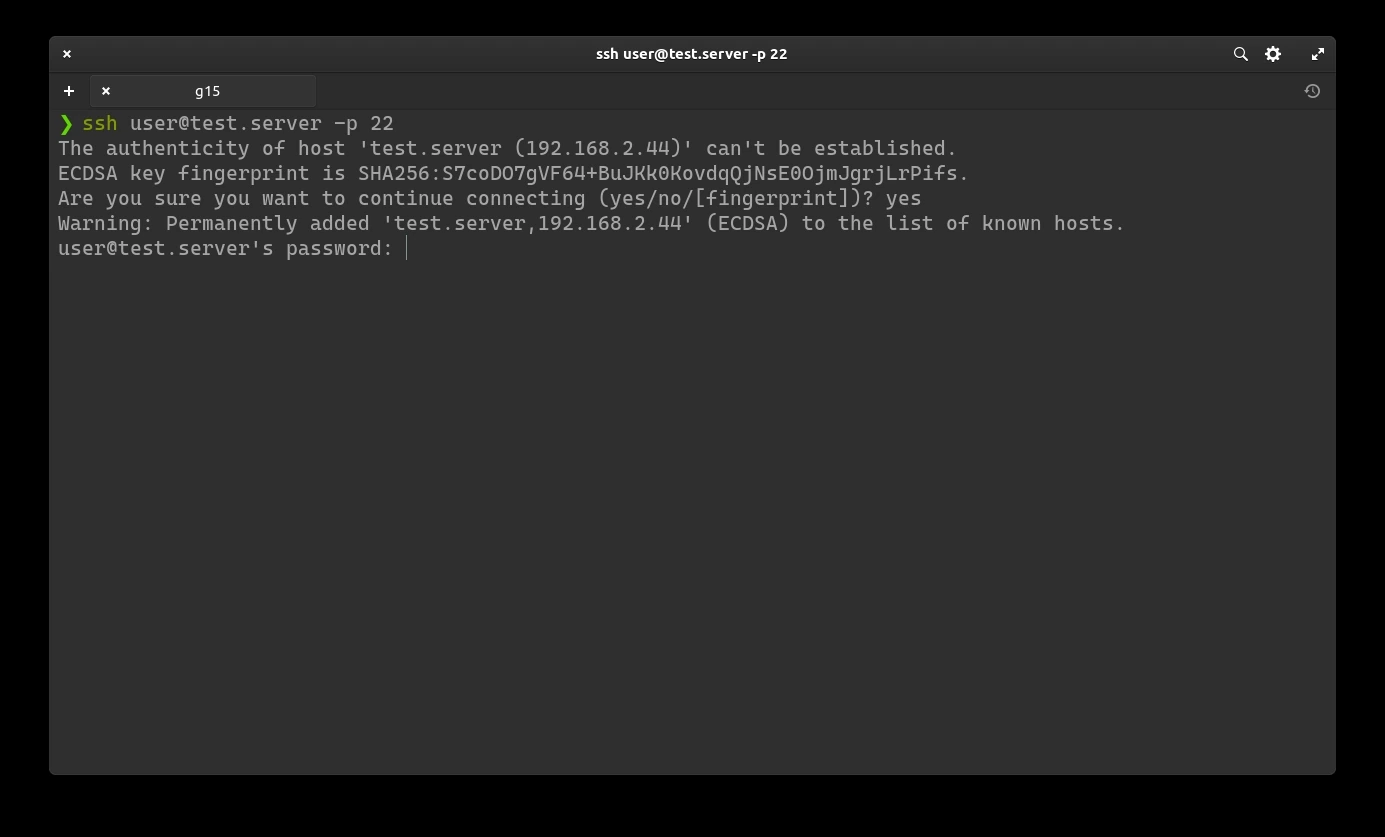
<p>Now enter the password set during the Ubuntu Server installation phase (Profile settings).</p>

<p><img src="https://raw.githubusercontent.com/EdoardoTosin/Ubuntu-Server-Pi-Hole-Unbound/main/assets/2_2FA/2FA_3.webp" alt="SSH login - entering user password for Ubuntu Server authentication" /></p>

<p>If everything has been entered correctly, it is possible to control Ubuntu Server remotely from CLI.</p>

<p><img src="https://raw.githubusercontent.com/EdoardoTosin/Ubuntu-Server-Pi-Hole-Unbound/main/assets/2_2FA/2FA_4.webp" alt="SSH login - successful remote CLI access to Ubuntu Server" /></p>

<h2 id="system-update">System Update</h2>

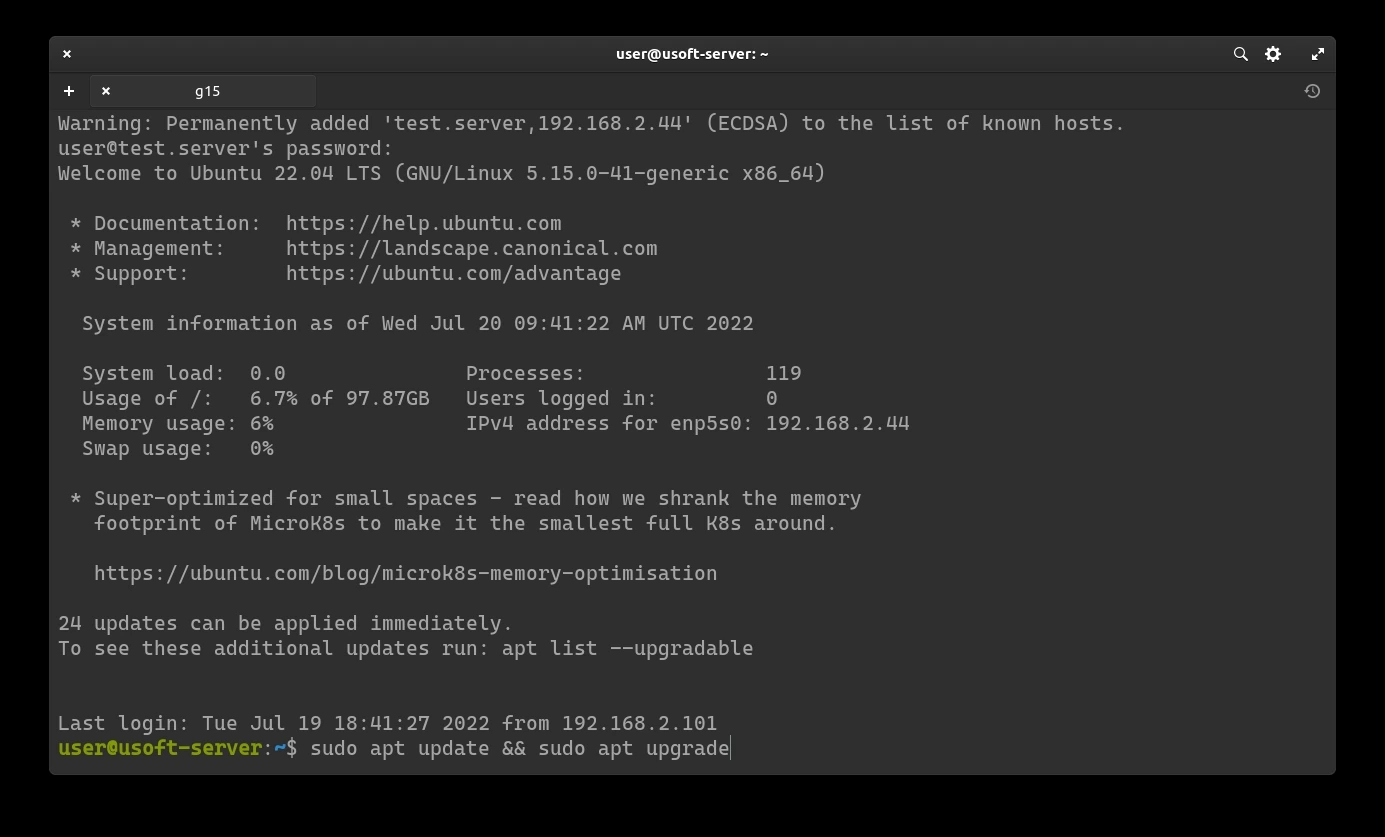
<p><img src="https://raw.githubusercontent.com/EdoardoTosin/Ubuntu-Server-Pi-Hole-Unbound/main/assets/2_2FA/2FA_5.webp" alt="Ubuntu Server - running system update commands via SSH" /></p>

<h3 id="update-repositories-and-system">Update repositories and system</h3>

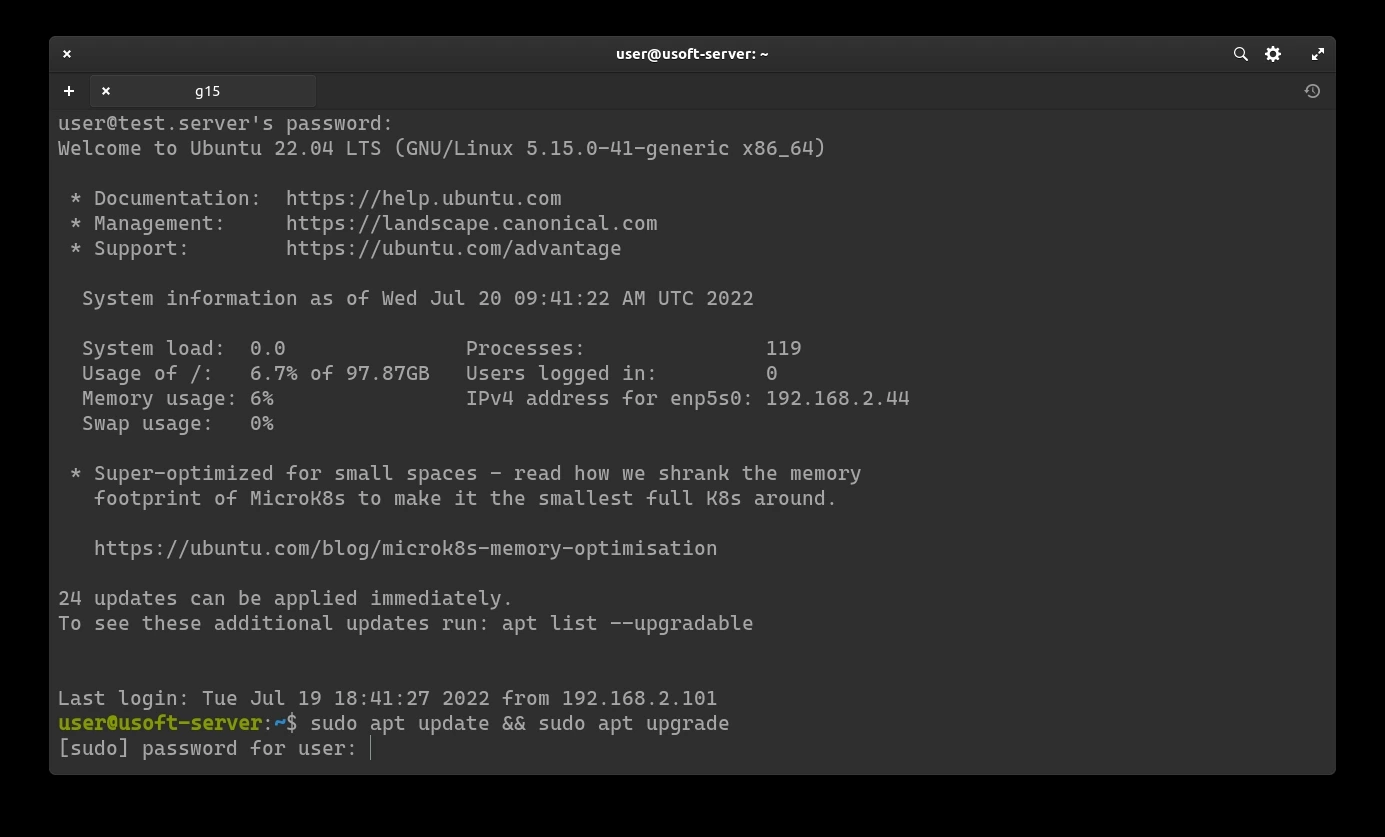
<p>To start the update, just run the line <code class="language-plaintext highlighter-rouge">sudo apt update &amp;&amp; sudo apt upgrade</code>. Running both commands with <code class="language-plaintext highlighter-rouge">sudo</code> will ask for the user's password (the same used for login).</p>

<p><img src="https://raw.githubusercontent.com/EdoardoTosin/Ubuntu-Server-Pi-Hole-Unbound/main/assets/2_2FA/2FA_6.webp" alt="Ubuntu Server - running &quot;sudo apt update &amp;&amp; sudo apt upgrade&quot; to update repositories and packages" /></p>

<h3 id="confirm-updates">Confirm updates</h3>

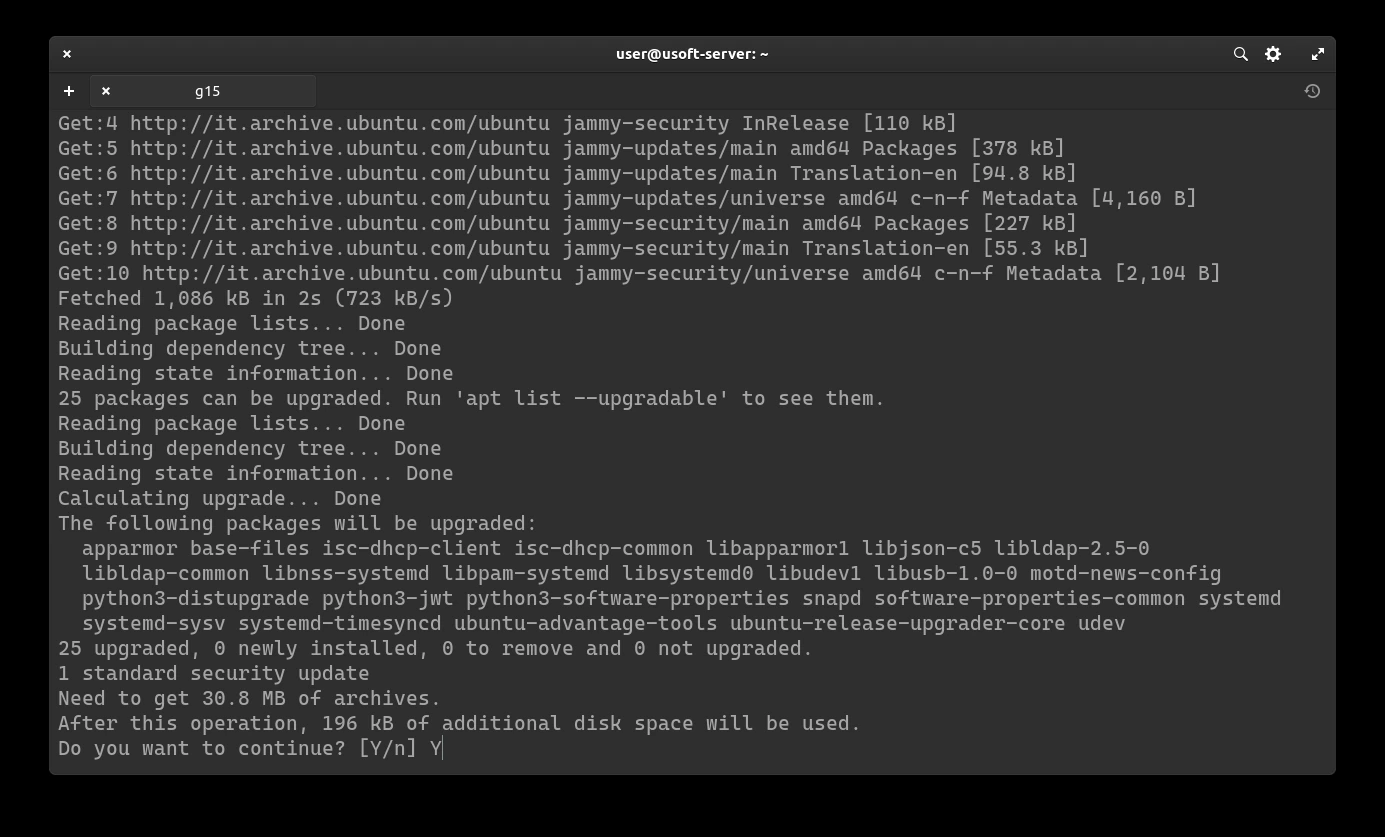
<p>To confirm the start of the updates, write <code class="language-plaintext highlighter-rouge">y</code> and press <code class="language-plaintext highlighter-rouge">Enter</code>.</p>

<p><img src="https://raw.githubusercontent.com/EdoardoTosin/Ubuntu-Server-Pi-Hole-Unbound/main/assets/2_2FA/2FA_7.webp" alt="Ubuntu Server - confirming package upgrades by typing &quot;y&quot;" /></p>

<h3 id="restart-services">Restart services</h3>

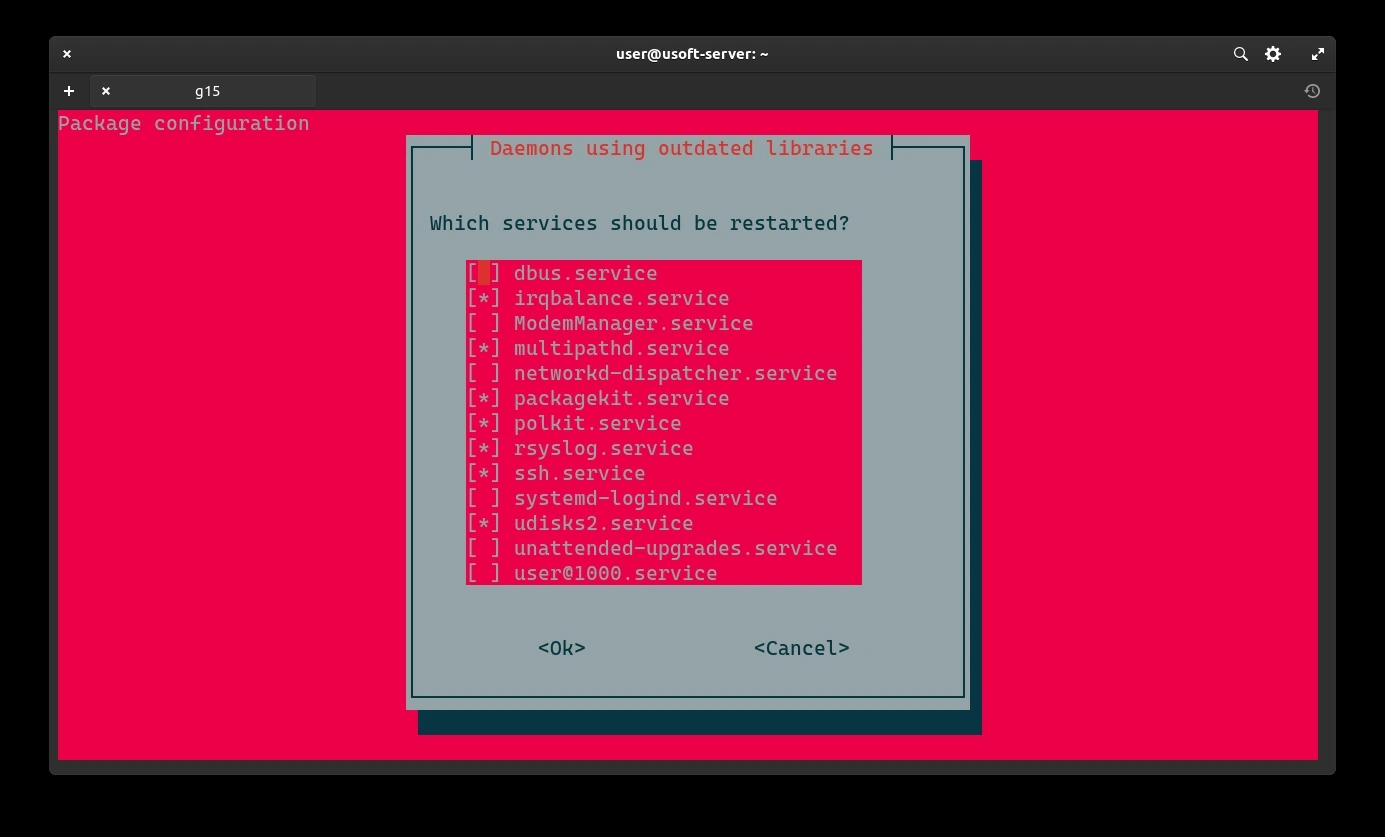
<p>It is likely that a screen will appear asking which services to restart. Select <code class="language-plaintext highlighter-rouge">Ok</code> without changing anything from the list and then press <code class="language-plaintext highlighter-rouge">Enter</code> to confirm.</p>

<p><img src="https://raw.githubusercontent.com/EdoardoTosin/Ubuntu-Server-Pi-Hole-Unbound/main/assets/2_2FA/2FA_8.webp" alt="Ubuntu Server - services restart dialog after system update, selecting Ok" /></p>

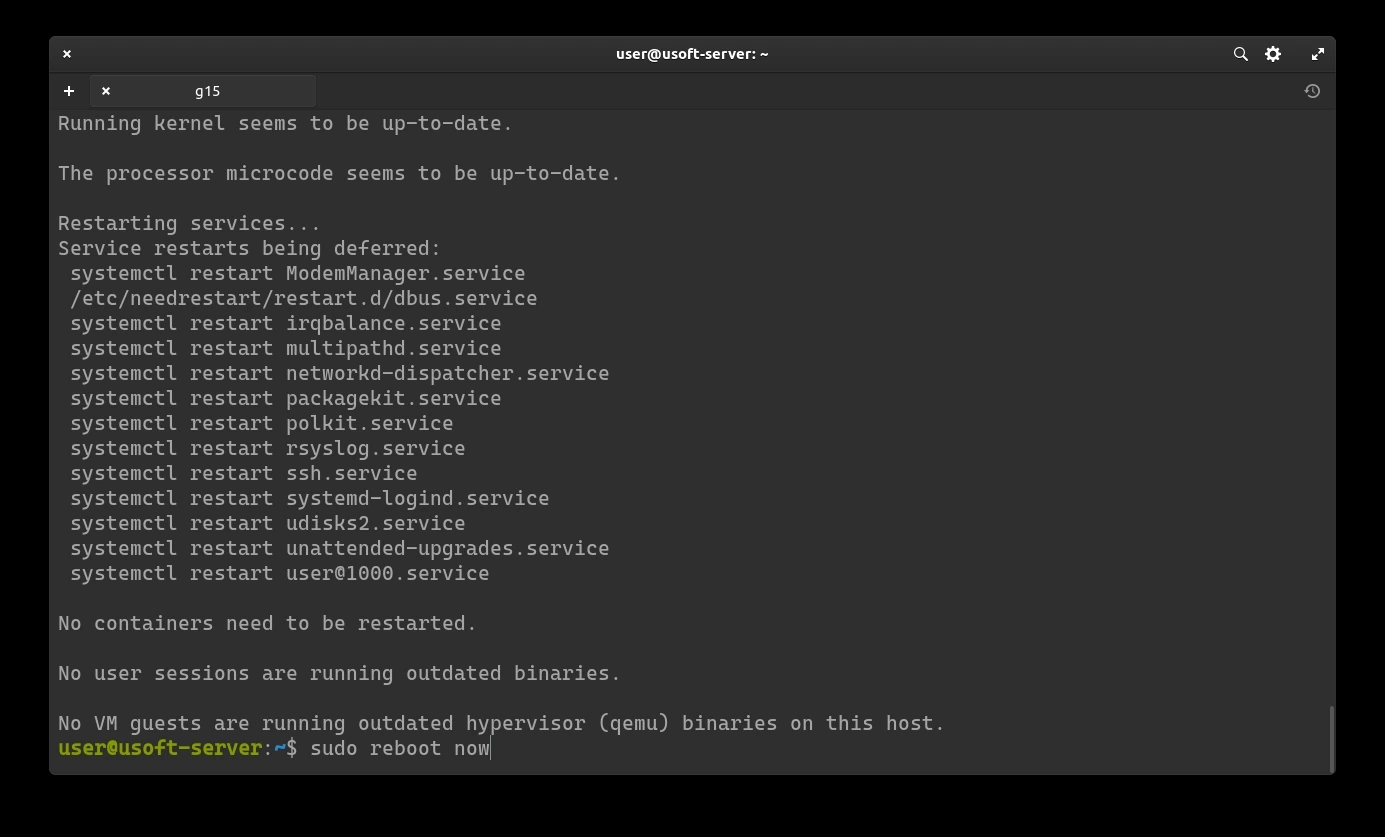
<p>Now you can restart the computer to verify that with the latest updates the system works before proceeding with the installation of applications.</p>

<p><img src="https://raw.githubusercontent.com/EdoardoTosin/Ubuntu-Server-Pi-Hole-Unbound/main/assets/2_2FA/2FA_9.webp" alt="Ubuntu Server - rebooting system after completing updates" /></p>

<h2 id="2fa-installation">2FA Installation</h2>

<p>In the following procedure, two-factor authentication will be added to reduce the risk of unauthorized access (Zero Trust).</p>

<h3 id="package-installation">Package Installation</h3>

<p>Log in again following the <code class="language-plaintext highlighter-rouge">Login via SSH</code> procedure without the paragraph regarding the key.</p>

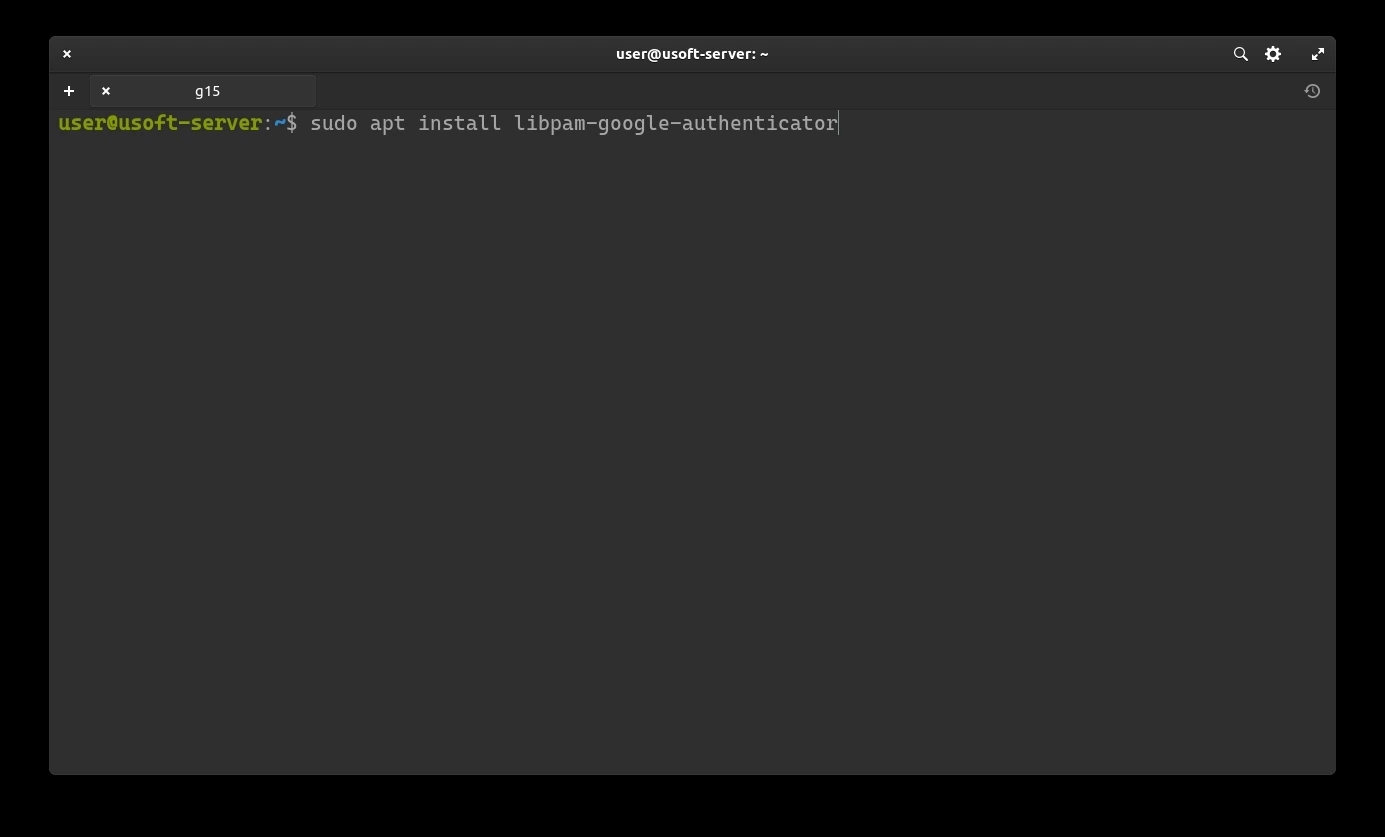
<p>Execute the command <code class="language-plaintext highlighter-rouge">sudo apt install libpam-google-authenticator</code> to install the package required for two-factor authentication.</p>

<p><img src="https://raw.githubusercontent.com/EdoardoTosin/Ubuntu-Server-Pi-Hole-Unbound/main/assets/2_2FA/2FA_10.webp" alt="2FA setup - installing libpam-google-authenticator package via apt" /></p>

<p>Enter the user password confirming it. Subsequently, you will be asked to confirm the installation of the package. Write <code class="language-plaintext highlighter-rouge">y</code> and press <code class="language-plaintext highlighter-rouge">Enter</code>.</p>

<h3 id="2fa-configuration">2FA Configuration</h3>

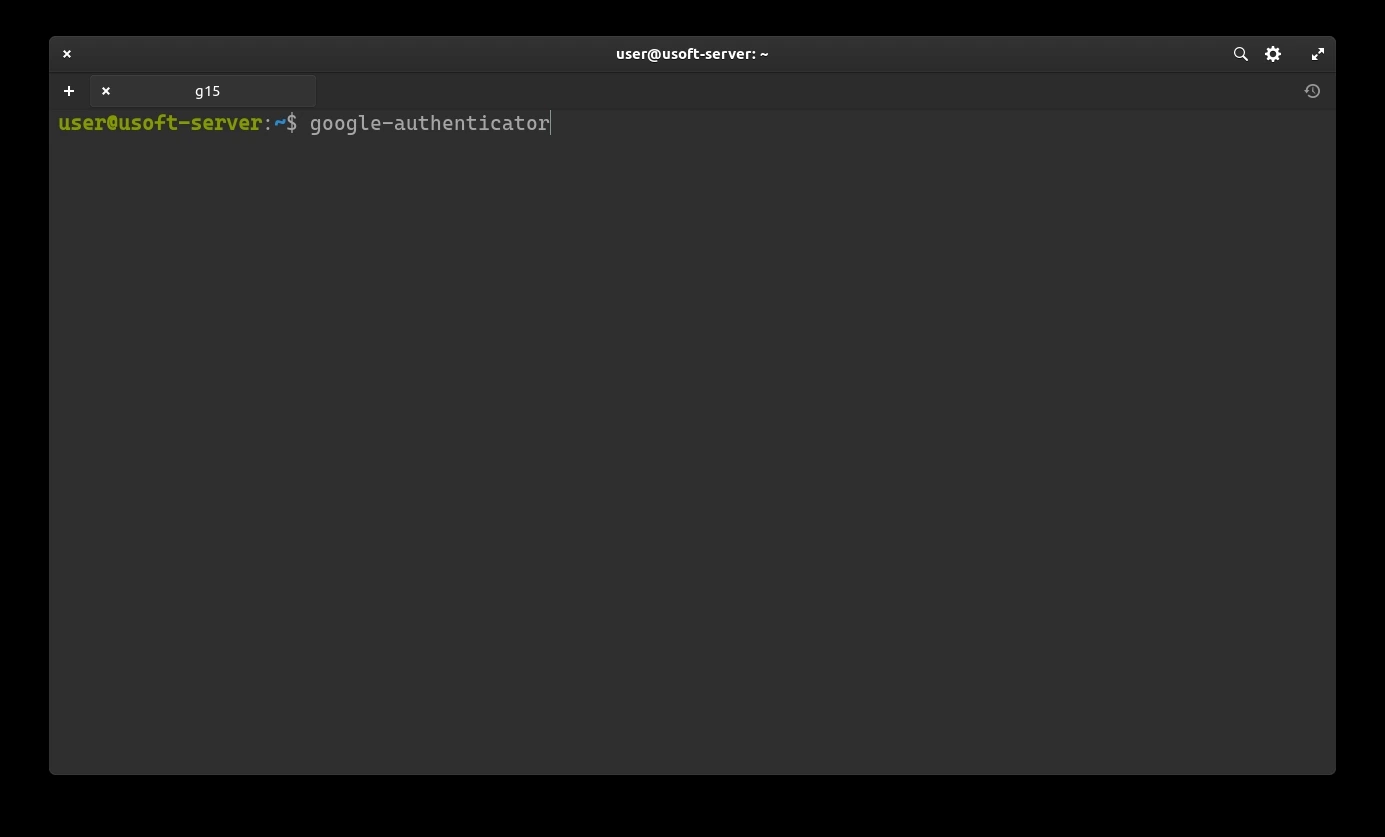
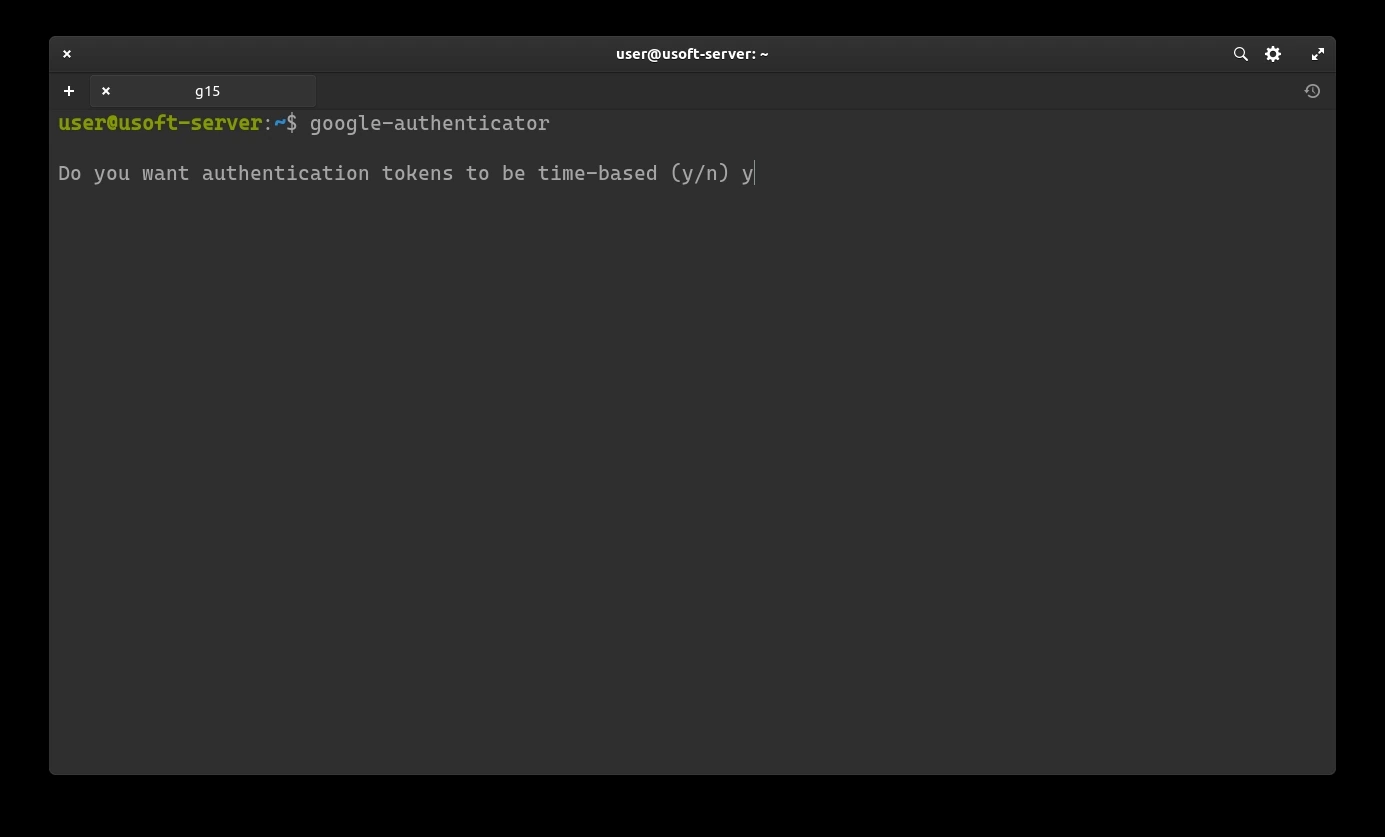
<p>Now proceed to configure authentication with the temporary 6-digit code (changes every 30 seconds).</p>

<p><img src="https://raw.githubusercontent.com/EdoardoTosin/Ubuntu-Server-Pi-Hole-Unbound/main/assets/2_2FA/2FA_11.webp" alt="2FA configuration - google-authenticator prompt asking whether tokens should be time-based" /></p>

<p>It will be asked whether you want the tokens to be temporary. Write <code class="language-plaintext highlighter-rouge">y</code> and press <code class="language-plaintext highlighter-rouge">Enter</code>.</p>

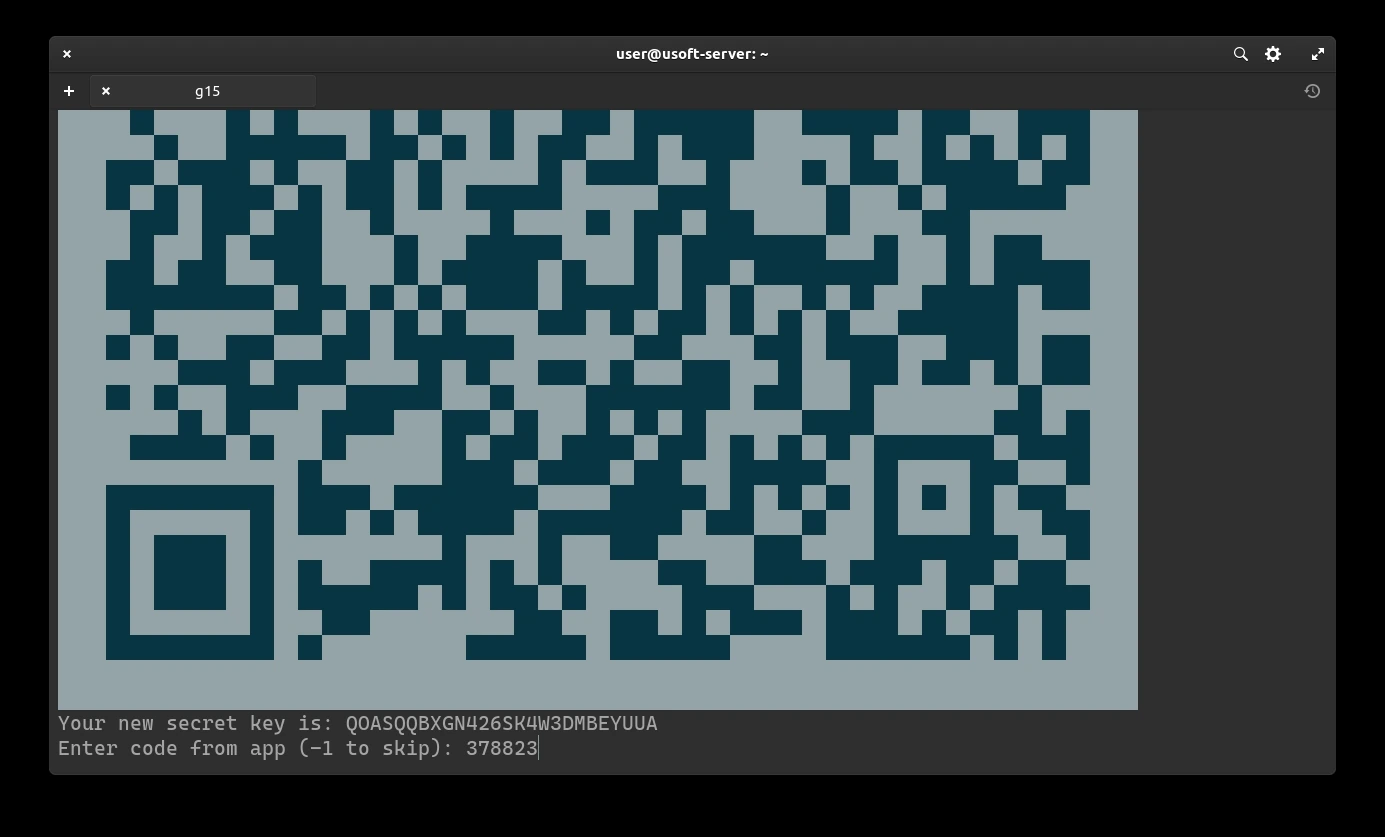
<p><img src="https://raw.githubusercontent.com/EdoardoTosin/Ubuntu-Server-Pi-Hole-Unbound/main/assets/2_2FA/2FA_12.webp" alt="2FA configuration - QR code and secret key displayed for authenticator app setup" /></p>

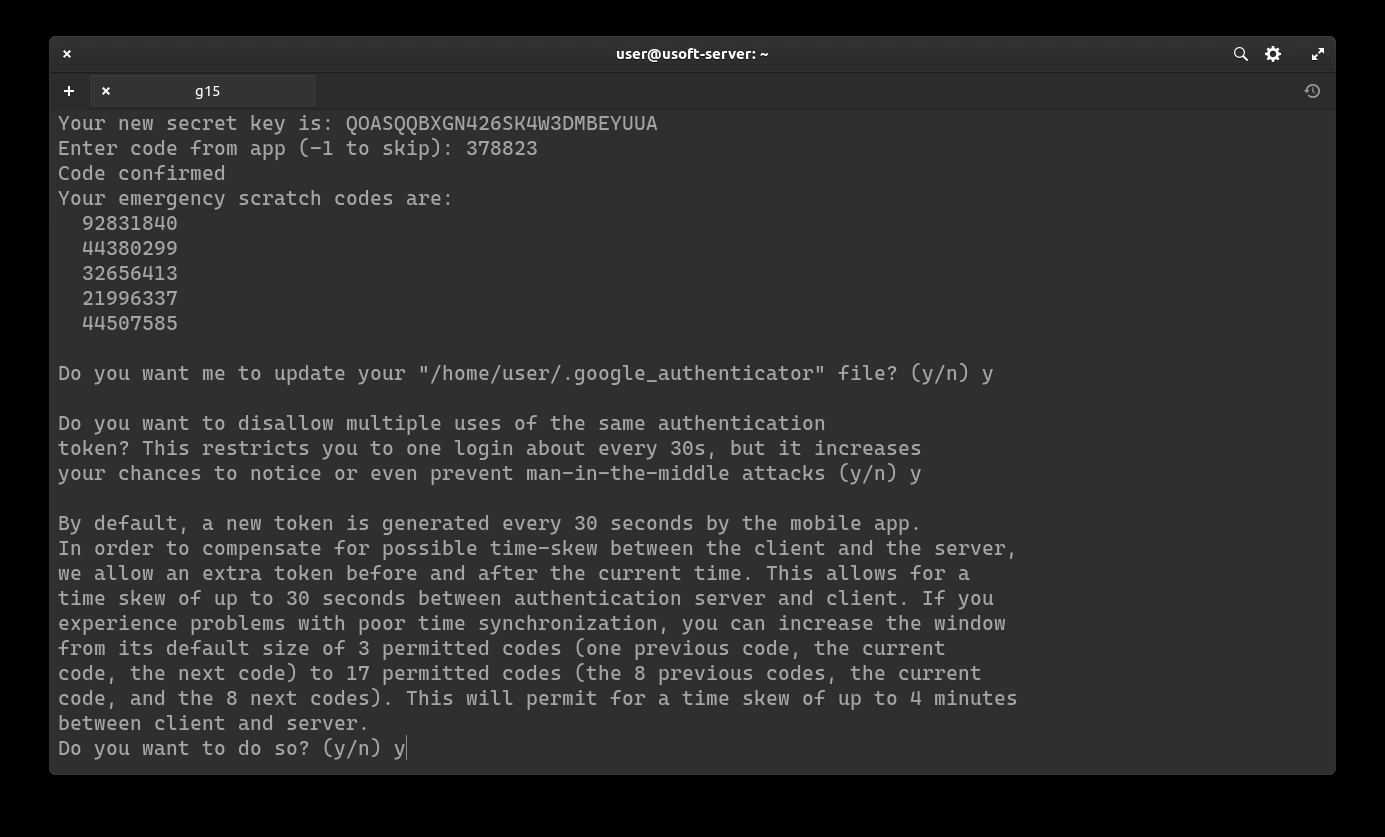
<p>A secret key (<code class="language-plaintext highlighter-rouge">Your new secret key is:</code>) will be created for generating time-based codes.
It is important to keep a backup of this key to reduce the risk of losing it.
Scan the QR-Code or insert the key into an application (for Debian distros and derivatives, Authenticator is suitable already present in the system repositories) and save it.
After saving, you can see the code. Insert it into the terminal and press <code class="language-plaintext highlighter-rouge">Enter</code> to confirm.</p>

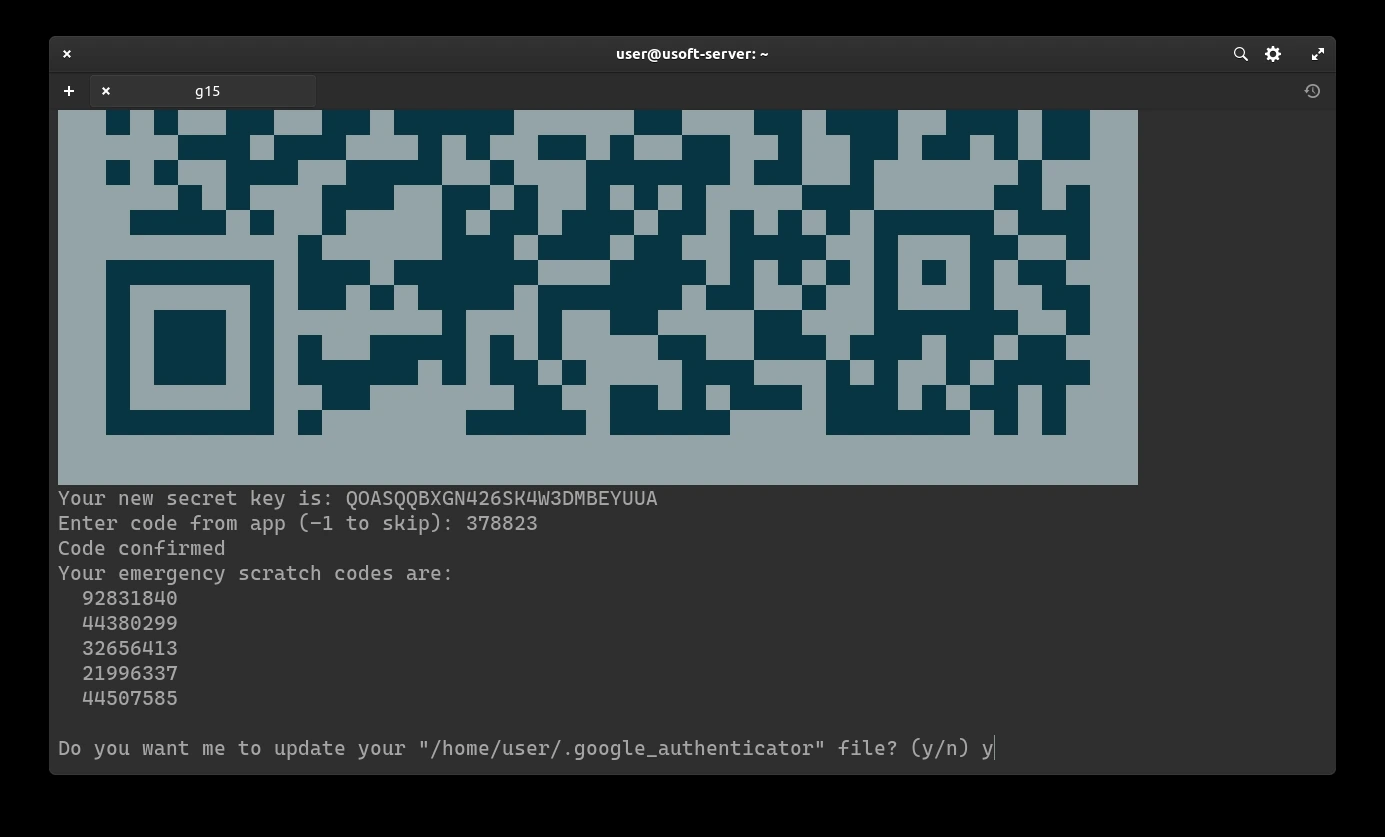
<p><img src="https://raw.githubusercontent.com/EdoardoTosin/Ubuntu-Server-Pi-Hole-Unbound/main/assets/2_2FA/2FA_13.webp" alt="2FA configuration - entering the verification code from the authenticator app" /></p>

<p>Subsequently, it will be asked whether you want to update the .google_authenticator file. Confirm by writing <code class="language-plaintext highlighter-rouge">y</code> and pressing <code class="language-plaintext highlighter-rouge">Enter</code>.</p>

<p><img src="https://raw.githubusercontent.com/EdoardoTosin/Ubuntu-Server-Pi-Hole-Unbound/main/assets/2_2FA/2FA_14.webp" alt="2FA configuration - prompt to update the .google_authenticator file" /></p>

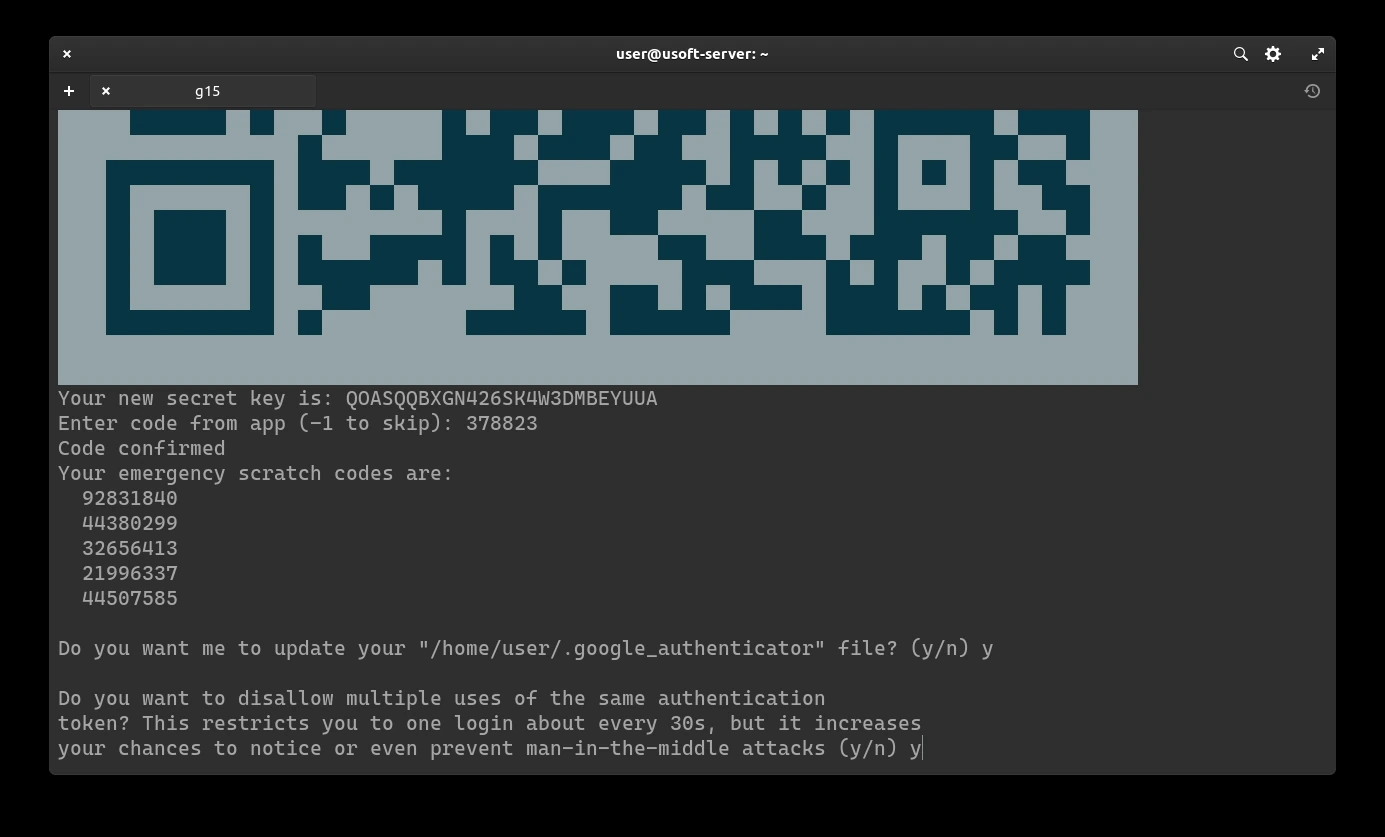
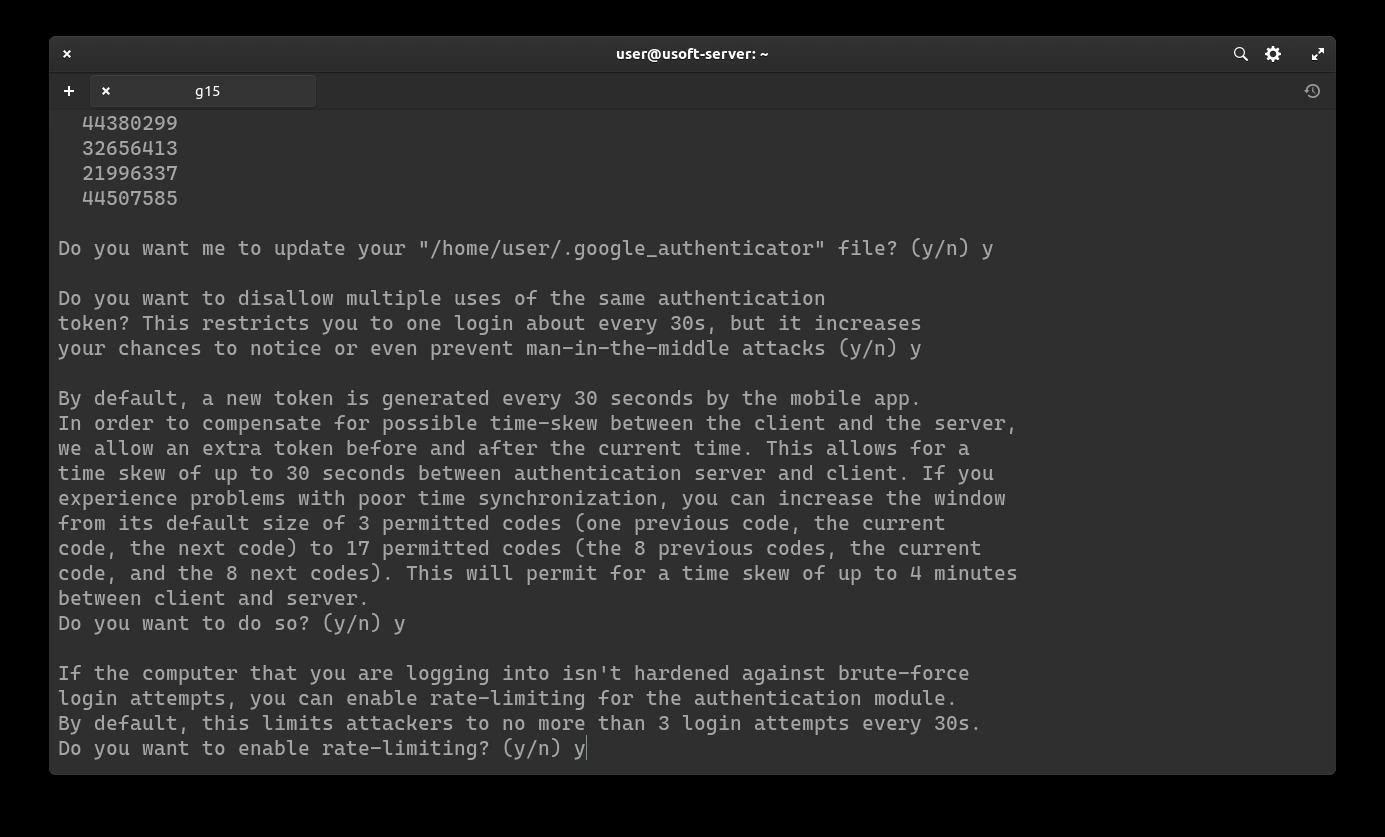
<p>To increase security, we add restrictions to login every 30 seconds (so only one successful login per each generated code).
To confirm, write <code class="language-plaintext highlighter-rouge">y</code> and press <code class="language-plaintext highlighter-rouge">Enter</code>.</p>

<p><img src="https://raw.githubusercontent.com/EdoardoTosin/Ubuntu-Server-Pi-Hole-Unbound/main/assets/2_2FA/2FA_15.webp" alt="2FA configuration - enabling one successful login per 30-second window restriction" /></p>

<p>It will be asked whether you want to extend the login with the generated code beyond the time limit from 3 codes to 17 (8 previous, current and 8 subsequent). Since 3 are already enough, it does not need to be extended further so write <code class="language-plaintext highlighter-rouge">n</code> and press <code class="language-plaintext highlighter-rouge">Enter</code>.</p>

<p><img src="https://raw.githubusercontent.com/EdoardoTosin/Ubuntu-Server-Pi-Hole-Unbound/main/assets/2_2FA/2FA_16.webp" alt="2FA configuration - declining extended time window (17 codes) for code validity" /></p>

<p>Now the addition of the rate-limit will be confirmed, so that only 3 login attempts are possible every 30 seconds. To do this, write <code class="language-plaintext highlighter-rouge">y</code> and press <code class="language-plaintext highlighter-rouge">Enter</code>.</p>

<p><img src="https://raw.githubusercontent.com/EdoardoTosin/Ubuntu-Server-Pi-Hole-Unbound/main/assets/2_2FA/2FA_17.webp" alt="2FA configuration - enabling rate-limit of 3 login attempts per 30 seconds" /></p>

<h3 id="adding-2fa-to-login">Adding 2FA to login</h3>

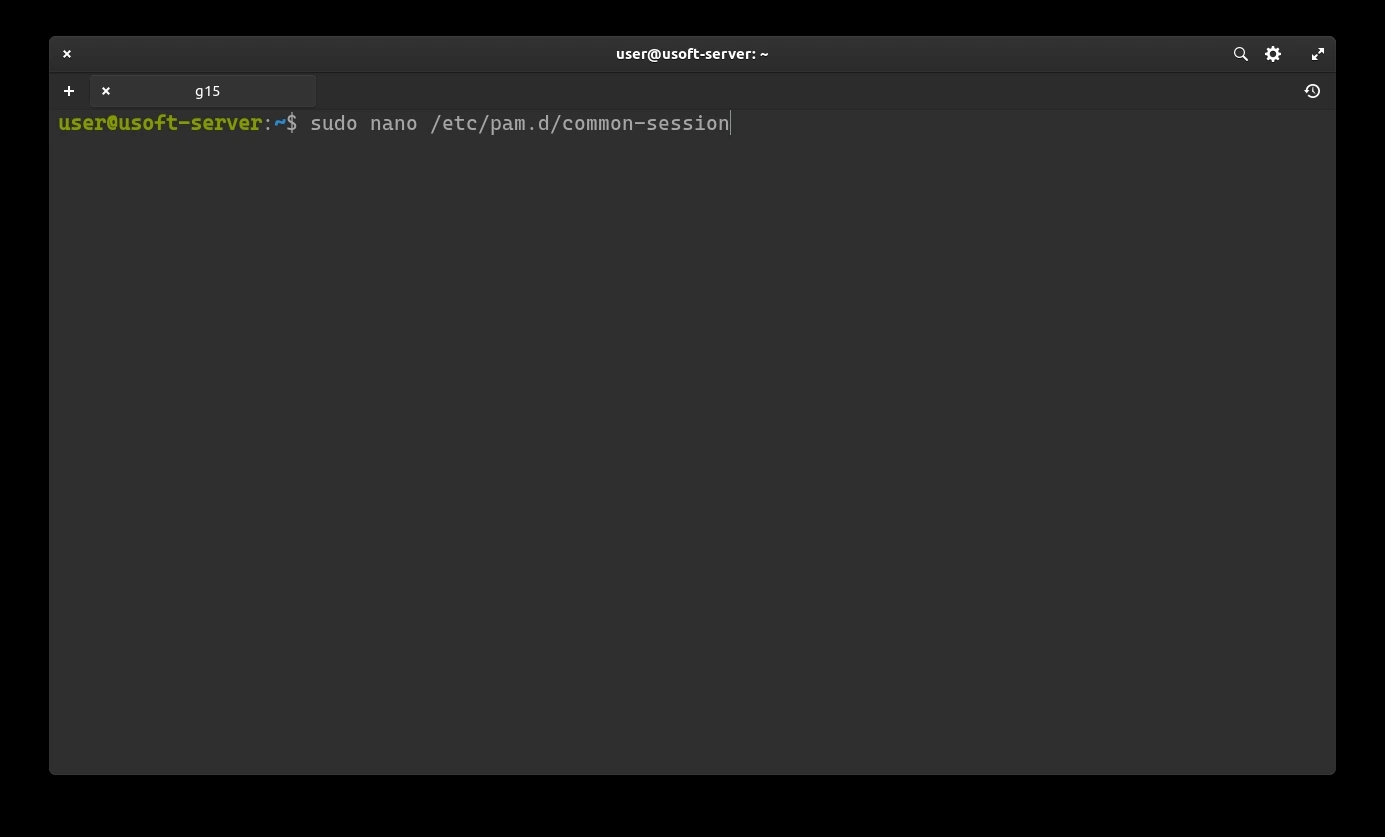
<p>To add the just configured two-factor authentication, the common-session file must be modified with the command <code class="language-plaintext highlighter-rouge">sudo nano /etc/pan.d/common-session</code>. If the password is requested, enter the user password.</p>

<p><img src="https://raw.githubusercontent.com/EdoardoTosin/Ubuntu-Server-Pi-Hole-Unbound/main/assets/2_2FA/2FA_18.webp" alt="2FA setup - opening /etc/pam.d/common-session in nano editor to add Google Authenticator" /></p>

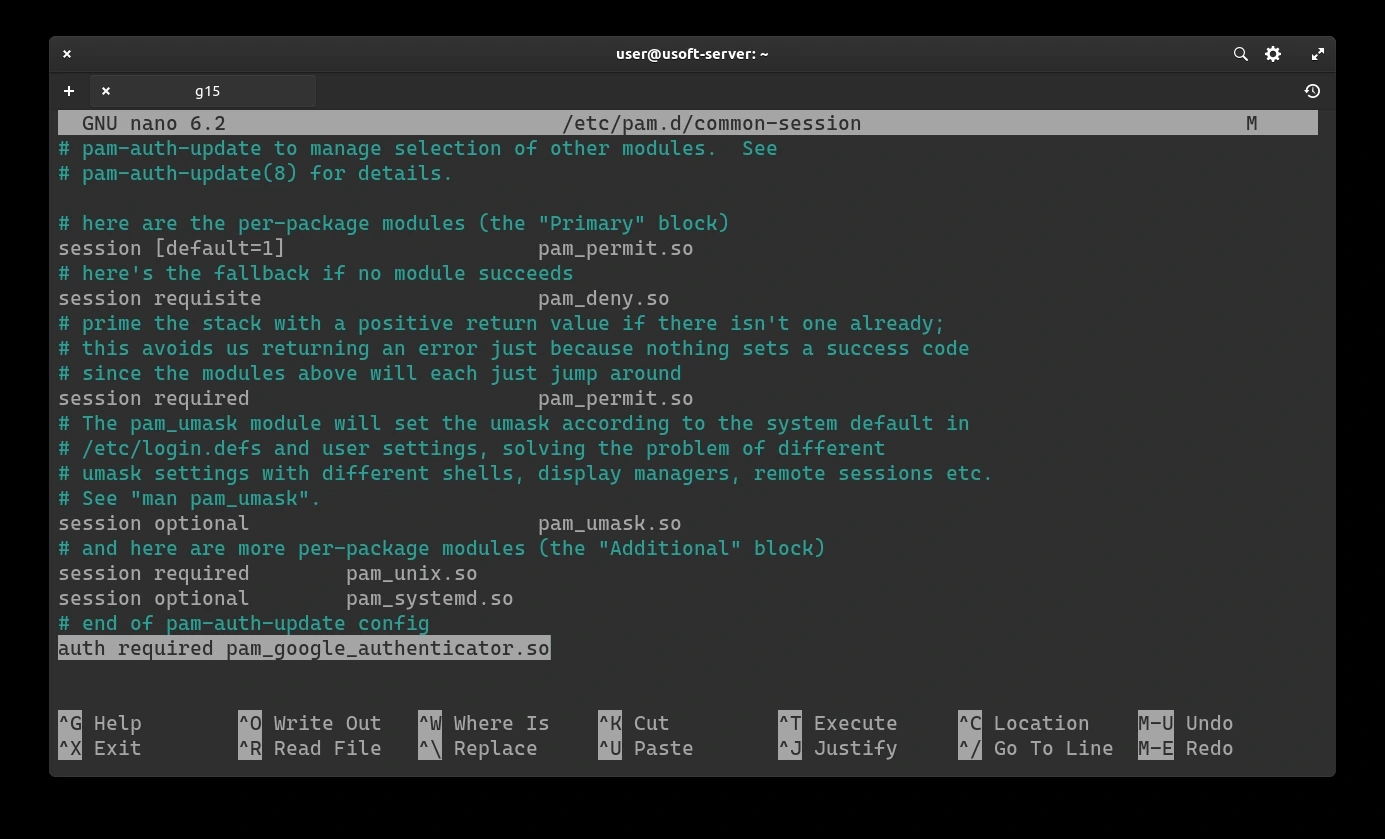
<p>Pressing <code class="language-plaintext highlighter-rouge">Enter</code> the file to edit will appear. After the line <code class="language-plaintext highlighter-rouge"># end of pam-auth-update config</code> you must add a new line that contains <code class="language-plaintext highlighter-rouge">auth required pam_google_authenticator.so</code> as shown in the next screen.
To save the changes and exit the editor, press <code class="language-plaintext highlighter-rouge">CTRL+X</code> then write <code class="language-plaintext highlighter-rouge">y</code> and finally press <code class="language-plaintext highlighter-rouge">Enter</code> to confirm.</p>

<p><img src="https://raw.githubusercontent.com/EdoardoTosin/Ubuntu-Server-Pi-Hole-Unbound/main/assets/2_2FA/2FA_19.webp" alt="2FA setup - common-session file with &quot;auth required pam_google_authenticator.so&quot; line added" /></p>

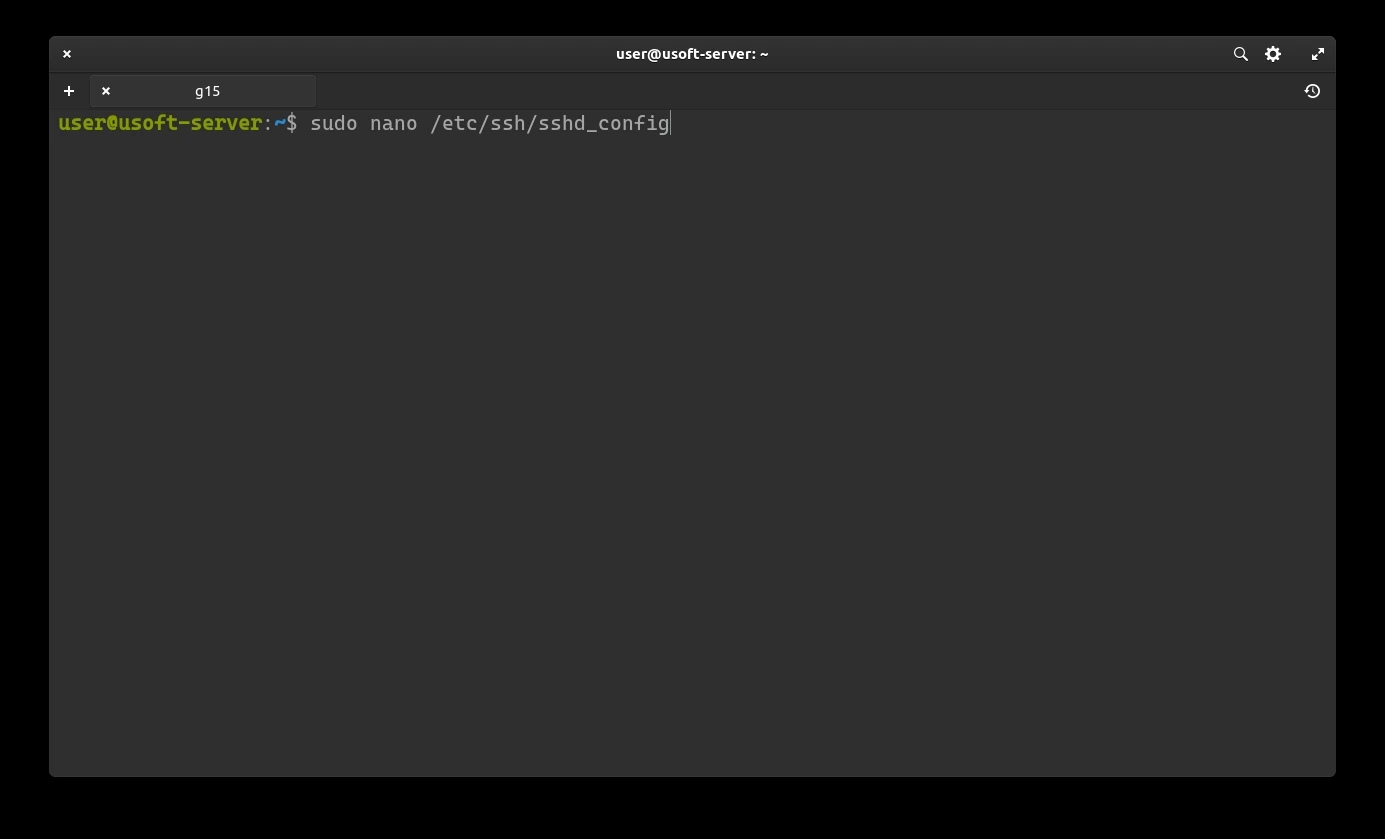
<p>Another file to modify is <code class="language-plaintext highlighter-rouge">sshd_config</code>. To do this, just open it again with the command <code class="language-plaintext highlighter-rouge">sudo nano /etc/ssh/sshd_config</code>. If it asks for the password, enter the user password.</p>

<p><img src="https://raw.githubusercontent.com/EdoardoTosin/Ubuntu-Server-Pi-Hole-Unbound/main/assets/2_2FA/2FA_20.webp" alt="2FA setup - opening /etc/ssh/sshd_config in nano editor to enable keyboard-interactive authentication" /></p>

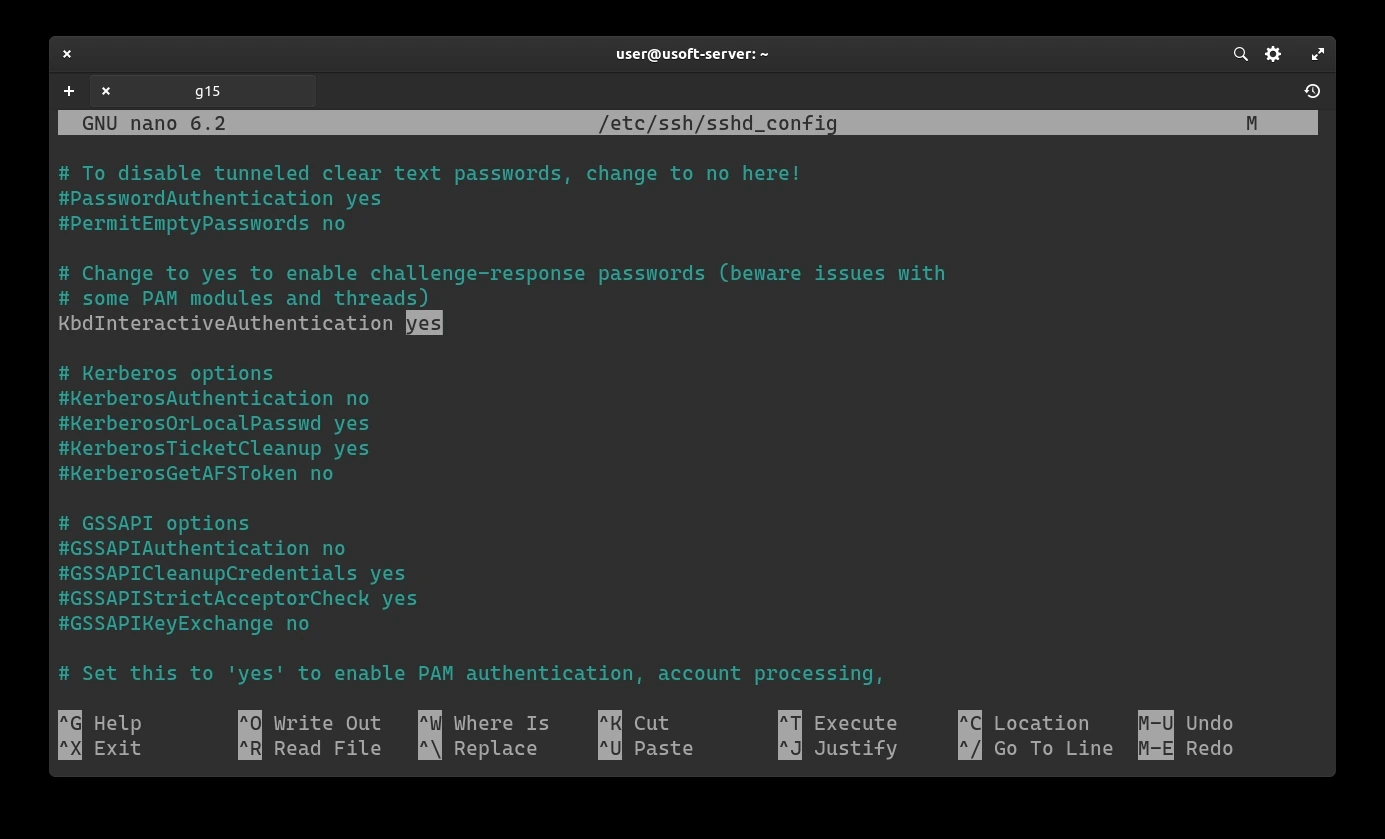
<p>If the <code class="language-plaintext highlighter-rouge">KbdInteractiveAuthentication</code> option is set to <code class="language-plaintext highlighter-rouge">no</code>, replace it with <code class="language-plaintext highlighter-rouge">yes</code>.
To save these changes and exit the editor, press <code class="language-plaintext highlighter-rouge">CTRL+X</code> then write <code class="language-plaintext highlighter-rouge">y</code> and finally press <code class="language-plaintext highlighter-rouge">Enter</code> to confirm.</p>

<p><img src="https://raw.githubusercontent.com/EdoardoTosin/Ubuntu-Server-Pi-Hole-Unbound/main/assets/2_2FA/2FA_21.webp" alt="2FA setup - sshd_config with KbdInteractiveAuthentication set to yes" /></p>

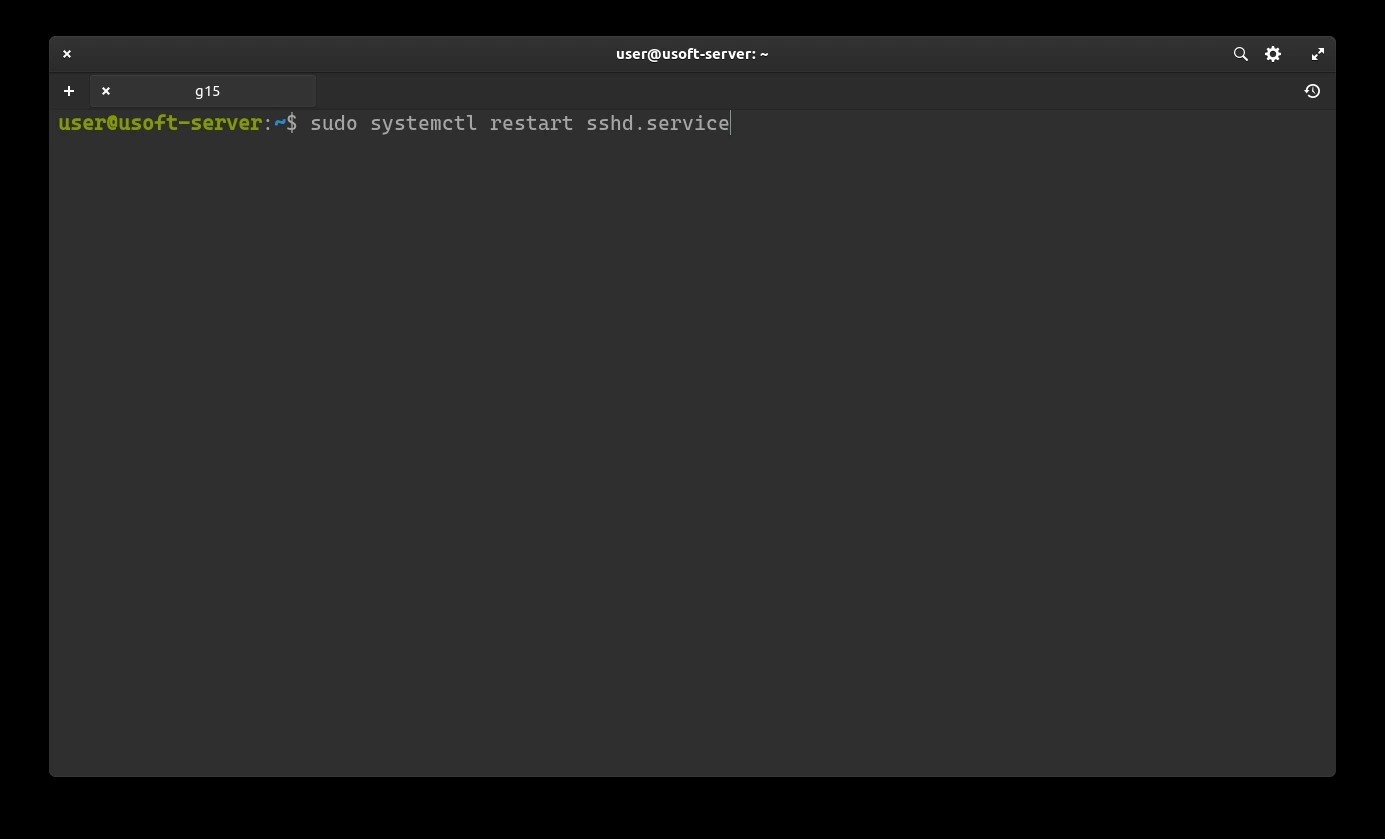
<p>Restart the sshd.service service to load the changes with the command <code class="language-plaintext highlighter-rouge">sudo systemctl restart sshd.service</code></p>

<p><img src="https://raw.githubusercontent.com/EdoardoTosin/Ubuntu-Server-Pi-Hole-Unbound/main/assets/2_2FA/2FA_22.webp" alt="2FA setup - restarting sshd service to apply 2FA configuration changes" /></p>

<p><strong><a href="/blog/ubuntu-server-pihole-unbound-part-3">Next part</a></strong></p>]]></content><author><name>Edoardo Tosin</name><email>edoardotosindev@proton.me</email></author><category term="ubuntu" /><category term="unbound" /><category term="pi-hole" /><category term="dns" /><category term="server" /><category term="adblocker" /><summary type="html"><![CDATA[How to set up two-factor authentication (2FA) on Ubuntu Server using Google Authenticator to secure SSH access before deploying Pi-Hole and Unbound.]]></summary><media:thumbnail xmlns:media="http://search.yahoo.com/mrss/" url="https://raw.githubusercontent.com/EdoardoTosin/Ubuntu-Server-Pi-Hole-Unbound/main/assets/2_2FA/2FA_13.webp" /><media:content medium="image" url="https://raw.githubusercontent.com/EdoardoTosin/Ubuntu-Server-Pi-Hole-Unbound/main/assets/2_2FA/2FA_13.webp" xmlns:media="http://search.yahoo.com/mrss/" /></entry><entry xml:lang="en"><title type="html">Pi-Hole &amp;amp; Unbound Setup - Part 1: Ubuntu Server Installation</title><link href="https://edoardotosin.com/blog/ubuntu-server-pihole-unbound-part-1" rel="alternate" type="text/html" title="Pi-Hole &amp;amp; Unbound Setup - Part 1: Ubuntu Server Installation" /><published>2024-01-02T10:00:00+01:00</published><updated>2024-08-07T16:30:08+02:00</updated><id>https://edoardotosin.com/blog/ubuntu-server-pihole-unbound-part-1</id><content type="html" xml:base="https://edoardotosin.com/blog/ubuntu-server-pihole-unbound-part-1"><![CDATA[<p>This guide will illustrate how to install Ubuntu Server (operating system) along with the FOSS tools <a href="https://en.wikipedia.org/wiki/Pi-hole">Pi-Hole</a> (dns ad-blocker) and <a href="https://en.wikipedia.org/wiki/Unbound_(DNS_server)">Unbound</a> (dns resolver). Furthermore, two-factor authentication (2FA) is used as an additional protection against unauthorized access.</p>

<h2 id="requirements">Requirements</h2>

<p>Pi-Hole and Unbound can be installed on an operating system other than Ubuntu Server. In case you use a Raspberry Pi (Model B or Zero) or similar, you can install a different operating system (thus skipping the installation of Ubuntu Server) and follow the rest of the guide. If installed on a computer with Linux OS, 2GB of RAM is also acceptable.</p>

<h2 id="ubuntu-server-installation-preparation">Ubuntu Server installation preparation</h2>

<p>First, proceed with the installation of the Ubuntu Server 22.04 distribution downloadable from the <a href="https://ubuntu.com/download/server">official site</a>.</p>

<h3 id="installation-on-usb-drive">Installation on USB drive</h3>

<p>After downloading the distribution iso file, it needs to be mounted on a USB drive. To mount the image, you can use Balena Etcher, UNetbootin or Rufus (all <a href="https://en.wikipedia.org/wiki/Free_and_open-source_software">FOSS</a>).</p>

<h3 id="boot-from-usb">Boot from USB</h3>

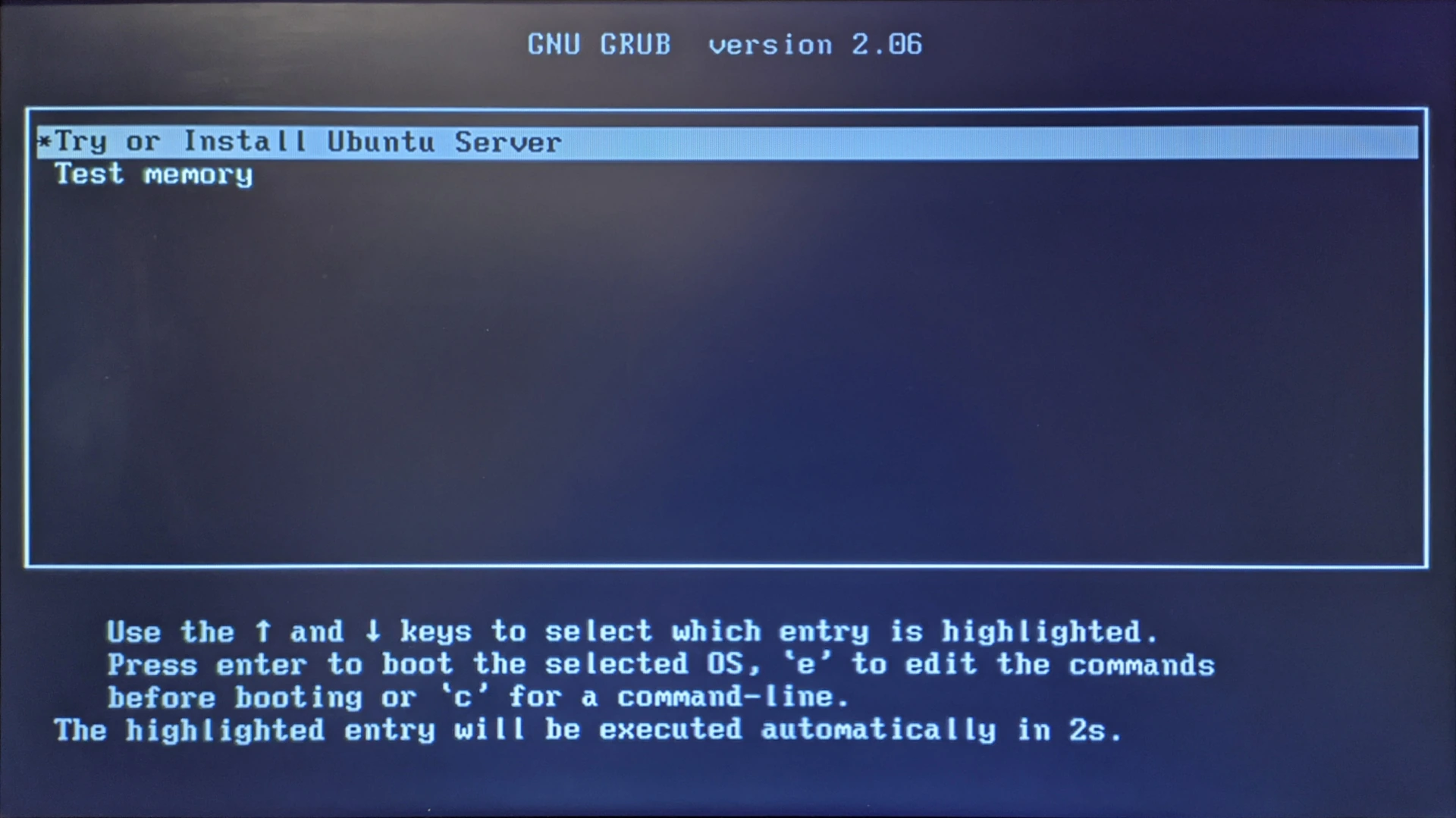
<p>During the computer's POST phase, press the key to display the boot menu, in order to start the operating system from the USB drive. Select with the arrow keys the choice <code class="language-plaintext highlighter-rouge">Try or Install Ubuntu Server</code> and press the Enter key.</p>

<p><img src="https://raw.githubusercontent.com/EdoardoTosin/Ubuntu-Server-Pi-Hole-Unbound/main/assets/1_Ubuntu_Server/Ubuntu_Server_1.webp" alt="Ubuntu Server installer boot menu - selecting &quot;Try or Install Ubuntu Server&quot;" /></p>

<h3 id="language-selection">Language selection</h3>

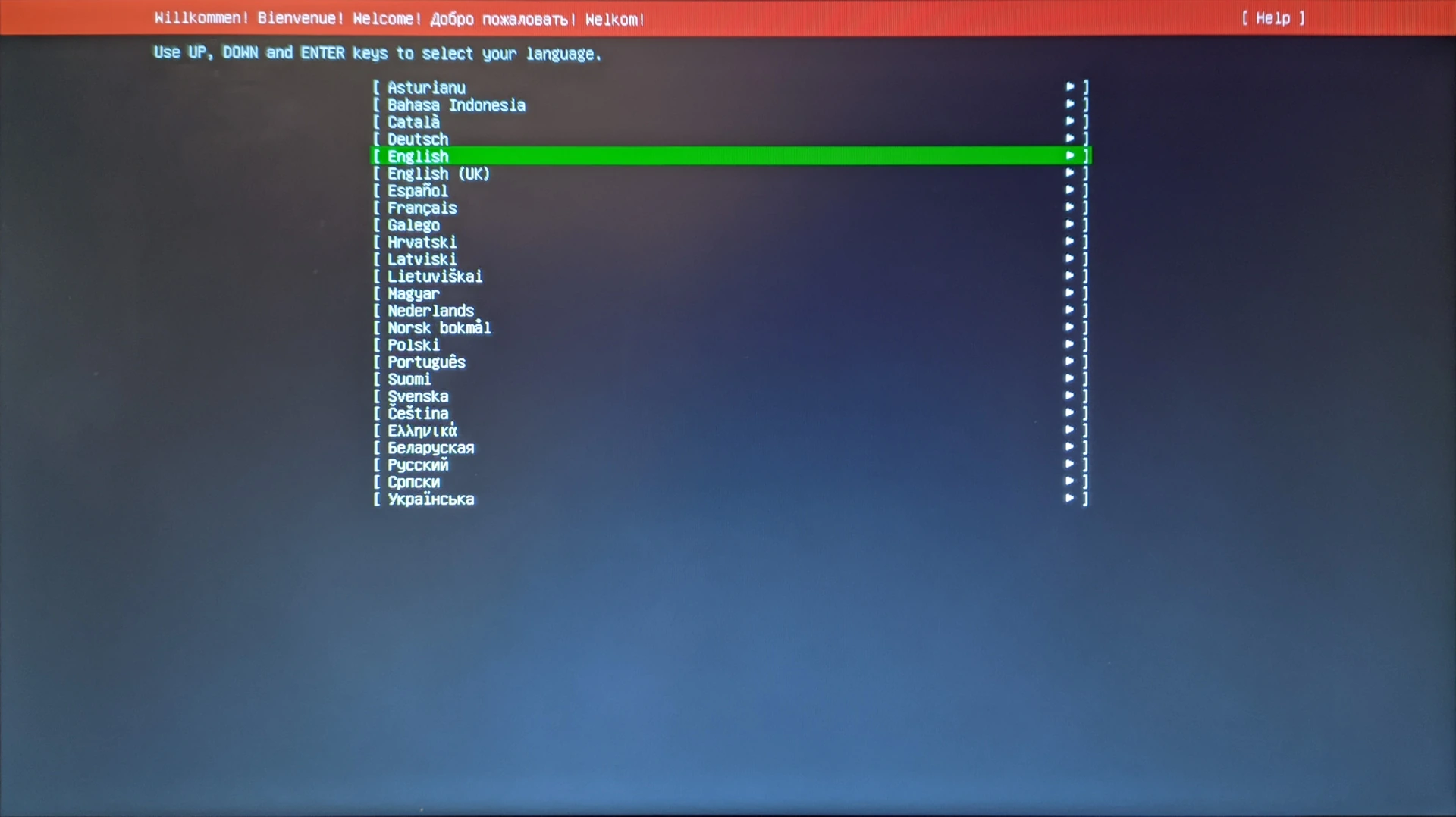
<p>The first configuration choice concerns the system language. You can select <code class="language-plaintext highlighter-rouge">English</code> because no graphical interface will be installed on the computer and therefore becomes irrelevant.</p>

<p><img src="https://raw.githubusercontent.com/EdoardoTosin/Ubuntu-Server-Pi-Hole-Unbound/main/assets/1_Ubuntu_Server/Ubuntu_Server_2.webp" alt="Ubuntu Server installation - language selection screen" /></p>

<h3 id="updating-installer">Updating installer</h3>

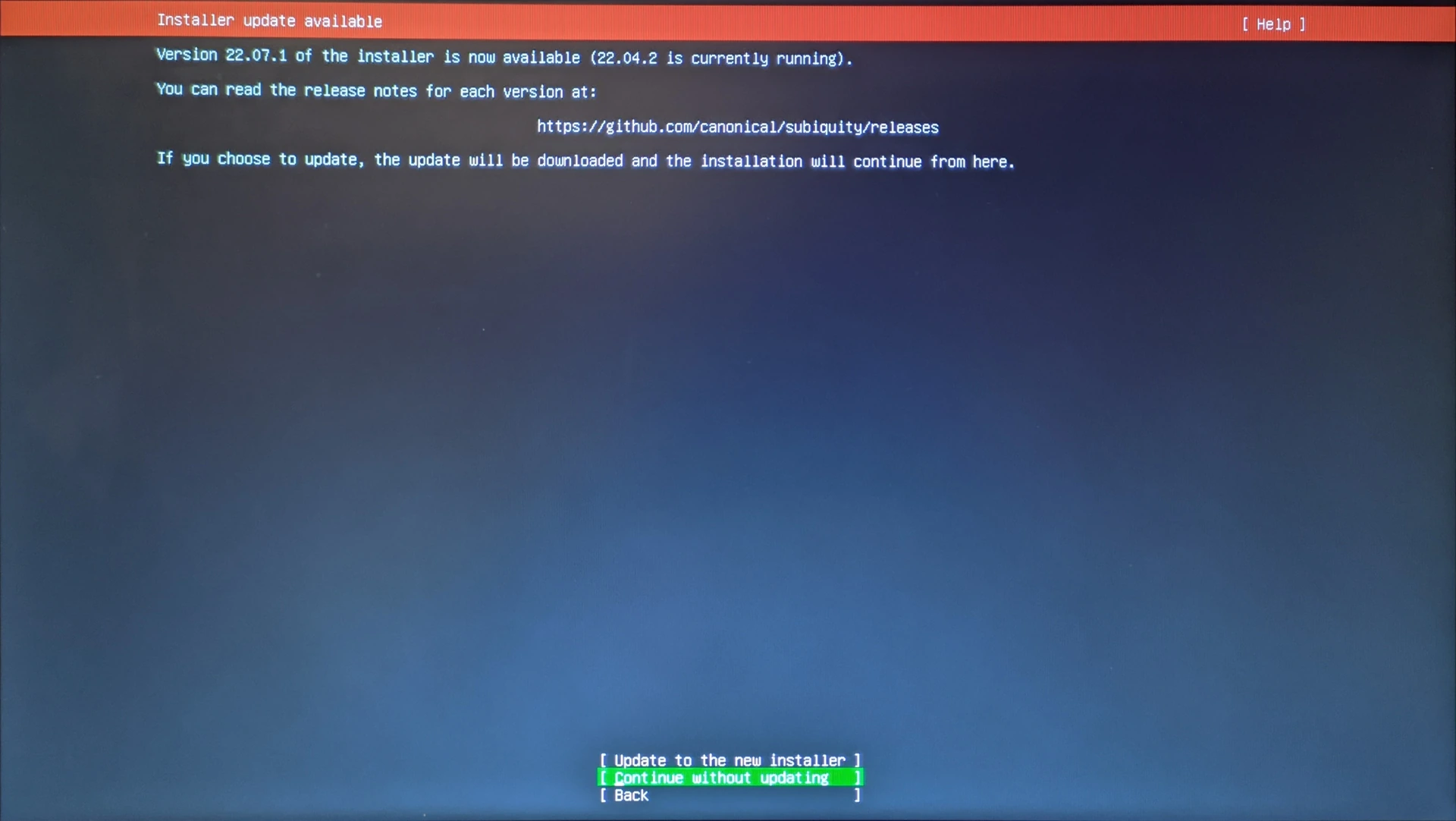
<p>If the version installed on the stick is not the latest, it asks if you want to update (from 22.04 to 22.07) before performing the installation. It is not important because the update will still be done from the command line at the end of the operating system installation. To ignore the update, simply confirm the choice <code class="language-plaintext highlighter-rouge">Continue without updating</code>.</p>

<p><img src="https://raw.githubusercontent.com/EdoardoTosin/Ubuntu-Server-Pi-Hole-Unbound/main/assets/1_Ubuntu_Server/Ubuntu_Server_3.webp" alt="Ubuntu Server installation - installer update prompt, selecting &quot;Continue without updating&quot;" /></p>

<h3 id="keyboard-configuration">Keyboard configuration</h3>

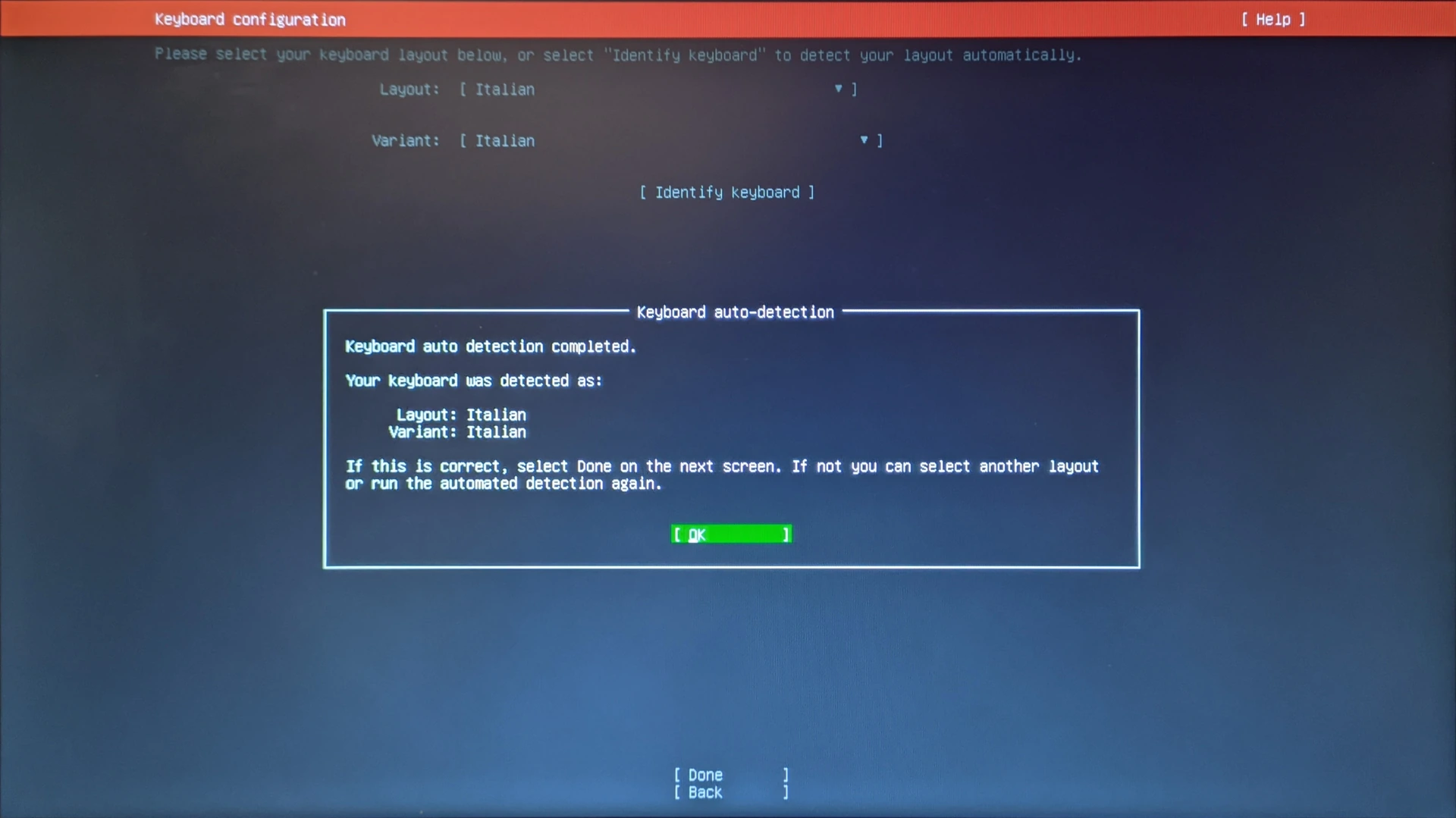
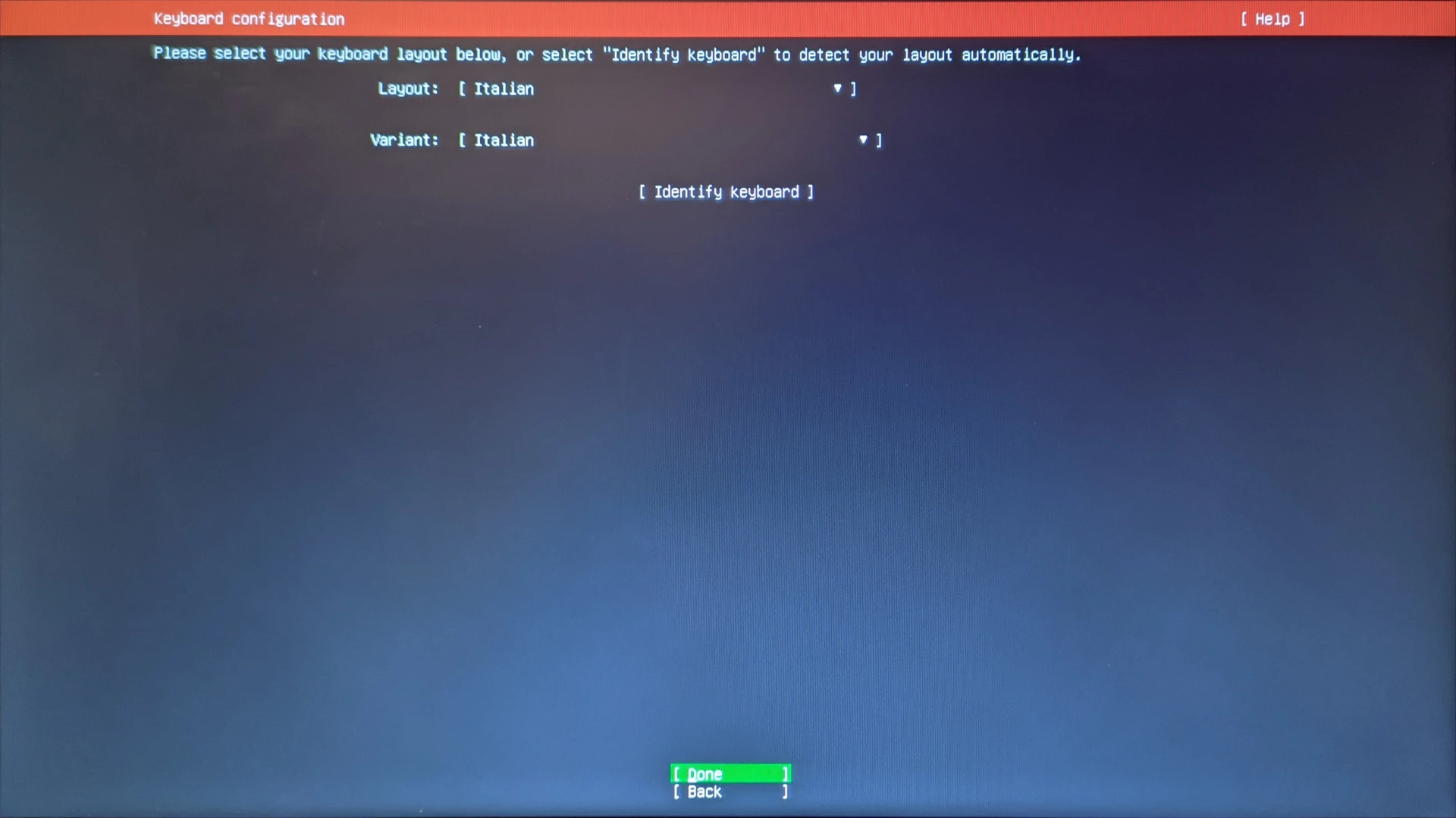
<p>Choose the keyboard layout used. Make sure that under <code class="language-plaintext highlighter-rouge">Layout</code> and <code class="language-plaintext highlighter-rouge">Variant</code> it says <code class="language-plaintext highlighter-rouge">English</code> (in my case <code class="language-plaintext highlighter-rouge">Italian</code> since mine has the italian layout), otherwise choose it from the respective menu. Confirm by pressing the <code class="language-plaintext highlighter-rouge">Ok</code> choice and then <code class="language-plaintext highlighter-rouge">Done</code>.</p>

<p><img src="https://raw.githubusercontent.com/EdoardoTosin/Ubuntu-Server-Pi-Hole-Unbound/main/assets/1_Ubuntu_Server/Ubuntu_Server_4.webp" alt="Ubuntu Server installation - keyboard layout selection screen" /></p>

<p><img src="https://raw.githubusercontent.com/EdoardoTosin/Ubuntu-Server-Pi-Hole-Unbound/main/assets/1_Ubuntu_Server/Ubuntu_Server_5.webp" alt="Ubuntu Server installation - keyboard layout variant confirmation screen" /></p>

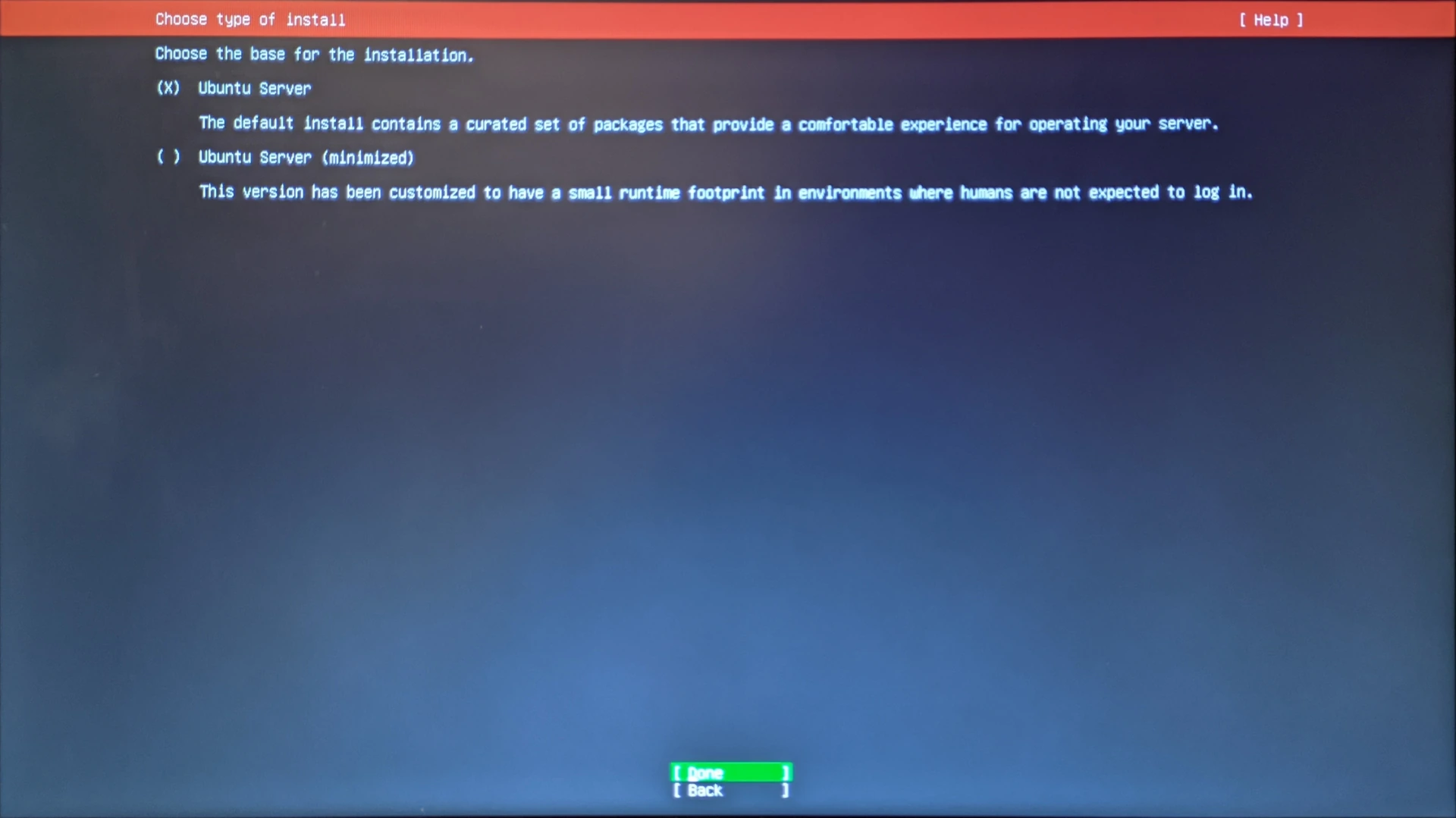
<h3 id="installation-type">Installation type</h3>

<p>Make sure the box next to <code class="language-plaintext highlighter-rouge">Ubuntu Server</code> is checked, otherwise select it using the <code class="language-plaintext highlighter-rouge">Space</code> key. Press enter on <code class="language-plaintext highlighter-rouge">Done</code> to confirm.</p>

<p><img src="https://raw.githubusercontent.com/EdoardoTosin/Ubuntu-Server-Pi-Hole-Unbound/main/assets/1_Ubuntu_Server/Ubuntu_Server_6.webp" alt="Ubuntu Server installation - installation type selection, choosing &quot;Ubuntu Server&quot;" /></p>

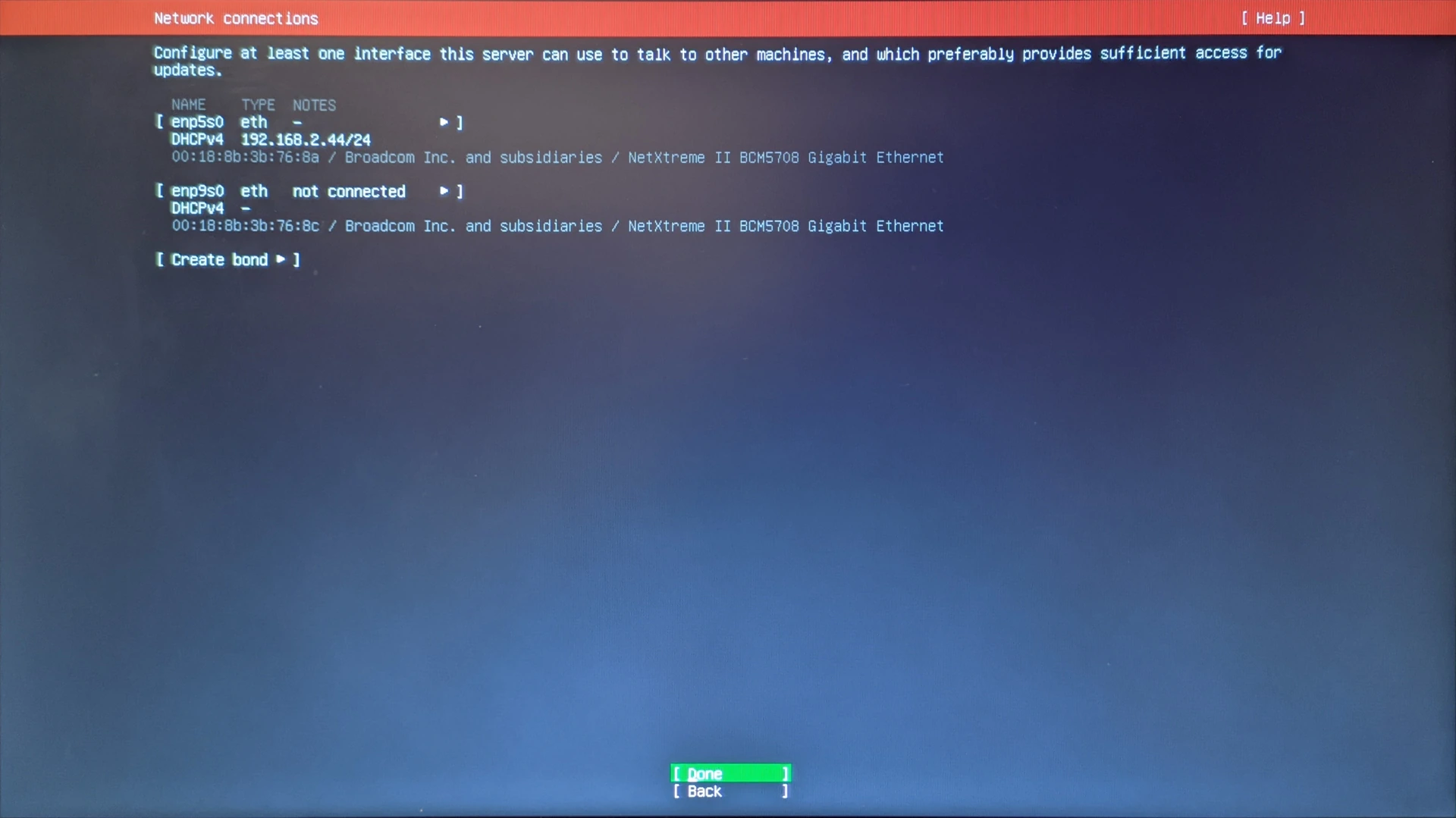
<h3 id="network-connections">Network connections</h3>

<p>Make sure at least one interface does not say <code class="language-plaintext highlighter-rouge">not connected</code>, and remember the IP address (which appears after DHCPv4 and without the following slash and number) because it will be needed to connect with the ssh protocol and execute commands remotely. It is important to assign this address as static in the router settings of the network so that it does not change. Press enter on <code class="language-plaintext highlighter-rouge">Done</code>.</p>

<p><img src="https://raw.githubusercontent.com/EdoardoTosin/Ubuntu-Server-Pi-Hole-Unbound/main/assets/1_Ubuntu_Server/Ubuntu_Server_7.webp" alt="Ubuntu Server installation - network connections screen showing DHCP IP address" /></p>

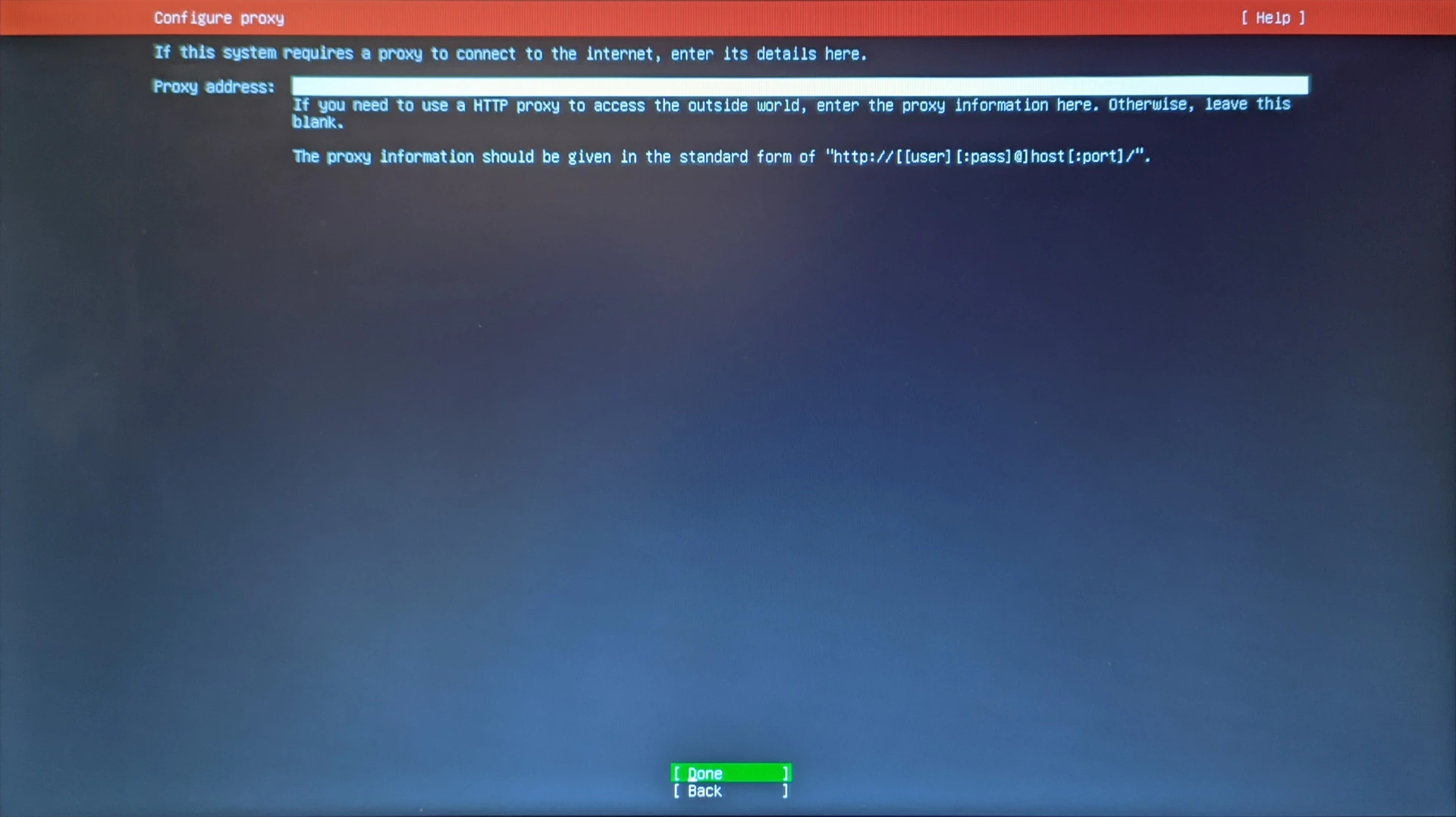
<h3 id="proxy-configuration">Proxy configuration</h3>

<p>In this case, no proxy is used, so nothing should be entered in the white space but simply confirm again the choice <code class="language-plaintext highlighter-rouge">Done</code>.</p>

<p><img src="https://raw.githubusercontent.com/EdoardoTosin/Ubuntu-Server-Pi-Hole-Unbound/main/assets/1_Ubuntu_Server/Ubuntu_Server_8.webp" alt="Ubuntu Server installation - proxy configuration screen, leaving field empty" /></p>

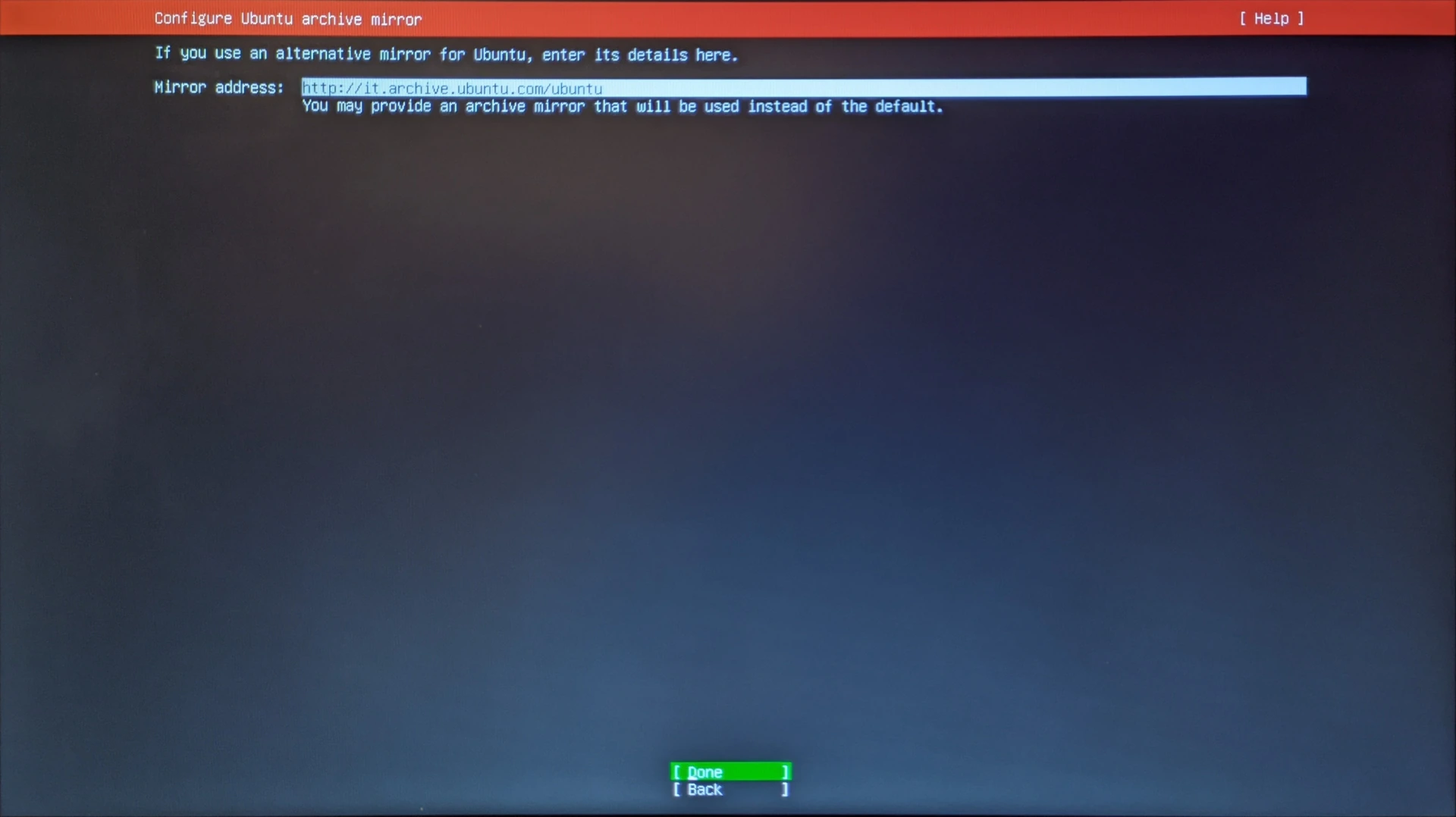
<h3 id="alternative-repository-mirror">Alternative repository mirror</h3>

<p>Check that there is a mirror to find packages and updates for the operating system. In this case, <code class="language-plaintext highlighter-rouge">http://it.archive.ubuntu.com/ubuntu</code> is good. Confirm by choosing <code class="language-plaintext highlighter-rouge">Done</code>.</p>

<p><img src="https://raw.githubusercontent.com/EdoardoTosin/Ubuntu-Server-Pi-Hole-Unbound/main/assets/1_Ubuntu_Server/Ubuntu_Server_9.webp" alt="Ubuntu Server installation - Ubuntu repository mirror configuration screen" /></p>

<h3 id="disk-space-configuration">Disk space configuration</h3>

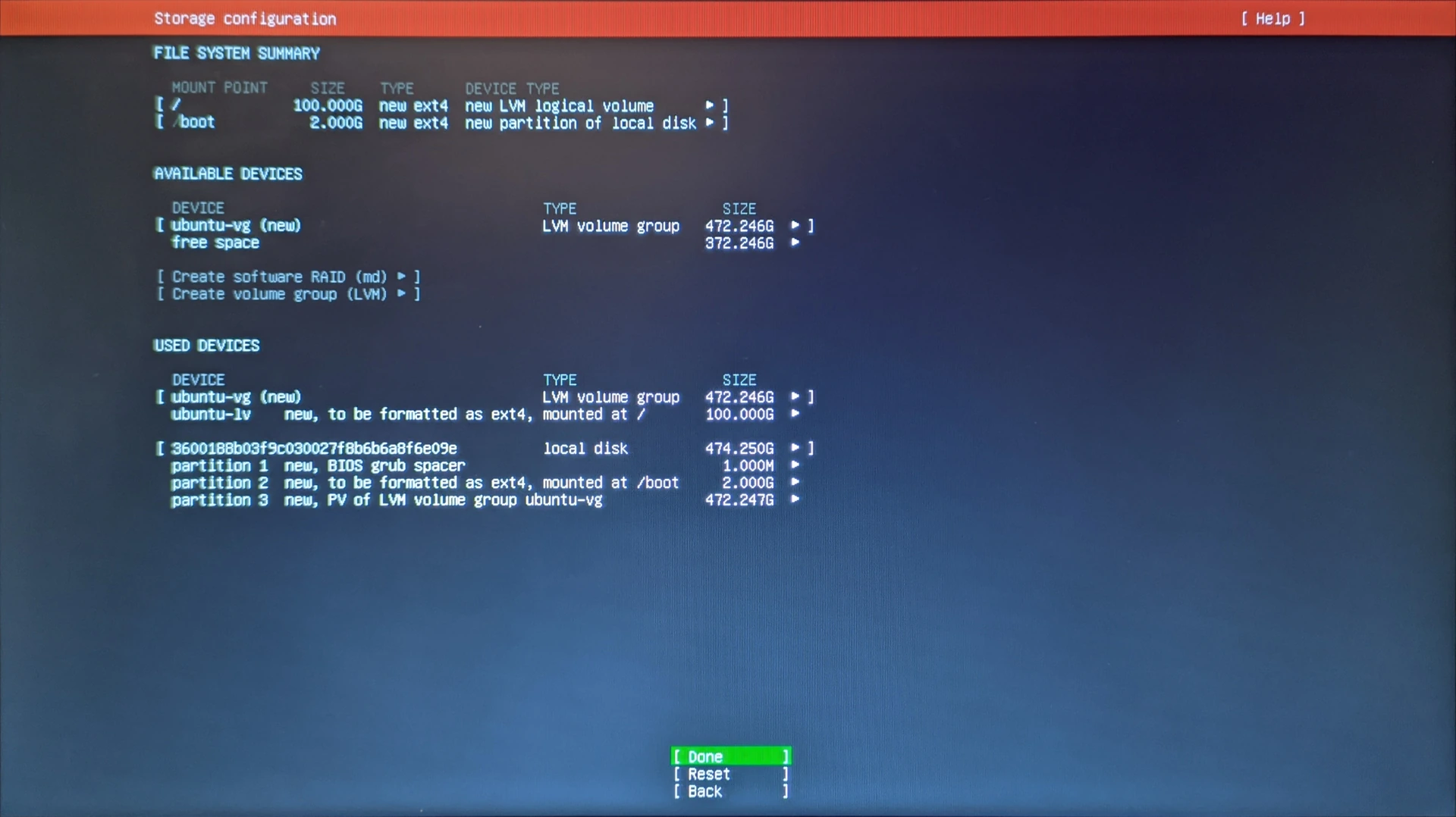
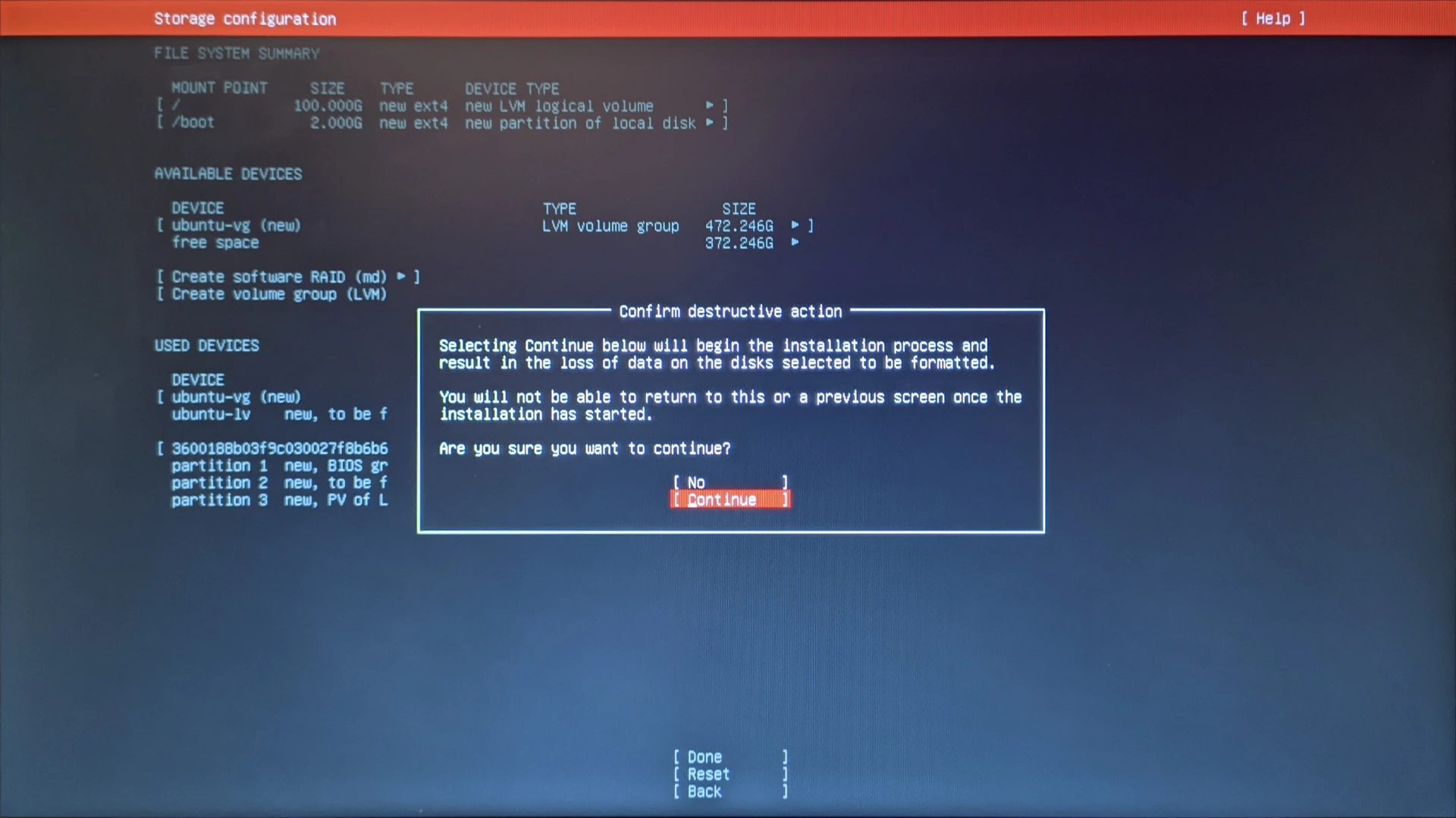
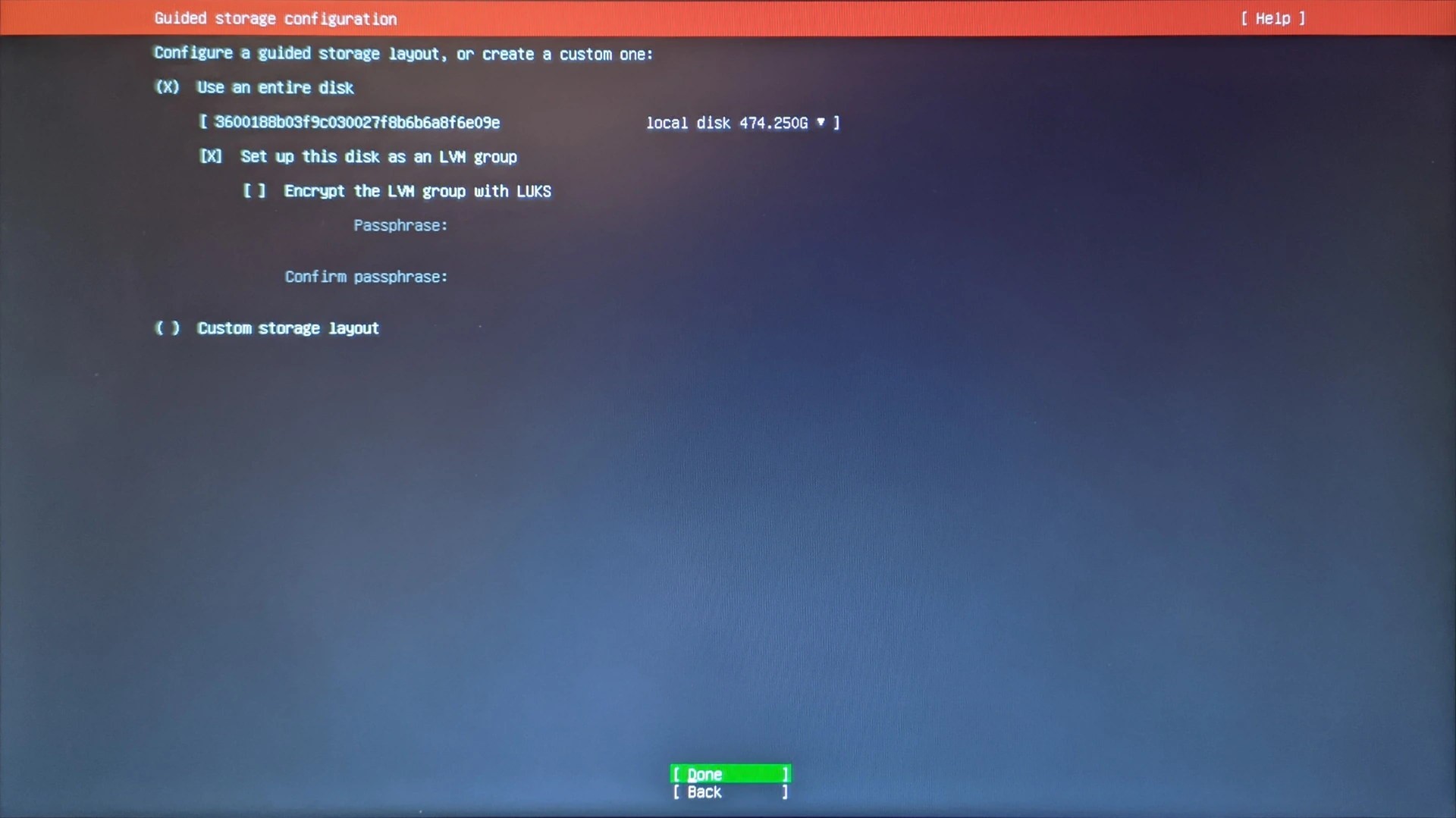
<p>In the following screen, you can see the formatting of the disk in detail. To confirm, select <code class="language-plaintext highlighter-rouge">Done</code> and then <code class="language-plaintext highlighter-rouge">Continue</code>.</p>

<p><img src="https://raw.githubusercontent.com/EdoardoTosin/Ubuntu-Server-Pi-Hole-Unbound/main/assets/1_Ubuntu_Server/Ubuntu_Server_11.webp" alt="Ubuntu Server installation - guided disk storage layout configuration screen" /></p>

<p><img src="https://raw.githubusercontent.com/EdoardoTosin/Ubuntu-Server-Pi-Hole-Unbound/main/assets/1_Ubuntu_Server/Ubuntu_Server_12.webp" alt="Ubuntu Server installation - detailed disk partition layout confirmation screen" /></p>

<h3 id="profile-settings">Profile settings</h3>

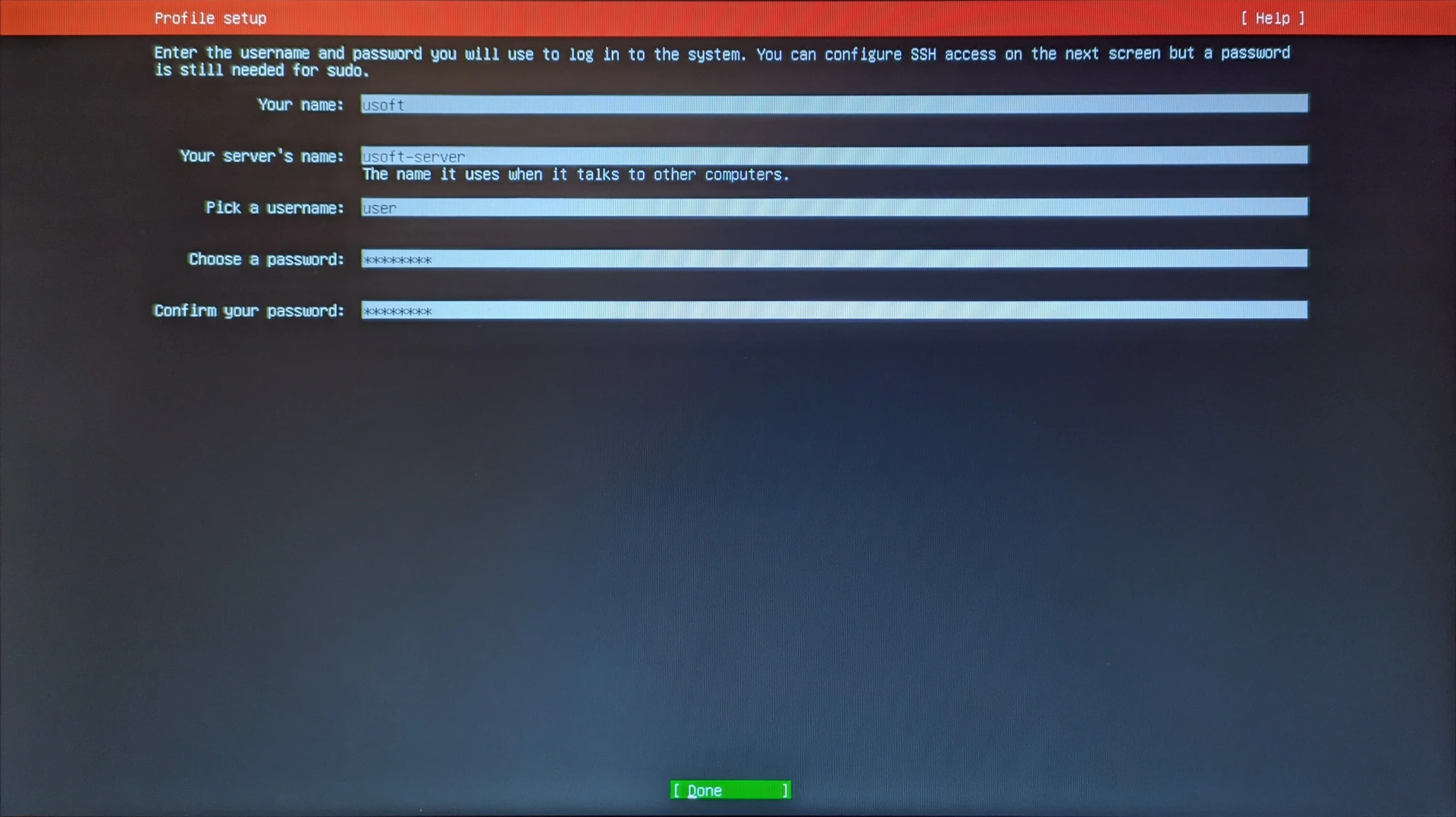
<p>Import the name, server name, username, and password.
It is important not to lose the username and password, otherwise it is no longer possible to log in to the operating system.
The username and password fields will be used later for SSH login.</p>

<p><img src="https://raw.githubusercontent.com/EdoardoTosin/Ubuntu-Server-Pi-Hole-Unbound/main/assets/1_Ubuntu_Server/Ubuntu_Server_13.webp" alt="Ubuntu Server installation - profile setup screen for name, server name, username and password" /></p>

<h3 id="ssh-settings">SSH settings</h3>

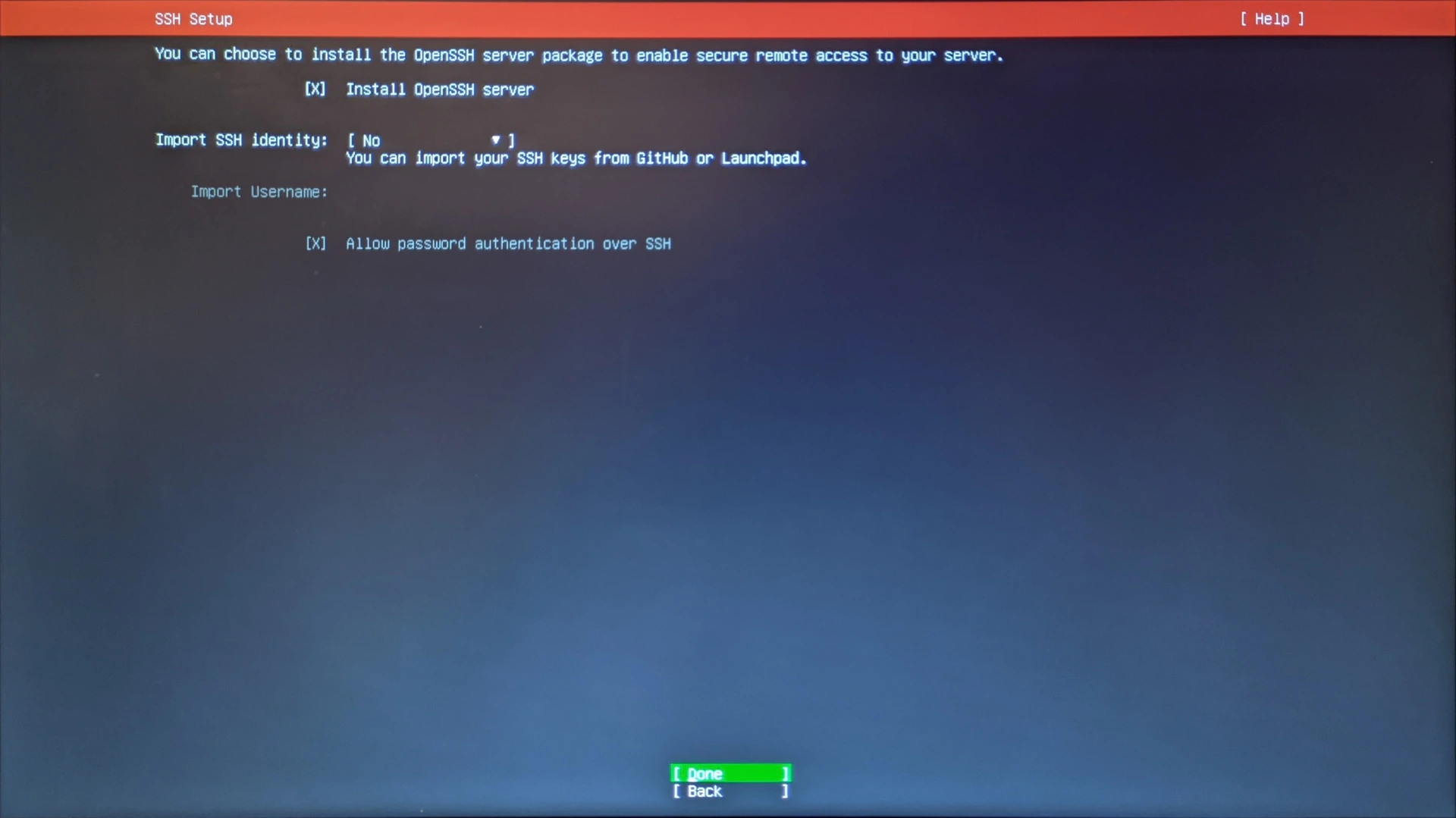
<p>Select with the <code class="language-plaintext highlighter-rouge">Space</code> key the voice <code class="language-plaintext highlighter-rouge">Install OpenSSH server</code> so that it installs and makes the server accessible via the ssh protocol (default port 22) for remote control.
To confirm, select <code class="language-plaintext highlighter-rouge">Done</code>.</p>

<p><img src="https://raw.githubusercontent.com/EdoardoTosin/Ubuntu-Server-Pi-Hole-Unbound/main/assets/1_Ubuntu_Server/Ubuntu_Server_14.webp" alt="Ubuntu Server installation - SSH setup screen, enabling OpenSSH server installation" /></p>

<h3 id="additional-components-for-the-server">Additional components for the server</h3>

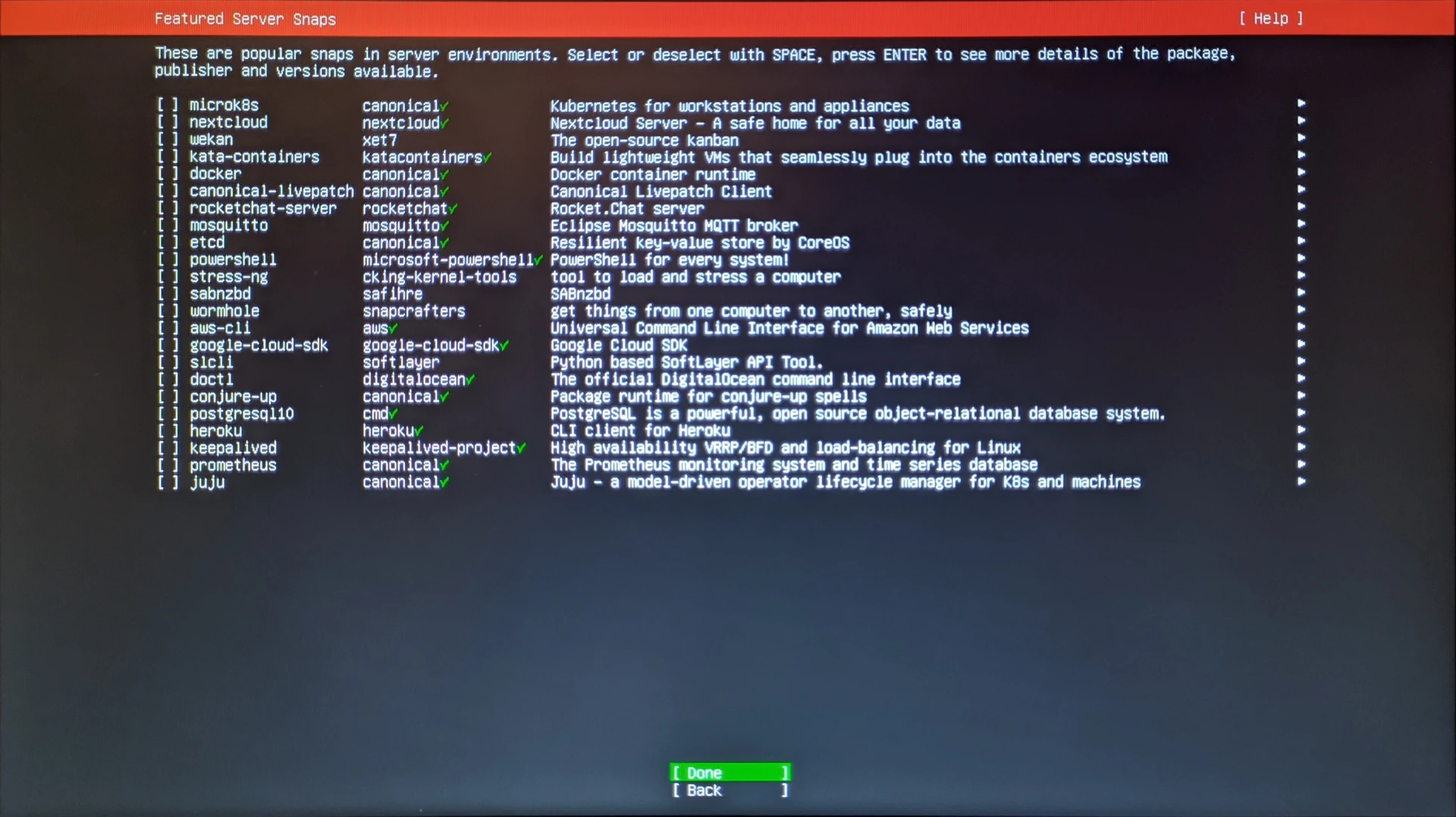
<p>In this screen, it is possible to enable the installation of additional components to add functionality to the server. In this case, none of them are needed (those that we will install later are not present in this list) so just select <code class="language-plaintext highlighter-rouge">Done</code> to start the actual installation of the operating system.</p>

<p><img src="https://raw.githubusercontent.com/EdoardoTosin/Ubuntu-Server-Pi-Hole-Unbound/main/assets/1_Ubuntu_Server/Ubuntu_Server_15.webp" alt="Ubuntu Server installation - additional server components (snaps) selection screen" /></p>

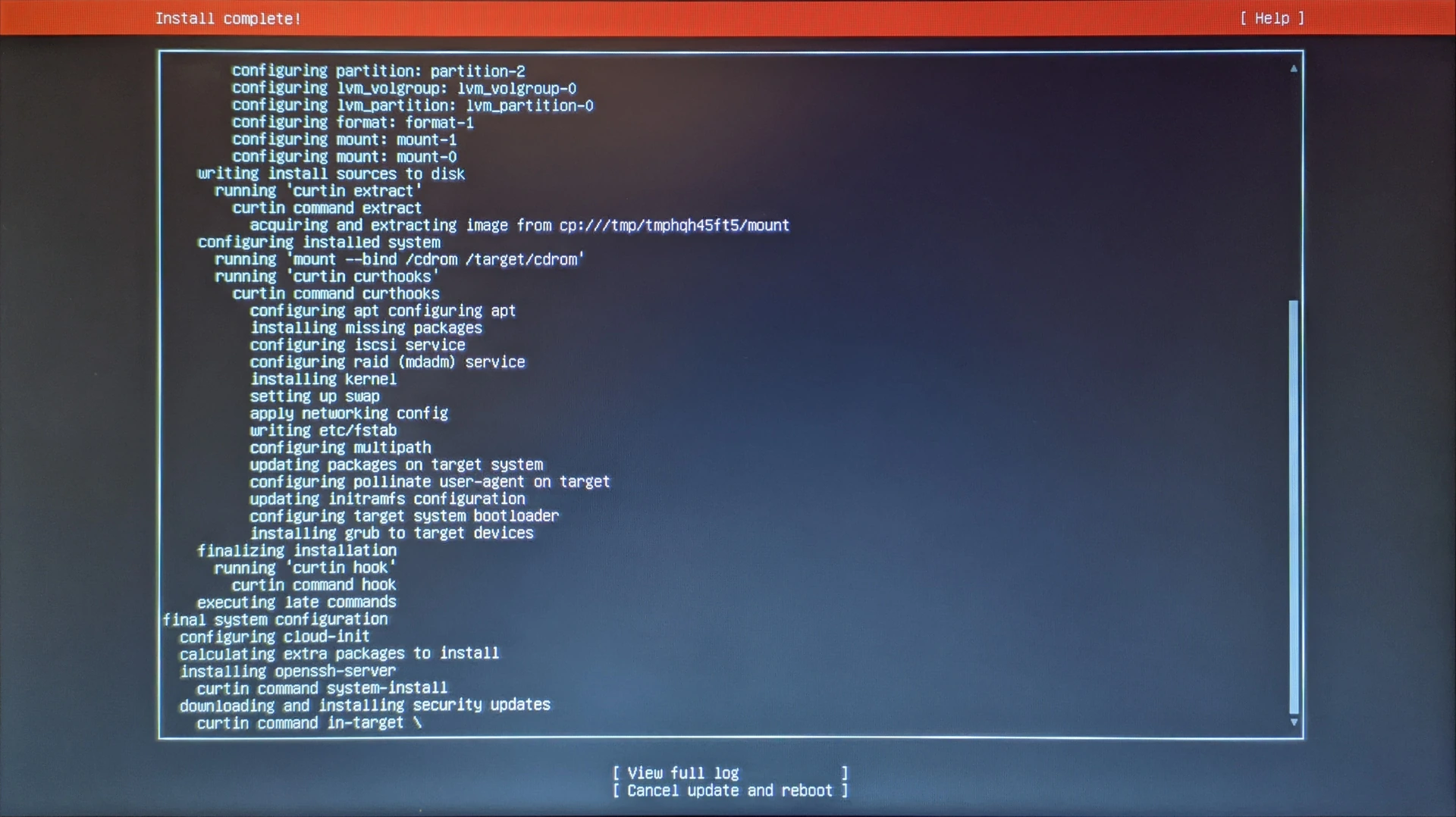
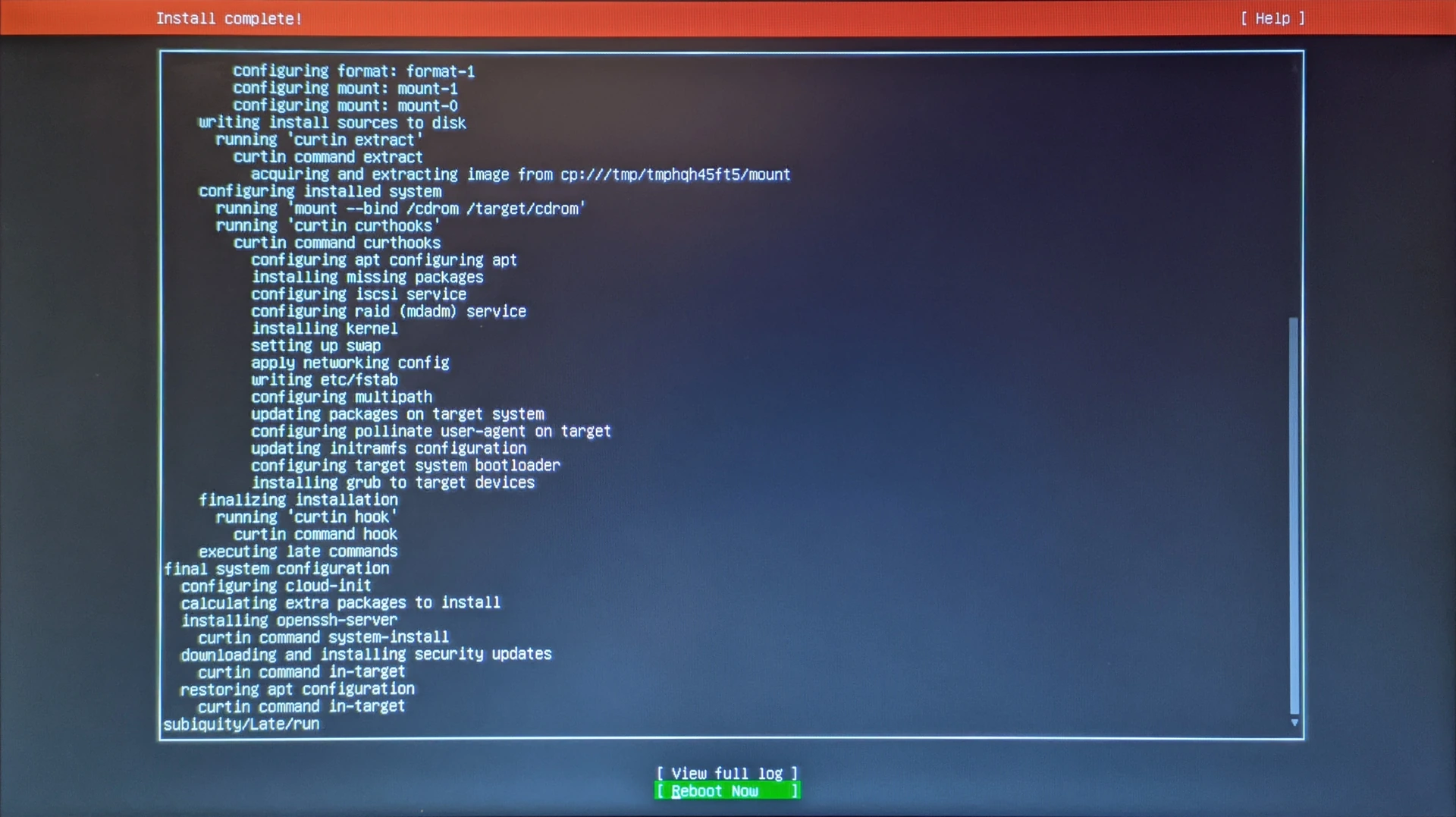
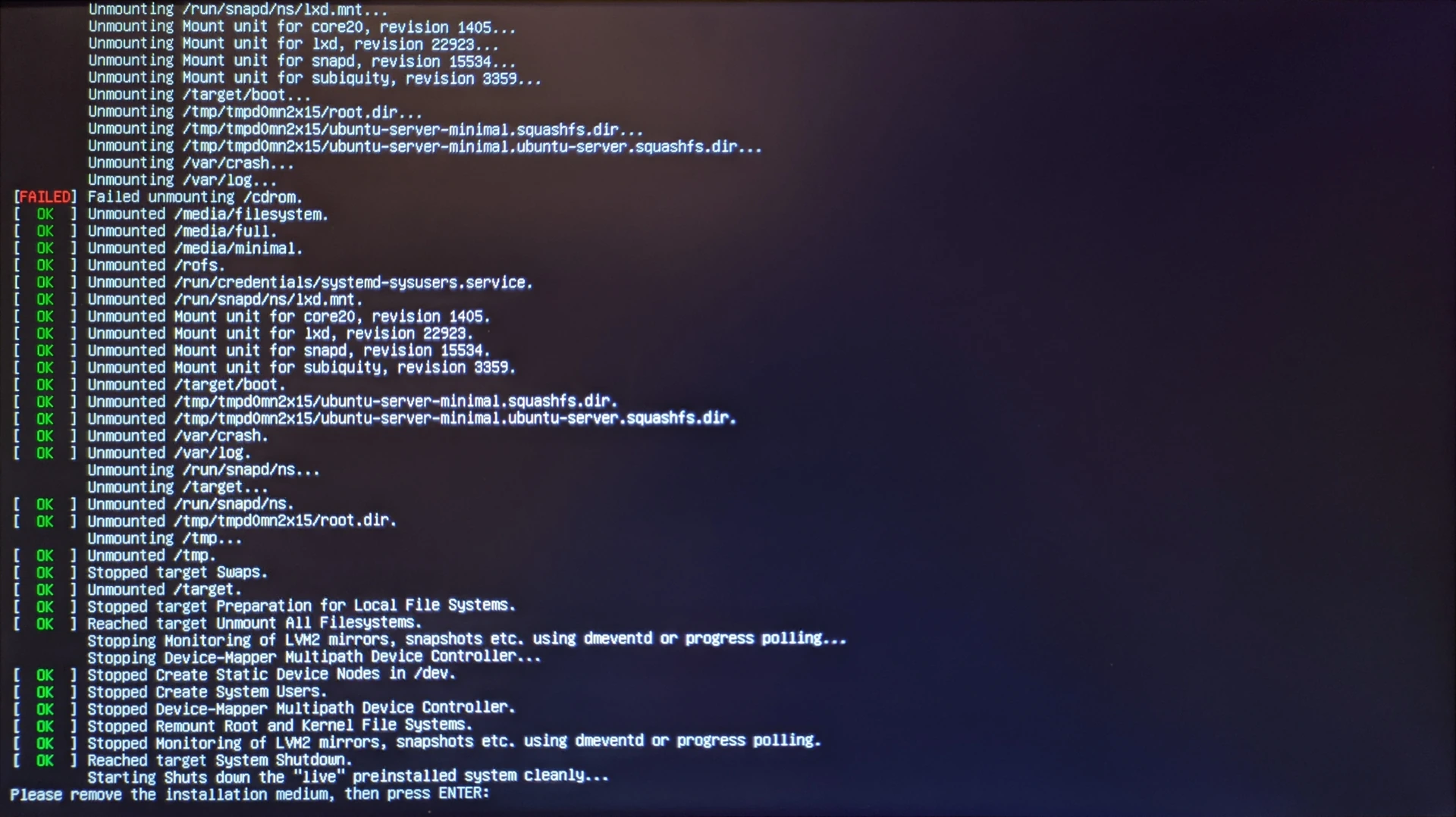
<h2 id="operating-system-installation">Operating system installation</h2>

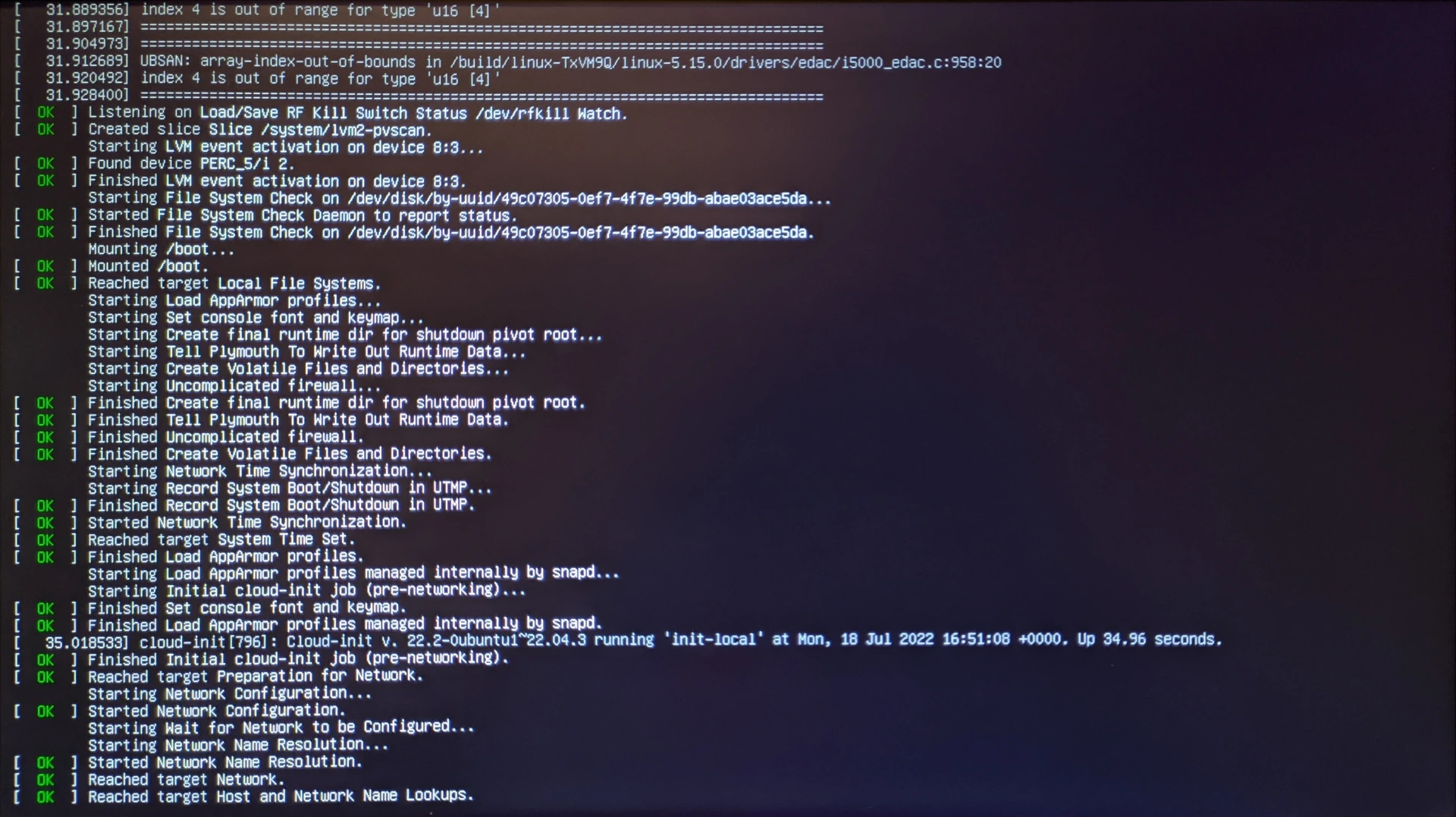
<p>Now the operating system is installed on the internal hard drive of the computer.</p>

<p><img src="https://raw.githubusercontent.com/EdoardoTosin/Ubuntu-Server-Pi-Hole-Unbound/main/assets/1_Ubuntu_Server/Ubuntu_Server_16.webp" alt="Ubuntu Server installation - operating system installation progress screen" /></p>

<p>At the end of the procedure, the <code class="language-plaintext highlighter-rouge">Reboot Now</code> option appears. Press <code class="language-plaintext highlighter-rouge">Enter</code>.</p>

<p><img src="https://raw.githubusercontent.com/EdoardoTosin/Ubuntu-Server-Pi-Hole-Unbound/main/assets/1_Ubuntu_Server/Ubuntu_Server_17.webp" alt="Ubuntu Server installation - installation complete, &quot;Reboot Now&quot; option displayed" /></p>

<p>It will be requested to remove the USB drive that we used for installation. After disconnecting it, press the <code class="language-plaintext highlighter-rouge">Enter</code> key to reboot the computer.</p>

<p><img src="https://raw.githubusercontent.com/EdoardoTosin/Ubuntu-Server-Pi-Hole-Unbound/main/assets/1_Ubuntu_Server/Ubuntu_Server_18.webp" alt="Ubuntu Server installation - prompt to remove USB drive before reboot" /></p>

<p>Now the computer will proceed with the reboot.</p>

<p><img src="https://raw.githubusercontent.com/EdoardoTosin/Ubuntu-Server-Pi-Hole-Unbound/main/assets/1_Ubuntu_Server/Ubuntu_Server_19.webp" alt="Ubuntu Server - system rebooting after installation" /></p>

<p><strong><a href="/blog/ubuntu-server-pihole-unbound-part-2">Next part</a></strong></p>]]></content><author><name>Edoardo Tosin</name><email>edoardotosindev@proton.me</email></author><category term="ubuntu" /><category term="unbound" /><category term="pi-hole" /><category term="dns" /><category term="server" /><category term="adblocker" /><summary type="html"><![CDATA[How to install Ubuntu Server as the foundation for a self-hosted DNS stack using Pi-Hole and Unbound - including disk partitioning, SSH setup, and initial system configuration.]]></summary><media:thumbnail xmlns:media="http://search.yahoo.com/mrss/" url="https://raw.githubusercontent.com/EdoardoTosin/Ubuntu-Server-Pi-Hole-Unbound/main/assets/1_Ubuntu_Server/Ubuntu_Server_19.webp" /><media:content medium="image" url="https://raw.githubusercontent.com/EdoardoTosin/Ubuntu-Server-Pi-Hole-Unbound/main/assets/1_Ubuntu_Server/Ubuntu_Server_19.webp" xmlns:media="http://search.yahoo.com/mrss/" /></entry><entry xml:lang="en"><title type="html">Sunspots 17 July 2023</title><link href="https://edoardotosin.com/blog/sunspots-2023-07-17" rel="alternate" type="text/html" title="Sunspots 17 July 2023" /><published>2023-07-25T06:30:00+02:00</published><updated>2024-08-07T16:30:07+02:00</updated><id>https://edoardotosin.com/blog/sunspots-2023-07-17</id><content type="html" xml:base="https://edoardotosin.com/blog/sunspots-2023-07-17"><![CDATA[<p>On July 17, 2023, there were six active sunspot regions visible on the Earth-facing side of the Sun, including notable regions <strong>AR3363</strong>, <strong>AR3372</strong>, and <strong>AR3373</strong>.<sup id="fnref:1"><a href="#fn:1" class="footnote" rel="footnote" role="doc-noteref">1</a></sup> In visible light, these sunspots appear as dark spots against the bright solar surface.
While the visible light image highlights sunspot regions, significant solar activity occurred over the previous 24 hours:</p>
<ul>
  <li><strong>AR3363</strong>, near the Sun’s western limb, produced an M4.0-class flare at 17:36 UT, causing an R1 (minor) radio blackout over the sunlit side of Earth.<sup id="fnref:1:1"><a href="#fn:1" class="footnote" rel="footnote" role="doc-noteref">1</a></sup></li>
  <li>A total of 20 C-class flares were also recorded, with <strong>AR3373</strong> contributing the most activity despite its relatively simple structure.<sup id="fnref:1:2"><a href="#fn:1" class="footnote" rel="footnote" role="doc-noteref">1</a></sup></li>
  <li>An unnumbered region on the southeast limb of the Sun showed signs of potential future activity.<sup id="fnref:1:3"><a href="#fn:1" class="footnote" rel="footnote" role="doc-noteref">1</a></sup></li>
</ul>

<p>Although the visible image does not directly reveal coronal mass ejections (CMEs) or filament eruptions, these events occurred alongside visible sunspot activity.</p>

<p><img src="https://live.staticflickr.com/65535/53069208592_fc9ef2ba10_k.jpg" alt="Sunspot groups AR3363, AR3372, and AR3373 on the Sun's Earth-facing side - 17 July 2023 (image 1)" />
<img src="https://live.staticflickr.com/65535/53070188830_875346d83e_k.jpg" alt="Sunspot groups AR3363, AR3372, and AR3373 on the Sun's Earth-facing side - 17 July 2023 (image 2)" /></p>

<p><em>Photo of the Sun captured on 17 July 2023,<sup id="fnref:2"><a href="#fn:2" class="footnote" rel="footnote" role="doc-noteref">2</a></sup> showing six active regions (sunspots) visible on its Earth-facing side (AR3363 and from AR3371 to AR3375).<sup id="fnref:1:4"><a href="#fn:1" class="footnote" rel="footnote" role="doc-noteref">1</a></sup></em></p>

<hr />

<p><strong>Want to learn more?</strong> Check out <a href="https://earthsky.org/sun/sun-activity-archive-for-july-2023">here</a> for a detailed report on sun activity.</p>

<div class="footnotes" role="doc-endnotes">
  <ol>
    <li id="fn:1">
      <p><a href="https://earthsky.org/sun/sun-activity-archive-for-july-2023/#:~:text=Sun%20activity%20for%20July%2017,%202023">Sun activity for July 17, 2023: CME or CMEs arrive, sun action continues</a>. Earthsky. <a href="#fnref:1" class="reversefootnote" role="doc-backlink">&#8617;</a> <a href="#fnref:1:1" class="reversefootnote" role="doc-backlink">&#8617;<sup>2</sup></a> <a href="#fnref:1:2" class="reversefootnote" role="doc-backlink">&#8617;<sup>3</sup></a> <a href="#fnref:1:3" class="reversefootnote" role="doc-backlink">&#8617;<sup>4</sup></a> <a href="#fnref:1:4" class="reversefootnote" role="doc-backlink">&#8617;<sup>5</sup></a></p>
    </li>
    <li id="fn:2">
      <p><a href="https://www.flickr.com/photos/edoardo_tosin/albums/72177720310019538">Sun 2023-07-17</a>. Flickr. <a href="#fnref:2" class="reversefootnote" role="doc-backlink">&#8617;</a></p>
    </li>
  </ol>
</div>]]></content><author><name>Edoardo Tosin</name><email>edoardotosindev@proton.me</email></author><category term="astrophotography" /><category term="sun" /><category term="sunspots" /><summary type="html"><![CDATA[Solar astrophotography of sunspot groups observed on 17 July 2023, captured in the visible spectrum through a dedicated solar filter.]]></summary><media:thumbnail xmlns:media="http://search.yahoo.com/mrss/" url="https://raw.githubusercontent.com/EdoardoTosin/web-assets/refs/heads/main/Notes/100%20Public/Feed/Astrophotography/Sunspots%202023-07-17.webp" /><media:content medium="image" url="https://raw.githubusercontent.com/EdoardoTosin/web-assets/refs/heads/main/Notes/100%20Public/Feed/Astrophotography/Sunspots%202023-07-17.webp" xmlns:media="http://search.yahoo.com/mrss/" /></entry><entry xml:lang="en"><title type="html">Sunspots 8 July 2023</title><link href="https://edoardotosin.com/blog/sunspots-2023-07-08" rel="alternate" type="text/html" title="Sunspots 8 July 2023" /><published>2023-07-08T09:30:00+02:00</published><updated>2024-08-07T16:30:07+02:00</updated><id>https://edoardotosin.com/blog/sunspots-2023-07-08</id><content type="html" xml:base="https://edoardotosin.com/blog/sunspots-2023-07-08"><![CDATA[<p>On July 8, 2023, sun activity was relatively low, with 11 C-class solar flares recorded over 24 hours.<sup id="fnref:1"><a href="#fn:1" class="footnote" rel="footnote" role="doc-noteref">1</a></sup> The most active region of the day was <strong>AR3361</strong>, which produced the largest flare, a C4.2, at 1:44 UTC.<sup id="fnref:1:1"><a href="#fn:1" class="footnote" rel="footnote" role="doc-noteref">1</a></sup> Despite the overall calm, three sunspot regions were prominent and of particular interest in the visible spectrum:</p>
<ul>
  <li><strong>AR3363</strong>: The largest sunspot region, easily visible in this image.</li>
  <li><strong>AR3361</strong>: A highly active region in the northeast, responsible for several flares.</li>
  <li><strong>AR3366</strong>: A large and distinct region located in the southwest quadrant.</li>
</ul>

<p><img src="https://live.staticflickr.com/65535/53031707987_87ce8d5d69_k.jpg" alt="Sunspot regions AR3361, AR3363, and AR3366 on the Sun's Earth-facing side - 8 July 2023 (image 1)" />
<img src="https://live.staticflickr.com/65535/53032427509_e2635b475c_k.jpg" alt="Sunspot regions AR3361, AR3363, and AR3366 on the Sun's Earth-facing side - 8 July 2023 (image 2)" /></p>

<p><em>Photo of the Sun captured from my backyard on 8 July 2023,<sup id="fnref:2"><a href="#fn:2" class="footnote" rel="footnote" role="doc-noteref">2</a></sup> showing several active regions (sunspots) visible on its Earth-facing side, including notable regions AR3361, AR3363, and AR3366.<sup id="fnref:1:2"><a href="#fn:1" class="footnote" rel="footnote" role="doc-noteref">1</a></sup></em></p>

<hr />

<p><strong>Want to learn more?</strong> Check out <a href="https://earthsky.org/sun/sun-activity-archive-for-july-2023">here</a> for a detailed report on sun activity.</p>

<div class="footnotes" role="doc-endnotes">
  <ol>
    <li id="fn:1">
      <p><a href="https://earthsky.org/sun/sun-activity-archive-for-july-2023/#:~:text=Sun%20activity%20for%20July%208,%202023">Sun activity for July 8, 2023: 3 sunspot regions hold promise</a>. Earthsky. <a href="#fnref:1" class="reversefootnote" role="doc-backlink">&#8617;</a> <a href="#fnref:1:1" class="reversefootnote" role="doc-backlink">&#8617;<sup>2</sup></a> <a href="#fnref:1:2" class="reversefootnote" role="doc-backlink">&#8617;<sup>3</sup></a></p>
    </li>
    <li id="fn:2">
      <p><a href="https://www.flickr.com/photos/edoardo_tosin/albums/72177720309644539">Sun 2023-07-08</a>. Flickr. <a href="#fnref:2" class="reversefootnote" role="doc-backlink">&#8617;</a></p>
    </li>
  </ol>
</div>]]></content><author><name>Edoardo Tosin</name><email>edoardotosindev@proton.me</email></author><category term="astrophotography" /><category term="sun" /><category term="sunspots" /><summary type="html"><![CDATA[Solar astrophotography of sunspot groups observed on 8 July 2023, captured in the visible spectrum through a dedicated solar filter.]]></summary><media:thumbnail xmlns:media="http://search.yahoo.com/mrss/" url="https://raw.githubusercontent.com/EdoardoTosin/web-assets/refs/heads/main/Notes/100%20Public/Feed/Astrophotography/Sunspots%202023-07-08.webp" /><media:content medium="image" url="https://raw.githubusercontent.com/EdoardoTosin/web-assets/refs/heads/main/Notes/100%20Public/Feed/Astrophotography/Sunspots%202023-07-08.webp" xmlns:media="http://search.yahoo.com/mrss/" /></entry><entry xml:lang="en"><title type="html">Supernova in the Pinwheel galaxy</title><link href="https://edoardotosin.com/blog/supernova-in-the-pinwheel-galaxy" rel="alternate" type="text/html" title="Supernova in the Pinwheel galaxy" /><published>2023-05-26T03:00:00+02:00</published><updated>2024-08-07T16:30:07+02:00</updated><id>https://edoardotosin.com/blog/supernova-in-the-pinwheel-galaxy</id><content type="html" xml:base="https://edoardotosin.com/blog/supernova-in-the-pinwheel-galaxy"><![CDATA[<p>A remarkable breakthrough in astronomy unfolded on 19 May 2023 with the discovery of a supernova in the Pinwheel Galaxy, also known as Messier 101 (M101).<sup id="fnref:1"><a href="#fn:1" class="footnote" rel="footnote" role="doc-noteref">1</a></sup><sup id="fnref:2"><a href="#fn:2" class="footnote" rel="footnote" role="doc-noteref">2</a></sup> This supernova, named SN 2023ixf, is not only a stunning cosmic event but also the closest observed supernova in recent years, offering scientists a rare opportunity to study such an explosion up close.<sup id="fnref:3"><a href="#fn:3" class="footnote" rel="footnote" role="doc-noteref">3</a></sup><sup id="fnref:4"><a href="#fn:4" class="footnote" rel="footnote" role="doc-noteref">4</a></sup></p>

<p><img src="https://live.staticflickr.com/65535/52927581723_77449759fc_h.jpg" alt="SN 2023ixf supernova visible in the Pinwheel galaxy (M101), captured six days after discovery on 25 May 2023 (image 1)" />
<img src="https://live.staticflickr.com/65535/52926129447_b5b2a2e102_h.jpg" alt="SN 2023ixf supernova visible in the Pinwheel galaxy (M101), captured six days after discovery on 25 May 2023 (image 2)" /></p>

<p><em>Supernova in the Pinwheel galaxy taken from my backyard, captured six days after its discovery.<sup id="fnref:5"><a href="#fn:5" class="footnote" rel="footnote" role="doc-noteref">5</a></sup></em></p>

<h3 id="what-is-sn-2023ixf">What is SN 2023ixf?</h3>

<p>SN 2023ixf is classified as a Type II-L supernova, which occurs when the core of a massive star collapses, leading to a powerful explosion.<sup id="fnref:4:1"><a href="#fn:4" class="footnote" rel="footnote" role="doc-noteref">4</a></sup> This type of supernova typically shows a linear decline in brightness after its peak, giving astronomers a clear view of how these stellar phenomena evolve over time. Prior to the explosion, the progenitor star of SN 2023ixf was likely a supergiant, estimated to have an absolute magnitude in the near-infrared of (M = -4.66).<sup id="fnref:4:2"><a href="#fn:4" class="footnote" rel="footnote" role="doc-noteref">4</a></sup></p>

<h3 id="why-this-discovery-matters">Why This Discovery Matters</h3>

<p>Studying SN 2023ixf not only broadens our understanding of supernova mechanics but also has potential implications for measuring cosmic distances. Type II supernovae serve as "standardizable candles," objects with predictable brightness that can be used to gauge distances across the expanding universe.<sup id="fnref:6"><a href="#fn:6" class="footnote" rel="footnote" role="doc-noteref">6</a></sup> The insights gained from SN 2023ixf may enhance the accuracy of these distance measures, contributing to a more precise understanding of the universe’s structure and scale.</p>

<p>Since its discovery, astronomers have been thoroughly investigating SN 2023ixf. In just a few months, roughly thirty research papers have already been submitted or published, with more anticipated as observations continue.<sup id="fnref:6:1"><a href="#fn:6" class="footnote" rel="footnote" role="doc-noteref">6</a></sup> Each new dataset adds layers of information, helping researchers refine models of how such massive stars live and die.</p>

<h3 id="unveiling-the-progenitor-star">Unveiling the Progenitor Star</h3>

<p>One of the biggest goals for researchers is to identify and characterize the progenitor star that led to this explosion. The process of confirming the progenitor involves studying pre-explosion images and data from various telescopes. Several research teams have independently pointed to a red supergiant as the most likely candidate for the progenitor.<sup id="fnref:3:1"><a href="#fn:3" class="footnote" rel="footnote" role="doc-noteref">3</a></sup> If this star is indeed the source, the supernova’s fading brightness will eventually reveal its absence, providing direct evidence of its explosive end.</p>

<p>Ideally, astronomers could monitor supernova progenitors years or even decades before they go supernova. This would allow scientists to link the star’s properties before the explosion to the aftermath, offering a more complete picture of stellar evolution and death.<sup id="fnref:3:2"><a href="#fn:3" class="footnote" rel="footnote" role="doc-noteref">3</a></sup> Such studies are key to unlocking deeper insights into the lifecycle of massive stars and the cataclysmic forces that shape galaxies.</p>

<h3 id="a-milestone-in-stellar-evolution-research">A Milestone in Stellar Evolution Research</h3>

<p>SN 2023ixf stands as a significant milestone in our journey to understand stellar evolution. Observing this supernova over time will help scientists piece together the sequence of events leading up to the explosion, and by extension, reveal more about how massive stars evolve and ultimately meet their violent end.</p>

<p>This ongoing research on SN 2023ixf is expected to continue for years, providing ample data and opportunities for new discoveries. Each observation adds to the wealth of knowledge about the life cycles of stars and the dramatic transformations that galaxies undergo as a result of these powerful events.</p>

<div class="footnotes" role="doc-endnotes">
  <ol>
    <li id="fn:1">
      <p><a href="https://www.wis-tns.org/object/2023ixf/discovery-cert">Discovery certificate for object 2023ixf</a>. Transient Name Server. <a href="#fnref:1" class="reversefootnote" role="doc-backlink">&#8617;</a></p>
    </li>
    <li id="fn:2">
      <p><a href="https://www.wis-tns.org/astronotes/astronote/2023-119">AstroNote 2023-119</a>. Transient Name Server. <a href="#fnref:2" class="reversefootnote" role="doc-backlink">&#8617;</a></p>
    </li>
    <li id="fn:3">
      <p><a href="https://aasnova.org/2023/09/27/getting-to-know-the-supernova-next-door-sn-2023ixf/">Getting to Know the Supernova Next Door: SN 2023ixf - AAS Nova</a> <a href="#fnref:3" class="reversefootnote" role="doc-backlink">&#8617;</a> <a href="#fnref:3:1" class="reversefootnote" role="doc-backlink">&#8617;<sup>2</sup></a> <a href="#fnref:3:2" class="reversefootnote" role="doc-backlink">&#8617;<sup>3</sup></a></p>
    </li>
    <li id="fn:4">
      <p><a href="https://en.wikipedia.org/wiki/SN_2023ixf">SN 2023ixf - Wikipedia</a>. Wikipedia. <a href="#fnref:4" class="reversefootnote" role="doc-backlink">&#8617;</a> <a href="#fnref:4:1" class="reversefootnote" role="doc-backlink">&#8617;<sup>2</sup></a> <a href="#fnref:4:2" class="reversefootnote" role="doc-backlink">&#8617;<sup>3</sup></a></p>
    </li>
    <li id="fn:5">
      <p><a href="https://www.flickr.com/photos/edoardo_tosin/albums/72177720308577781">SN 2023ixf</a>. Flickr. <a href="#fnref:5" class="reversefootnote" role="doc-backlink">&#8617;</a></p>
    </li>
    <li id="fn:6">
      <p><a href="https://news.berkeley.edu/2023/08/29/releases-20230828-6895045">Releases 20230828 - Berkeley News</a> <a href="#fnref:6" class="reversefootnote" role="doc-backlink">&#8617;</a> <a href="#fnref:6:1" class="reversefootnote" role="doc-backlink">&#8617;<sup>2</sup></a></p>
    </li>
  </ol>
</div>]]></content><author><name>Edoardo Tosin</name><email>edoardotosindev@proton.me</email></author><category term="astrophotography" /><category term="galaxy" /><category term="supernova" /><summary type="html"><![CDATA[My astrophotography of SN 2023ixf, a Type II supernova in the Pinwheel galaxy (M101), captured six days after its discovery in May 2023.]]></summary><media:thumbnail xmlns:media="http://search.yahoo.com/mrss/" url="https://raw.githubusercontent.com/EdoardoTosin/web-assets/refs/heads/main/Notes/100%20Public/Feed/Astrophotography/Supernova%20in%20the%20Pinwheel%20galaxy.webp" /><media:content medium="image" url="https://raw.githubusercontent.com/EdoardoTosin/web-assets/refs/heads/main/Notes/100%20Public/Feed/Astrophotography/Supernova%20in%20the%20Pinwheel%20galaxy.webp" xmlns:media="http://search.yahoo.com/mrss/" /></entry><entry xml:lang="it"><title type="html">Guida Pi-Hole &amp;amp; Unbound - Parte 5: Configurazione Pi-Hole</title><link href="https://edoardotosin.com/blog/ubuntu-server-pihole-unbound-parte-5" rel="alternate" type="text/html" title="Guida Pi-Hole &amp;amp; Unbound - Parte 5: Configurazione Pi-Hole" /><published>2022-12-31T14:00:00+01:00</published><updated>2026-02-03T19:00:00+01:00</updated><id>https://edoardotosin.com/blog/ubuntu-server-pihole-unbound-parte-5</id><content type="html" xml:base="https://edoardotosin.com/blog/ubuntu-server-pihole-unbound-parte-5"><![CDATA[<p><em>Nella <a href="/blog/ubuntu-server-pihole-unbound-parte-4">parte precedente</a> è stato spiegato come installare Unbound.</em></p>

<h2 id="configurazione-pi-hole-da-interfaccia-web">Configurazione Pi-Hole da interfaccia web</h2>

<p>Aprire il browser e inserire l'IP del computer dove è installato Ubuntu Server seguito da <code class="language-plaintext highlighter-rouge">/admin</code> come nella seguente figura. Quando ha caricato la pagina cliccare la voce <code class="language-plaintext highlighter-rouge">Login</code> presente nel menù verticale a sinistra.</p>

<p><img src="https://raw.githubusercontent.com/EdoardoTosin/Ubuntu-Server-Pi-Hole-Unbound/main/assets/5_Pi-Hole_Web_Interface/Pi-Hole_Web_Interface_2.webp" alt="Interfaccia web Pi-Hole - pagina di login accessibile dal browser all'indirizzo IP del server seguito da /admin" /></p>

<p>Verrà chiesta la password di Pi-Hole per l'interfaccia web. Inserirla e cliccare <code class="language-plaintext highlighter-rouge">Login</code> per confermare ed entrare.</p>

<p><img src="https://raw.githubusercontent.com/EdoardoTosin/Ubuntu-Server-Pi-Hole-Unbound/main/assets/5_Pi-Hole_Web_Interface/Pi-Hole_Web_Interface_3.webp" alt="Interfaccia web Pi-Hole - schermata di inserimento della password per il login di amministrazione" /></p>

<p>La seguente schermata è quella prima di fare il login. La differenza è che ora c’è la possibilità di configurare Pi-Hole.</p>

<p><img src="https://raw.githubusercontent.com/EdoardoTosin/Ubuntu-Server-Pi-Hole-Unbound/main/assets/5_Pi-Hole_Web_Interface/Pi-Hole_Web_Interface_4.webp" alt="Interfaccia web Pi-Hole - dashboard dopo il login con le opzioni di configurazione disponibili" /></p>

<p>Cliccare nel menù a sinistra alla voce <code class="language-plaintext highlighter-rouge">Settings</code>.</p>

<p><img src="https://raw.githubusercontent.com/EdoardoTosin/Ubuntu-Server-Pi-Hole-Unbound/main/assets/5_Pi-Hole_Web_Interface/Pi-Hole_Web_Interface_5.webp" alt="Interfaccia web Pi-Hole - voce Settings evidenziata nel pannello di navigazione laterale sinistro" /></p>

<p>Cliccare <code class="language-plaintext highlighter-rouge">DNS</code> dalle voci presenti in alto.</p>

<p><img src="https://raw.githubusercontent.com/EdoardoTosin/Ubuntu-Server-Pi-Hole-Unbound/main/assets/5_Pi-Hole_Web_Interface/Pi-Hole_Web_Interface_6.webp" alt="Interfaccia web Pi-Hole - scheda DNS selezionata nella pagina delle Impostazioni" /></p>

<p>Dal blocco intitolato <code class="language-plaintext highlighter-rouge">Upstream DNS Servers</code> a sinistra deselezionare qualsiasi spunta presente. In quello omonimo di destra, invece, selezionare <code class="language-plaintext highlighter-rouge">Custom 1 (IPv4)</code> e inserire <code class="language-plaintext highlighter-rouge">127.0.0.1#5353</code> che sono l'interfaccia e la porta che erano state precedentemente inserite nel file di configurazione di Unbound. Questo farà di che Pi-Hole chiede ad Unbound la risoluzione dns al posto di utilizzare un server esterno alla rete.</p>

<p><img src="https://raw.githubusercontent.com/EdoardoTosin/Ubuntu-Server-Pi-Hole-Unbound/main/assets/5_Pi-Hole_Web_Interface/Pi-Hole_Web_Interface_7.webp" alt="Interfaccia web Pi-Hole - impostazioni DNS con Custom 1 (IPv4) configurato su 127.0.0.1#5353 (Unbound) come DNS upstream" /></p>

<p>Nel blocco intitolato <code class="language-plaintext highlighter-rouge">Interface settings</code>, cliccare la voce <code class="language-plaintext highlighter-rouge">Bind only to interface ...</code>.</p>

<p><img src="https://raw.githubusercontent.com/EdoardoTosin/Ubuntu-Server-Pi-Hole-Unbound/main/assets/5_Pi-Hole_Web_Interface/Pi-Hole_Web_Interface_8.webp" alt="Interfaccia web Pi-Hole - impostazioni interfaccia con l'opzione &quot;Bind only to interface&quot; selezionata" /></p>

<p>Per salvare tutto ciò scrollare in giù con il mouse e cliccare <code class="language-plaintext highlighter-rouge">Save</code> presente in basso a destra nella schermata.</p>

<p><img src="https://raw.githubusercontent.com/EdoardoTosin/Ubuntu-Server-Pi-Hole-Unbound/main/assets/5_Pi-Hole_Web_Interface/Pi-Hole_Web_Interface_9.webp" alt="Interfaccia web Pi-Hole - pulsante Save in basso a destra per confermare le modifiche alle impostazioni DNS" /></p>

<h3 id="backup-impostazioni-pi-hole">Backup impostazioni Pi-Hole</h3>

<p>Per sicurezza scaricare l'attuale configurazione di Pi-Hole in modo tale che in caso di bisogno di ripristino delle impostazioni sia più veloce farlo da file.
Per fare ciò premere cliccare dal menù orizzontale presente in alto la voce <code class="language-plaintext highlighter-rouge">Teleporter</code>. Infine cliccare <code class="language-plaintext highlighter-rouge">Backup</code> e confermare il salvataggio del file.</p>

<p><img src="https://raw.githubusercontent.com/EdoardoTosin/Ubuntu-Server-Pi-Hole-Unbound/main/assets/5_Pi-Hole_Web_Interface/Pi-Hole_Web_Interface_10.webp" alt="Interfaccia web Pi-Hole - pagina Teleporter per il backup della configurazione corrente di Pi-Hole" /></p>

<h2 id="configurazione-router">Configurazione router</h2>

<p>Ora dalle impostazioni del router (consultare il manuale del router per capire dove trovare l'impostazione) si può cambiare il DNS all'IP del computer dove è stato installato Ubuntu Server. Questo farà si che ogni dispositivo collegato in rete con DNS automatico farà richiesta di risoluzione al router che a sua volte replicherà i pacchetti al sistema filtrando gran parte della pubblicità dai siti web e anche contenuti pericolosi.</p>]]></content><author><name>Edoardo Tosin</name><email>edoardotosindev@proton.me</email></author><category term="ubuntu" /><category term="unbound" /><category term="pi-hole" /><category term="dns" /><category term="server" /><category term="adblocker" /><summary type="html"><![CDATA[Come configurare l'interfaccia web di Pi-Hole, gestire le blocklist e collegarlo a Unbound per completare il server DNS self-hosted orientato alla privacy.]]></summary><media:thumbnail xmlns:media="http://search.yahoo.com/mrss/" url="https://raw.githubusercontent.com/EdoardoTosin/Ubuntu-Server-Pi-Hole-Unbound/main/assets/5_Pi-Hole_Web_Interface/Pi-Hole_Web_Interface_2.webp" /><media:content medium="image" url="https://raw.githubusercontent.com/EdoardoTosin/Ubuntu-Server-Pi-Hole-Unbound/main/assets/5_Pi-Hole_Web_Interface/Pi-Hole_Web_Interface_2.webp" xmlns:media="http://search.yahoo.com/mrss/" /></entry><entry xml:lang="it"><title type="html">Guida Pi-Hole &amp;amp; Unbound - Parte 4: Installazione Unbound</title><link href="https://edoardotosin.com/blog/ubuntu-server-pihole-unbound-parte-4" rel="alternate" type="text/html" title="Guida Pi-Hole &amp;amp; Unbound - Parte 4: Installazione Unbound" /><published>2022-12-31T13:00:00+01:00</published><updated>2024-08-07T16:30:09+02:00</updated><id>https://edoardotosin.com/blog/ubuntu-server-pihole-unbound-parte-4</id><content type="html" xml:base="https://edoardotosin.com/blog/ubuntu-server-pihole-unbound-parte-4"><![CDATA[<p><em>Nella <a href="/blog/ubuntu-server-pihole-unbound-parte-3">parte precedente</a> è stato spiegato come installare Pi-Hole.</em></p>

<h2 id="installazione-unbound">Installazione Unbound</h2>

<h3 id="installazione-pacchetto">Installazione pacchetto</h3>

<p>Ora di può procedere all'installazione del DNS resolver Unbound con il comando <code class="language-plaintext highlighter-rouge">sudo apt install unbound</code>.
È possibile che venga richiesta la password utente poiché viene lanciato con i privilegi di amministratore.
In caso affermativo inserirla e premere <code class="language-plaintext highlighter-rouge">Invio</code>.</p>

<p><img src="https://raw.githubusercontent.com/EdoardoTosin/Ubuntu-Server-Pi-Hole-Unbound/main/assets/4_Unbound/Unbound_1.webp" alt="Installazione Unbound - esecuzione di &quot;sudo apt install unbound&quot; per installare il DNS resolver" /></p>

<p>Confermare l'installazione dell'applicazione scrivendo <code class="language-plaintext highlighter-rouge">y</code> e premendo <code class="language-plaintext highlighter-rouge">Invio</code>.</p>

<p><img src="https://raw.githubusercontent.com/EdoardoTosin/Ubuntu-Server-Pi-Hole-Unbound/main/assets/4_Unbound/Unbound_2.webp" alt="Installazione Unbound - conferma dell'installazione del pacchetto digitando &quot;y&quot;" /></p>

<p>Finita l'installazione è possibile che comparirà qualche messaggio in scritto in rosso come segue. Si può ignorare dato che non influisce sul funzionamento del sistema e delle sue applicazioni.</p>

<p><img src="https://raw.githubusercontent.com/EdoardoTosin/Ubuntu-Server-Pi-Hole-Unbound/main/assets/4_Unbound/Unbound_3.webp" alt="Installazione Unbound - messaggi di avviso in rosso non critici visualizzati al termine dell'installazione (ignorabili)" /></p>

<h3 id="scaricamento-ip-risoluzione-server-di-registrazione-dei-domini">Scaricamento ip risoluzione server di registrazione dei domini</h3>

<p>Ora è possibile scaricare la lista degli IPv4 e IPv6 per risolvere i server di registrazioni dei domini. Per far ciò usare la seguente stringa: <code class="language-plaintext highlighter-rouge">wget -O root.hints https://www.internic.net/domain/named.root sudo mv root.hints /var/lib/unbound/</code>.</p>

<p><img src="https://raw.githubusercontent.com/EdoardoTosin/Ubuntu-Server-Pi-Hole-Unbound/main/assets/4_Unbound/Unbound_4.webp" alt="Configurazione Unbound - download del file root hints (named.root) da internic.net tramite wget" /></p>

<p>Premere <code class="language-plaintext highlighter-rouge">Invio</code> per lanciare il tutto.</p>

<p><img src="https://raw.githubusercontent.com/EdoardoTosin/Ubuntu-Server-Pi-Hole-Unbound/main/assets/4_Unbound/Unbound_5.webp" alt="Configurazione Unbound - avanzamento del download del file root hints tramite wget" /></p>

<h3 id="configurazione-file">Configurazione file</h3>

<p>È necessario modificare il file di configurazione di Unbound. Per far ciò scrivere il comando <code class="language-plaintext highlighter-rouge">sudo nano /etc/unbound/unbound.conf.d/pi-hole.conf</code> e confermare con la password utente siccome viene eseguito con privilegi di amministratore.</p>

<p><img src="https://raw.githubusercontent.com/EdoardoTosin/Ubuntu-Server-Pi-Hole-Unbound/main/assets/4_Unbound/Unbound_6.webp" alt="Configurazione Unbound - apertura del file pi-hole.conf in nano per creare la configurazione di Unbound" /></p>

<p>All'interno del file vuoto dovrà essere inserito il seguente testo:</p>

<pre><code class="language-apacheconf">server:
    # If no logfile is specified, syslog is used
    # logfile: "/var/log/unbound/unbound.log"
    verbosity: 0
    interface: 127.0.0.1
    port: 5353
    do-ip4: yes
    do-udp: yes
    do-tcp: yes
    # May be set to yes if you have IPv6 connectivity
    do-ip6: no
    # You want to leave this to no unless you have *native* IPv6. With 6to4 and
    # Terredo tunnels your web browser should favor IPv4 for the same reasons
    prefer-ip6: no
    # Use this only when you downloaded the list of primary root servers!
    # If you use the default dns-root-data package, unbound will find it automatically
    #root-hints: "/var/lib/unbound/root.hints"
    # Trust glue only if it is within the server's authority
    harden-glue: yes
    # Require DNSSEC data for trust-anchored zones, if such data is absent, the zone becomes BOGUS
    harden-dnssec-stripped: yes
    # Don't use Capitalization randomization as it known to cause DNSSEC issues sometimes
    # see https://discourse.pi-hole.net/t/unbound-stubby-or-dnscrypt-proxy/9378 for further details
    use-caps-for-id: no
    # Reduce EDNS reassembly buffer size.
    # Suggested by the unbound man page to reduce fragmentation reassembly problems
    edns-buffer-size: 1472
    # Perform prefetching of close to expired message cache entries
    # This only applies to domains that have been frequently queried
    prefetch: yes
    # One thread should be sufficient, can be increased on beefy machines. In reality for most users running on small networks or on a single machine, it should be unnecessary to seek performance enhancement by increasing num-threads above 1.
    num-threads: 1
    # Ensure kernel buffer is large enough to not lose messages in traffic spikes
    so-rcvbuf: 1m
    # Ensure privacy of local IP ranges
    private-address: 192.168.0.0/16
    private-address: 169.254.0.0/16
    private-address: 172.16.0.0/12
    private-address: 10.0.0.0/8
    private-address: fd00::/8
    private-address: fe80::/10
</code></pre>

<p>Link al file di riferimento: <a href="https://raw.githubusercontent.com/EdoardoTosin/Ubuntu-Server-Pi-Hole-Unbound/main/pi-hole.conf"><code class="language-plaintext highlighter-rouge">pi-hole.conf</code></a></p>

<p>Alle righe che iniziano con <code class="language-plaintext highlighter-rouge">interface</code> e <code class="language-plaintext highlighter-rouge">port</code> (in questo caso contengono rispettivamente <code class="language-plaintext highlighter-rouge">127.0.0.1</code> e <code class="language-plaintext highlighter-rouge">5353</code>) avranno le stringhe che successivamente verrano inserite nelle impostazioni di Pi-Hole da interfaccia web.</p>

<p><img src="https://raw.githubusercontent.com/EdoardoTosin/Ubuntu-Server-Pi-Hole-Unbound/main/assets/4_Unbound/Unbound_7.webp" alt="Configurazione Unbound - contenuto del file pi-hole.conf con le impostazioni di interfaccia (127.0.0.1) e porta (5353)" /></p>

<p>Per uscire premere <code class="language-plaintext highlighter-rouge">CTRL+X</code>. Chiederà se si vuole salvare e confermare scrivendo <code class="language-plaintext highlighter-rouge">y</code> e premere <code class="language-plaintext highlighter-rouge">Invio</code>.</p>

<p><img src="https://raw.githubusercontent.com/EdoardoTosin/Ubuntu-Server-Pi-Hole-Unbound/main/assets/4_Unbound/Unbound_8.webp" alt="Configurazione Unbound - richiesta di salvataggio in nano dopo la modifica del file pi-hole.conf" /></p>

<p>Confermare il nome e percorso di salvataggio del file premendo <code class="language-plaintext highlighter-rouge">Invio</code>.</p>

<p><img src="https://raw.githubusercontent.com/EdoardoTosin/Ubuntu-Server-Pi-Hole-Unbound/main/assets/4_Unbound/Unbound_9.webp" alt="Configurazione Unbound - conferma del nome e del percorso di salvataggio del file pi-hole.conf in nano" /></p>

<h3 id="verifica-correttezza-file">Verifica correttezza file</h3>

<p>Per avere la certezza che il file sia stato salvato correttamente copiare il seguente comando <code class="language-plaintext highlighter-rouge">sudo cat /etc/unbound/unbound.conf.d/pi-hole.conf</code> e premere <code class="language-plaintext highlighter-rouge">Invio</code> per eseguirlo.</p>

<p><img src="https://raw.githubusercontent.com/EdoardoTosin/Ubuntu-Server-Pi-Hole-Unbound/main/assets/4_Unbound/Unbound_10.webp" alt="Configurazione Unbound - esecuzione di &quot;sudo cat&quot; per verificare il contenuto del file pi-hole.conf salvato" /></p>

<p>Controllare che sia uguale a quanto precedentemente copiato.</p>

<p><img src="https://raw.githubusercontent.com/EdoardoTosin/Ubuntu-Server-Pi-Hole-Unbound/main/assets/4_Unbound/Unbound_11.webp" alt="Configurazione Unbound - contenuto del file pi-hole.conf visualizzato per la verifica" /></p>

<h3 id="riavvio-servizio-unbound">Riavvio servizio Unbound</h3>

<p>Riavviare Unbound per caricare la nuova configurazione: <code class="language-plaintext highlighter-rouge">sudo service unbound restart</code> e premere <code class="language-plaintext highlighter-rouge">Invio</code>. È possibile che venga richiesta la password utente poiché viene lanciato con i privilegi di amministratore. In caso affermativo inserirla e premere <code class="language-plaintext highlighter-rouge">Invio</code>.</p>

<p><img src="https://raw.githubusercontent.com/EdoardoTosin/Ubuntu-Server-Pi-Hole-Unbound/main/assets/4_Unbound/Unbound_12.webp" alt="Unbound - riavvio del servizio Unbound per caricare la nuova configurazione" /></p>

<h3 id="verifica-funzionamento-dnssec">Verifica funzionamento DNSSEC</h3>

<p>I seguenti comandi servono a verificare che DNSSEC funzioni in modo corretto.
Primo comando: <code class="language-plaintext highlighter-rouge">dig pi-hole.net @127.0.0.1 -p 5353</code></p>

<p><img src="https://raw.githubusercontent.com/EdoardoTosin/Ubuntu-Server-Pi-Hole-Unbound/main/assets/4_Unbound/Unbound_14.webp" alt="Verifica DNSSEC - query dig per pi-hole.net che restituisce NOERROR con indirizzo IP valido" /></p>

<p>Il seguente comando dovrebbe ritornare SERVFAIL senza nessun indirizzo IP: <code class="language-plaintext highlighter-rouge">dig sigfail.verteiltesysteme.net @127.0.0.1 -p 5353</code>.</p>

<p><img src="https://raw.githubusercontent.com/EdoardoTosin/Ubuntu-Server-Pi-Hole-Unbound/main/assets/4_Unbound/Unbound_16.webp" alt="Verifica DNSSEC - query dig per sigfail.verteiltesysteme.net che restituisce SERVFAIL (atteso, DNSSEC funzionante)" /></p>

<p>Questo comando dovrebbe ritornare NOERROR con un indirizzo IP: <code class="language-plaintext highlighter-rouge">dig sigok.verteiltesysteme.net @127.0.0.1 -p 5353</code>.
Se entrambi ritornano in modo corretto allora DNSSEC funziona.</p>

<p><img src="https://raw.githubusercontent.com/EdoardoTosin/Ubuntu-Server-Pi-Hole-Unbound/main/assets/4_Unbound/Unbound_18.webp" alt="Verifica DNSSEC - query dig per sigok.verteiltesysteme.net che restituisce NOERROR con IP (DNSSEC funzionante)" /></p>

<p><strong><a href="/blog/ubuntu-server-pihole-unbound-parte-5">Parte successiva</a></strong></p>]]></content><author><name>Edoardo Tosin</name><email>edoardotosindev@proton.me</email></author><category term="ubuntu" /><category term="unbound" /><category term="pi-hole" /><category term="dns" /><category term="server" /><category term="adblocker" /><summary type="html"><![CDATA[Come installare Unbound su Ubuntu Server come resolver DNS ricorsivo che interroga direttamente i nameserver root, eliminando la dipendenza da provider DNS di terze parti.]]></summary><media:thumbnail xmlns:media="http://search.yahoo.com/mrss/" url="https://raw.githubusercontent.com/EdoardoTosin/Ubuntu-Server-Pi-Hole-Unbound/main/assets/4_Unbound/Unbound_7.webp" /><media:content medium="image" url="https://raw.githubusercontent.com/EdoardoTosin/Ubuntu-Server-Pi-Hole-Unbound/main/assets/4_Unbound/Unbound_7.webp" xmlns:media="http://search.yahoo.com/mrss/" /></entry><entry xml:lang="it"><title type="html">Guida Pi-Hole &amp;amp; Unbound - Parte 3: Installazione Pi-Hole</title><link href="https://edoardotosin.com/blog/ubuntu-server-pihole-unbound-parte-3" rel="alternate" type="text/html" title="Guida Pi-Hole &amp;amp; Unbound - Parte 3: Installazione Pi-Hole" /><published>2022-12-31T12:00:00+01:00</published><updated>2024-08-07T16:30:08+02:00</updated><id>https://edoardotosin.com/blog/ubuntu-server-pihole-unbound-parte-3</id><content type="html" xml:base="https://edoardotosin.com/blog/ubuntu-server-pihole-unbound-parte-3"><![CDATA[<p><em>Nella <a href="/blog/ubuntu-server-pihole-unbound-parte-2">parte precedente</a> è stato spiegato come aggiungere l'autenticazione a due fattori (2FA) per l'accesso via SSH.</em></p>

<h2 id="installazione-pi-hole">Installazione Pi-Hole</h2>

<p>In questa fase verrà installato Pi-Hole, un software open source che agisce come <a href="https://it.wikipedia.org/wiki/DNS_sinkhole">DNS sinkhole</a> e volendo anche come server DHCP. Questa applicazione filtrerà le richieste DNS per ridurre drasticamente la pubblicità presente nelle pagine web.</p>

<h3 id="download-repository-ufficiale">Download repository ufficiale</h3>

<p>Come primo passo c'è da scaricare il repository di Pi-Hole: <code class="language-plaintext highlighter-rouge">git clone --depth 1 https://github.com/pi-hole/pi-hole.git Pi-hole</code>.</p>

<p><img src="https://raw.githubusercontent.com/EdoardoTosin/Ubuntu-Server-Pi-Hole-Unbound/main/assets/3_Pi-Hole/Pi-Hole_2.webp" alt="Installazione Pi-Hole - clonazione del repository ufficiale Pi-Hole da GitHub" /></p>

<p>Alla fine del download entriamo all'interno della cartella: <code class="language-plaintext highlighter-rouge">cd 'Pi-hole/automated install/'</code>.</p>

<p><img src="https://raw.githubusercontent.com/EdoardoTosin/Ubuntu-Server-Pi-Hole-Unbound/main/assets/3_Pi-Hole/Pi-Hole_4.webp" alt="Installazione Pi-Hole - accesso alla directory Pi-hole/automated install/ dopo il download" /></p>

<h3 id="preparazione-installazione-pi-hole">Preparazione installazione Pi-Hole</h3>

<p>Da questa directory lanciare lo script bash: <code class="language-plaintext highlighter-rouge">sudo bash basic-install.sh</code>.
È possibile che chieda la password utente poiché viene lanciato con i privilegi di amministratore.
In caso affermativo inserirla e premere <code class="language-plaintext highlighter-rouge">Invio</code>.</p>

<p><img src="https://raw.githubusercontent.com/EdoardoTosin/Ubuntu-Server-Pi-Hole-Unbound/main/assets/3_Pi-Hole/Pi-Hole_6.webp" alt="Installazione Pi-Hole - esecuzione dello script basic-install.sh con privilegi sudo" /></p>

<p>Si attende qualche momento per il controllo che sia tutto compatibile e non ci siano conflitti.</p>

<p><img src="https://raw.githubusercontent.com/EdoardoTosin/Ubuntu-Server-Pi-Hole-Unbound/main/assets/3_Pi-Hole/Pi-Hole_7.webp" alt="Installazione Pi-Hole - verifica della compatibilità e dei conflitti in corso" /></p>

<p>Premete <code class="language-plaintext highlighter-rouge">Invio</code> per ciascuna delle due schermate per iniziare la configurazione.</p>

<p><img src="https://raw.githubusercontent.com/EdoardoTosin/Ubuntu-Server-Pi-Hole-Unbound/main/assets/3_Pi-Hole/Pi-Hole_8.webp" alt="Installazione Pi-Hole - prima schermata informativa, premere Invio per continuare" /></p>

<p><img src="https://raw.githubusercontent.com/EdoardoTosin/Ubuntu-Server-Pi-Hole-Unbound/main/assets/3_Pi-Hole/Pi-Hole_9.webp" alt="Installazione Pi-Hole - seconda schermata informativa, premere Invio per iniziare la configurazione" /></p>

<h3 id="configurazione-installazione-pi-hole">Configurazione installazione Pi-Hole</h3>

<p>Siccome da router è stato impostato come ip statico possiamo confermare, selezionando <code class="language-plaintext highlighter-rouge">Continue</code> e premendo <code class="language-plaintext highlighter-rouge">Invio</code>.</p>

<p><img src="https://raw.githubusercontent.com/EdoardoTosin/Ubuntu-Server-Pi-Hole-Unbound/main/assets/3_Pi-Hole/Pi-Hole_10.webp" alt="Installazione Pi-Hole - schermata di conferma dell'indirizzo IP statico, selezione di Continue" /></p>

<p>Selezionare la stessa interfaccia a cui era stato assegnato l'ip usato durante tutta la procedura. In questo caso la prima. Premere <code class="language-plaintext highlighter-rouge">Invio</code> per confermare.</p>

<p><img src="https://raw.githubusercontent.com/EdoardoTosin/Ubuntu-Server-Pi-Hole-Unbound/main/assets/3_Pi-Hole/Pi-Hole_11.webp" alt="Installazione Pi-Hole - schermata di selezione dell'interfaccia di rete" /></p>

<p>Selezionare un provider DNS provvisorio. Successivamente verrà tolto siccome il computer con Ubuntu Server diventerà un DNS resolver lui stesso alla porta <code class="language-plaintext highlighter-rouge">5353</code> e indirizzo <code class="language-plaintext highlighter-rouge">127.0.0.1</code>.</p>

<p><img src="https://raw.githubusercontent.com/EdoardoTosin/Ubuntu-Server-Pi-Hole-Unbound/main/assets/3_Pi-Hole/Pi-Hole_12.webp" alt="Installazione Pi-Hole - selezione di un provider DNS provvisorio per l'upstream" /></p>

<p>Selezionare <code class="language-plaintext highlighter-rouge">Yes</code> per includere liste di terzi per filtrare i contenuti e confermare premendo <code class="language-plaintext highlighter-rouge">Invio</code>.</p>

<p><img src="https://raw.githubusercontent.com/EdoardoTosin/Ubuntu-Server-Pi-Hole-Unbound/main/assets/3_Pi-Hole/Pi-Hole_13.webp" alt="Installazione Pi-Hole - abilitazione delle liste di blocco di terze parti per il filtraggio dei contenuti" /></p>

<p>Confermare l'installazione dell'interfaccia web per dove fare ulteriori modifiche alle impostazioni. Selezionare <code class="language-plaintext highlighter-rouge">Yes</code> e premere <code class="language-plaintext highlighter-rouge">Invio</code>.</p>

<p><img src="https://raw.githubusercontent.com/EdoardoTosin/Ubuntu-Server-Pi-Hole-Unbound/main/assets/3_Pi-Hole/Pi-Hole_14.webp" alt="Installazione Pi-Hole - conferma dell'installazione dell'interfaccia web di amministrazione Pi-Hole" /></p>

<p>Confermare l'installazione del server web lighttpd per rendere l'interfaccia web funzionante. Selezionare <code class="language-plaintext highlighter-rouge">Yes</code> e premere <code class="language-plaintext highlighter-rouge">Invio</code>.</p>

<p><img src="https://raw.githubusercontent.com/EdoardoTosin/Ubuntu-Server-Pi-Hole-Unbound/main/assets/3_Pi-Hole/Pi-Hole_15.webp" alt="Installazione Pi-Hole - conferma dell'installazione del server web lighttpd" /></p>

<p>Abilitare il logging delle query per eventuali debug di problemi. Selezionare <code class="language-plaintext highlighter-rouge">Yes</code> e premere <code class="language-plaintext highlighter-rouge">Invio</code>.</p>

<p><img src="https://raw.githubusercontent.com/EdoardoTosin/Ubuntu-Server-Pi-Hole-Unbound/main/assets/3_Pi-Hole/Pi-Hole_16.webp" alt="Installazione Pi-Hole - abilitazione del logging delle query DNS per il debug" /></p>

<p>In questa schermata si può scegliere  quanti contenuti sono visualizzabili da interfaccia web dell'admin. Lasciare a default <code class="language-plaintext highlighter-rouge">Show everything</code>. Selezionare <code class="language-plaintext highlighter-rouge">Continue</code> e premere <code class="language-plaintext highlighter-rouge">Invio</code>.</p>

<p><img src="https://raw.githubusercontent.com/EdoardoTosin/Ubuntu-Server-Pi-Hole-Unbound/main/assets/3_Pi-Hole/Pi-Hole_17.webp" alt="Installazione Pi-Hole - selezione della modalità di privacy per l'interfaccia web, lasciando &quot;Show everything&quot; come default" /></p>

<p>Qui verrà visualizzata la password autogenerata per loggare nell'interfaccia web tramite l'ip del computer. Non è importante ricordarla siccome verrà successivamente cambiare con una più lunga per sicurezza. Premere <code class="language-plaintext highlighter-rouge">Invio</code> per continuare.</p>

<p><img src="https://raw.githubusercontent.com/EdoardoTosin/Ubuntu-Server-Pi-Hole-Unbound/main/assets/3_Pi-Hole/Pi-Hole_18.webp" alt="Installazione Pi-Hole - password autogenerata per l'interfaccia web visualizzata al termine dell'installazione" /></p>

<p>Terminata la procedura di configurazione di Pi-Hole, si può procedere a cambiare la password dell'interfaccia admin (da non confondere con la password utente).</p>

<p><img src="https://raw.githubusercontent.com/EdoardoTosin/Ubuntu-Server-Pi-Hole-Unbound/main/assets/3_Pi-Hole/Pi-Hole_19.webp" alt="Installazione Pi-Hole - schermata di riepilogo al termine dell'installazione completata" /></p>

<p>Per cambiare la password dell'interfaccia web di Pi-Hole usare il comando <code class="language-plaintext highlighter-rouge">pihole -a -p</code>.</p>

<p><img src="https://raw.githubusercontent.com/EdoardoTosin/Ubuntu-Server-Pi-Hole-Unbound/main/assets/3_Pi-Hole/Pi-Hole_20.webp" alt="Pi-Hole - esecuzione del comando &quot;pihole -a -p&quot; per cambiare la password dell'interfaccia web di amministrazione" /></p>

<p>Dopo aver premuto <code class="language-plaintext highlighter-rouge">Invio</code> inserire la password, premere di nuovo <code class="language-plaintext highlighter-rouge">Invio</code>, reinserire la password e confermare infine sempre con il tasto <code class="language-plaintext highlighter-rouge">Invio</code>.</p>

<p><img src="https://raw.githubusercontent.com/EdoardoTosin/Ubuntu-Server-Pi-Hole-Unbound/main/assets/3_Pi-Hole/Pi-Hole_21.webp" alt="Pi-Hole - inserimento e conferma della nuova password per l'interfaccia web di amministrazione" /></p>

<p>Se la procedura ha avuto successo comparirà la scritta <code class="language-plaintext highlighter-rouge">New password set</code></p>

<p><img src="https://raw.githubusercontent.com/EdoardoTosin/Ubuntu-Server-Pi-Hole-Unbound/main/assets/3_Pi-Hole/Pi-Hole_22.webp" alt="Pi-Hole - messaggio di conferma &quot;New password set&quot; dopo aver cambiato la password con successo" /></p>

<p><strong><a href="/blog/ubuntu-server-pihole-unbound-parte-4">Parte successiva</a></strong></p>]]></content><author><name>Edoardo Tosin</name><email>edoardotosindev@proton.me</email></author><category term="ubuntu" /><category term="unbound" /><category term="pi-hole" /><category term="dns" /><category term="server" /><category term="adblocker" /><summary type="html"><![CDATA[Come installare Pi-Hole su Ubuntu Server per bloccare pubblicità e tracker a livello DNS su tutta la rete, come parte di uno stack DNS self-hosted con Unbound.]]></summary><media:thumbnail xmlns:media="http://search.yahoo.com/mrss/" url="https://raw.githubusercontent.com/EdoardoTosin/Ubuntu-Server-Pi-Hole-Unbound/main/assets/3_Pi-Hole/Pi-Hole_7.webp" /><media:content medium="image" url="https://raw.githubusercontent.com/EdoardoTosin/Ubuntu-Server-Pi-Hole-Unbound/main/assets/3_Pi-Hole/Pi-Hole_7.webp" xmlns:media="http://search.yahoo.com/mrss/" /></entry><entry xml:lang="it"><title type="html">Guida Pi-Hole &amp;amp; Unbound - Parte 2: Autenticazione a Due Fattori</title><link href="https://edoardotosin.com/blog/ubuntu-server-pihole-unbound-parte-2" rel="alternate" type="text/html" title="Guida Pi-Hole &amp;amp; Unbound - Parte 2: Autenticazione a Due Fattori" /><published>2022-12-31T11:00:00+01:00</published><updated>2024-08-07T16:30:08+02:00</updated><id>https://edoardotosin.com/blog/ubuntu-server-pihole-unbound-parte-2</id><content type="html" xml:base="https://edoardotosin.com/blog/ubuntu-server-pihole-unbound-parte-2"><![CDATA[<p><em>Nella <a href="/blog/ubuntu-server-pihole-unbound-parte-1">parte precedente</a> è stato spiegato come installare il sistema operativo Ubuntu Server.</em></p>

<h2 id="ssh">SSH</h2>

<p>Dopo l'installazione si procede ad aggiornare il sistema e i pacchetti installati alla loro ultima versione.</p>

<h3 id="login-via-ssh">Login via SSH</h3>

<p>Per accedere aprire il terminale in un altro computer nella stessa rete (Powershell nel caso di Windows) e digitare il seguente comando:</p>

<div class="language-shell highlighter-rouge"><div class="highlight"><pre class="highlight"><code>ssh USERNAME@IP
</code></pre></div></div>

<p><code class="language-plaintext highlighter-rouge">USERNAME</code> è da sostituire con il nome utente inserito durante la fase di installazione di Ubuntu Server (Impostazioni profilo)
Al posto di <code class="language-plaintext highlighter-rouge">IP</code> va inserito l'indirizzo ip del computerdove è installato Ubuntu Server.
<code class="language-plaintext highlighter-rouge">-p 22</code> è opzionale dato che di default ssh si collega alla porta 22 del dispositivo.</p>

<p><img src="https://raw.githubusercontent.com/EdoardoTosin/Ubuntu-Server-Pi-Hole-Unbound/main/assets/2_2FA/2FA_1.webp" alt="Accesso SSH - connessione a Ubuntu Server tramite terminale con il comando ssh" /></p>

<p>Dopo aver premuto invio chiederà di salvare la chiave SHA256. Scrivere <code class="language-plaintext highlighter-rouge">y</code> e confermare premento il tasto <code class="language-plaintext highlighter-rouge">Invio</code>.</p>

<p><img src="https://raw.githubusercontent.com/EdoardoTosin/Ubuntu-Server-Pi-Hole-Unbound/main/assets/2_2FA/2FA_2.webp" alt="Accesso SSH - richiesta di conferma per salvare la chiave host SHA256 del server" /></p>

<p>Ora inserire la password impostata durante la fase di installazione di Ubuntu Server (Impostazioni profilo).</p>

<p><img src="https://raw.githubusercontent.com/EdoardoTosin/Ubuntu-Server-Pi-Hole-Unbound/main/assets/2_2FA/2FA_3.webp" alt="Accesso SSH - inserimento della password utente per l'autenticazione su Ubuntu Server" /></p>

<p>Se è stato inserito tutto correttamente allora è possibile controllare Ubuntu Server da remoto da CLI.</p>

<p><img src="https://raw.githubusercontent.com/EdoardoTosin/Ubuntu-Server-Pi-Hole-Unbound/main/assets/2_2FA/2FA_4.webp" alt="Accesso SSH - accesso remoto via CLI a Ubuntu Server avvenuto con successo" /></p>

<h2 id="aggiornamento-sistema">Aggiornamento sistema</h2>

<p><img src="https://raw.githubusercontent.com/EdoardoTosin/Ubuntu-Server-Pi-Hole-Unbound/main/assets/2_2FA/2FA_5.webp" alt="Ubuntu Server - esecuzione dei comandi di aggiornamento del sistema via SSH" /></p>

<h3 id="aggiornare-repository-e-sistema">Aggiornare repository e sistema</h3>

<p>Per avviare l'aggiornamento basta eseguire la riga <code class="language-plaintext highlighter-rouge">sudo apt update &amp;&amp; sudo apt upgrade</code>. Eseguendo entrambi i comandi con <code class="language-plaintext highlighter-rouge">sudo</code> verrà chiesta la password dell'utente (la stessa usata per fare il login).</p>

<p><img src="https://raw.githubusercontent.com/EdoardoTosin/Ubuntu-Server-Pi-Hole-Unbound/main/assets/2_2FA/2FA_6.webp" alt="Ubuntu Server - esecuzione di &quot;sudo apt update &amp;&amp; sudo apt upgrade&quot; per aggiornare repository e pacchetti" /></p>

<h3 id="conferma-aggiornamenti">Conferma aggiornamenti</h3>

<p>Per confermare l'avvio degli aggiornamenti scrivere <code class="language-plaintext highlighter-rouge">y</code> e premere <code class="language-plaintext highlighter-rouge">Invio</code>.</p>

<p><img src="https://raw.githubusercontent.com/EdoardoTosin/Ubuntu-Server-Pi-Hole-Unbound/main/assets/2_2FA/2FA_7.webp" alt="Ubuntu Server - conferma dell'avvio degli aggiornamenti digitando &quot;y&quot;" /></p>

<h3 id="riavvio-servizi">Riavvio servizi</h3>

<p>È probabile che compaia una schermata come la seguente che chiede quali servizi riavviare. Selezionare <code class="language-plaintext highlighter-rouge">Ok</code> senza cambiare nulla dalla lista e successivamente premere <code class="language-plaintext highlighter-rouge">Invio</code> per confermare.</p>

<p><img src="https://raw.githubusercontent.com/EdoardoTosin/Ubuntu-Server-Pi-Hole-Unbound/main/assets/2_2FA/2FA_8.webp" alt="Ubuntu Server - finestra di dialogo per il riavvio dei servizi dopo l'aggiornamento, selezione di Ok" /></p>

<p>Ora si può riavviare il computer per verificare che con gli ultimi aggiornamenti il sistema funziona prima di procedere all’installazione delle applicazioni.</p>

<p><img src="https://raw.githubusercontent.com/EdoardoTosin/Ubuntu-Server-Pi-Hole-Unbound/main/assets/2_2FA/2FA_9.webp" alt="Ubuntu Server - riavvio del sistema al termine degli aggiornamenti" /></p>

<h2 id="installazione-2fa">Installazione 2FA</h2>

<p>Nella seguente procedura verrà aggiunta l'autenticazione a due fattori per ridurre il rischio di accessi non autorizzati (Zero Trust).</p>

<h3 id="installazione-pacchetto">Installazione pacchetto</h3>

<p>Effettuare di nuovo il login seguendo la procedura <code class="language-plaintext highlighter-rouge">Login via SSH</code> senza il paragrafo riguardante la chiave.</p>

<p>Eseguire il comando <code class="language-plaintext highlighter-rouge">sudo apt install libpam-google-authenticator</code> per installere il pacchetto richiesto per l'autenticazione a due fattori.</p>

<p><img src="https://raw.githubusercontent.com/EdoardoTosin/Ubuntu-Server-Pi-Hole-Unbound/main/assets/2_2FA/2FA_10.webp" alt="Configurazione 2FA - installazione del pacchetto libpam-google-authenticator tramite apt" /></p>

<p>Inserire la password utente confermandola. Successivamente verrà chiesta la conferma per installare il pacchetto. Scrivere <code class="language-plaintext highlighter-rouge">y</code> e premere <code class="language-plaintext highlighter-rouge">Invio</code>.</p>

<h3 id="configurazione-2fa">Configurazione 2FA</h3>

<p>Ora si procede a configurare l'autenticazione con il codice a 6 cifre temporaneo (cambia ogni 30 secondi).</p>

<p><img src="https://raw.githubusercontent.com/EdoardoTosin/Ubuntu-Server-Pi-Hole-Unbound/main/assets/2_2FA/2FA_11.webp" alt="Configurazione 2FA - richiesta se si desidera che i token siano temporanei (time-based)" /></p>

<p>Verrà chiesto se si vuole che i token siano temporanei. Scrivere <code class="language-plaintext highlighter-rouge">y</code> e premere <code class="language-plaintext highlighter-rouge">Invio</code>.</p>

<p><img src="https://raw.githubusercontent.com/EdoardoTosin/Ubuntu-Server-Pi-Hole-Unbound/main/assets/2_2FA/2FA_12.webp" alt="Configurazione 2FA - QR code e chiave segreta visualizzati per la configurazione dell'app authenticator" /></p>

<p>Verrà creata la chiave segreta (<code class="language-plaintext highlighter-rouge">Your new secret key is:</code>) per la generazione dei codici a tempo.
È importante tenere un backup di questa chiave per ridurre il rischio di perderla.
Scansionare il QR-Code oppure inserire la chiave in un'applicazione (per distro Debian e derivate va bene Authenticator già presente nei repository di sistema) e salvare.
Dopo aver salvato si può vedere il codice. Inserirlo nel terminale e premere <code class="language-plaintext highlighter-rouge">Invio</code> per confermare.</p>

<p><img src="https://raw.githubusercontent.com/EdoardoTosin/Ubuntu-Server-Pi-Hole-Unbound/main/assets/2_2FA/2FA_13.webp" alt="Configurazione 2FA - inserimento del codice di verifica generato dall'app authenticator" /></p>

<p>Successivamente chiederà se si vuole aggiornare il file .google_authenticator. Confermare scrivendo <code class="language-plaintext highlighter-rouge">y</code> e premendo <code class="language-plaintext highlighter-rouge">Invio</code>.</p>

<p><img src="https://raw.githubusercontent.com/EdoardoTosin/Ubuntu-Server-Pi-Hole-Unbound/main/assets/2_2FA/2FA_14.webp" alt="Configurazione 2FA - richiesta di aggiornamento del file .google_authenticator" /></p>

<p>Per aumentare la sicurezza aggiungiamo le restrizioni di login ogni 30 secondi (quindi un solo login con successo per ogni codice generato).
Per confermare scrivere <code class="language-plaintext highlighter-rouge">y</code> e premere <code class="language-plaintext highlighter-rouge">Invio</code>.</p>

<p><img src="https://raw.githubusercontent.com/EdoardoTosin/Ubuntu-Server-Pi-Hole-Unbound/main/assets/2_2FA/2FA_15.webp" alt="Configurazione 2FA - abilitazione della restrizione a un solo login con successo per finestra di 30 secondi" /></p>

<p>Verrà chiesto se si vuole estendere il login con il codice generato oltre il limite di tempo da 3 codici a 17 (8 precedenti, corrente e 8 successivi). Siccome 3 vanno già bene non va esteso ulteriormente quindi scrivere <code class="language-plaintext highlighter-rouge">n</code> e premere <code class="language-plaintext highlighter-rouge">Invio</code>.</p>

<p><img src="https://raw.githubusercontent.com/EdoardoTosin/Ubuntu-Server-Pi-Hole-Unbound/main/assets/2_2FA/2FA_16.webp" alt="Configurazione 2FA - rifiuto dell'estensione della finestra temporale a 17 codici per la validità del codice" /></p>

<p>Ora verrà confermata l'aggiunta del rate-limit, in modo tale che siano possibili solo 3 tentativi di login ogni 30 secondi. Per far ciò scrivere <code class="language-plaintext highlighter-rouge">y</code> e premere <code class="language-plaintext highlighter-rouge">Invio</code>.</p>

<p><img src="https://raw.githubusercontent.com/EdoardoTosin/Ubuntu-Server-Pi-Hole-Unbound/main/assets/2_2FA/2FA_17.webp" alt="Configurazione 2FA - abilitazione del rate-limit a 3 tentativi di login ogni 30 secondi" /></p>

<h3 id="aggiunta-2fa-al-login">Aggiunta 2FA al login</h3>

<p>Per aggiungere l'autenticazione a due fattori appena configurata bisogna modificare il file common-session con il comando <code class="language-plaintext highlighter-rouge">sudo nano /etc/pan.d/common-session</code>. Se viene richiesta la password inserire quella dell'utente.</p>

<p><img src="https://raw.githubusercontent.com/EdoardoTosin/Ubuntu-Server-Pi-Hole-Unbound/main/assets/2_2FA/2FA_18.webp" alt="Configurazione 2FA - apertura di /etc/pam.d/common-session in nano per aggiungere Google Authenticator" /></p>

<p>Premendo <code class="language-plaintext highlighter-rouge">Invio</code> comparirà il file da editare. Dopo la riga <code class="language-plaintext highlighter-rouge"># end of pam-auth-update config</code> bisogna aggiungere una nuova riga che contiene <code class="language-plaintext highlighter-rouge">auth required pam_google_authenticator.so</code> come quella evidenziata nello screen successivo.
Per salvare le modifiche e uscire dall'editor, premere <code class="language-plaintext highlighter-rouge">CTRL+X</code> poi scrivere <code class="language-plaintext highlighter-rouge">y</code> e infine premere <code class="language-plaintext highlighter-rouge">Invio</code> per confermare.</p>

<p><img src="https://raw.githubusercontent.com/EdoardoTosin/Ubuntu-Server-Pi-Hole-Unbound/main/assets/2_2FA/2FA_19.webp" alt="Configurazione 2FA - file common-session con la riga &quot;auth required pam_google_authenticator.so&quot; aggiunta" /></p>

<p>Altro file da modificare è <code class="language-plaintext highlighter-rouge">sshd_config</code>. Per fare ciò basta di nuovo aprirlo con il comando <code class="language-plaintext highlighter-rouge">sudo nano /etc/ssh/sshd_config</code>. Se chiede la password, inserire quella dell'utente.</p>

<p><img src="https://raw.githubusercontent.com/EdoardoTosin/Ubuntu-Server-Pi-Hole-Unbound/main/assets/2_2FA/2FA_20.webp" alt="Configurazione 2FA - apertura di /etc/ssh/sshd_config in nano per abilitare l'autenticazione interattiva via tastiera" /></p>

<p>Se alla voce <code class="language-plaintext highlighter-rouge">KbdInteractiveAuthentication</code> è presente l’opzione <code class="language-plaintext highlighter-rouge">no</code>, allora sostituirla con <code class="language-plaintext highlighter-rouge">yes</code>.
Per salvare anche queste modifiche e uscire dall'editor, premere <code class="language-plaintext highlighter-rouge">CTRL+X</code> poi scrivere <code class="language-plaintext highlighter-rouge">y</code> e infine premere <code class="language-plaintext highlighter-rouge">Invio</code> per confermare.</p>

<p><img src="https://raw.githubusercontent.com/EdoardoTosin/Ubuntu-Server-Pi-Hole-Unbound/main/assets/2_2FA/2FA_21.webp" alt="Configurazione 2FA - sshd_config con KbdInteractiveAuthentication impostato a yes" /></p>

<p>Riavviare il servizio sshd.service per caricare le modifiche con il comando <code class="language-plaintext highlighter-rouge">sudo systemctl restart sshd.service</code></p>

<p><img src="https://raw.githubusercontent.com/EdoardoTosin/Ubuntu-Server-Pi-Hole-Unbound/main/assets/2_2FA/2FA_22.webp" alt="Configurazione 2FA - riavvio del servizio sshd per applicare le modifiche alla configurazione 2FA" /></p>

<p><strong><a href="/blog/ubuntu-server-pihole-unbound-parte-3">Parte successiva</a></strong></p>]]></content><author><name>Edoardo Tosin</name><email>edoardotosindev@proton.me</email></author><category term="ubuntu" /><category term="unbound" /><category term="pi-hole" /><category term="dns" /><category term="server" /><category term="adblocker" /><summary type="html"><![CDATA[Come configurare l'autenticazione a due fattori (2FA) su Ubuntu Server tramite Google Authenticator per proteggere l'accesso SSH prima di installare Pi-Hole e Unbound.]]></summary><media:thumbnail xmlns:media="http://search.yahoo.com/mrss/" url="https://raw.githubusercontent.com/EdoardoTosin/Ubuntu-Server-Pi-Hole-Unbound/main/assets/2_2FA/2FA_13.webp" /><media:content medium="image" url="https://raw.githubusercontent.com/EdoardoTosin/Ubuntu-Server-Pi-Hole-Unbound/main/assets/2_2FA/2FA_13.webp" xmlns:media="http://search.yahoo.com/mrss/" /></entry><entry xml:lang="it"><title type="html">Guida Pi-Hole &amp;amp; Unbound - Parte 1: Installazione Ubuntu Server</title><link href="https://edoardotosin.com/blog/ubuntu-server-pihole-unbound-parte-1" rel="alternate" type="text/html" title="Guida Pi-Hole &amp;amp; Unbound - Parte 1: Installazione Ubuntu Server" /><published>2022-12-31T10:00:00+01:00</published><updated>2024-08-07T16:30:08+02:00</updated><id>https://edoardotosin.com/blog/ubuntu-server-pihole-unbound-parte-1</id><content type="html" xml:base="https://edoardotosin.com/blog/ubuntu-server-pihole-unbound-parte-1"><![CDATA[<p>In questa guida verrà illustrato come installare Ubuntu Server (sistema operativo) insieme ai tool FOSS <a href="https://it.wikipedia.org/wiki/Pi-hole">Pi-Hole</a> (dns ad-blocker) e <a href="https://it.wikipedia.org/wiki/Unbound">Unbound</a> (dns resolver).
Inoltre viene fatto uso dell'autenticazione a due fattori (2FA) come ulteriore protezione da accessi non autorizzati.</p>

<h2 id="requisiti">Requisiti</h2>

<p>Pi-Hole e Unbound posso essere installati in un sistema operativo diverso da Ubuntu Server. Nel caso si utilizzi un Raspberry Pi (Model B o Zero) o simili, è possibile installare un sistema operativo diverso (quindi saltando l'installazione di Ubuntu Server) e seguire il resto della guida.
Se installato su un computer con OS Linux vanno bene anche 2GB di RAM.</p>

<h2 id="preparazione-installazione-ubuntu-server">Preparazione installazione Ubuntu Server</h2>

<p>Per prima cosa si procede all'installazione della distro Ubuntu Server 22.04 scaricabile dal <a href="https://ubuntu.com/download/server">sito ufficiale</a>.</p>

<h3 id="installazione-nel-drive-usb">Installazione nel drive USB</h3>

<p>Dopo aver scaricato il file iso della distro bisogna montarlo in un drive USB. Come programmi per montare l’immagine, si può utilizzare Balena Etcher, UNetbootin oppure Rufus (tutti <a href="https://it.wikipedia.org/wiki/Free_and_Open_Source_Software">FOSS</a>).</p>

<h3 id="boot-da-usb">Boot da USB</h3>

<p>Durante la fase di P.O.S.T. del computer bisogna selezionare il tasto per visualizzare il menu di boot, in modo da avviare il sistema operativo da drive USB.
Selezionare con i tasti freccia la voce <code class="language-plaintext highlighter-rouge">Try or Install Ubuntu Server</code> e premere il tasto Invio.</p>

<p><img src="https://raw.githubusercontent.com/EdoardoTosin/Ubuntu-Server-Pi-Hole-Unbound/main/assets/1_Ubuntu_Server/Ubuntu_Server_1.webp" alt="Installer Ubuntu Server - menu di boot con la voce &quot;Try or Install Ubuntu Server&quot; selezionata" /></p>

<h3 id="scelta-lingua">Scelta lingua</h3>

<p>La prima scelta di configurazione riguarda la lingua di sistema. Si può selezionare <code class="language-plaintext highlighter-rouge">English</code> perché non verrà installata nessuna interfaccia grafica nel computer e quindi diventa irrilevante (inoltre gli screen mostrano la versione in inglese, quindi potrebbe risultare più semplice da seguire).</p>

<p><img src="https://raw.githubusercontent.com/EdoardoTosin/Ubuntu-Server-Pi-Hole-Unbound/main/assets/1_Ubuntu_Server/Ubuntu_Server_2.webp" alt="Installazione Ubuntu Server - schermata di selezione della lingua di sistema" /></p>

<h3 id="aggiornamento-installer">Aggiornamento installer</h3>

<p>Se la versione installata in chiavetta non è l'ultima allora chiede se si vuole aggiornare (in questo caso dalla 22.04 alla 22.07) prima di effettuare l'installazione.
Non è importante perchè verrà comunque fatto l'aggiornamento da riga di comando alla fine dell'installazione del sistema operativo.
Per ignorare l'aggiornamento basta confermare la voce <code class="language-plaintext highlighter-rouge">Continue without updating</code>.</p>

<p><img src="https://raw.githubusercontent.com/EdoardoTosin/Ubuntu-Server-Pi-Hole-Unbound/main/assets/1_Ubuntu_Server/Ubuntu_Server_3.webp" alt="Installazione Ubuntu Server - richiesta di aggiornamento dell'installer, selezione di &quot;Continue without updating&quot;" /></p>

<h3 id="configurazione-tastiera">Configurazione tastiera</h3>

<p>Sciegliere il layout della tastiera usata. Verificare che alle voci <code class="language-plaintext highlighter-rouge">Layout</code> e <code class="language-plaintext highlighter-rouge">Variant</code> sia scritto <code class="language-plaintext highlighter-rouge">Italian</code>, altrimenti scieglierlo dal rispettivo menù.
Confermare premendo la voce <code class="language-plaintext highlighter-rouge">Ok</code> e successivamente <code class="language-plaintext highlighter-rouge">Done</code>.</p>

<p><img src="https://raw.githubusercontent.com/EdoardoTosin/Ubuntu-Server-Pi-Hole-Unbound/main/assets/1_Ubuntu_Server/Ubuntu_Server_4.webp" alt="Installazione Ubuntu Server - schermata di configurazione del layout della tastiera" /></p>

<p><img src="https://raw.githubusercontent.com/EdoardoTosin/Ubuntu-Server-Pi-Hole-Unbound/main/assets/1_Ubuntu_Server/Ubuntu_Server_5.webp" alt="Installazione Ubuntu Server - schermata di conferma del layout e variante della tastiera" /></p>

<h3 id="tipo-di-installazione">Tipo di installazione</h3>

<p>Verificare che sia presente la spunta alla voce <code class="language-plaintext highlighter-rouge">Ubuntu Server</code>, altrimenti selezionarla utilizzando il tasto <code class="language-plaintext highlighter-rouge">Spazio</code>.
Premendo invio alla voce <code class="language-plaintext highlighter-rouge">Done</code> per confermare.</p>

<p><img src="https://raw.githubusercontent.com/EdoardoTosin/Ubuntu-Server-Pi-Hole-Unbound/main/assets/1_Ubuntu_Server/Ubuntu_Server_6.webp" alt="Installazione Ubuntu Server - schermata di selezione del tipo di installazione, con &quot;Ubuntu Server&quot; selezionato" /></p>

<h3 id="connessioni-di-rete">Connessioni di rete</h3>

<p>Verificare che in almeno una interfaccia non sia presente la scritta <code class="language-plaintext highlighter-rouge">not connected</code>, e ricordarsi l'indirizzo IP (presente dopo DHCPv4 e senza lo slash e il numero successivo) perchè servirà per collegarsi con il protocollo ssh ed eseguire i comandi da remoto.
Importante assegnare questo indirizzo come statico nelle impostazioni del router della rete in modo che non cambi.
Premere inivio alla voce <code class="language-plaintext highlighter-rouge">Done</code>.</p>

<p><img src="https://raw.githubusercontent.com/EdoardoTosin/Ubuntu-Server-Pi-Hole-Unbound/main/assets/1_Ubuntu_Server/Ubuntu_Server_7.webp" alt="Installazione Ubuntu Server - schermata delle connessioni di rete con indirizzo IP DHCP assegnato" /></p>

<h3 id="configurazione-proxy">Configurazione proxy</h3>

<p>In questo caso non viene fatto uso del proxy, quindi, non va inserito nulla nello spazio bianco ma semplicemente confermiamo di nuovo la voce <code class="language-plaintext highlighter-rouge">Done</code>.</p>

<p><img src="https://raw.githubusercontent.com/EdoardoTosin/Ubuntu-Server-Pi-Hole-Unbound/main/assets/1_Ubuntu_Server/Ubuntu_Server_8.webp" alt="Installazione Ubuntu Server - schermata di configurazione del proxy, campo lasciato vuoto" /></p>

<h3 id="mirror-alternativo-repository">Mirror alternativo repository</h3>

<p>Verificare che sia presente un mirror per ritrovare pacchetti e aggiornamenti del sistema operativo. In questo caso va bene <code class="language-plaintext highlighter-rouge">http://it.archive.ubuntu.com/ubuntu</code>.
Confermare alla voce <code class="language-plaintext highlighter-rouge">Done</code>.</p>

<p><img src="https://raw.githubusercontent.com/EdoardoTosin/Ubuntu-Server-Pi-Hole-Unbound/main/assets/1_Ubuntu_Server/Ubuntu_Server_9.webp" alt="Installazione Ubuntu Server - schermata di configurazione del mirror del repository Ubuntu" /></p>

<h3 id="configurazione-spazio-su-disco-guidata">Configurazione spazio su disco guidata</h3>

<p>Va bene la configurazione di default dello spazio come mostrato nel seguente screen. Per confermare premere <code class="language-plaintext highlighter-rouge">Done</code>.</p>

<p><img src="https://raw.githubusercontent.com/EdoardoTosin/Ubuntu-Server-Pi-Hole-Unbound/main/assets/1_Ubuntu_Server/Ubuntu_Server_10.webp" alt="Installazione Ubuntu Server - schermata di configurazione guidata dello spazio su disco con impostazioni di default" /></p>

<h3 id="configurazione-spazio-su-disco">Configurazione spazio su disco</h3>

<p>Nella seguente schermata si vede più in dettaglio la formattazione del disco. Per confermare selezionare <code class="language-plaintext highlighter-rouge">Done</code>e successivamente <code class="language-plaintext highlighter-rouge">Continue</code>.</p>

<p><img src="https://raw.githubusercontent.com/EdoardoTosin/Ubuntu-Server-Pi-Hole-Unbound/main/assets/1_Ubuntu_Server/Ubuntu_Server_11.webp" alt="Installazione Ubuntu Server - schermata di riepilogo dettagliato della formattazione del disco" /></p>

<p><img src="https://raw.githubusercontent.com/EdoardoTosin/Ubuntu-Server-Pi-Hole-Unbound/main/assets/1_Ubuntu_Server/Ubuntu_Server_12.webp" alt="Installazione Ubuntu Server - schermata di conferma della formattazione del disco con le partizioni" /></p>

<h3 id="impostazioni-profilo">Impostazioni profilo</h3>

<p>Importare il nome, nome server, nome utente e password.
È importante non perdere nome utente e la password altrimenti non è più possibile loggare all'interno del sistema operativo.
I campi username e password serviranno successivamente per fare il login via SSH.</p>

<p><img src="https://raw.githubusercontent.com/EdoardoTosin/Ubuntu-Server-Pi-Hole-Unbound/main/assets/1_Ubuntu_Server/Ubuntu_Server_13.webp" alt="Installazione Ubuntu Server - schermata di configurazione del profilo con nome, nome server, nome utente e password" /></p>

<h3 id="impostazioni-ssh">Impostazioni SSH</h3>

<p>Selezionare con il tasto <code class="language-plaintext highlighter-rouge">Spazio</code> la voce <code class="language-plaintext highlighter-rouge">Install OpenSSH server</code> in modo che installi e renda accessibile il server tramite il protocollo ssh (di default porta 22) per il controllo remoto.
Per confermare selezionare <code class="language-plaintext highlighter-rouge">Done</code>.</p>

<p><img src="https://raw.githubusercontent.com/EdoardoTosin/Ubuntu-Server-Pi-Hole-Unbound/main/assets/1_Ubuntu_Server/Ubuntu_Server_14.webp" alt="Installazione Ubuntu Server - schermata delle impostazioni SSH con abilitazione dell'OpenSSH server" /></p>

<h3 id="componenti-aggiuntivi-per-il-server">Componenti aggiuntivi per il server</h3>

<p>In questa schermata è possibile abilitare l’installazione di ulteriori componenti aggiuntivi per aggiungere funzionalità al server. In questo caso non serve nessuno di essi (quelli che installeremo successivamente non sono presenti in questa lista) quindi basta selezionare <code class="language-plaintext highlighter-rouge">Done</code> per iniziare l'installazione effettiva del sistema operativo.</p>

<p><img src="https://raw.githubusercontent.com/EdoardoTosin/Ubuntu-Server-Pi-Hole-Unbound/main/assets/1_Ubuntu_Server/Ubuntu_Server_15.webp" alt="Installazione Ubuntu Server - schermata di selezione dei componenti aggiuntivi del server (snap)" /></p>

<h2 id="installazione-del-sistema-operativo">Installazione del sistema operativo</h2>

<p>Ora il sistema operativo viene installato nel disco interno del computer.</p>

<p><img src="https://raw.githubusercontent.com/EdoardoTosin/Ubuntu-Server-Pi-Hole-Unbound/main/assets/1_Ubuntu_Server/Ubuntu_Server_16.webp" alt="Installazione Ubuntu Server - schermata di avanzamento dell'installazione del sistema operativo" /></p>

<p>Alla fine della procedura compare la voce <code class="language-plaintext highlighter-rouge">Reboot Now</code>. Premere <code class="language-plaintext highlighter-rouge">Invio</code>.</p>

<p><img src="https://raw.githubusercontent.com/EdoardoTosin/Ubuntu-Server-Pi-Hole-Unbound/main/assets/1_Ubuntu_Server/Ubuntu_Server_17.webp" alt="Installazione Ubuntu Server - installazione completata con l'opzione &quot;Reboot Now&quot; visualizzata" /></p>

<p>Verrà richiesto di rimuovere il drive USB che abbiamo usato per l'installazione. Dopo averlo scollegato premere il tasto <code class="language-plaintext highlighter-rouge">Invio</code> per riavviare il computer.</p>

<p><img src="https://raw.githubusercontent.com/EdoardoTosin/Ubuntu-Server-Pi-Hole-Unbound/main/assets/1_Ubuntu_Server/Ubuntu_Server_18.webp" alt="Installazione Ubuntu Server - richiesta di rimozione del drive USB prima del riavvio" /></p>

<p>Ora il computer procederà al riavvio.</p>

<p><img src="https://raw.githubusercontent.com/EdoardoTosin/Ubuntu-Server-Pi-Hole-Unbound/main/assets/1_Ubuntu_Server/Ubuntu_Server_19.webp" alt="Ubuntu Server - sistema in riavvio dopo l'installazione" /></p>

<p><strong><a href="/blog/ubuntu-server-pihole-unbound-parte-2">Parte successiva</a></strong></p>]]></content><author><name>Edoardo Tosin</name><email>edoardotosindev@proton.me</email></author><category term="ubuntu" /><category term="unbound" /><category term="pi-hole" /><category term="dns" /><category term="server" /><category term="adblocker" /><summary type="html"><![CDATA[Come installare Ubuntu Server come base per uno stack DNS self-hosted con Pi-Hole e Unbound - partizioni, configurazione SSH e impostazioni iniziali del sistema.]]></summary><media:thumbnail xmlns:media="http://search.yahoo.com/mrss/" url="https://raw.githubusercontent.com/EdoardoTosin/Ubuntu-Server-Pi-Hole-Unbound/main/assets/1_Ubuntu_Server/Ubuntu_Server_19.webp" /><media:content medium="image" url="https://raw.githubusercontent.com/EdoardoTosin/Ubuntu-Server-Pi-Hole-Unbound/main/assets/1_Ubuntu_Server/Ubuntu_Server_19.webp" xmlns:media="http://search.yahoo.com/mrss/" /></entry></feed>